Are you a busy gamer balancing work and life but still craving the latest PC games and social connections? This comprehensive guide reveals how to download Steam for Windows, troubleshoot common installation issues, optimize performance, and discover hidden gems that fit your schedule. We dive into 2026 trends, from co-op gaming with friends to leveraging budget-friendly hardware, ensuring your gaming experience is seamless and rewarding. Learn to navigate Steam effortlessly, secure your account, and find communities without wasting precious gaming time. This resource provides practical, actionable advice for the modern gamer who values both relaxation and smart play. Get ready to enhance your digital library and connect with millions, all while making the most of your passion.
What is Steam and Why Should I Download it for Windows?
Steam is the largest digital distribution platform for PC games, offering a vast library of titles from major publishers to indie developers. You should download Steam for Windows because it provides access to thousands of games, social features like friend lists and chat, community hubs, automatic game updates, cloud saves, and a robust marketplace for in-game items and trading. It's the central hub for PC gaming for millions of players, allowing you to easily manage your game collection and connect with fellow gamers.
How Do I Download and Install Steam on my Windows PC?
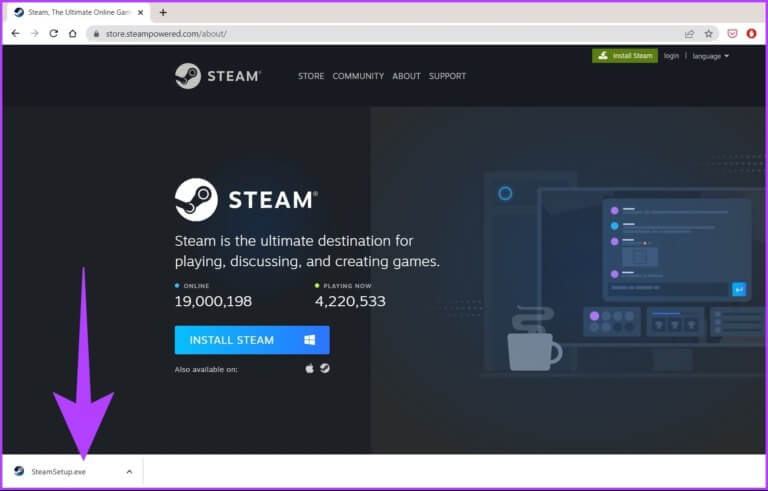
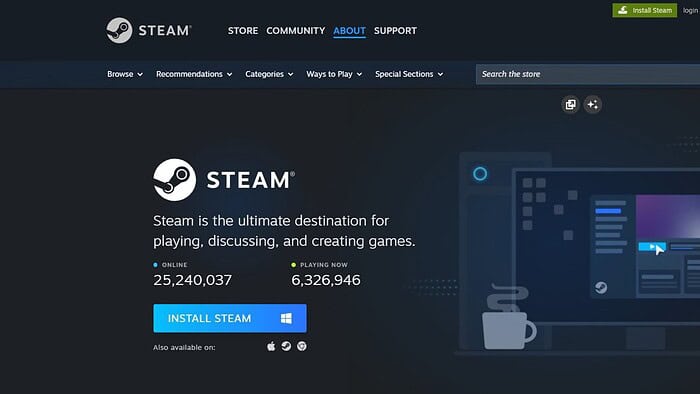
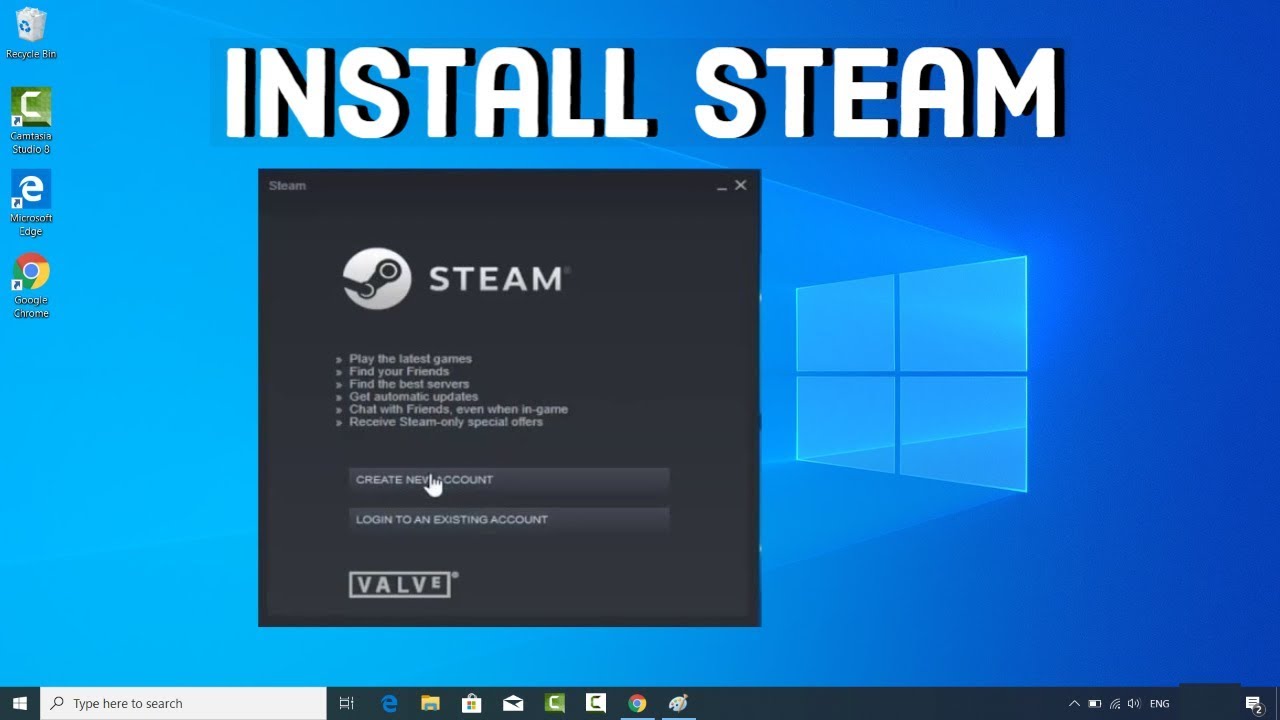
To download Steam, visit the official website at store.steampowered.com/about. Click the 'Install Steam' button, download the SteamSetup.exe file, and run it. Follow the on-screen installation wizard, accepting the terms and choosing an installation location. The installer will then download the Steam client files. Once complete, Steam will launch, prompting you to log in or create an account. Always download from the official site to ensure security and the latest version.
What are the Minimum System Requirements to Run Steam on Windows?
For the Steam client itself, you generally need Windows 7 or newer, a 1 GHz processor, and 512MB RAM. However, for a good gaming experience with modern titles, Windows 10/11, a multi-core processor (Intel i5/AMD Ryzen equivalent or better), at least 8GB RAM, and a dedicated graphics card (NVIDIA GeForce GTX 10-series or AMD Radeon RX 500-series equivalent or better) are recommended. Game-specific requirements will always be higher than the client's.
How Can I Troubleshoot Common Steam Download Issues on Windows?
Common issues include slow downloads or installation errors. To troubleshoot, first ensure you have a stable internet connection. Try changing your download region in Steam settings ('Settings' > 'Downloads') to a closer or less congested server. Clearing your download cache in the same settings can also help. For installation problems, temporarily disable your antivirus or firewall, then retry. Always restart your PC and router if problems persist.
Can I Play My Steam Games Offline on a Windows PC?
Yes, Steam offers an Offline Mode. To use it, you must first log into Steam online and launch your desired games at least once to ensure they are fully updated and playable. Before going offline, select 'Steam' > 'Go Offline...' from the client menu. Steam will then restart in offline mode, allowing you to play single-player games without an active internet connection. Note that not all games support offline play.
What Are the Best Ways to Optimize Steam Performance on Windows?
To optimize Steam's performance, ensure your Windows operating system and graphics drivers are up to date. Within Steam, close unnecessary background applications before gaming. You can also adjust Steam's download settings, manage your game library efficiently, and utilize Windows' Game Mode to prioritize gaming resources. Regularly clearing your download cache and verifying game file integrity can also prevent performance hiccups and ensure smooth gameplay.
How Do I Secure My Steam Account and Prevent Hacking?
Protecting your Steam account is vital. The most crucial step is enabling Steam Guard, Steam's two-factor authentication (2FA), ideally through the Steam Mobile App for stronger security. Use a strong, unique password that combines letters, numbers, and symbols, and avoid reusing it on other platforms. Be extremely cautious of phishing links or unsolicited messages promising free items or trades. Never share your login credentials with anyone, and always verify the authenticity of any website asking for your Steam login.
Hey fellow gamers! Ever feel like your gaming time is a precious commodity, squeezed between work, family, and adulting? You're not alone. According to recent US gaming statistics, the average gamer is around 36 years old, and a whopping 87% play regularly, often for 10+ hours a week. Many of us are looking for that perfect escape, a way to connect with friends, or simply unwind with a great game without the hassle. But sometimes, getting started, or even optimizing your existing setup, can feel like a boss battle itself. That's why we're here to tackle one of the most fundamental steps for any PC gamer: how to download Steam for Windows, and then make it work seamlessly for you. We're talking real-world solutions for real-world gamers – no hype, just practical advice to get you into the action faster, playing the games you love, and connecting with your crew.
This guide is crafted for you, the busy enthusiast who wants to stay current without breaking the bank or spending hours troubleshooting. We'll cover everything from the initial download and installation of Steam on your Windows PC to optimizing its performance, securing your account, and even finding those hidden gems that offer maximum fun for your limited gaming windows. Let's make your gaming life easier and more enjoyable, so you can focus on what truly matters: epic victories and memorable moments.
How Do I Download Steam for Windows Correctly?
Getting Steam onto your Windows PC is straightforward, but doing it right ensures a smooth experience from the start. The official Steam website is always your safest bet. Avoid third-party sites that promise quick downloads, as these can often bundle unwanted software or even malware. Always head directly to store.steampowered.com/about.
Here's a step-by-step breakdown:
- Open your preferred web browser (Chrome, Edge, Firefox).
- Navigate to the official Steam download page: store.steampowered.com/about.
- Look for the prominent 'Install Steam' button, usually located at the top right of the page.
- Click the button, and the SteamSetup.exe file will begin downloading to your computer.
- Once the download is complete, locate the executable file (usually in your 'Downloads' folder) and double-click it to begin the installation wizard.
- Follow the on-screen prompts, selecting your language and desired installation directory. Most gamers stick with the default location unless they have a specific reason to choose another drive (like a dedicated SSD for games).
- The installer will then download the necessary Steam client files. This may take a few minutes depending on your internet connection.
- After installation, Steam will launch, prompting you to log in or create a new account.
Making sure you download from the official source prevents security risks and ensures you get the latest, most stable version of the client. This is crucial for maintaining a secure and enjoyable gaming environment.
What Are the System Requirements to Run Steam on Windows?
While Steam itself isn't resource-intensive, the games you'll play through it certainly can be. Understanding the minimum requirements for the Steam client is important, but don't forget to check individual game requirements too. For the Steam client on Windows, you generally need:
- Operating System: Windows 7 or newer (Windows 10 or 11 recommended for best compatibility with new games)
- Processor: 1 GHz Intel Pentium 4 or AMD Athlon processor or faster
- RAM: 512 MB RAM (1 GB or more recommended for smoother operation)
- Hard Drive: 1 GB of free space for the Steam client (games will require much more)
- Graphics: DirectX 9 compatible video card (though modern games demand much higher)
- Internet Connection: Broadband internet connection (essential for downloads, updates, and online play)
For gamers balancing budgets, remember that while a top-tier PC is great, many fantastic games run well on more modest systems. Focus on upgrading your GPU and RAM if you're looking for the biggest performance boost without rebuilding your entire rig. Many current trends show gamers opting for budget-friendly upgrades to keep up with the latest titles without breaking the bank, prioritizing value for money.
Why Is My Steam Download So Slow and How Can I Fix It?
Slow download speeds can be a real buzzkill, especially when a new game drops or a major update arrives. This is a common pain point for gamers. Several factors can contribute to sluggish Steam downloads:
- Server Congestion: During peak hours (evenings, weekends, major game launches), Steam servers can get overloaded.
- Internet Service Provider (ISP) Throttling: Some ISPs might intentionally slow down certain types of traffic.
- Local Network Issues: Wi-Fi interference, outdated router firmware, or other devices hogging bandwidth.
- Incorrect Download Region: Steam automatically selects a download region, but sometimes it picks one that isn't optimal.
Here’s how you can troubleshoot slow Steam downloads:
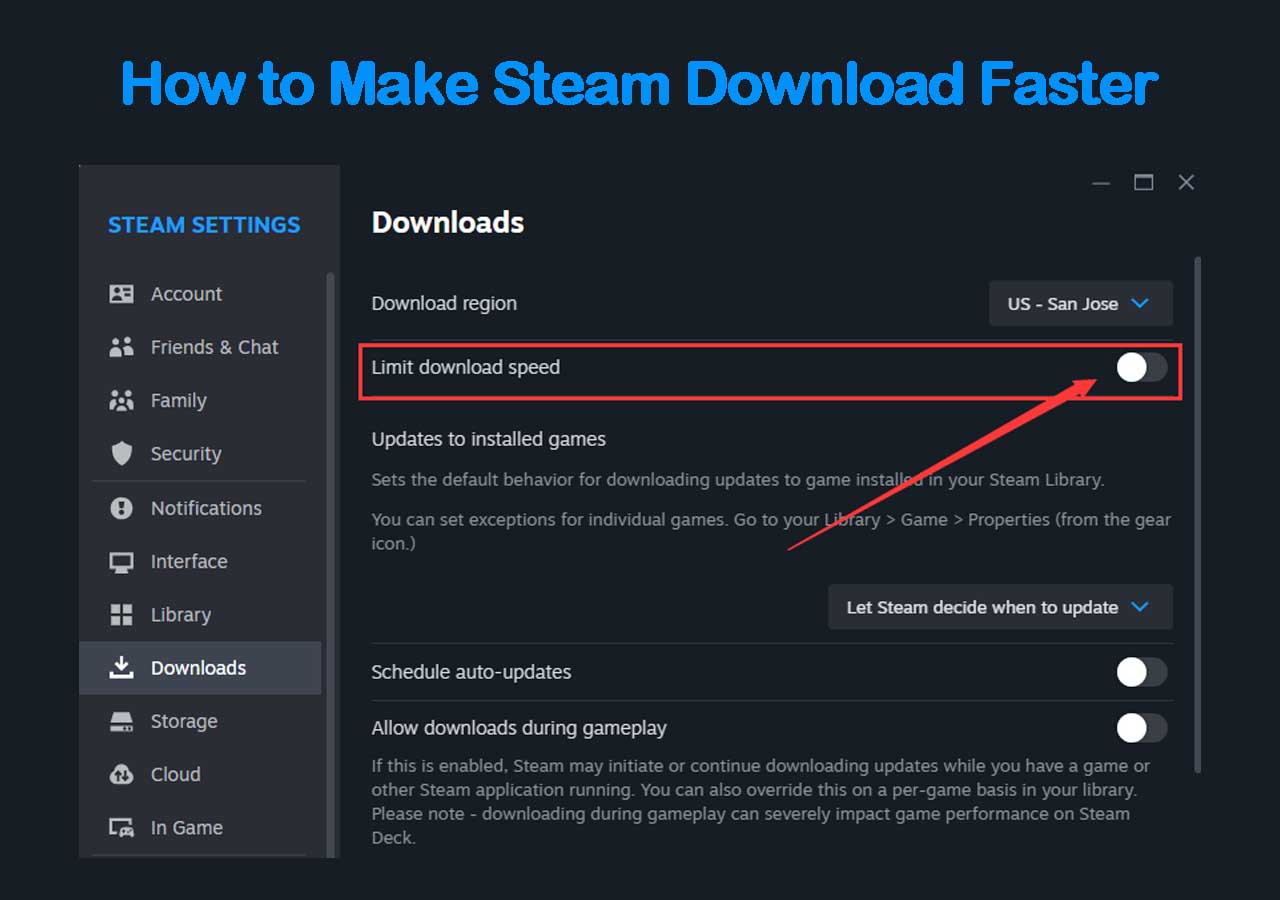
- Change Download Region: In Steam, go to 'Settings' > 'Downloads'. Change your 'Download Region' to a different nearby city or even a different country if you have good international connectivity. Experiment to find the fastest one.
- Clear Download Cache: In 'Settings' > 'Downloads', click 'Clear Download Cache'. This can resolve corrupted cache files that might be hindering downloads.
- Pause Other Downloads/Streaming: Ensure no other devices on your network are downloading large files, streaming 4K video, or performing heavy uploads.
- Use a Wired Connection: If you're on Wi-Fi, try connecting your PC directly to your router with an Ethernet cable. Wired connections are almost always faster and more stable.
- Check Your ISP: Run a speed test (e.g., Speedtest.net) to verify your actual internet speed. If it's consistently lower than what you pay for, contact your ISP.
- Disable VPNs/Proxies: While VPNs offer privacy, they can often route your connection through slower servers. Temporarily disable them for downloads.
Patience is a virtue, but proactive troubleshooting can save you a lot of time. Getting those download speeds optimized means more game time and less waiting.
How Do I Optimize Steam Performance for Better Gaming?
Beyond download speeds, ensuring Steam runs efficiently can improve your overall gaming experience. This is key for gamers who want smooth gameplay and quick access to their library without constant tinkering.
- Keep Steam Updated: Steam usually updates automatically, but ensure it's on the latest version for bug fixes and performance improvements.
- Close Background Applications: Before launching a game, close unnecessary programs running in the background. This frees up RAM and CPU resources for your game.
- Manage Startup: Prevent Steam from launching automatically if you don't use it constantly. You can adjust this in Steam's 'Settings' > 'Interface' or through Windows Task Manager.
- Organize Game Library: While not a performance boost, a well-organized library makes finding games easier, saving you precious minutes. Use categories and tags!
- Utilize Game Mode (Windows 10/11): Windows' built-in Game Mode can help prioritize game performance by limiting background processes. You can enable it via 'Settings' > 'Gaming' > 'Game Mode'.
- Hardware Acceleration in Browser: If you use the Steam browser, disable hardware acceleration if you experience UI lag.
- Monitor System Resources: Use Windows Task Manager to keep an eye on CPU, RAM, and Disk usage. If any are consistently maxed out, it might indicate a bottleneck requiring a hardware upgrade or software optimization.
Remember, many gamers these days balance gaming with demanding schedules. Quick optimization tricks like these can make a huge difference in how much fun you squeeze into your limited free time.
Can I Play Games on Steam While Offline?
Yes, Steam offers an Offline Mode, which is a lifesaver for those times when your internet connection drops, or you're gaming on the go without Wi-Fi. It’s a great feature for travelers or anyone with unreliable internet.
To activate Offline Mode:
- First, ensure you've launched and logged into Steam at least once while online. This downloads necessary game data and verifies ownership.
- Before going offline, launch any game you intend to play to make sure it's fully updated and playable.
- In the Steam client, click 'Steam' in the top-left corner.
- Select 'Go Offline...'.
- Steam will prompt you to restart in Offline Mode. Confirm this action.
Once in Offline Mode, you can launch and play any games in your library that support it. Not all games are fully compatible with offline play, especially those with strong online DRM or always-online requirements. Always check a game's specific requirements if you plan extended offline sessions. It's a fantastic way to enjoy your single-player library without needing a constant connection, a common preference for gamers looking to truly disconnect and relax.
How Do I Secure My Steam Account from Hacks and Scams?
With digital libraries often worth hundreds or thousands of dollars, account security is paramount. Gamers know the frustration and despair of a compromised account. Steam offers robust security features, and using them is your best defense.
- Enable Steam Guard: This is Steam's two-factor authentication (2FA) system. When enabled, every time you log in from a new device, you'll need a code from your email or the Steam Mobile App. The mobile app authenticator is generally considered more secure and faster than email.
- Use a Strong, Unique Password: Never reuse passwords across different services. A complex password combines uppercase and lowercase letters, numbers, and symbols.
- Be Wary of Phishing Scams: Do not click on suspicious links sent via email, Discord, or in-game chats promising free games, items, or
Effortless Steam download for Windows, troubleshooting common issues, performance optimization, budget gaming tips, social features, account security, 2026 gaming trends, balancing gaming with life, game recommendations for limited time, hardware upgrade advice.
35#1 Gallery download steam for windows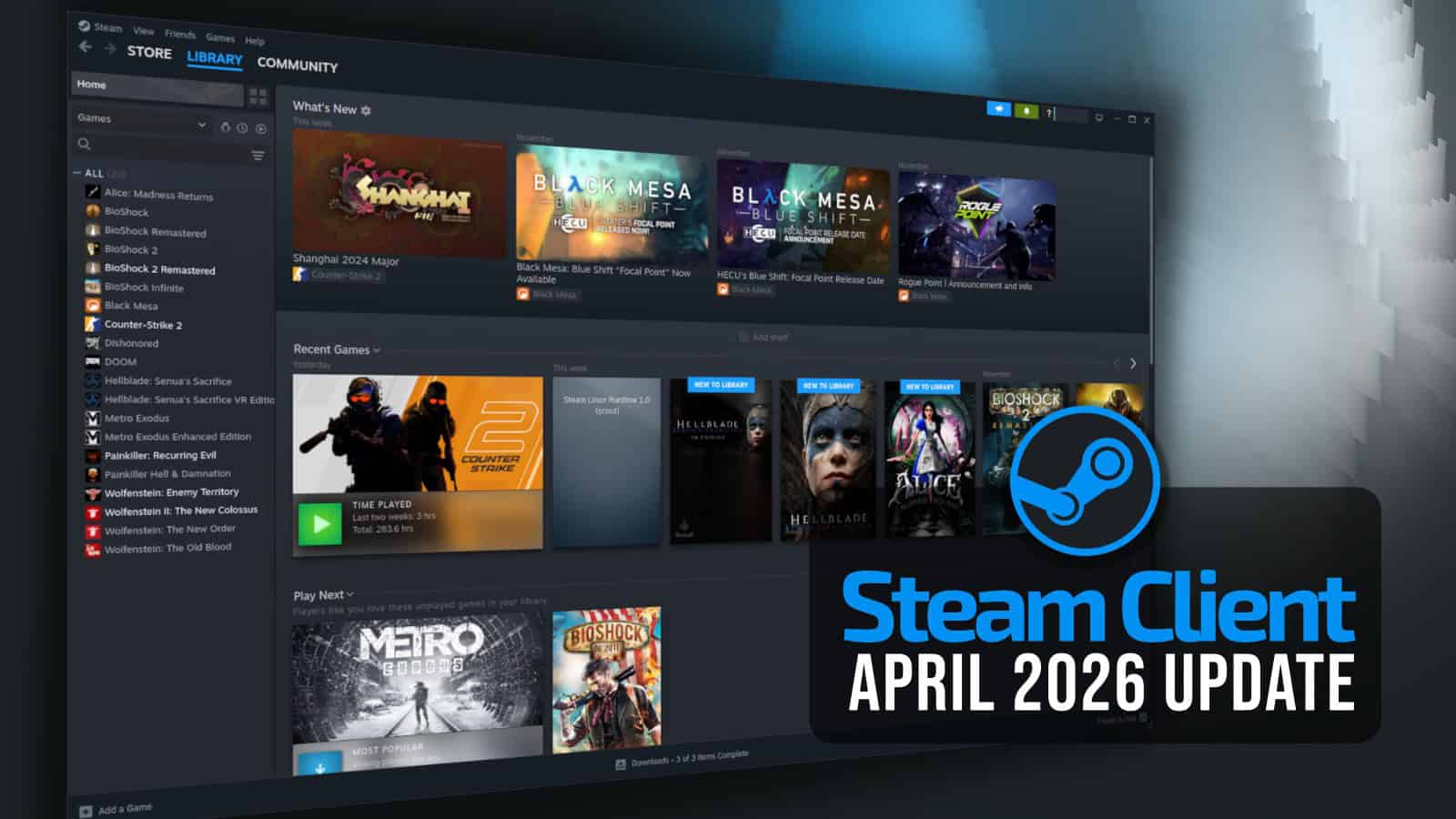
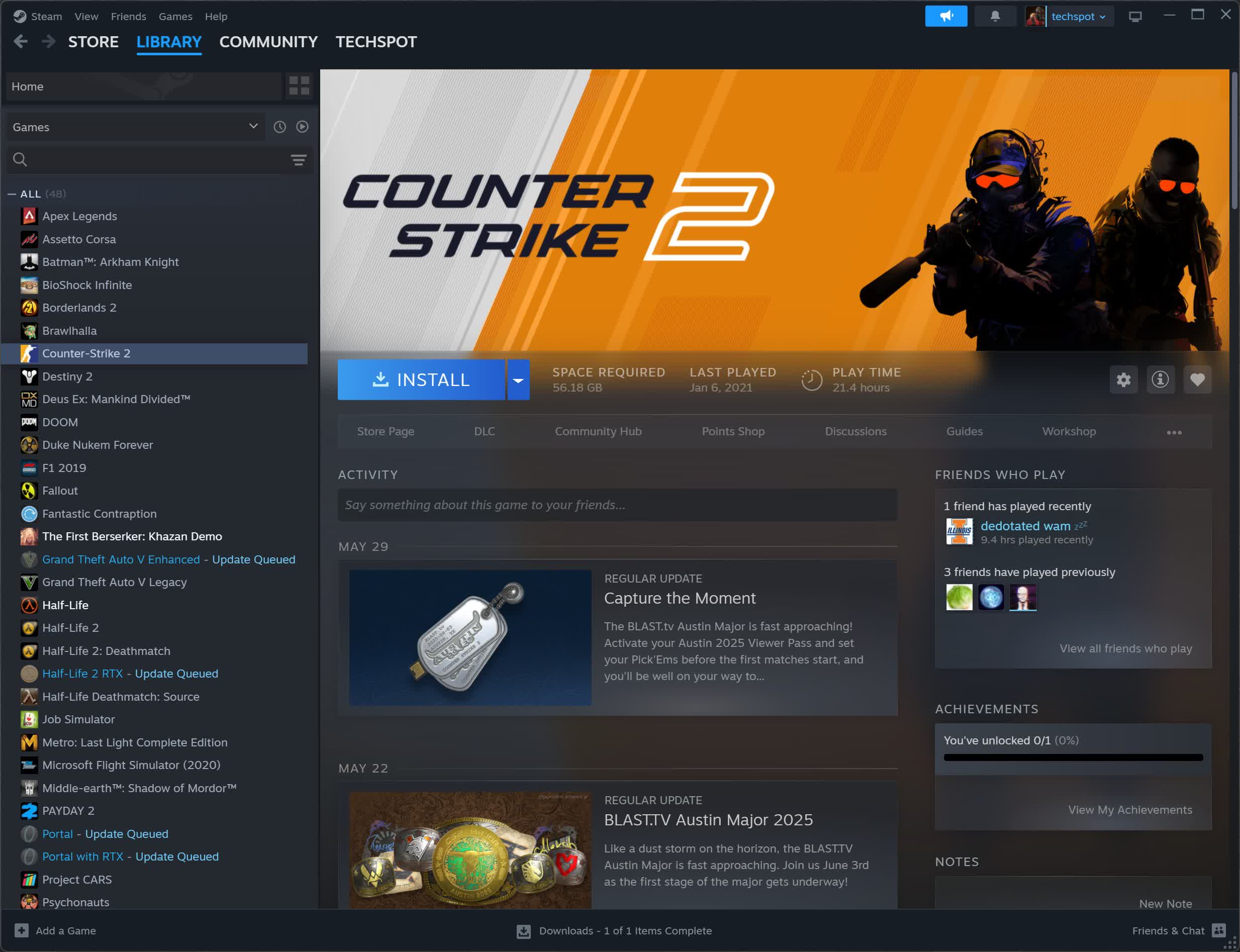
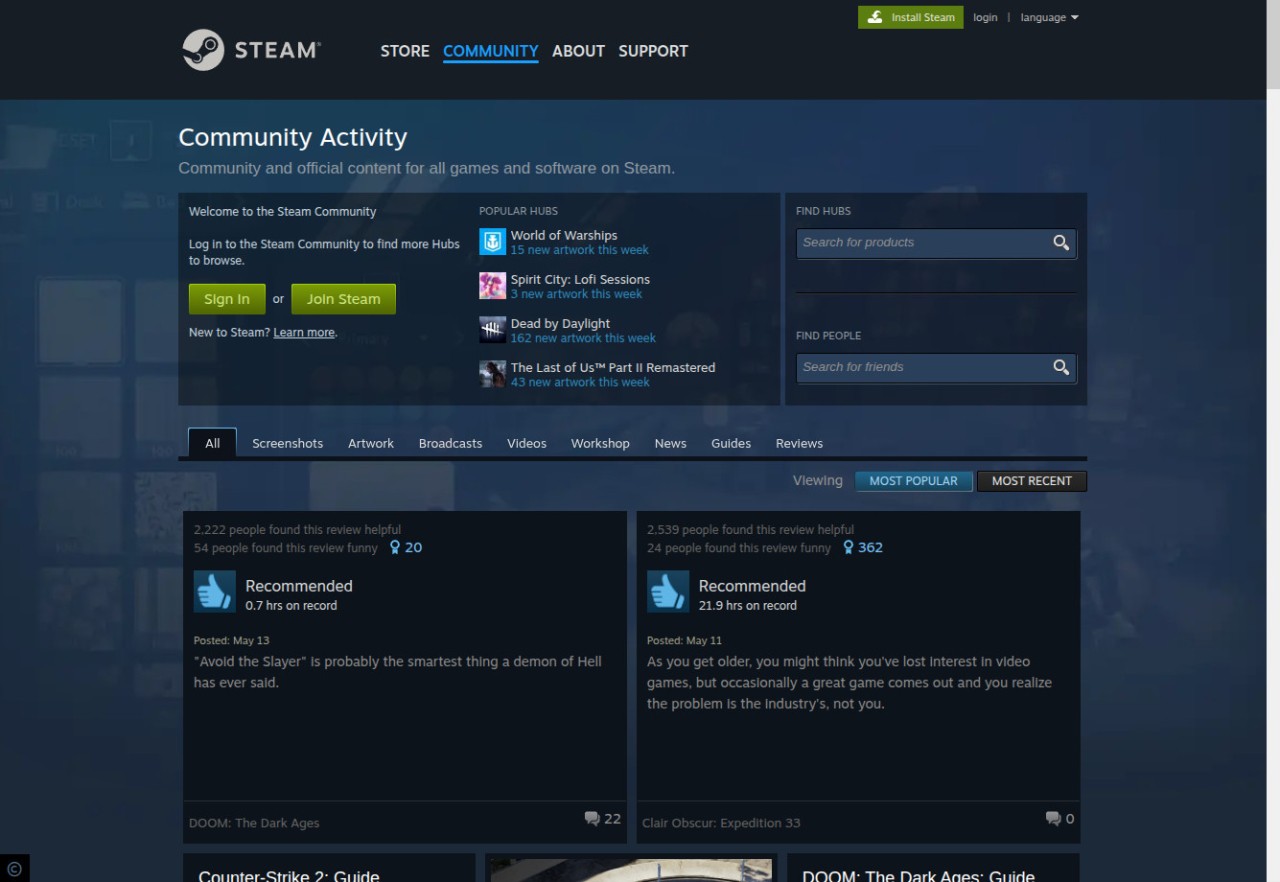

Steam April 2026 Client Update Adds Remote Downloads Management Steam Client April 2026 . Download Steam For Windows Mac Android Linux 2026 TechSpot 2025 06 13 Image 20 . Download Steam Free For Windows MacOS Android APK IOS And Linux Steam 3xEUZX . How To Download And Use Steam On Windows 11 Guiding Tech Steam On Windows 11 2 . Come Scaricare E Utilizzare Steam Su Windows 11 La Casa Migliore Steam On Windows 11 5 768x491 1 768x491
#2 Gallery download steam for windows

How To Download And Install Steam In Windows PC Or Laptop YouTube . How To Download And Use Steam On Windows 11 Guiding Tech Steam On Windows 11 4 . How To Download Install And Use Steam On Your Windows 11 10 PC Install Steam 700x394 . How To Install Steam On Windows 10 YouTube . Steam Windows 10 32 Bit 1 2026 Cover Steam Windows 10 32 Bit End 1085x568
#3 Gallery download steam for windows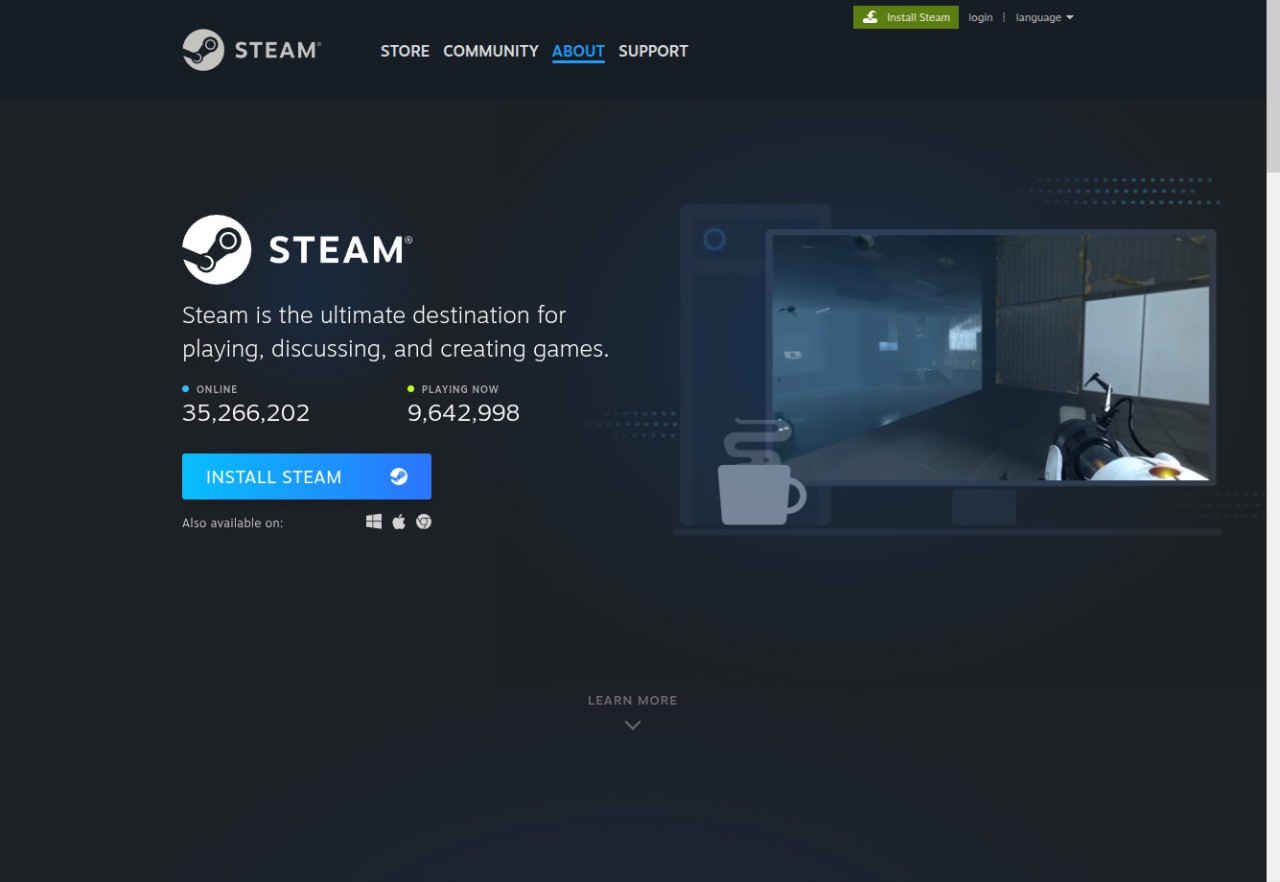
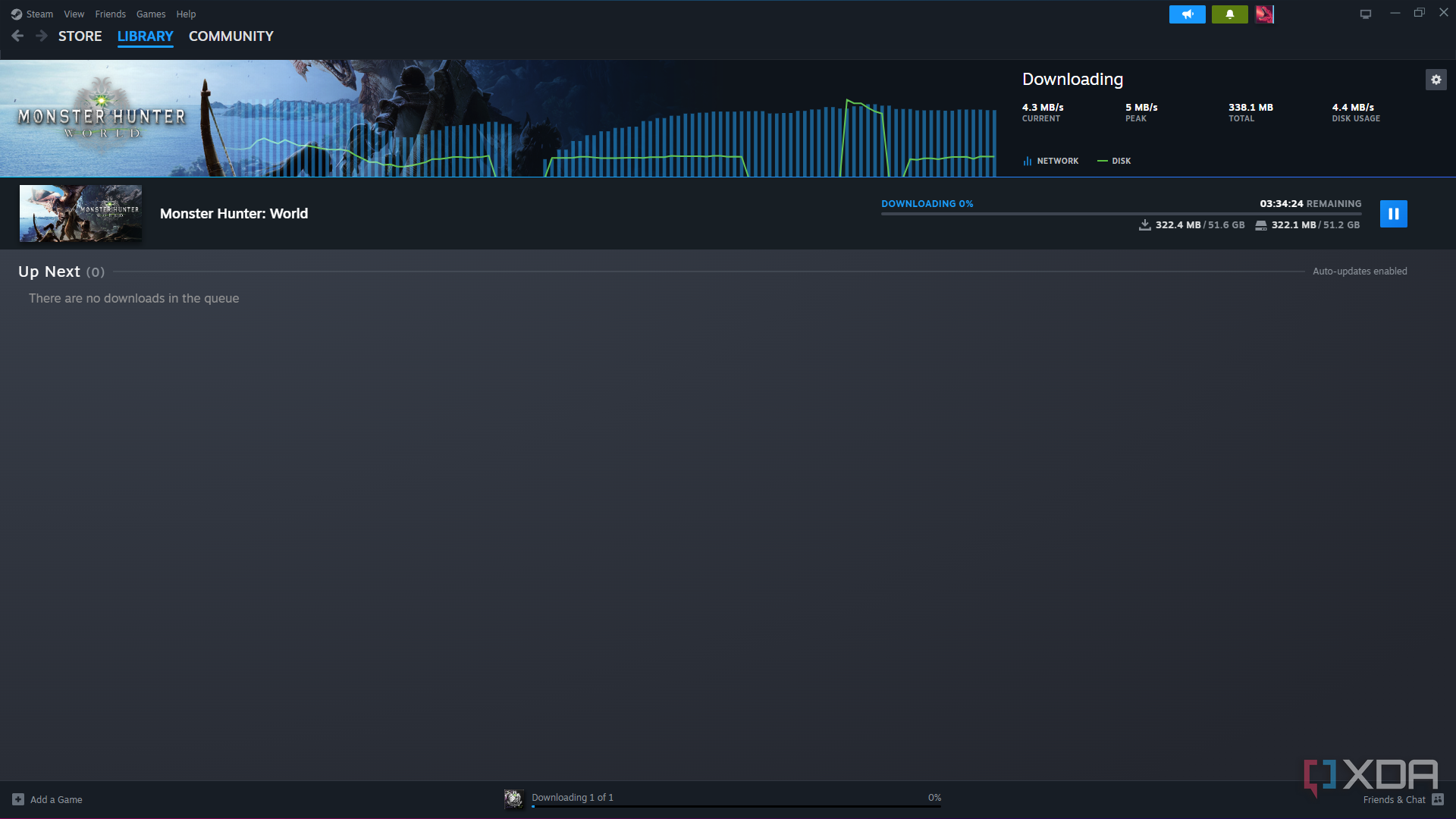


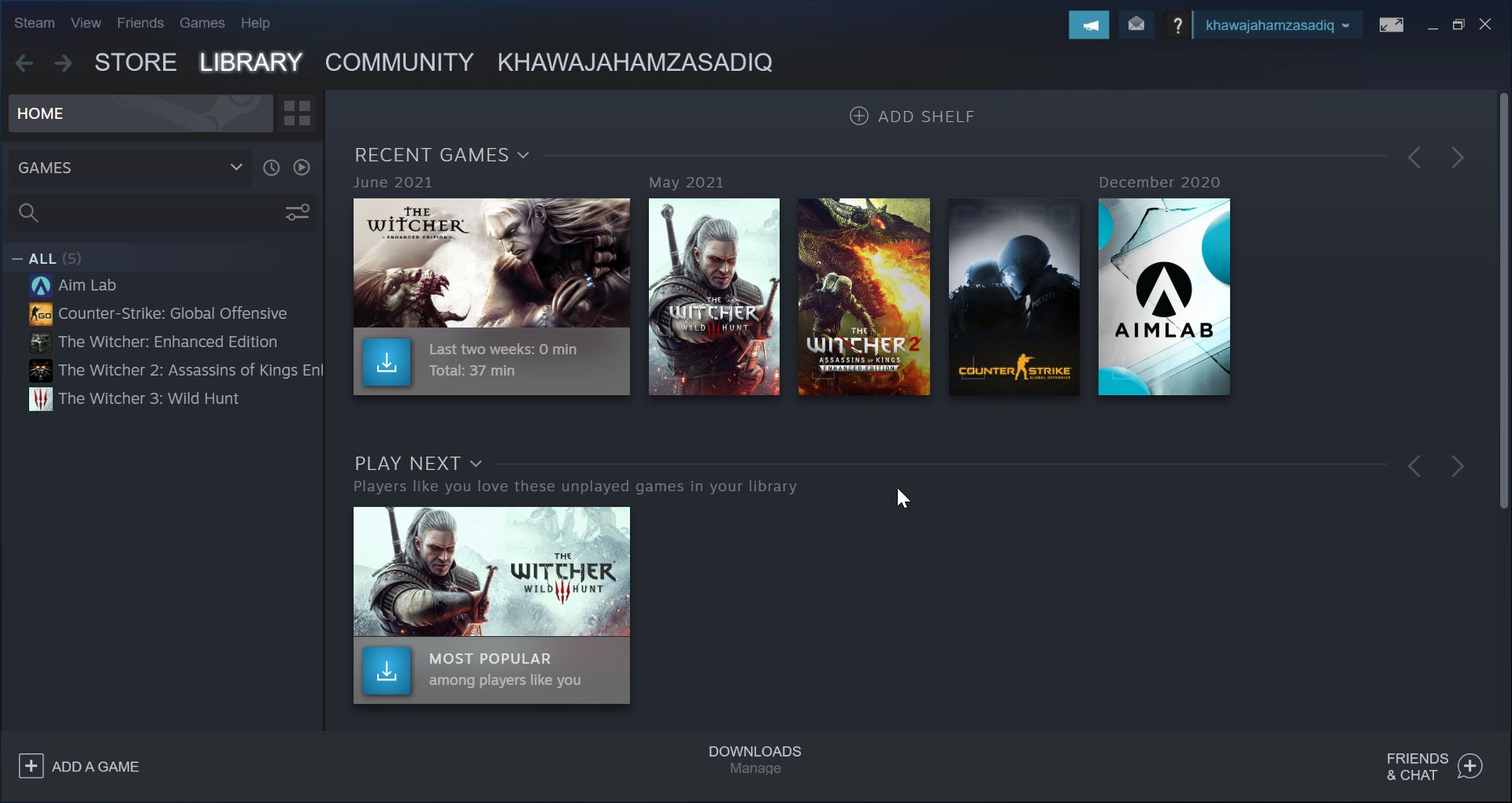
Download Steam Free For Windows MacOS Android APK IOS And Linux Steam 9JPiSG . Steam Download 5 . Steam Announces End Of Support For 32 Bit Windows OS In 2026 2025 09 19 08 22 59 Guru3d.webp. Steam Windows 11 Installer Steam Sur Windows 11 DMYDID . Steam Download Steam 5
#4 Gallery download steam for windows
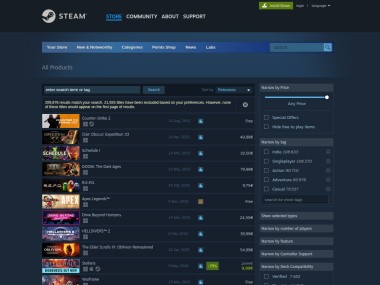


Steam Download For Windows FileHorse Steam Screenshot 01 . Download Steam Free For Windows MacOS Android APK IOS And Linux Steam GrMsXo . How To Download Install And Use Steam On Windows 11 And Windows 10 Steam . How To Download Steam For PC Mac Or Mobile 2026 Guide How To Download Steam Thumbnail . Steam Bakal Hentikan Dukungan Windows 32 Bit Di 2026 Murdockcruz Steam Bakal Hentikan Dukungan Windows 32 Bit Di 2026.webp
#5 Gallery download steam for windows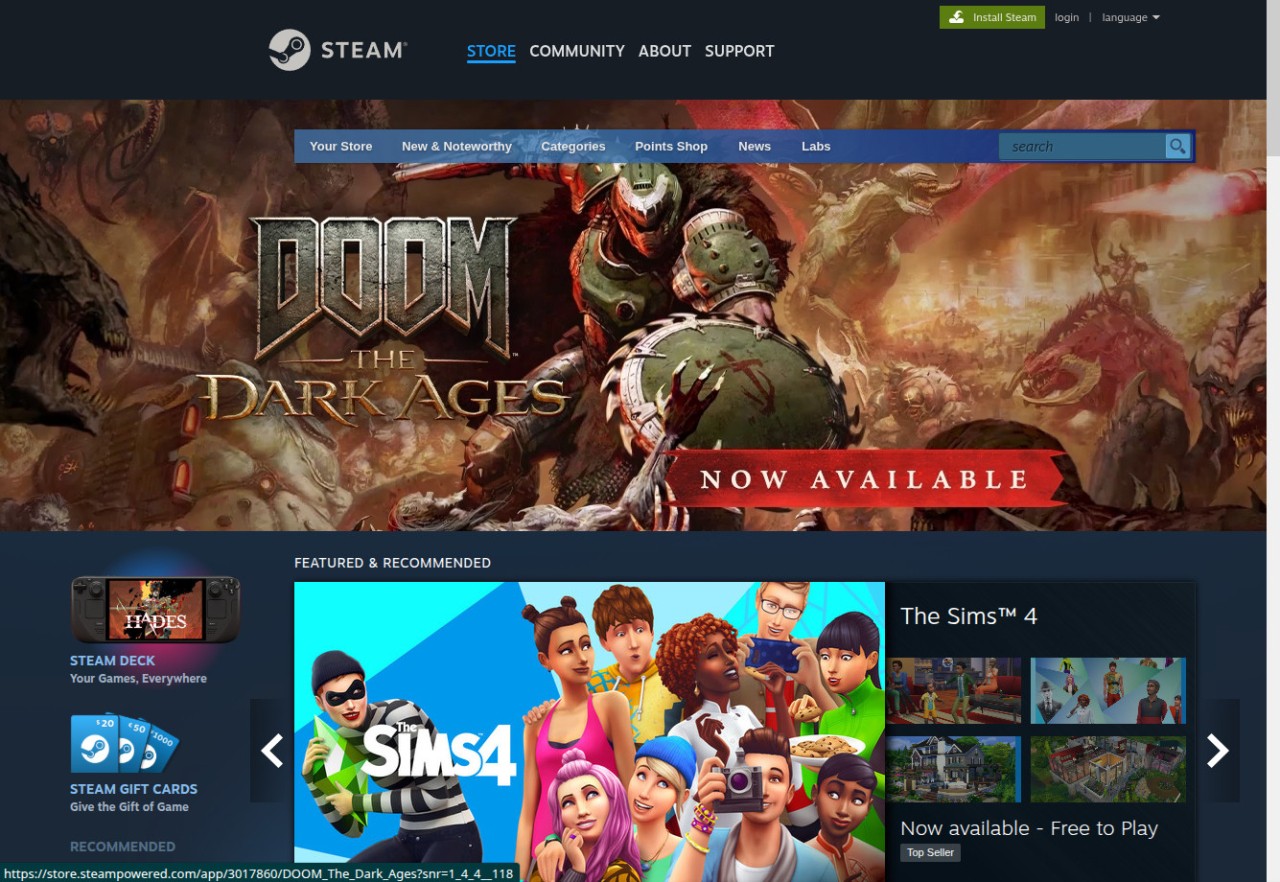
Download Steam Free For Windows MacOS Android APK IOS And Linux Steam DZbjBW . Steam Hentikan Dukungan Untuk Windows 32 Bit Mulai 1 Januari 2026 Steam Hentikan Dukungan Untuk Windows 32 Bit Mulai 1 Januari 2026. Steam Will No Longer Support 32 Bit Operating Systems From 2026 IG News Steam Will No Longer Support 32 Bit Operating Systems From 2026 . Download Steam For Windows Mac Android Linux 2026 TechSpot 2023 06 15 Image . How To Download From Steam Robots Net How To Download Games From Steam 1695367846
#6 Gallery download steam for windows

Steam Will Stop Supporting 32 Bit Windows Versions In 2026 107789 2 Steam Will Stop Supporting 32 Bit Windows Versions In 2026 . Wie Man Steam Downloads Unter Windows 10 11 Im Jahr 2026 Kann How To Make Steam Download Faster . How To Download Windows Steam Games On Mac Robots Net How To Make Steam Download Faster 2016 1695898531 . Steam Drops 32 Bit Windows Support In 2026 For 64 Bit Future Steamde 32 Bit Windows Destegi 2 . Steam Ya No Funcionar En Windows De 32 Bits A Partir De Enero De 2026 Steam Red
#7 Gallery download steam for windows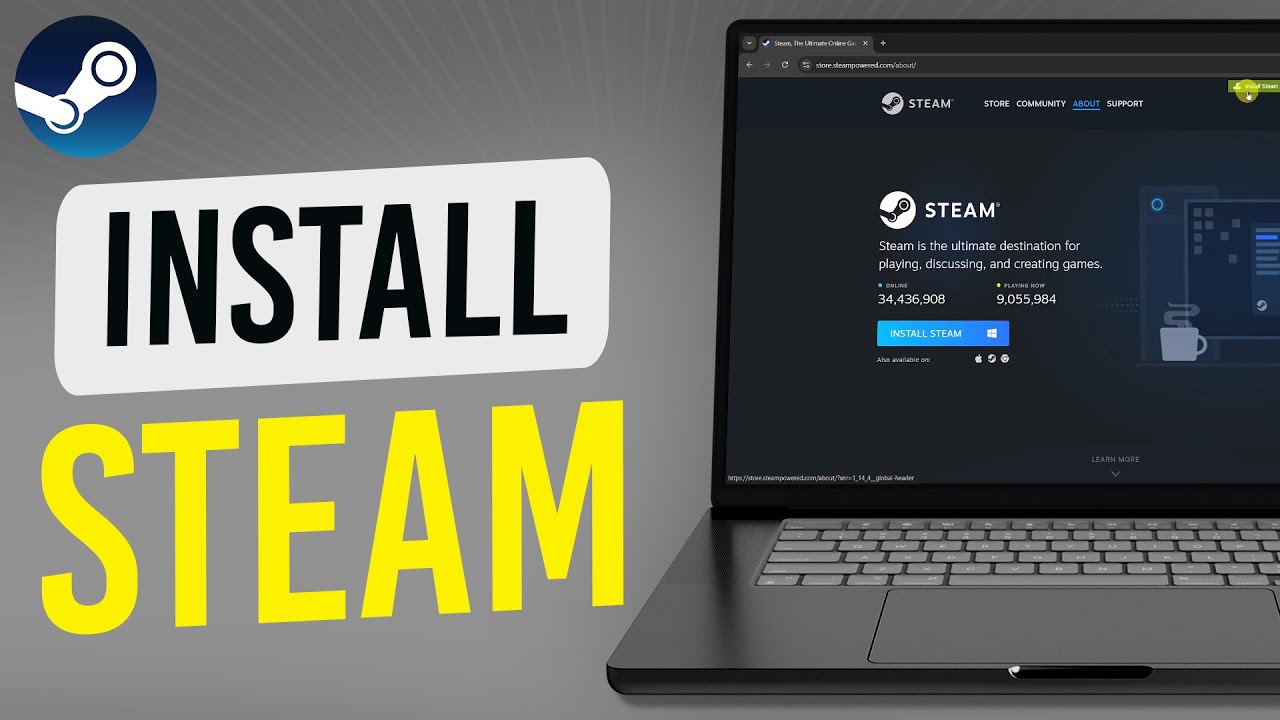

How To Download Steam On Windows PC Laptop YouTube . How To Download Steam On Windows PC Laptop Easy Fix YouTube . Steam Akhiri Dukungan Windows 32 Bit Di Tahun 2026 Gamebrott Com Steam Support W10 32 Bit. How To Download Steam On Windows 10 Mac Install Steam YouTube . How To Download And Install Steam On Windows Install Steam On Windows