Navigating the vibrant world of Roblox is an adventure, but sometimes, a little peace and quiet are exactly what a busy gamer needs. For many US gamers, balancing work, family, and personal life means gaming sessions are a precious commodity. This guide dives into how to turn off chat in Roblox, ensuring you can optimize your gameplay for focus, maintain a safer environment for younger family members, or simply enjoy the immersive experience without constant distractions. We understand the value of an uninterrupted gaming experience, whether you are unwinding after a long day or helping your kids stay safe online. Discover practical, step-by-step methods to control your chat settings across various platforms, empowering you to tailor your Roblox experience to your precise needs. Say goodbye to unwanted messages and hello to more concentrated fun or enhanced safety.
How do I fully turn off chat on Roblox?
To fully turn off chat on Roblox, log into your account, go to Settings, then Privacy. Under 'Who can chat with me in app?' and 'Who can message me?', select 'No one'. This disables all direct text communication across the platform for that specific account.
Why would I want to disable chat in Roblox?
Disabling chat in Roblox helps create a more focused gaming experience, reduces distractions, and significantly enhances online safety, especially for younger players. It prevents unwanted interactions and exposure to potentially inappropriate content, allowing for peaceful and secure gameplay.
Can parents control chat for their kids on Roblox?
Yes, parents can control chat for their kids on Roblox through robust parental controls. By enabling Account Restrictions and setting a Parent PIN in the child's account settings, parents can restrict communication to 'No one' and prevent any unauthorized changes.
Is turning off chat permanent on Roblox?
No, turning off chat on Roblox is not permanent. You can re-enable communication anytime by navigating back to your account's Privacy settings and selecting your desired communication preferences, such as 'Friends' or 'Everyone'.
Does turning off Roblox chat affect in-game actions or emotes?
No, turning off Roblox chat specifically applies to text-based communication. It does not affect your ability to perform in-game actions, use emotes, or engage in non-textual interactions with other players within an experience.
How do I mute a specific player in Roblox chat without turning off all chat?
To mute a specific player in Roblox chat, click on their username in the chat window or player list within an experience and select the 'Mute' option. This prevents you from seeing their messages while allowing other chat to remain active.
Are Roblox chat settings different on mobile versus PC?
The core chat settings and privacy controls in Roblox are consistent across mobile and PC platforms. While the interface for accessing settings might vary slightly, the options for disabling or managing chat remain identical, with changes syncing across all logged-in devices.
For millions of US gamers, Roblox is more than just a platform; it's a dynamic universe of endless creativity and social interaction. However, for adults who balance gaming with jobs, families, and life's many demands, finding a quiet moment to focus or ensuring a safe environment for younger players can be challenging. We know the feeling: you finally carve out some time to relax with a new Roblox experience, only to find yourself bombarded by chat messages or concerned about the content your children might encounter. This guide is your ultimate resource on how to turn off chat in Roblox, providing clear, actionable steps to regain control over your communication settings and tailor your gaming experience. According to recent reports, over 87% of US gamers play regularly, often averaging 10+ hours a week, and a significant portion, especially those balancing life, value both the social aspect and the ability to disconnect from distractions. Mobile gaming also continues its dominance, making cross-platform solutions more vital than ever. Let's dive into how you can optimize your Roblox sessions for maximum enjoyment, safety, and focus.
You are not alone in seeking a more controlled environment. Whether it is for deep concentration on a complex build, a peaceful exploration of a new world, or simply creating a safer space for younger players in the household, managing chat is a top priority. This article will walk you through various methods, from global account settings to in-game adjustments and robust parental controls. We will address common pain points, clarify differences between devices, and empower you with the knowledge to make Roblox work best for you and your family without any unnecessary hype or corporate jargon. Let's ensure your Roblox experience is exactly what you need it to be.
Why Would I Want to Turn Off Roblox Chat?
Many adult gamers, especially those balancing professional and family lives, seek to turn off Roblox chat for several compelling reasons. Primarily, it is about enhancing focus. With limited gaming time, distractions from in-game chat can pull you away from the immersive experience or critical tasks within a game. Secondly, safety and privacy are paramount, especially when children use the platform. Disabling chat can help prevent exposure to inappropriate content or interactions with strangers, a significant concern for parents. For those who value relaxation, an uninterrupted session without constant notifications or irrelevant chatter can significantly improve stress relief and enjoyment, allowing you to unwind fully after a demanding day.
How Do I Turn Off Chat in Roblox's Account Settings?
The most comprehensive way to control chat communication across Roblox is through your account's privacy settings. This method applies globally, meaning the changes will affect your chat capabilities in all Roblox experiences. It is an ideal solution for adults who want to minimize distractions or for parents setting up a child's account.
- Log In to Your Roblox Account: Open your web browser or the Roblox app and log in using your username and password.
- Access Settings: Once logged in, locate the gear icon in the upper-right corner of the screen (on PC) or the three dots menu (on mobile) and click/tap it. Select 'Settings' from the dropdown menu.
- Navigate to Privacy: In the Settings menu, look for and select the 'Privacy' tab on the left-hand side.
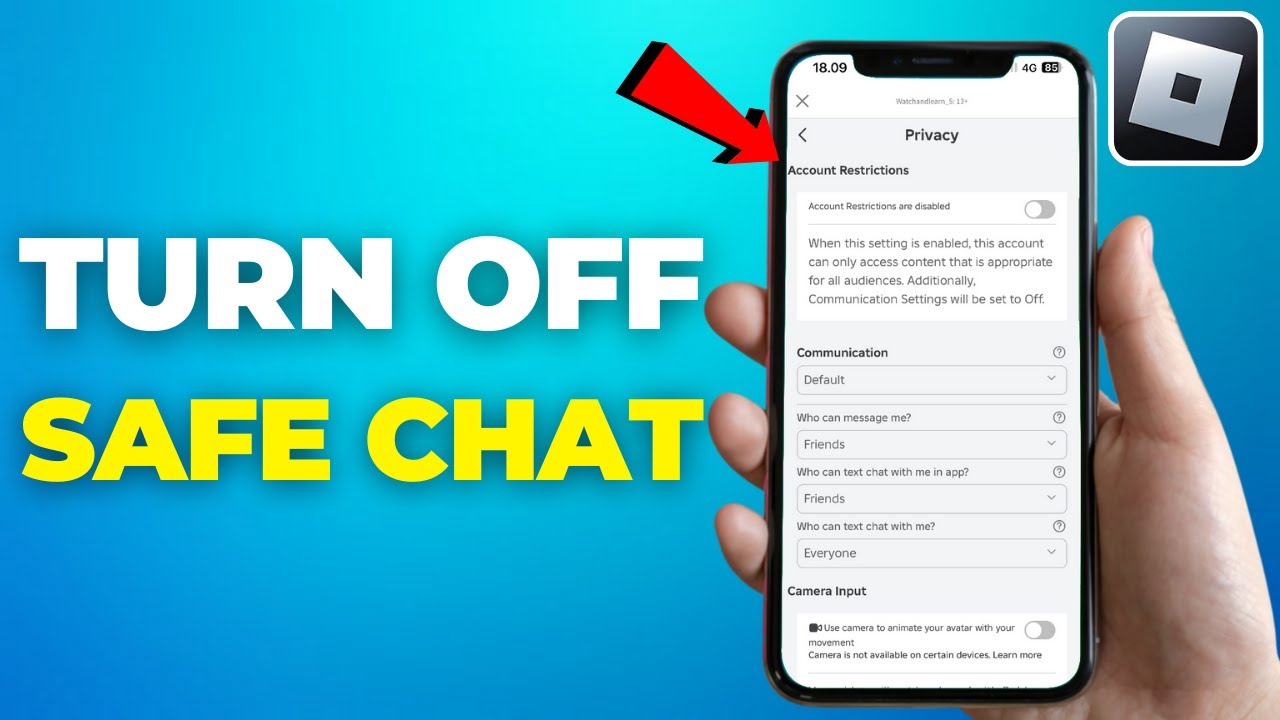
- Adjust Communication Settings: Scroll down to the 'Who can chat with me in app?' section. You will likely see options like 'Everyone', 'Friends', or 'No one'. To turn off chat entirely, select 'No one'. Similarly, under 'Who can message me?', select 'No one' to disable private messages.
- Save Changes: Roblox typically saves these changes automatically. It is always a good idea to refresh your page or restart the app to ensure the settings are fully applied.
This method offers the most robust control, effectively silencing all incoming and outgoing chat messages within the Roblox environment. Remember, you will need to be logged into the account you wish to modify to apply these changes.
Can I Disable Chat for Specific Games or Experiences?
While the account privacy settings provide a global solution, some players might wonder about disabling chat for individual games. Generally, Roblox's platform-wide privacy settings override most in-game options for core chat functionality. If your account is set to 'No one' for chat, this will apply across all experiences. However, some specific games may have their own internal communication systems or mini-games that are not directly controlled by Roblox's global chat settings. In such cases, you would need to check the individual game's settings menu, typically found within the game itself, for options to mute or disable specific in-game communication features. Always remember to prioritize your main Roblox account privacy settings as your first line of defense.
What About Parental Controls for Roblox Chat?
For parents, Roblox's parental control features are invaluable for creating a safe digital playground. These controls offer an additional layer of security beyond basic chat settings, ensuring peace of mind while balancing kids' screen time and online safety. US gaming trends show a strong emphasis on family-friendly gaming, with parents actively seeking ways to manage their children's online interactions.
- Enable Account Restrictions: In your child's Roblox account settings, navigate to the 'Parental Controls' tab. Here, you can enable 'Account Restrictions' which significantly limits communication features.
- Manage Contact Settings: Within 'Parental Controls', you can also fine-tune who can communicate with your child, similar to the main privacy settings. Options include 'Friends' or 'No one'. Selecting 'No one' for 'Who can chat with me in app?' and 'Who can message me?' is the most restrictive and safest option.
- PIN Protection: Crucially, set up a 'Parent PIN' within this section. This PIN prevents your child from changing these safety settings without your permission. This is essential for maintaining control over chat and other restrictions.
- Review Chat Filtering: Roblox already employs an automatic chat filter that blocks inappropriate words and phrases. While this is always active, combining it with stricter communication settings provides the best protection.
These robust parental controls empower you to protect your children from unwanted interactions, allowing them to enjoy Roblox's creative worlds safely while you focus on your daily responsibilities.
Is There a Difference Between PC and Mobile Chat Settings?
When it comes to fundamental chat settings, there is generally no significant difference between the PC (desktop app or browser) and mobile (iOS or Android app) versions of Roblox. The core privacy controls accessible through your account settings are consistent across platforms. You will find the same 'Privacy' tab and the same options for 'Who can chat with me in app?' and 'Who can message me'.
- Accessing Settings: On PC, the settings gear icon is usually in the top-right corner. On mobile, it's often represented by three dots or a 'More' icon. Once you tap or click these, the navigation to 'Settings' and then 'Privacy' remains the same.
- User Interface: While the layout might vary slightly to accommodate screen size (e.g., tabs might be on the side on PC and at the top or bottom on mobile), the functionality and available options for disabling chat are identical.
The key takeaway is that changes made to your chat settings on one device will synchronize across all devices where you log into that same Roblox account. This ensures a consistent experience, whether you're gaming on your desktop, laptop, or smartphone.
How Can I Re-Enable Roblox Chat If I Change My Mind?
Life happens, and sometimes your needs change. Perhaps you have more free time, or you want to reconnect with specific friends within Roblox. Re-enabling chat is just as straightforward as turning it off. Simply follow these steps:
- Log In: Access your Roblox account.
- Go to Settings: Click the gear icon or three dots, then select 'Settings'.
- Select Privacy: Navigate to the 'Privacy' tab.
- Adjust Communication Settings: Under 'Who can chat with me in app?', select your preferred option, such as 'Friends' or 'Everyone', depending on your comfort level. Do the same for 'Who can message me?'.
- Parental Controls (if applicable): If you are a parent and have previously set a PIN for parental controls, you will need to enter that PIN to make any changes to the communication settings. This ensures that only authorized individuals can modify these critical preferences.
Once you have made your selections, your changes should take effect immediately, allowing you to resume communication within Roblox. Always verify by joining an experience or checking your messages.
What Are the Alternatives to Completely Disabling Chat?
Completely turning off chat isn't always the desired solution. Sometimes, you just need to manage specific interactions without cutting off all communication. Roblox offers several useful tools for this, balancing social play with personal boundaries. These options are great for adult gamers who enjoy connecting with others but want to avoid toxicity or unwelcome advances, a common concern in today's diverse gaming communities.
- Muting Users: If a specific player is being disruptive, you can mute them during a game. This is usually done by clicking on their username in the chat window or player list and selecting the 'Mute' option. Muting prevents you from seeing their messages, but they can still see yours. This is a temporary, in-game solution.
- Blocking Users: For more persistent issues or if you do not want to interact with someone at all, blocking is the more permanent solution. You can block a user from their profile page or often directly within an experience. Blocking prevents them from seeing your messages, sending you messages, or joining games you are in. It's a two-way street that ensures no further direct interaction.
- Reporting Abusive Users: If a user is violating Roblox's terms of service (e.g., hate speech, harassment, spam), you should always report them. Roblox has a dedicated 'Report Abuse' feature available within experiences and on user profiles. Reporting helps maintain a safer community for everyone.
These tools give you granular control, allowing you to selectively manage your interactions without fully isolating yourself from the social aspects of Roblox, which are a major draw for many players, including the 60% of US gamers who value social play.
Will Turning Off Chat Affect My Social Experience?
For many gamers, including the average 36-year-old who might be balancing work and family, the social aspect of gaming is crucial. It is a way to unwind, connect with friends, and even build new communities. So, will turning off chat entirely compromise this? The answer is nuanced.
If you set your account to 'No one' for chat, you will indeed miss out on direct in-game text communication with other players. This means you will not see their messages, and they will not see yours. For those who primarily game with real-life friends, you might find alternative communication methods more effective, like Discord voice chat or private messaging apps. Many adult gamers, often involved in social gaming trends, utilize these external platforms for coordinated play or simply catching up. By using these tools, you can still enjoy a robust social experience while maintaining a quiet, focused Roblox environment.
Ultimately, the impact on your social experience depends on how you use Roblox. If in-game chat is your primary mode of interaction, then disabling it will certainly change how you connect. However, if you rely on other platforms or prefer a more solitary, focused gaming style, you might find that turning off chat enhances your overall enjoyment by removing distractions and unwanted interactions.
Conclusion
Taking control of your Roblox chat settings is a powerful way to customize your gaming experience, whether for enhanced focus, improved safety, or simply a more peaceful playtime. From leveraging global privacy settings and robust parental controls to using in-game muting and blocking features, you now have a comprehensive toolkit to manage communication on the platform. Remember that 87% of US gamers regularly engage with their favorite titles, and optimizing your experience for your lifestyle is key to making those hours count. By following these steps, you can ensure Roblox remains a fun, engaging, and safe environment for yourself and your family.
What's your biggest gaming challenge when it comes to online interactions? Comment below and share your tips!
FAQ Section
Q: Can I turn off chat for my child's account without them knowing the PIN?
A: Yes, by enabling parental controls and setting a Parent PIN, you can configure communication restrictions, and your child will not be able to alter these settings without the PIN. This ensures persistent safety measures.
Q: If I turn off chat, can other players still see my avatar?
A: Yes, disabling chat only affects your ability to send and receive text messages. Other players can still see your avatar and interact with you in-game in ways that do not involve chat, such as through actions or emotes.
Q: Does Roblox's chat filtering work if I have chat enabled?
A: Absolutely. Roblox's automatic chat filtering system is always active when chat is enabled, regardless of your other privacy settings. It works to block inappropriate language and personal information from being shared in public chat.
Q: Will turning off chat prevent me from seeing in-game pop-ups or notifications?
A: No, turning off chat specifically targets text-based communication. You may still receive system-generated in-game pop-ups, quest notifications, or game-specific messages that are not part of the standard player-to-player chat system.
Q: How do I know if chat is successfully turned off?
A: The easiest way to verify is to join any Roblox experience. If chat is disabled, you will typically not see the chat window, or if it's visible, you won't be able to type in it, and no messages from other players will appear.
Turning off Roblox chat is crucial for focused gameplay and enhanced online safety. This guide covers disabling chat via account privacy settings, implementing parental controls, understanding platform-specific options for PC and mobile, and exploring in-game chat management tools. Learn quick steps to block, mute, or report users, and how to re-enable chat if desired. Prioritize your gaming experience and digital well-being by mastering these essential chat management techniques in Roblox.
35


How To Disable Voice Chat On Roblox TURN OFF Voice Chat Guide YouTube . Turn Off Roblox Voice Chat Mobile Desktop And In Game Image 32 . How To Turn Off Chat Message On Roblox App YouTube . Turn Off Roblox Voice Chat Mobile Desktop And In Game Image 413 1 . How To Disable Chat Filter In Roblox Turn Off Safe Chat YouTube


How To Turn Off Safe Chat On Roblox Full Guide YouTube . Want To Disable Roblox Captures Here S How . How To Disable Voice Chat On Roblox TURN OFF Voice Chat Guide YouTube . How To Turn Off Voice Chat On Roblox Easy Guide Roblox Voice Chat . How To Turn Off Voice Chat On Roblox Mobile PC YouTube


Silence The Chat Disabling Roblox Voice . How To Turn Off Text Chat On Roblox 2026 Full Guide YouTube . Roblox Chat Off How Do I Do It For 2026 How To Turn On OFF Safe Chat In Roblox. Want To Disable Roblox Captures Here S How . How To Turn Off Text Chat On Roblox Step By Step Tutorial YouTube



HOW TO ACTUALLY TURN ON OFF VC In ROBLOX VOICE CHAT GUIDE YouTube . Want To Disable Roblox Captures Here S How . How To Turn Off Safe Chat In Roblox 2026 Full Tutorial YouTube . Roblox S New Chat Rules Explained January 2026 Roblox New Chat Rules . How To Turn On OFF Safe Chat In Roblox Quickly 2026 1 Roblox


How To Get Voice Chat On Roblox 2026 YouTube . Roblox Chat Off How Do I Do It For 2026 How To Turn Off Safe Chat In Roblox6 1 . How To Turn Off Safe Chat In Roblox 2026 Easy Guide How To Turn Off Safe Chat In Roblox . How To Turn On OFF Safe Chat In Roblox Quickly 2026 BL Roblox 1 1024x536 . How To Turn Off Safe Chat On Roblox 2026 Full Tutorial YouTube



Want To Disable Roblox Captures Here S How . HOW TO TURN OFF CHAT SETTINGS ROBLOX YouTube . How To Message On Roblox 2026 A Quick Guide . Xbox Roblox Chat How To Turn It Off . How To Turn Off Chat In Roblox Quick Settings Guide Playgama Blog ChatGPT Image Jul 9 2025.webp


How To TURN OFF Roblox VOICE CHAT YouTube . How To Turn Off Safe Chat In Roblox 2026 Easy Guide Update Parents Email Address . How To Turn Off Safe Chat On Roblox 2021 YouTube . How To Turn Off Voice Chat In Roblox Disable Roblox Voice Chat . Roblox Joins On How To Enable Them In 2026 Roblox 2 1