Navigating the world of PC gaming often involves acquiring games from various sources beyond the Steam storefront itself. Whether you have purchased a physical copy with a digital code, received a gift, or snagged a bundle deal from a third-party retailer, knowing how to efficiently redeem game on Steam is a fundamental skill for any dedicated gamer. This comprehensive guide is designed to cut through the confusion, providing clear, step-by-step instructions and troubleshooting tips to ensure your new titles are added to your library without a hitch. For many US gamers, balancing a demanding job and family life means every minute of gaming counts. This resource empowers you to maximize that precious relaxation time by quickly getting into your favorite new games or diving into exciting new experiences. We'll cover everything from the basics to common issues, making sure you can redeem game on Steam seamlessly and get back to what matters most: playing.
How do I activate a new game key on my Steam account?
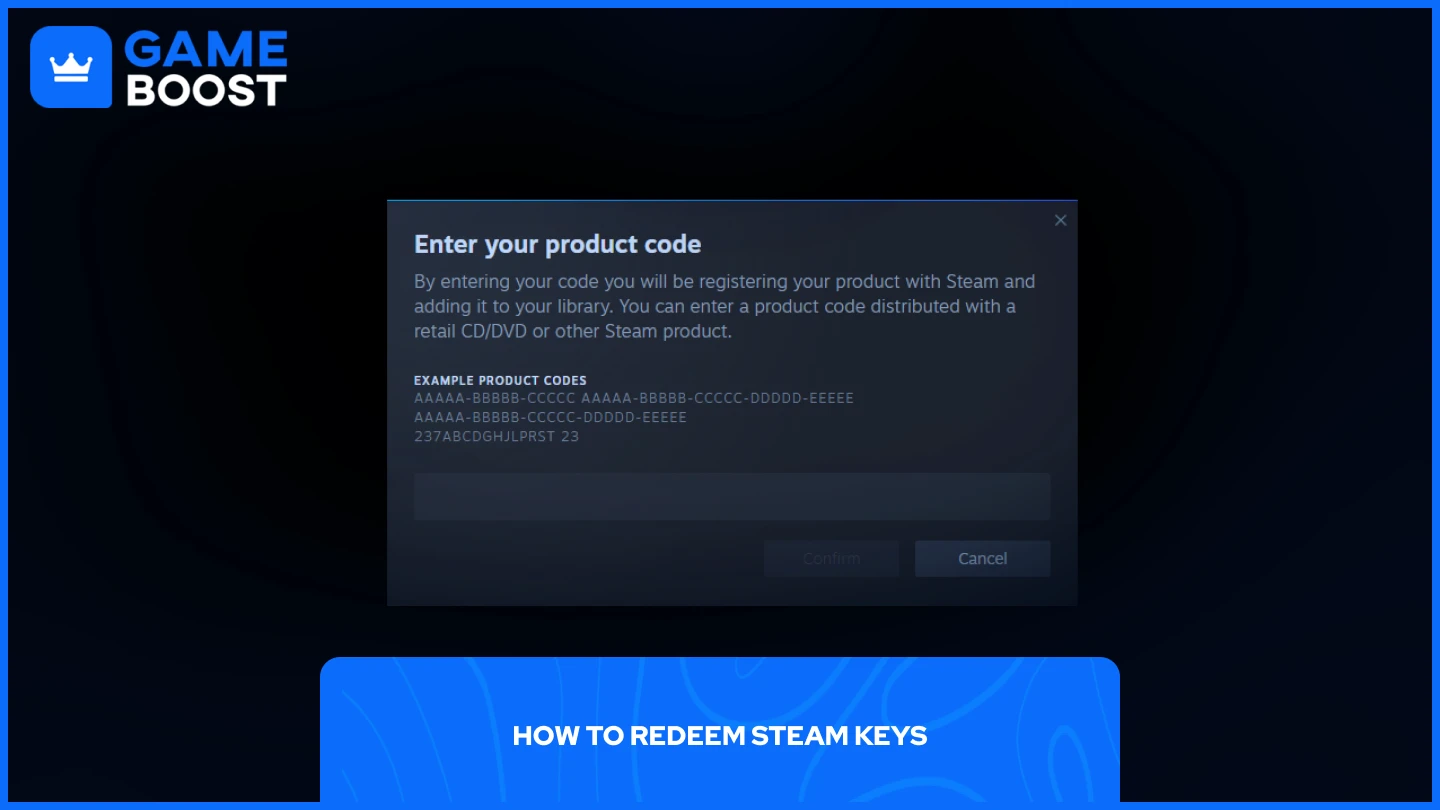
To activate a new game key on your Steam account, first, open the Steam desktop client and log in. In the top menu, click 'Games,' then select 'Activate a Product on Steam.' Follow the on-screen prompts, click 'Next,' agree to the subscriber agreement, and then carefully enter your unique alphanumeric product code into the provided field. Finally, click 'Next' to verify and add the game to your library, where you can then choose to install it.
Where should I look for my game key after purchasing from an online store?
After purchasing a game from an online store (like Humble Bundle or Fanatical), your game key is typically found on the order confirmation page directly after purchase. Additionally, the key is almost always sent to your registered email address, often in a separate email from the purchase receipt. Many online stores also provide access to your keys through a 'My Purchases' or 'Order History' section on their website.
What are the common reasons why a Steam key might not work during activation?
Common reasons a Steam key might not work include typos in the entered code (e.g., mistaking 0 for O, or 1 for l), the key already being used, or the key having region restrictions that prevent activation in your current geographical location. Less frequently, temporary Steam server issues or issues with the key's legitimacy from unofficial resellers can also cause activation failures. Always double-check the key and the source.
Can I activate a Steam game key using my smartphone or tablet?
Yes, you can absolutely activate a Steam game key using your smartphone or tablet. You can do this either through the official Steam Mobile app (available on iOS and Android) by navigating to the 'Store' section and selecting 'Activate a Product on Steam,' or by logging into the Steam website via a mobile web browser and going to the 'Activate a Product' page.
Is it possible to transfer a game I redeemed on the wrong Steam account to another one?
Generally, no. Once a game key is redeemed on a Steam account, it is permanently bound to that account and cannot be transferred to another Steam account. This policy is in place to prevent key reselling and fraud. Your best recourse, if it was an accidental activation within a household, might be to utilize Steam Family Sharing to allow other accounts on the same computer to play the game.
What should I do if my Steam key is showing as 'already used' but I just bought it?
If your newly purchased Steam key shows as 'already used,' immediately contact the retailer you bought it from. Provide them with your order number and the problematic key. Reputable digital storefronts typically have systems to verify the key's status and should be able to provide a replacement key or a refund if it was indeed faulty or pre-used before you received it.
Are there any time limits or expiry dates for Steam product keys?
In most cases, standard Steam product keys do not have expiry dates and remain valid indefinitely until redeemed. However, promotional keys or keys distributed as part of limited-time giveaways might occasionally come with an activation deadline. For typical retail or bundle keys, once you have the code, you can redeem game on Steam whenever you are ready, without fear of it expiring.
Ah, the thrill of a new game! Whether it is a hard-earned reward from a busy week, a thoughtful gift from a friend, or that amazing deal you finally grabbed from a third-party site, getting a new title onto your Steam library should be exciting, not a chore. For the average US gamer, who often juggles work, family, and personal life, precious gaming moments are about unwinding, connecting, or sharpening skills. The last thing anyone needs is a confusing process to redeem game on Steam, eating into that much-needed relaxation time. You want to jump in and play, not wrestle with activation codes or cryptic error messages.
You are not alone. In fact, a recent survey in the US found that 87% of gamers regularly play, averaging over 10 hours a week, with many balancing this passion with significant responsibilities. They value seamless experiences and getting straight to the fun. This guide is built for you. We are going to walk through everything you need to know about how to redeem game on Steam, transforming what might seem like a complex task into a simple, straightforward process. We will cover the steps, common hiccups, and expert tips so you can spend less time troubleshooting and more time conquering virtual worlds. Let us get those new games ready for action!
How Do I Redeem A Game On Steam Using A Product Code?
Redeeming a game on Steam with a product code is incredibly straightforward once you know where to look. Most game keys are alphanumeric strings that act as your digital proof of purchase. When you buy a game from a retailer, receive it as a gift, or get it in a bundle, you will usually be provided with one of these unique codes. The key is to have your Steam client open and ready. Many gamers find this to be the most common method of adding new titles to their ever-growing collection, especially when exploring sales outside of the Steam platform directly.
Here is a step-by-step breakdown:
- Launch Steam Client: Make sure you have the Steam desktop application installed and running. Log in to the account where you want the game to be added.
- Navigate to 'Games' Menu: In the top menu bar of the Steam client, click on 'Games'.
- Select 'Activate a Product on Steam...': From the dropdown menu, choose this option. This will open a new window.
- Follow the Prompts: A wizard will guide you through the process. Click 'Next', agree to the 'Steam Subscriber Agreement' by clicking 'I Agree'.
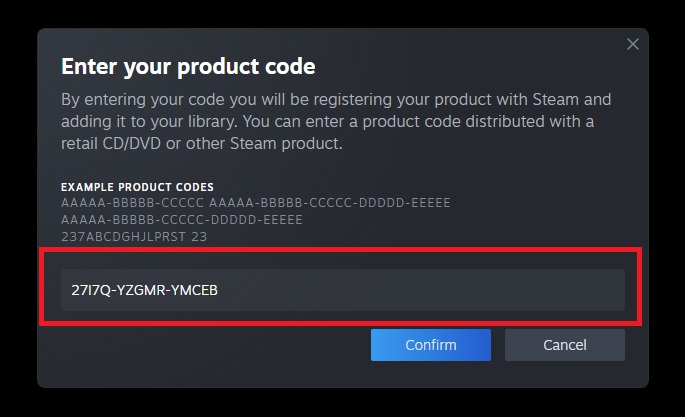
- Enter Your Product Code: In the 'Product Code' field, carefully type or paste your alphanumeric game key. Double-check for typos, especially confusing characters like '0' (zero) and 'O' (letter O), or '1' (one) and 'l' (lowercase L).
- Confirm and Install: Click 'Next'. Steam will verify the code. If it is valid, the game will be displayed, and you will have the option to install it immediately or add it to your library for later download.
Once successfully redeemed, the game is permanently tied to your Steam account. You can download and play it whenever you like, across any compatible device you log into with that account.
Where Can I Find My Steam Game Key After Purchase?
The location of your Steam game key depends entirely on where you purchased the game. For many busy gamers who often buy digital keys from various online stores to find the best deals, keeping track of these keys can sometimes be a puzzle. This month, with so many new titles and bundles dropping, knowing exactly where to retrieve your code is more important than ever. If you bought directly from Steam, you usually do not get a separate key to enter, as the game is automatically added to your library. However, for external purchases, the key is crucial.
- Third-Party Digital Stores (e.g., Humble Bundle, Fanatical, Green Man Gaming, Epic Games Store for Steam Keys): After purchase, your key is typically displayed on the order confirmation page. It is also almost always emailed to your registered email address, often in a separate 'key delivery' email, distinct from the purchase receipt. Many of these sites also have a 'My Purchases' or 'Order History' section where you can retrieve past keys.
- Physical Game Copies: If you bought a boxed PC game that uses Steam, the key will usually be printed on a sticker, card, or within the game manual inside the physical packaging.
- Retail Gift Cards: For Steam Wallet codes or specific game gift cards, the code is usually on the back, under a scratch-off strip, or printed on the receipt.
Always check your email's spam or junk folder if you cannot find an emailed key. It is also a good habit to create a dedicated folder in your email for game keys or use a password manager with secure notes to store them, ensuring easy access when you want to redeem game on Steam.
What Should I Do If My Steam Key Is Invalid Or Already Used?
Running into an invalid or already used key can be frustrating, especially when you are looking forward to diving into a new game after a long day. This is a common pain point for gamers, particularly those who buy keys from less reputable sources or receive them as gifts from unknown origins. Given the rise of online marketplaces, instances of problematic keys have become a notable issue, making smart purchasing decisions critical. But do not fret, there are several steps you can take to troubleshoot this issue effectively.
First, double-check the key for typos. It is surprisingly easy to misread characters like 'B' for '8', 'G' for '6', 'S' for '5', or 'V' for 'U'. Steam keys are case-insensitive, but accuracy is paramount. If you are certain the code is entered correctly, consider these actions:
- Contact the Seller/Gifter: This is your primary course of action.
- If purchased from a reputable digital storefront (e.g., Humble Bundle, Fanatical), contact their support. Provide your order number and the problematic key. They usually have systems in place to verify the key's status and can often provide a replacement if it was genuinely faulty or already used prior to your receipt.
- If it was a gift, reach out to the person who gave it to you. They might have a receipt or details from their purchase that can help.
- Check Region Restrictions: Some keys are region-locked and will only work in specific geographical areas. If you purchased a key from an international seller, this could be the culprit. Steam will usually provide an error message indicating a region mismatch.
- Wait and Retry: Rarely, there might be a temporary server issue. If you are certain the key is correct and valid, wait a few hours and try again. This is less common but worth a shot.
- Beware of Scams: If you acquired the key from an unofficial source, a forum, or a giveaway that seemed too good to be true, it might be a fraudulent key. In such cases, there might be little recourse, emphasizing the importance of buying from official or trusted retailers to redeem game on Steam.
Always keep proof of purchase when buying digital keys. This receipt is your strongest ally when dealing with support issues.
Can I Redeem A Game On Steam From My Phone Or Tablet?
Yes, you absolutely can! In an era where mobile devices are increasingly central to our digital lives – with mobile gaming alone dominating a significant portion of the US gaming market – Steam has made it convenient to manage your library on the go. While you cannot *install* PC games directly on your phone, you can certainly redeem game on Steam using the Steam mobile app or even a web browser on your mobile device. This is a huge convenience for gamers who might spot a great deal while away from their PC and want to secure it in their library immediately.
Here is how to do it:
- Using the Steam Mobile App:
- Download and open the official Steam Mobile app (available on iOS and Android).
- Log in to your Steam account.
- Tap the menu icon (three horizontal lines) in the top left corner.
- Scroll down and tap 'Store'.
- Scroll down further and tap 'Activate a Product on Steam'.
- Follow the prompts to enter your product code, similar to the desktop client process.
- Using a Mobile Web Browser:
- Open your preferred web browser on your phone or tablet (e.g., Chrome, Safari).
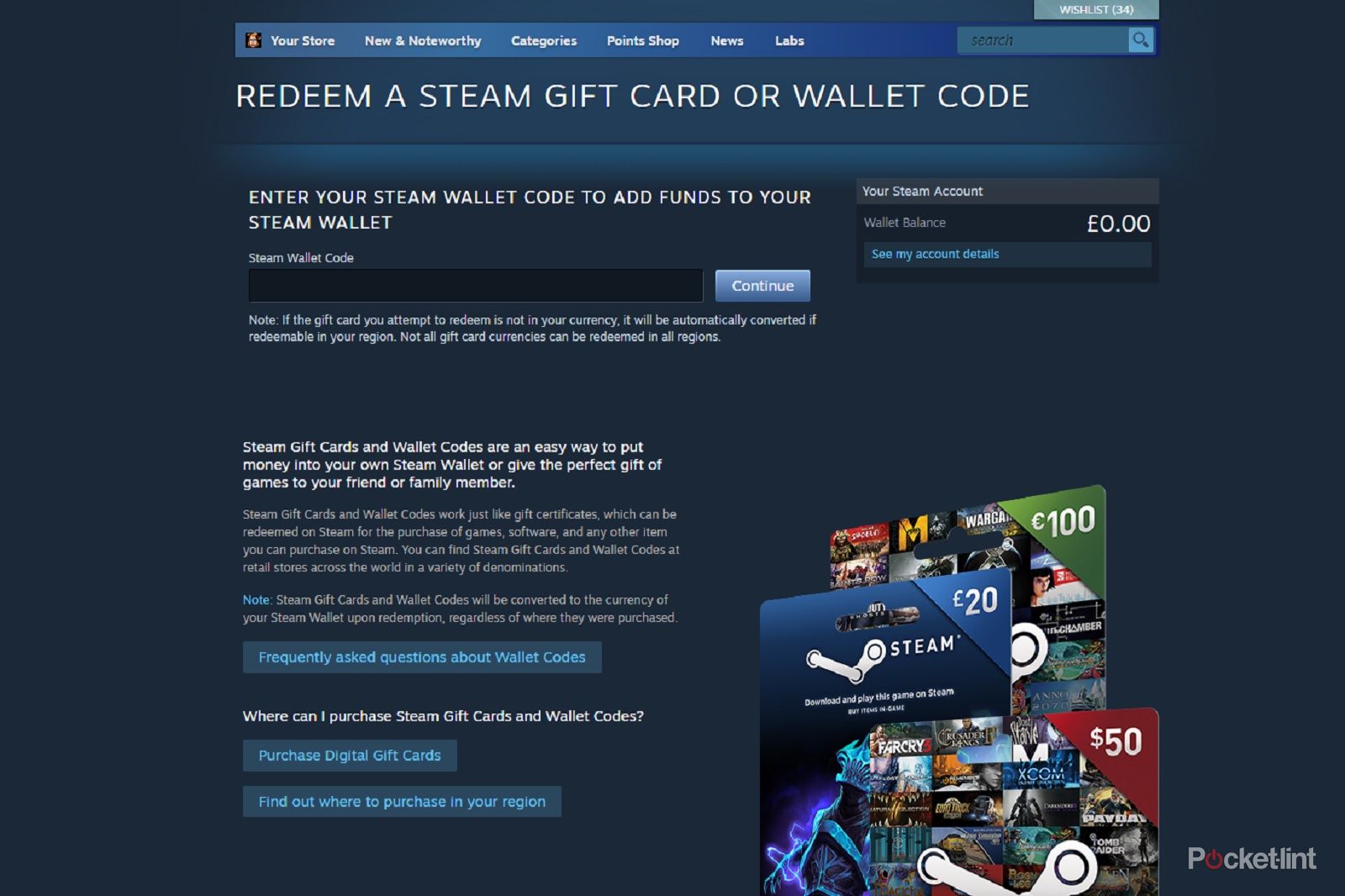
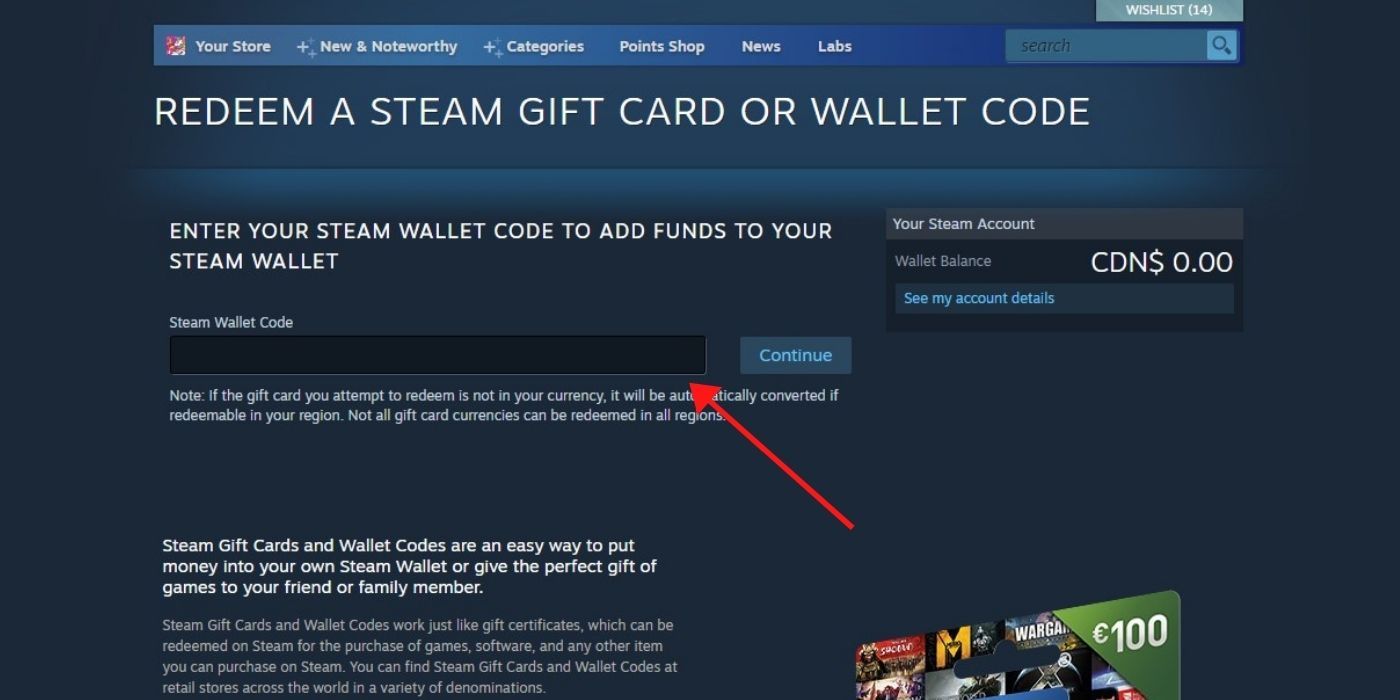
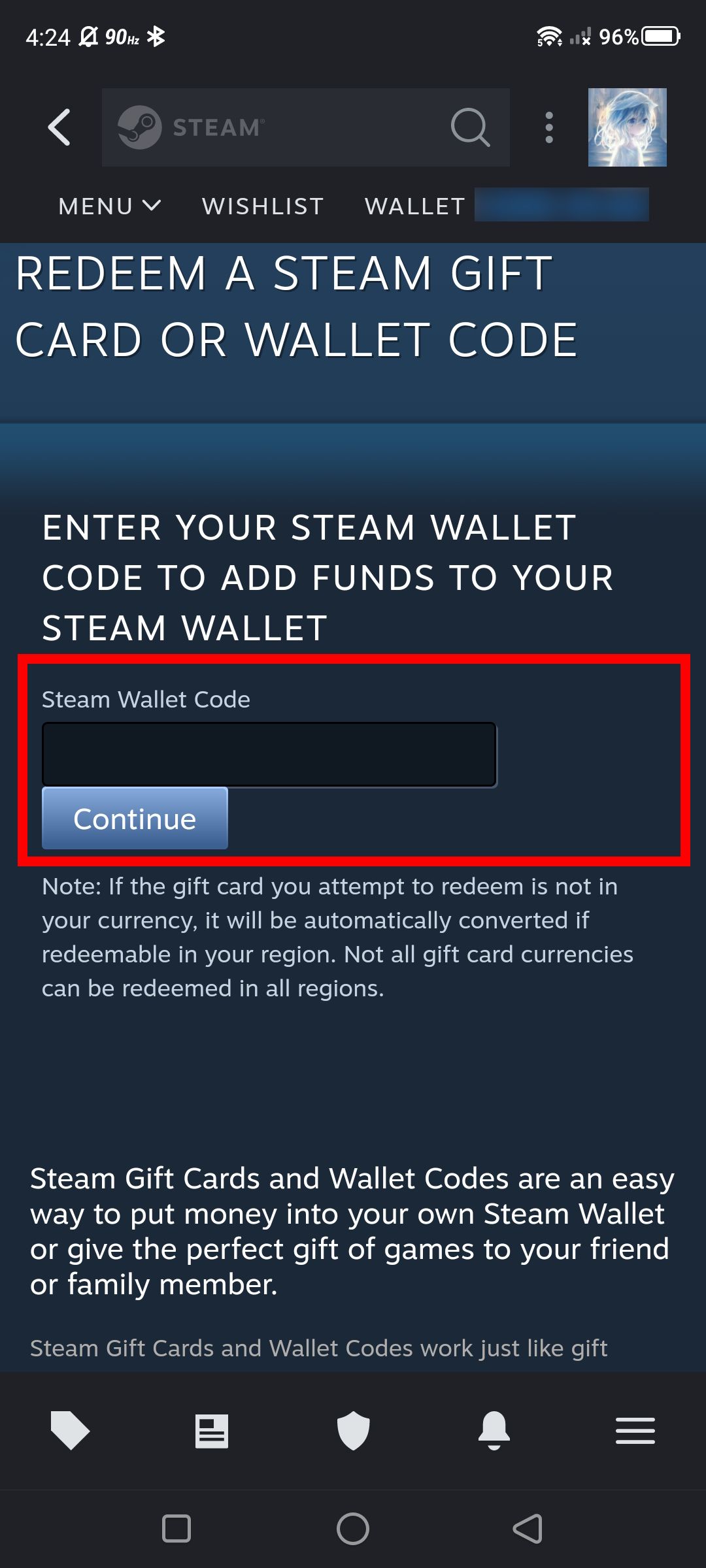
- Go to the Steam website: store.steampowered.com/account/registerkey
- Log in to your Steam account if prompted.
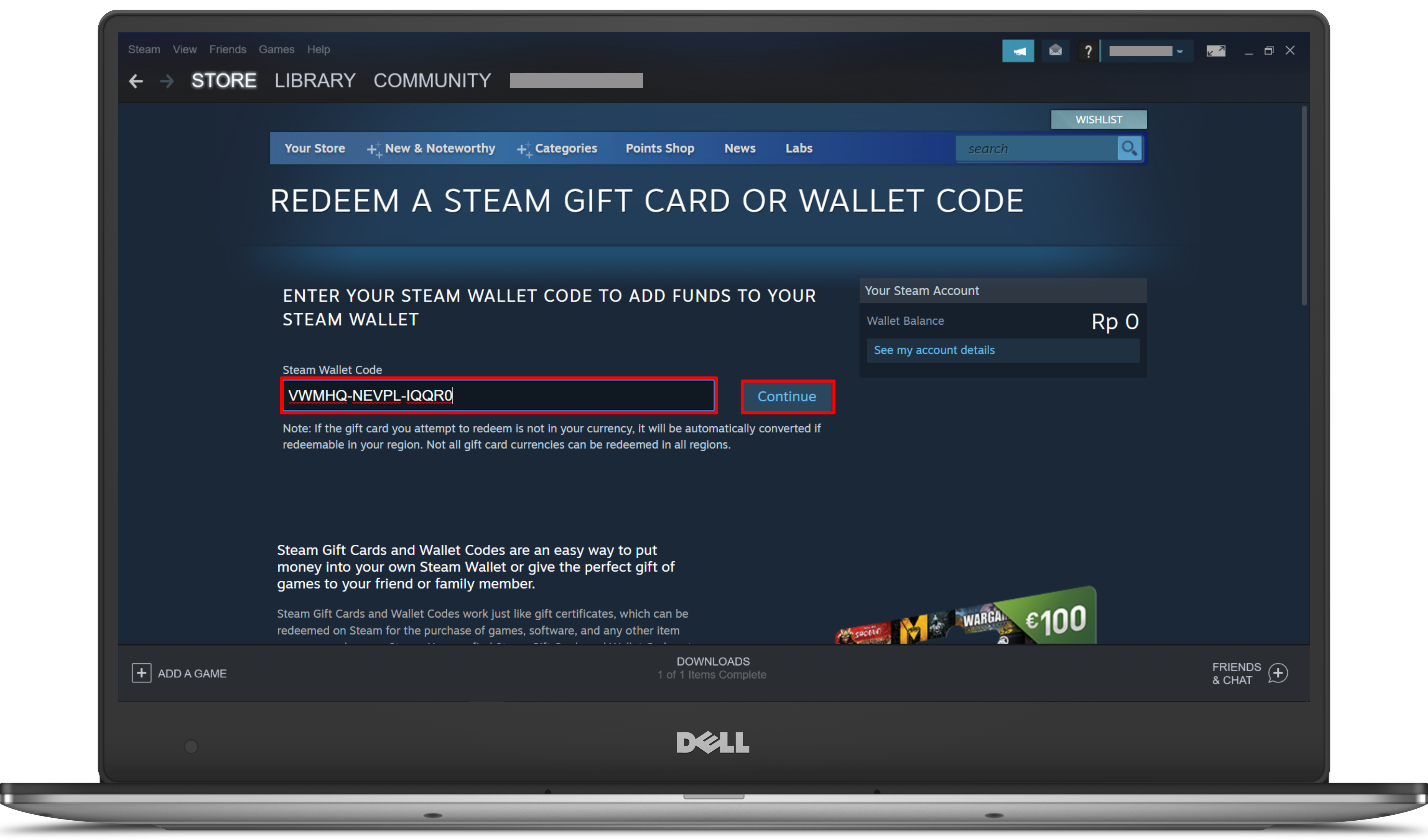
- Enter your product code in the designated field.
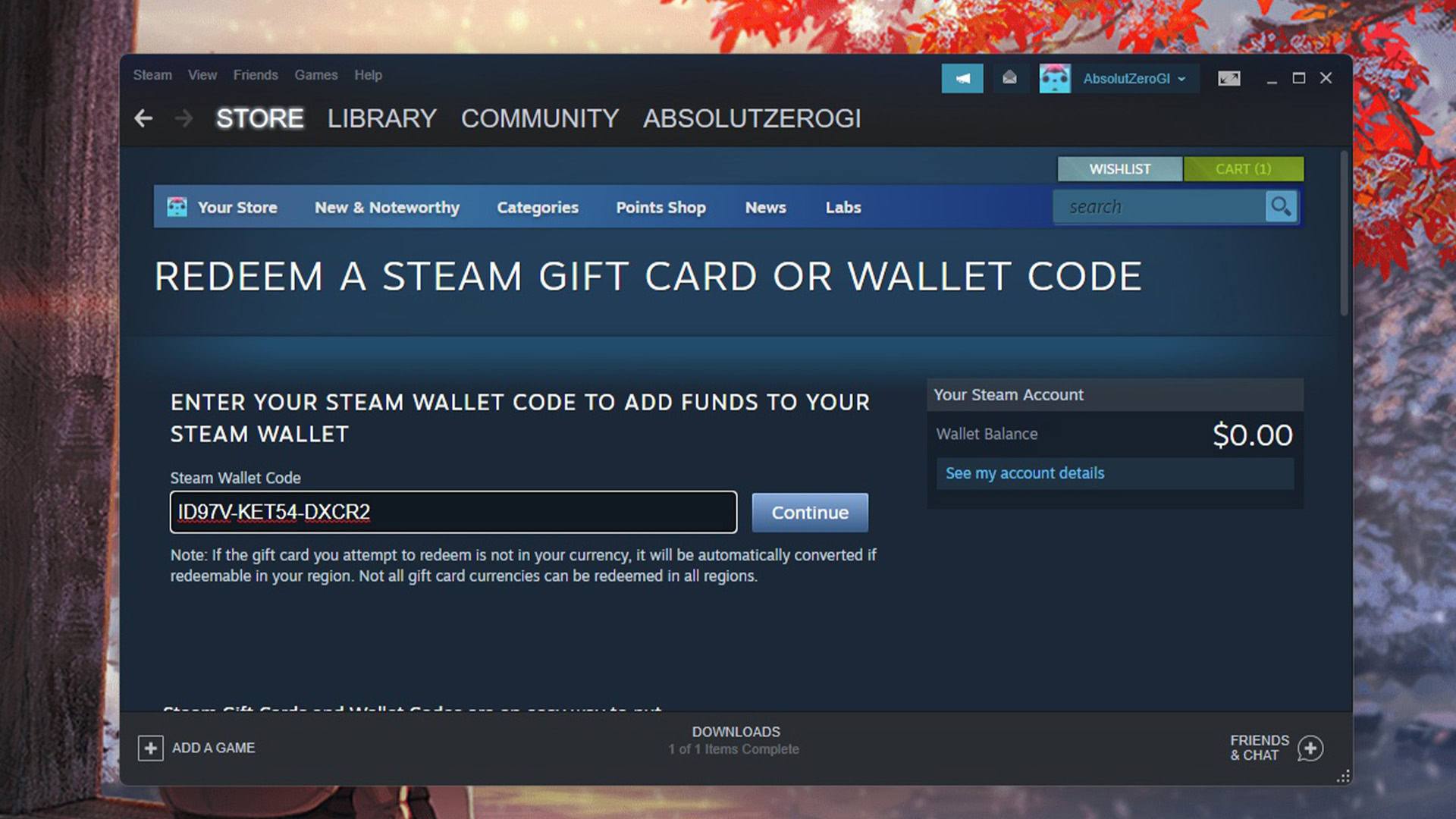
- Click 'Continue'.
Redeeming a game on the go ensures you never miss out on adding a new title to your collection, perfectly suiting the busy schedules of modern gamers who value efficiency and staying connected to their gaming world from anywhere.
Are There Any Region Restrictions When Redeeming Steam Games?
Yes, region restrictions are definitely a thing when it comes to redeeming game on Steam, and it is a common point of confusion or frustration for many gamers. These restrictions exist for various reasons, including licensing agreements, pricing strategies, and local regulations. A key purchased in one region might not be activatable in another, leading to an 'invalid product code' or 'not available in your region' error. This is a crucial consideration for budget-conscious gamers who might try to buy keys from international sites to save a few dollars.
- Why Region Locks Exist: Publishers often have different distribution rights and pricing tiers for various geographical markets. A game might be cheaper in one region due to economic factors, and region locks prevent players from buying cheaper keys globally to exploit these price differences.
- How to Identify Region-Locked Keys: Reputable third-party retailers will usually clearly state any region restrictions on the product page before you buy. Look for phrases like 'ROW' (Rest of World - generally region-free), 'EU Only', 'NA Only', or specific country flags. If it does not specify, it is generally safer to assume it is for your region or 'ROW'.
- VPNs and Region Locks: While some users attempt to bypass region locks using a Virtual Private Network (VPN), this is against Steam's Subscriber Agreement. Using a VPN to activate or play region-locked content can lead to account suspension or even termination. It is a risk not worth taking for long-term gaming accounts, especially for gamers who have invested significantly in their Steam libraries over the years.
The safest approach is always to purchase keys directly from Steam or from authorized retailers that explicitly state the key is valid for your current region. This ensures a smooth redemption process and protects your Steam account from potential issues.
How Do I Gift A Game On Steam And How Does The Recipient Redeem It?
Gifting games on Steam is a fantastic way to share experiences with friends and family, especially when social gaming and co-op titles are more popular than ever. Imagine a friend's birthday this month, and you want to treat them to that new cozy game everyone's talking about! Steam makes the process incredibly user-friendly, allowing you to directly send a game to another Steam user. The recipient's end is even simpler, as the redemption process is largely automated, removing the need for them to manually redeem game on Steam with a product code.
How to Gift a Game on Steam (as the Gifter):
- Find Your Game: Browse the Steam Store and add the desired game to your cart.
- Select 'Purchase as a Gift': When you proceed to checkout, choose the 'Purchase as a Gift' option instead of 'Purchase for myself'.
- Choose Recipient: Select a friend from your Steam Friends list. You can also schedule the gift for a future date, which is great for birthdays or holidays.
- Add a Message: Write a personalized message for your friend.
- Complete Purchase: Follow the payment steps. Once completed, the gift is sent!
How the Recipient Redeems the Gift:
- Notification: The recipient will receive a notification within their Steam client and via email that they have received a gift.
- Accept Gift: They simply open the notification (either in Steam or via the email link) and click the 'Accept Gift' button.
- Add to Library: The game is automatically added to their Steam library. They can then choose to install it immediately or download it later.
This direct gifting method eliminates the hassle of sharing product codes and ensures the game goes straight to the intended Steam account. It is one of Steam's most appreciated social features for gamers who love to connect and play together.
What Happens If I Accidentally Redeem A Game On The Wrong Steam Account?
Accidentally redeeming a game on the wrong Steam account can be a major headache, especially if you have multiple accounts for different purposes (e.g., one for main gaming, one for testing, or a family account). With gamers averaging around age 36, and often managing shared family PCs, it is not uncommon for a key to be mistakenly activated on a child's account or a secondary profile. Unfortunately, Steam's policy on this is quite strict: once a game is redeemed on a Steam account, it is permanently bound to that account and generally cannot be transferred to another account or refunded if it was a third-party key.
This is a fundamental aspect of Steam's digital rights management and key activation system. The primary reason for this strict policy is to prevent key reselling, fraud, and the creation of secondary markets for activated games. If games could be easily transferred, it would undermine the digital distribution model.
What you CAN do:
- Contact Steam Support: While unlikely to result in a transfer, it is always worth trying. Explain the situation clearly, providing all relevant details like the product code, the account it was redeemed on, and the account it *should* have been redeemed on. Provide proof of purchase if available. Be prepared for a polite refusal, but sometimes, in very rare and specific circumstances (e.g., a brand new key, immediately reported), they *might* offer a one-time exception. Do not count on it, but it is the only official avenue.
- Family Sharing: If the game was redeemed on an account within your household (e.g., a spouse's or child's account), you might be able to use Steam Family Sharing. This feature allows family members to share their game libraries with each other. The account that owns the game can authorize other accounts on the same computer to play games from its library, though only one user can play from the shared library at a time. This is often the best practical solution for family households to access the mistakenly redeemed game.
To avoid this issue in the future, always double-check which Steam account you are logged into before attempting to redeem game on Steam, especially after switching users on a shared computer or using a different browser session.
Are There Any Tools Or Websites That Can Help Manage My Game Keys?
Absolutely! For the seasoned gamer who has accumulated a vast library across various platforms and storefronts, managing game keys can become a full-time job. With budget-conscious gamers always on the lookout for deals, sometimes keys end up scattered across emails, various account pages, and even physical slips of paper. Thankfully, several tools and websites have emerged to help streamline this process, making it easier to keep track of your digital treasures and know when and how to redeem game on Steam. These tools are invaluable for optimizing your gaming experience and ensuring you never lose a purchased title.
Here are some popular options:
- IsThereAnyDeal: While primarily a deal aggregator, IsThereAnyDeal also has a 'Collection' feature where you can link your various store accounts (including Steam, Epic Games, GOG, etc.). It helps you track which games you own and from which platform, though it does not typically store individual keys. It is great for discovering deals for games you do not yet own.
- Key Management Spreadsheets (Personal): Many dedicated gamers create their own spreadsheets (Google Sheets, Excel) to track keys. Columns might include: Game Title, Key, Purchase Date, Store Bought From, Platform (Steam, Origin, etc.), Status (Redeemed/Unredeemed), Notes. This gives you complete control and is highly customizable.
- Password Managers with Secure Notes (e.g., LastPass, 1Password, Bitwarden): These tools are excellent for securely storing sensitive information like game keys. You can create separate entries for each key or a single entry with a list. They are encrypted and easily accessible across devices.
- Online Key Trackers (less common/third-party): A few niche websites exist, or community-driven solutions. However, always be extremely cautious when entrusting your sensitive game keys to third-party websites. Ensure they are highly reputable and secure before inputting any codes. For most, a personal spreadsheet or password manager offers the best balance of security and functionality.
Using one of these methods will significantly reduce the frustration of hunting down lost keys and ensure a smoother process when you decide to redeem game on Steam.
Can I Refund A Game That Was Redeemed With A Product Key On Steam?
The ability to refund a game redeemed with a product key on Steam follows similar rules to games purchased directly from the Steam store, but with a critical distinction that often surprises gamers. Steam's refund policy is generally quite gamer-friendly, aiming to reduce buyer's remorse and provide value for money, which is a big deal for gamers who are careful with their budget. However, when it comes to keys, the source matters a lot. For games purchased directly on Steam, the criteria are simple: less than two hours of playtime and within 14 days of purchase. The challenge arises when you redeem game on Steam using a key from a third-party retailer.
Here is the breakdown:
- Directly Purchased on Steam: Yes, if you meet the standard refund criteria (less than two hours of playtime, requested within 14 days of purchase), you can typically refund a game, even if it was technically 'activated' by Steam automatically upon purchase.
- Redeemed Product Keys from Third-Party Retailers: This is where it gets tricky. Once a product key from an external source is successfully activated on Steam, Steam generally considers its role done. They provided the game access based on a valid key. Steam typically will NOT refund games activated with third-party keys. Their reasoning is that they did not handle the initial transaction; therefore, the refund responsibility lies with the retailer where the key was originally purchased.
- What to Do: If you need a refund for a game activated with a third-party key, your only recourse is to contact the specific retailer you bought the key from (e.g., Humble Bundle, Fanatical, Green Man Gaming). Their individual refund policies will apply, which can vary greatly. Some might offer refunds if you meet their criteria, while others might not. Always review a retailer's refund policy before purchasing a key.
This distinction is vital for gamers to understand to avoid disappointment. Always be sure about a game before you redeem game on Steam with an externally purchased key.
How Do I Troubleshoot Common Issues When Trying To Redeem A Steam Key?
Encountering issues when trying to redeem game on Steam can be a real buzzkill, especially when you are just trying to get to the fun part. For busy gamers, troubleshooting quickly and effectively is key to maximizing their limited play time. While the process is usually smooth, a few common problems can pop up. Knowing how to quickly address them can save you a lot of frustration and get you back in the game faster. Here are the most frequent issues and their solutions:
- 1. Invalid Product Code / Incorrect Key:
- Solution: Double-check the key for any typos. This is the #1 culprit. Pay close attention to similar-looking characters (0 vs O, 1 vs l, B vs 8, G vs 6, S vs 5, V vs U). If possible, copy-paste the key directly to avoid manual entry errors.
- 2. Product Code Already Used:
- Solution: This means the key has already been activated on a Steam account.
- If you just purchased it, immediately contact the retailer you bought it from with your proof of purchase. They should be able to provide a new, valid key or a refund.
- If it was a gift, check with the giver if they accidentally activated it or perhaps sent you a used key.
- If you have multiple Steam accounts, ensure you haven't already activated it on one of your other accounts.
- 3. Product Is Not Available In Your Territory / Region-Locked:
- Solution: The key you are trying to redeem is restricted to a specific geographical region different from yours.
- Contact the retailer for a refund or a region-appropriate key. Always check region restrictions before purchasing from third-party sites. Avoid using VPNs, as this violates Steam's terms.
- 4. Steam Server Issues:
- Solution: Occasionally, Steam's servers might experience temporary outages or heavy load, preventing key activations.
- Check websites like DownDetector or the official Steam Status Twitter account to see if there are widespread issues.
- Wait a while (an hour or two) and try redeeming the key again.
- 5. Too Many Activation Attempts:
- Solution: If you try to redeem too many invalid keys in a short period, Steam might temporarily block your account from further activations to prevent abuse.
- Wait a few hours before attempting again. Ensure you have the correct key before retrying.
- 6. Firewall or Antivirus Interference:
- Solution: Rarely, security software might interfere with Steam's communication, preventing activation.
- Temporarily disable your firewall/antivirus (at your own risk) and try again. Remember to re-enable them immediately afterward.
- Ensure Steam is added as an exception in your security software.
By systematically going through these troubleshooting steps, you can resolve most common issues and successfully redeem game on Steam.
In today's dynamic gaming landscape, where over 60% of US gamers balance their passion with significant life responsibilities, efficient and hassle-free experiences are paramount. Mobile gaming continues its dominance, often complementing PC/console play, and social interaction through games or platforms like Discord is a core part of the experience. Staying current with new titles, especially those that offer stress relief or skill-building, is important, but so is value for money and avoiding setup headaches. This guide aims to tackle one such common hurdle: ensuring you can easily redeem game on Steam, getting you back to the fun without delay.
Conclusion
So there you have it, a complete walkthrough on how to redeem game on Steam, troubleshoot common issues, and even navigate the nuances of gifting and refunds. Getting your new games into your library should be a simple step towards enjoying your valuable leisure time, not a frustrating roadblock. By following these steps and understanding Steam's policies, you are now equipped to effortlessly expand your gaming collection. We hope this guide helps you spend less time fumbling with codes and more time exploring vast open worlds, competing with friends, or unwinding with a cozy new title. What's your biggest gaming challenge when acquiring new games? Comment below!
FAQ Section
How long do Steam game keys usually last?
Steam game keys typically do not expire. Once issued, a valid product key remains active indefinitely until it is successfully redeemed on a Steam account. The only exception would be if a publisher explicitly announced an expiry date for a specific promotional key, which is rare for standard retail keys.
Can I redeem a key for a game I already own on Steam?
No, you generally cannot redeem a key for a game you already own on Steam. If you attempt to do so, Steam will usually inform you that you already possess the product. The key will remain unused, and you would then be able to gift it to a friend or use it on another account.
Is it safe to buy Steam keys from third-party websites?
It can be safe, but caution is advised. Stick to reputable, authorized resellers like Humble Bundle, Fanatical, Green Man Gaming, or official publisher stores. Avoid grey market sites that offer suspiciously low prices, as keys from these sources may be illegitimate, revoked, or region-locked, potentially leading to issues with your Steam account.
What is the difference between a Steam Wallet Code and a Game Product Code?
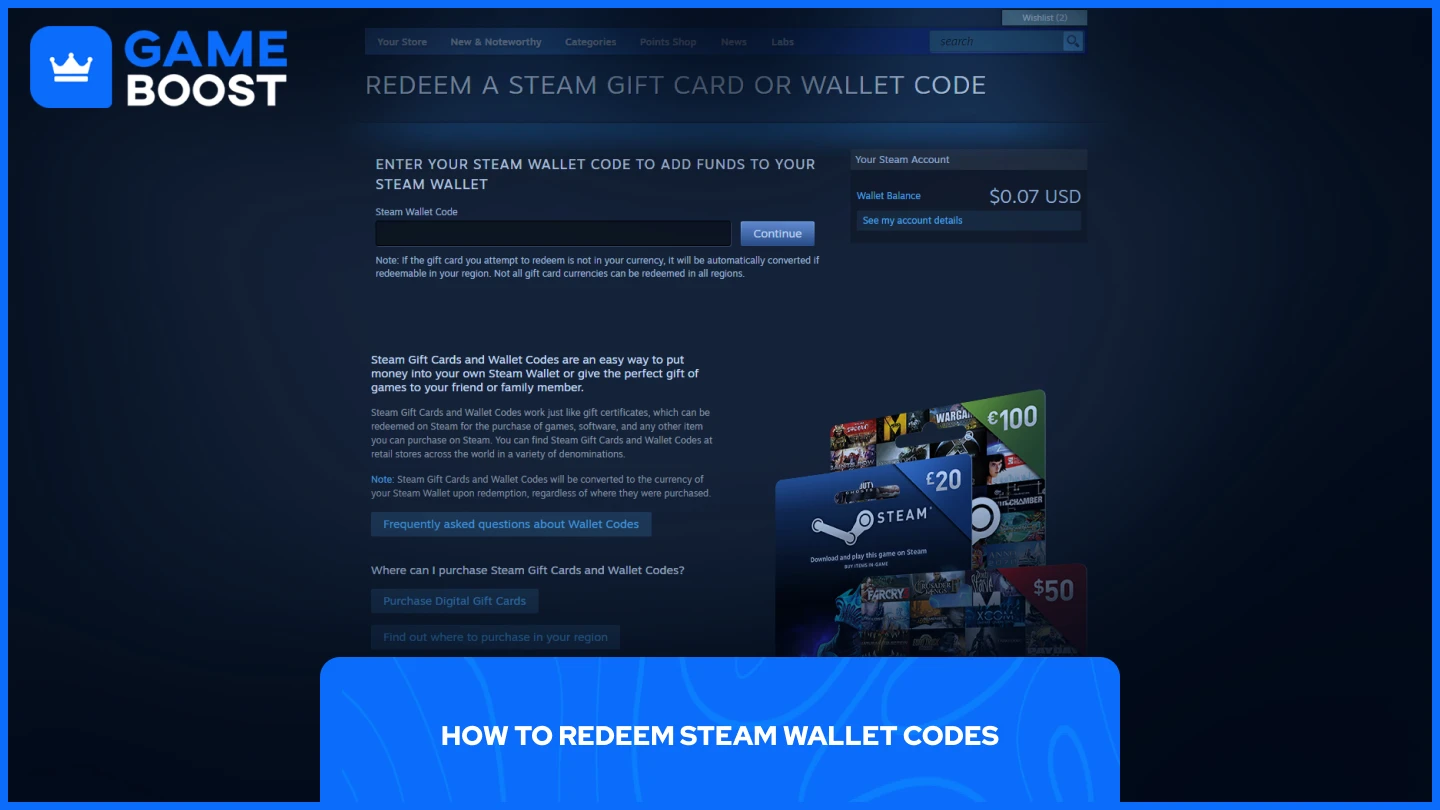
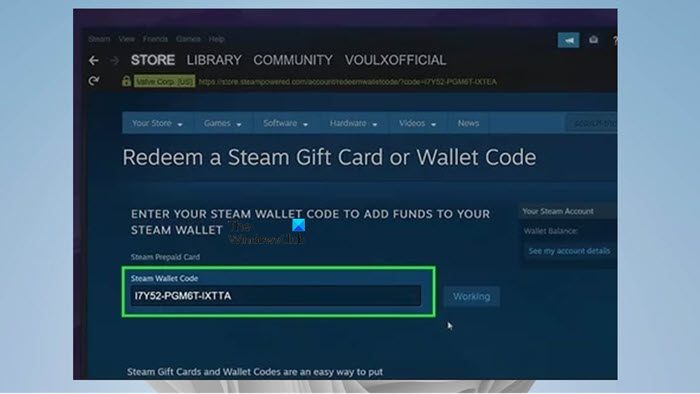
A Steam Wallet Code adds funds to your Steam account balance, which you can then use to purchase games, in-game items, or other content directly from the Steam store. A Game Product Code, on the other hand, directly activates a specific game and adds it to your Steam library without adding funds to your wallet.
Can I use a key from a different PC gaming platform (e.g., Epic Games, GOG) on Steam?
No, keys are platform-specific. An activation code for Epic Games, GOG, Origin, or any other platform will only work on that respective platform's client. You cannot redeem a key issued for another platform on Steam; it must be a specific Steam product key to redeem game on Steam.
What if my physical game disc includes a Steam key, but my PC doesn't have a disc drive?
If your physical game includes a Steam key, you only need the key itself. The disc is often just a physical installer, but if you have the key, you can activate the game on Steam and then download it digitally through the Steam client, regardless of whether your PC has a disc drive or not.
Effortlessly redeem game on Steam; Quick step-by-step guide for Steam key activation; Troubleshooting common Steam redemption issues; Find your Steam game code; Unlock new games on Steam with ease; Maximize your gaming time by streamlining the redemption process; Understanding Steam's digital rights management for game keys; What to do if a Steam key is invalid or already used; Gifting games on Steam and how to redeem them.
35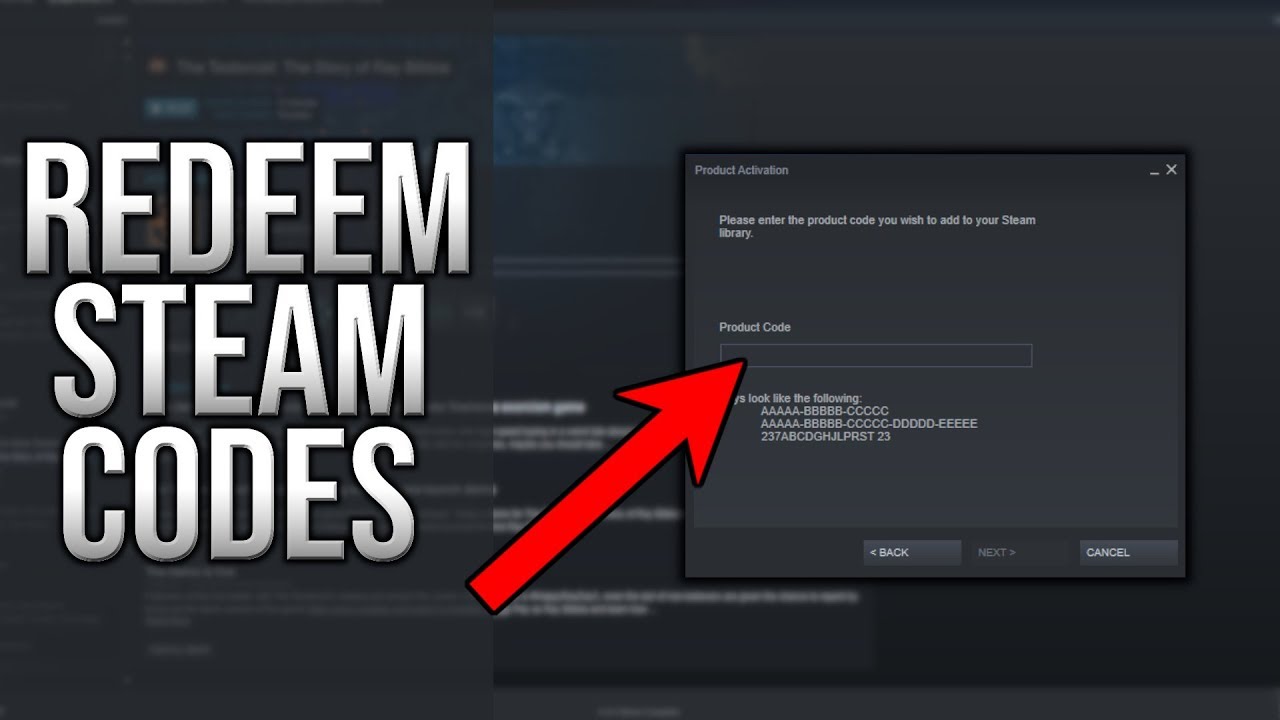

How To Redeem An . How To Redeem A Steam Code Activating Games And More Redeem A Steam Wallet Code . The Steam Spring Sale 2026 Kicks Off With Discounts On Thousands Of 1920 80 . How To Redeem Steam Codes Steam Screenshot Of Redeem A Steam Gift Card Or Wallet Code Menu With An Arrow Directing Viewer How To Redeem A Code . Redeem Code Steam How To Redeem Code In Steam7 Cover


How To Redeem Steam Codes Step By Step Guide C869886f Ab50 4e25 Bf25. Steam Redeem Code Region Lock What You Need To Know TAFT Independent Redeem Steam Wallet Code 2 . Steam Kodlar Nas L Kullan L R Ad M Ad M Rehber D8920dff 5390 4459 Aff3. Steam Wallet Code Idr GAMEJUS Redeem CODE Steam Wallet Code . How To Redeem Steam Code In 4 Fast Steps Softonic How To Redeem Steam Code In 4 Fast Steps 2


How To Redeem A Code On Steam Activate Game Key YouTube . Steam Sales 2026 Calendrier Toutes Les Dates Meilleures Offres De All Steam Events 2026 1.webp. How To Redeem Steam Gift Cards On Mobile App Easy Guide YouTube . The Best Extraction Shooters On Steam So Far Cheat Code Central Most Played Games Steam 2026 2048x1167 . Steam Sales 2026 Calendar Full Dates Best CD Key Deals AllKeyShop Com All Steam Events 2026

How To Redeem Codes On Steam Windows Central . When Is The Next Steam Sale May 2026 Update Countdown. How To Redeem Your Steam Code At Nate Hocking Blog How To Redeem Steam Codes Split Image Of Steam Logo On Left And Image Of Steam Gift Cards On Right . Steam March 2026 Client Update Adds Hardware Specs To User Reviews Steam Client Mar 2026 . How To Redeem Steam Keys Steam Mobile Redeem Code 1



Kalender Lengkap Event Steam 2026 Diskon Besar Dan Festival Game Favorit Steam Events 2 Q82 W2560 H 74ce0.webp. All 2026 Steam Fest Dates You Should Watch Out For Gamer Org All 2026 Steam Fest Dates You Should Watch Out For . How To Redeem Steam Codes Step By Step Guide 94075274 A997 48b3 8576 Webp.webp. How To Redeem Steam Gift Card Or Wallet Code Redeem Steam Gift Card Or Wallet Code Via Steam Desktop App . How To Redeem A Code On Steam Steam Game Codes 2025 Tutorial YouTube


How To Redeem Steam Gift Codes 2022 Redeem Steam Gift Cards YouTube . How To Redeem Your Steam Code At Nate Hocking Blog Steam Wallet Redeem App 3 . Steam Shares Full Events Schedule For 2026 FullCleared Steam Replay 2025 Now Available 1536x864 . Steam Drops Free Download For Gorgeous New 2026 Game Resize. Steam 2026 4 New Free To Play Games Available Now AllKeyShop Com Showcase Steam Free Games 2026 Indie F2p Card Roguelike Sci Fi


:quality(30):format(webp):focal(0.5x0.5:0.5x0.5)/jogja/foto/bank/originals/20260423-Steam-Weekend-Deal-April-2026.jpg)
New Steam Features For 2026 Steam Features 2026 What S New Banner.webp. Tutorial Redeem Steam Key Redeem Steam Key Step 2 . Steam Sale 2026 Key Dates You Need To Know LevelUpTalk Steam Sale Schedule 2026 08 27 2025 7c35051e 2c22 4093 96f1. Discover Hidden Gems In Steam Spring Sale 2026 LevelUpTalk Steam Spring Sale 2026 03 19 2026 Dda1a7a5 C8a7 4cf7 A397. Midweek Deal Steam April 2026 Hadir Dengan Berbagai Game Mabar Menarik 20260423 Steam Weekend Deal April 2026