Are your iPads overflowing with digital adventures slowing down your device and eating up precious storage space Learning how to remove games from iPad effectively is crucial for maintaining optimal performance and ensuring a smooth gaming experience for busy US gamers This comprehensive guide provides step-by-step instructions for deleting individual games managing offloading options and understanding cloud saves You will discover how to reclaim storage enhance speed and streamline your digital life without losing valuable game progress or purchases We delve into practical tips for permanent deletion and temporary removal helping you make informed decisions about your gaming library Whether you are a casual player or a dedicated enthusiast balancing work and family obligations with your passion for gaming these insights will help you keep your iPad running like new ensuring more fun and less frustration Stay ahead of storage issues and keep your favorite mobile titles performing at their best with our expert advice on how to remove games from iPad The ultimate solution for a clutter-free and fast device
Related games- Guide to GTA SA's Main Characters & Their Legacy
- Guide to Celestaphone Roblox: Optimize Your Musical Journey
How do I quickly delete an individual game from my iPad's home screen?
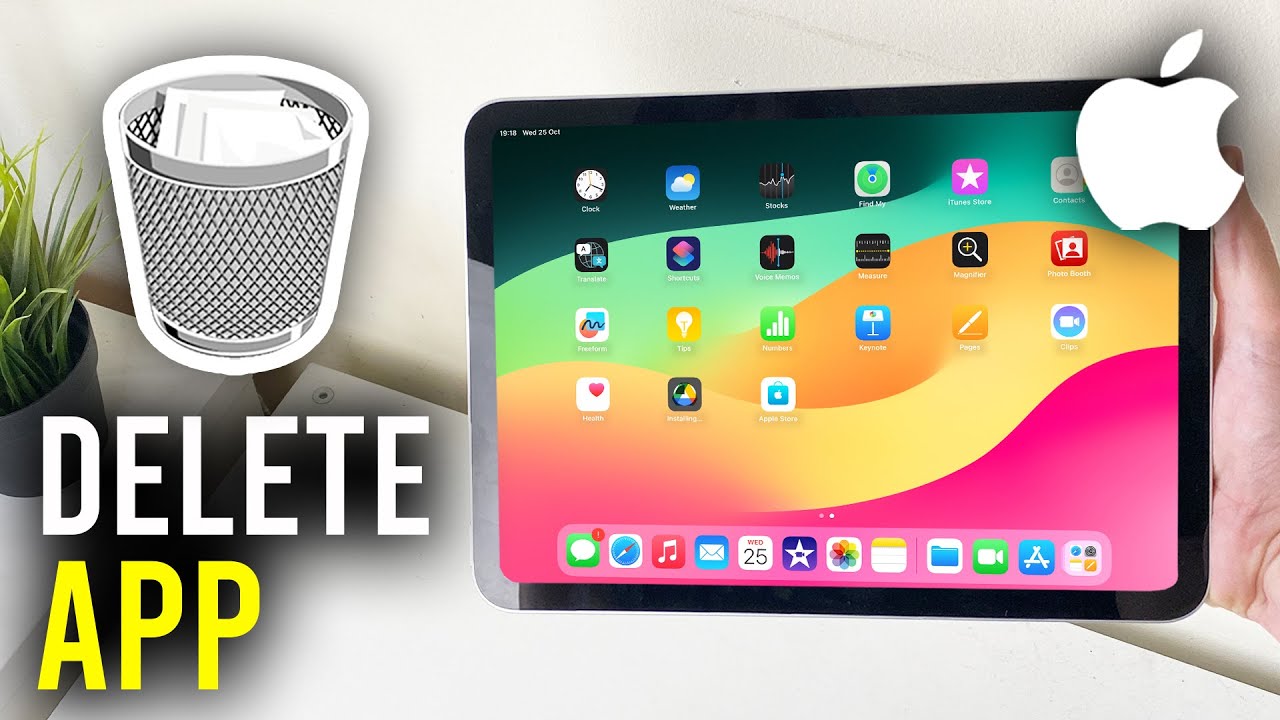
To swiftly remove a single game, simply locate its icon on your iPad's home screen. Press and hold the game icon until all icons begin to jiggle. You will then see a small minus sign or 'X' in the upper-left corner of the game icon. Tap this sign, and a prompt will appear asking you to confirm if you wish to 'Delete App'. Confirming this action will remove the game and all its local data from your device, freeing up space immediately. This is the fastest way for busy gamers to clear out recently finished titles or casual games they no longer play, making your home screen less cluttered and improving navigation.
What is the difference between 'Offload App' and 'Delete App' when managing iPad storage?
Understanding the distinction between 'Offload App' and 'Delete App' is crucial for efficient iPad storage management, especially for gamers. 'Offload App' removes the game's application file but preserves all its associated documents and data, including your save files and progress. The game's icon remains on your home screen with a cloud symbol, allowing you to easily redownload and resume play later without losing your place. 'Delete App', however, completely removes both the game application and all its data from your iPad, permanently freeing up storage. Choose 'Offload' for games you might play again, and 'Delete' for games you're sure you no longer need.
Can I prevent my kids from accidentally deleting games on a family iPad?
Absolutely. iOS provides robust Screen Time features that allow you to restrict app deletion, a common concern for parents or shared device users. Go to 'Settings', then 'Screen Time', and navigate to 'Content & Privacy Restrictions'. After entering your Screen Time passcode, select 'iTunes & App Store Purchases' and then tap on 'Deleting Apps'. Here, you can choose 'Don't Allow'. This setting will prevent any app, including games, from being deleted from the home screen or through the iPad Storage settings, safeguarding precious game progress and ensuring peace of mind for the whole family.
How can I check which games are consuming the most storage on my iPad?
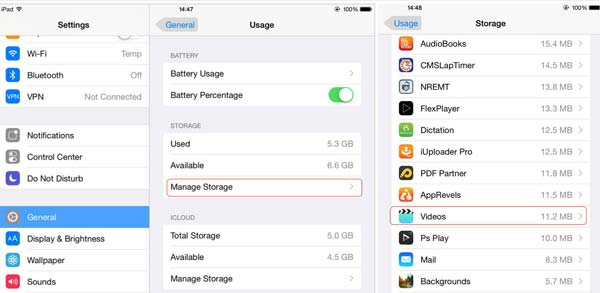
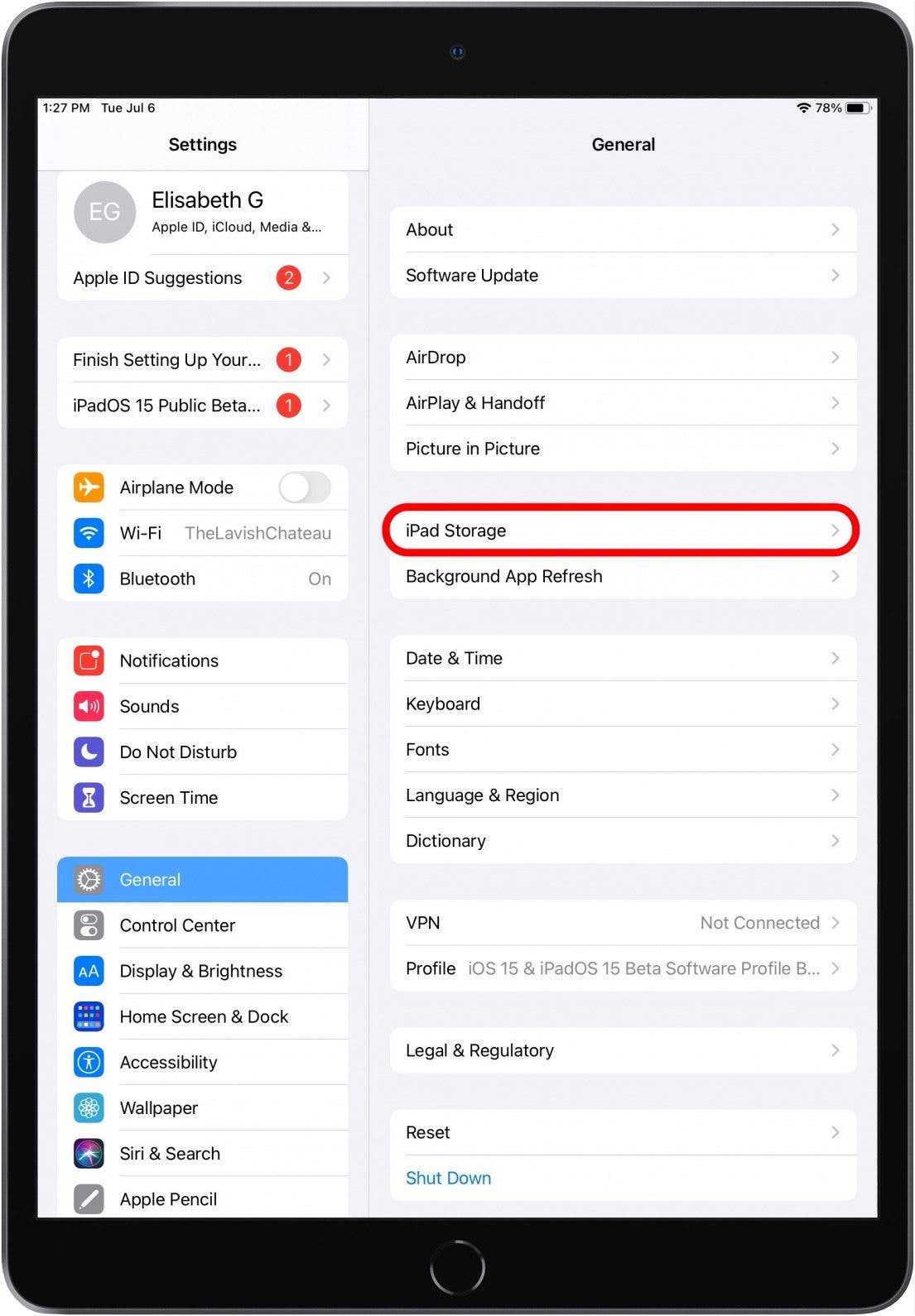
Monitoring your iPad's storage is vital for maintaining performance, especially with large game installs. To see a detailed breakdown, open the 'Settings' app, then tap on 'General', and select 'iPad Storage'. After a brief calculation, your iPad will display a list of all installed apps, ordered by the amount of storage they consume. This visual overview helps you quickly identify space-hogging games you might want to offload or delete, allowing you to prioritize which titles stay and which go, optimizing your device for peak gaming efficiency and avoiding slowdowns during critical play moments.
If I delete a game, will I lose all my in-game purchases and paid content?
No, generally your in-game purchases and paid content are tied to your Apple ID, not the specific app installation on your device. When you delete a game, those purchases are not permanently lost. If you later reinstall the game from the App Store, most games will have an option, often found in their settings menu, labeled "Restore Purchases." Tapping this will usually reactivate all your previously bought items without needing to pay again. This system ensures your investment in games is protected, allowing you to manage your library without financial worry.
Is there a way to delete game data and saves without deleting the actual game app?
While you can't delete game data *without* deleting or offloading the app itself through standard iOS settings, you can often manage game-specific save data within the game's own settings. Many modern games offer cloud save options (e.g., within their app, through Game Center, or proprietary services). If a game supports this, you might be able to remove local data while keeping your cloud save. For a full reset of a game's data, you typically have to "Delete App" from iPad Storage, which removes both the app and all local data. Reinstalling might then give you a fresh start or prompt a cloud save download if available.
What if a game icon is greyed out or won't respond to deletion attempts on my iPad?
If a game icon is greyed out or unresponsive to deletion attempts, it often indicates an incomplete download, an app update stuck, or a system glitch. First, try restarting your iPad. If the issue persists, connect to a stable Wi-Fi network to see if the download or update completes. If the icon remains unresponsive or problematic, go to 'Settings' > 'General' > 'iPad Storage', locate the game in the list, and try to 'Delete App' from there. If it's still stubborn, it might require a full factory reset (as a last resort) or contacting Apple Support for more specific troubleshooting, ensuring your device remains fully functional and ready for new adventures.
Gamers, sound familiar? You're juggling work, family, maybe even a side hustle, and your iPad is your go-to for unwinding with a quick game or diving into a deeper experience. But lately, that beloved device feels sluggish, storage warnings pop up more often than boss battles, and finding your favorite title in a sea of forgotten downloads is a real quest. You're not alone. According to recent US gaming stats, 87% of adult gamers play regularly, often averaging 10+ hours a week, with mobile gaming dominating a significant portion of that time. We love our digital escapades, but a cluttered iPad can quickly turn fun into frustration.
The good news is, learning how to remove games from iPad is a straightforward process that can dramatically improve your device's performance, free up valuable space, and make your gaming library manageable again. We know you value performance optimization and staying current without the hype, and that includes keeping your hardware running smoothly without needing to upgrade on a budget every few months. This guide isn't about losing your precious progress or purchases; it's about smart digital housekeeping. We'll walk you through every method, from quick deletions to comprehensive data management, ensuring you can reclaim your iPad's speed and storage with confidence. Whether you're making room for the next big social gaming hit everyone's talking about or just clearing out titles you've finished, understanding how to remove games from iPad effectively is a crucial skill for any modern mobile gamer balancing life and leisure. Let's get your iPad back to peak performance, ready for your next adventure.
Why Is My iPad Running Slow and How Does Removing Games Help
Many US gamers, especially those balancing demanding schedules, rely on their iPads for quick, accessible entertainment. Over time, however, downloaded games, even those you barely touch, can consume a significant portion of your device's storage and system resources. This buildup of data directly impacts your iPad's performance, leading to frustrating slowdowns, longer loading times, and even app crashes. Think of it like your gaming PC's hard drive filling up; it just doesn't perform as well. Removing unused or completed games frees up gigabytes of space, allowing your operating system and active applications, including your currently played games, to run more efficiently. It's a critical step in optimizing your iPad for a smoother, more responsive user experience, ensuring your gaming sessions are about relaxation and fun, not technical headaches. By regularly managing your game library, you're not just deleting apps; you're investing in the longevity and peak performance of your gaming device, aligning with the gamer value of performance optimization.
What Is the Simplest Way to Delete Games from My iPad Directly from the Home Screen
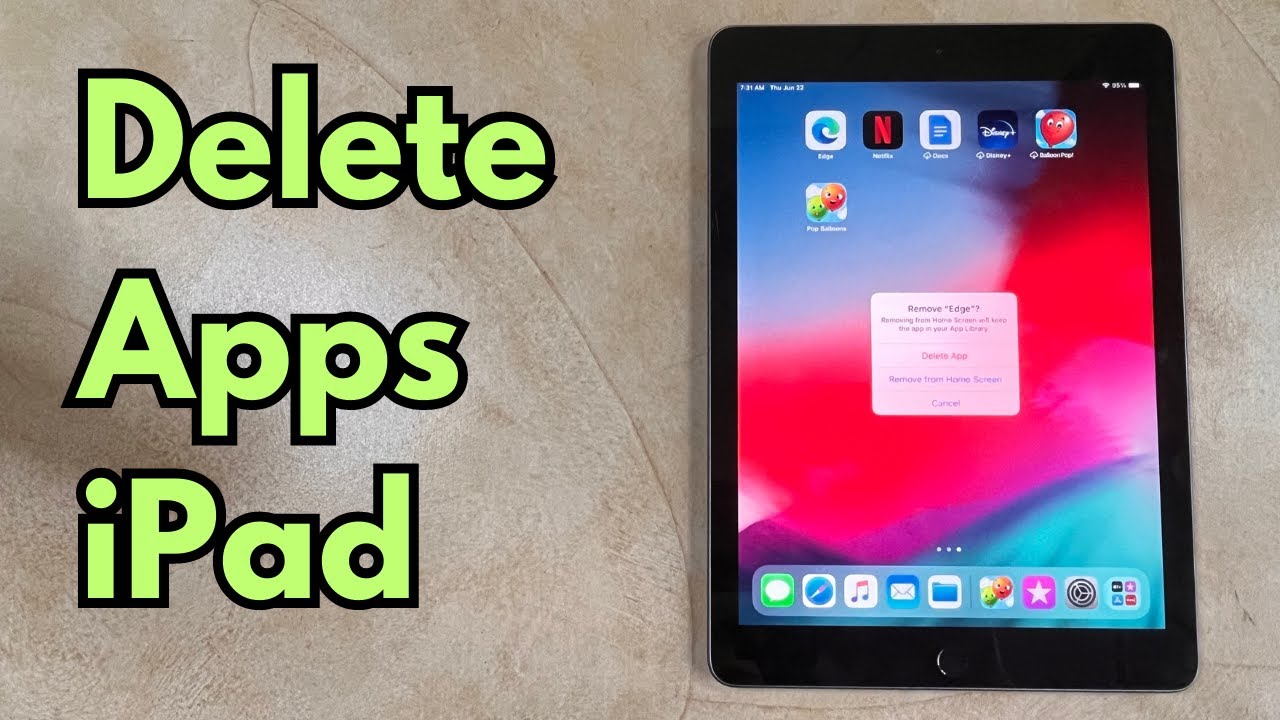
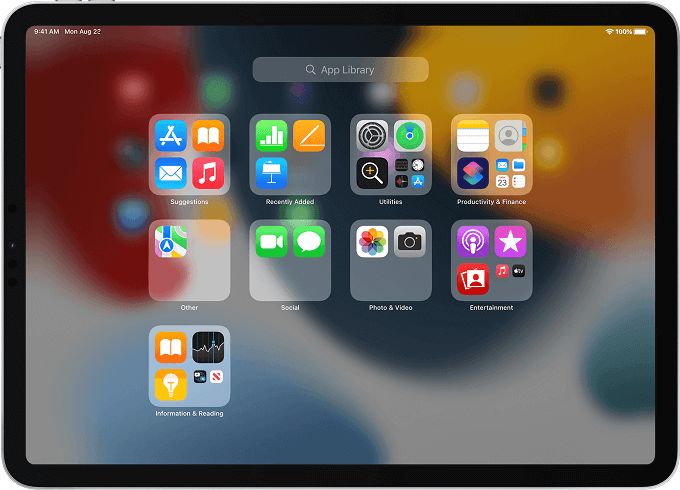
The quickest method for how to remove games from iPad is directly from your Home Screen. This is perfect for when you've finished a casual game or just want to clear some clutter fast. It's incredibly straightforward and doesn't require diving into settings menus. To begin, simply locate the game icon you wish to delete on your Home Screen or within an app folder. Once you've found it, touch and hold the app icon until all the icons on your screen begin to jiggle. You'll then notice a small 'X' or a minus sign in the top-left corner of the app icon. Tapping this 'X' or minus sign will prompt a confirmation message asking if you want to 'Delete App' or 'Remove App'. Confirm your choice, and the game, along with all its associated data, will be removed from your iPad. This method ensures a complete deletion, freeing up storage immediately. When you're done, tap 'Done' or press the Home button on older iPads to stop the icons from jiggling. This simple trick is a lifesaver for quickly decluttering your device.
How Do I Offload Games to Save Space Without Deleting Game Data
Offloading apps is a smart strategy for gamers who want to free up storage on their iPad but aren't ready to permanently delete a game and its save data. This feature is particularly useful for large titles you might want to revisit later, especially when balancing multiple interests like work and family, where gaming time can be sporadic. When you offload a game, the app itself is removed from your device, but all its documents and data, including your precious game saves and progress, remain intact. The app icon will still appear on your Home Screen, usually with a small cloud icon next to its name, indicating it has been offloaded. To offload a game, navigate to the Settings app, then tap 'General', and select 'iPad Storage'. Here, you'll see a list of your apps, sorted by their storage consumption. Find the game you wish to offload, tap on it, and then select 'Offload App'. When you want to play it again, simply tap the game's icon on your Home Screen, and your iPad will redownload the app, restoring it with all your previous data. This is an excellent way for US gamers to manage their digital library without fear of losing progress, especially for those highly invested in skill-building or long-term social play.
What Is the Best Way to Permanently Delete Games and All Their Associated Data
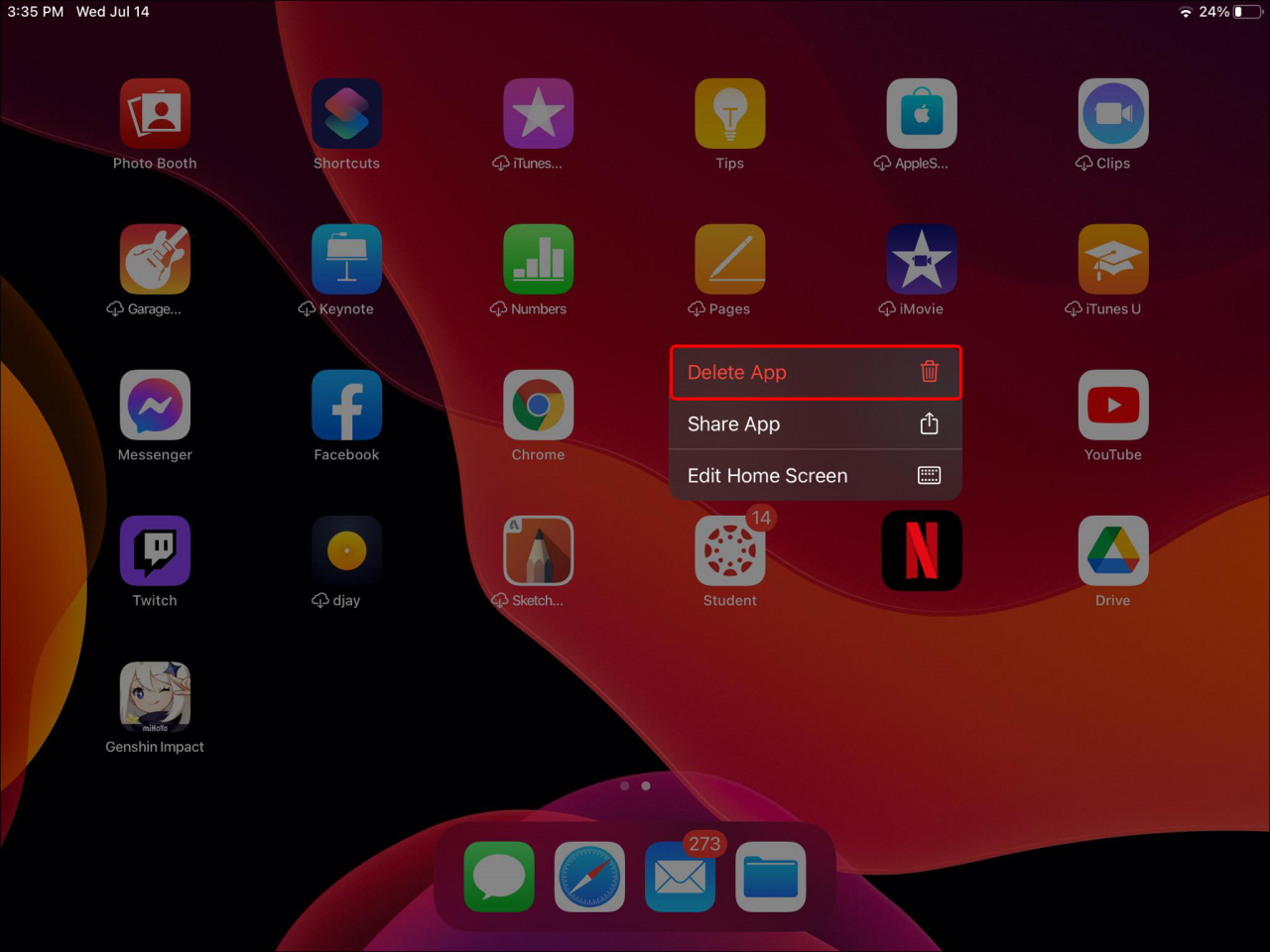
Sometimes, offloading isn't enough; you need to completely erase a game and all its data to maximize storage or simply remove it for good. This is how to remove games from iPad permanently, ensuring no lingering files are left behind. The most comprehensive way to do this is through your iPad's Storage settings. Start by opening the 'Settings' app, then go to 'General', and tap on 'iPad Storage'. Give your iPad a moment to calculate storage usage. Scroll down until you find the game you want to permanently delete from the list. Tap on the game's name. On the next screen, you'll see two options: 'Offload App' and 'Delete App'. To permanently remove the game and all its data, including any save files or in-app content, tap 'Delete App'. A confirmation pop-up will appear, asking if you really want to 'Delete App'. Confirm your decision. This action removes the app and all its documents and data, freeing up the maximum possible space. Be aware that this is irreversible for game saves not backed up to iCloud or a specific game's cloud service. For serious gamers, backing up saves before a permanent deletion is a smart move, especially for titles where skill-building has taken hundreds of hours.
How Can I Reinstall a Deleted Game Without Losing My Progress or Purchases
One of the biggest concerns for US gamers when learning how to remove games from iPad is the fear of losing progress or past purchases. Thankfully, Apple's ecosystem is designed to protect your investments. If you've previously purchased or downloaded a free game and then deleted it, you can almost always reinstall it without charge and often with your progress intact, provided certain conditions are met. First, head to the App Store. Tap on your profile picture in the top-right corner, then select 'Purchased' (or 'My Purchases' for family sharing). You'll see a list of all apps you've ever downloaded. Search for the game you deleted. Next to the app, you'll see a cloud icon with a downward arrow. Tapping this icon will redownload the game. Your purchases, like in-game currency or DLC, are tied to your Apple ID and will be automatically restored. For game progress, if the game supports iCloud save syncing (common for many mobile games) or has its own internal cloud save system (like many popular social gaming titles this month), your progress should automatically restore upon logging into your game account. Always check a game's settings or its App Store description for details on cloud save support before a permanent deletion to avoid disappointment. This ensures you get value for money and can pick up right where you left off.
Can I Restrict Game Deletion to Prevent Accidental Removals or Manage Kids Gaming
For parents or those who want an extra layer of security against accidental deletions or to manage gaming on shared family iPads, iOS offers robust content and privacy restrictions. This is especially relevant for families where younger gamers might inadvertently delete a sibling's progress or for adults who want to protect their investment in games that are part of their stress-relief routine. To restrict app deletion, navigate to 'Settings', then 'Screen Time', and tap 'Content & Privacy Restrictions'. You'll likely need to enter your Screen Time passcode. Once inside, tap 'iTunes & App Store Purchases'. Here, you'll find an option for 'Deleting Apps'. Tap on it and select 'Don't Allow'. This will disable the 'X' icon or minus sign on app icons from the Home Screen and prevent deletion from the iPad Storage settings. To make changes or delete apps in the future, you'll simply need to return to this setting and temporarily change it back to 'Allow'. This feature offers peace of mind, ensuring that when you or your family members are unwinding with games, their digital adventures are safe from accidental removal, aligning with the growing trend of family-friendly digital management.
What Should I Do If a Game Won't Delete or Keeps Reappearing on My iPad
While learning how to remove games from iPad is usually straightforward, occasionally you might encounter a stubborn app that resists deletion or seems to magically reappear. This can be frustrating, especially when you're trying to reclaim precious storage. One common reason is that the app might be part of a family sharing plan where another family member keeps reinstalling it, or it's set to automatically re-download from your iCloud backup. First, ensure you've tried both the Home Screen method and the iPad Storage method for deletion. If it persists, try restarting your iPad after deletion; sometimes a simple reboot resolves glitches. Another potential culprit is automatic downloads for past purchases; check 'Settings' > 'App Store' and toggle off 'App Downloads' under 'Automatic Downloads'. If the game is still reappearing, it could be related to an iCloud backup. To address this, go to 'Settings' > '[Your Name]' > 'iCloud' > 'Manage Account Storage' (or 'iCloud Backup' on older iOS versions) and check if the app data is being backed up. You might need to disable backup for that specific app. In rare cases, a more drastic step like resetting your iPad's settings (not data) might be necessary to clear persistent issues. For truly problematic apps, contacting Apple Support or the game developer can provide specific solutions. These troubleshooting steps ensure you maintain full control over your device's content and performance.
How Do I Monitor and Manage My iPad's Storage to Prevent Future Clutter
For the proactive US gamer who values performance optimization and efficient resource management, regularly monitoring your iPad's storage is key to preventing future clutter and avoiding those dreaded 'Storage Full' notifications. You don't want to be caught off guard when a new, exciting social game drops or a major update for your favorite title is released. To keep an eye on your storage, go to 'Settings', then 'General', and tap 'iPad Storage'. This screen provides a detailed breakdown of what's consuming your space, categorized by apps, photos, media, system data, and more. You'll also see recommendations like 'Offload Unused Apps' which iOS intelligently suggests. Make a habit of checking this screen once a month or whenever your iPad starts feeling a bit sluggish. This allows you to identify large, unused games or apps and take action before they become a problem. Regularly reviewing this section helps you decide what's truly essential, what can be offloaded, and what needs permanent deletion. By proactively managing your digital space, you ensure your iPad is always ready for new gaming adventures, seamless multitasking, and peak performance, supporting your lifestyle of balancing play with daily responsibilities.
There you have it. Mastering how to remove games from iPad is more than just hitting a delete button; it's about smart device management that directly impacts your gaming enjoyment and productivity. From quick Home Screen deletions to strategic offloading that preserves your precious game saves, and even permanent removals for a fresh start, you now have the tools to keep your iPad running like the high-performance machine it's meant to be. This knowledge empowers you to balance your passion for gaming with your real-world responsibilities, ensuring your digital life remains stress-free and efficient. Keep your iPad clutter-free, responsive, and always ready for your next digital adventure. What's your biggest gaming challenge when it comes to device management or storage? Comment below!
FAQ Section
Q: Does deleting a game also delete my iCloud saves for that game?
A: Not necessarily. Deleting a game removes its local data. If a game supports iCloud saves and you have iCloud Backup enabled, your game progress might be stored in iCloud independently. However, some games rely solely on local saves or their own cloud services, so it's always best to check within the game's settings or its App Store description before deleting to be safe.
Q: What is the difference between Offload App and Delete App?
A: Offload App removes the application binary but keeps its documents and data, allowing you to reinstall the app later without losing progress. Delete App removes both the application and all its associated data permanently from your iPad, freeing up maximum storage.
Q: Can I recover a game I accidentally deleted?
A: Yes, if you previously purchased or downloaded the game, you can redownload it from your 'Purchased' history in the App Store for free. Your game progress might be restored if it was backed up to iCloud or the game's own cloud service.
Q: How can I see which games are taking up the most space?
A: Go to 'Settings' > 'General' > 'iPad Storage'. Here, you'll see a detailed list of all your apps and how much storage each is consuming, allowing you to easily identify space-hogging games.
Q: Will deleting a game affect my in-app purchases?
A: No. In-app purchases are tied to your Apple ID. When you reinstall a game, your purchases (like virtual currency or premium features) can typically be restored within the game, often through a 'Restore Purchases' option in its settings.
Q: Is there a way to delete multiple games at once on iPad?
A: Apple iOS does not currently provide a direct 'select all' or 'batch delete' feature for apps. You must delete games one by one using either the Home Screen method or the iPad Storage method. However, you can quickly offload multiple apps from the iPad Storage screen by tapping each one individually.
Quickly remove games from iPad to free up storage space Improve iPad performance by deleting unused games Understand the difference between offloading and deleting games Manage cloud saves to protect game data Permanently delete games and associated data Learn how to reinstall purchased games without losing progress Optimize your iPad for a smoother gaming experience
35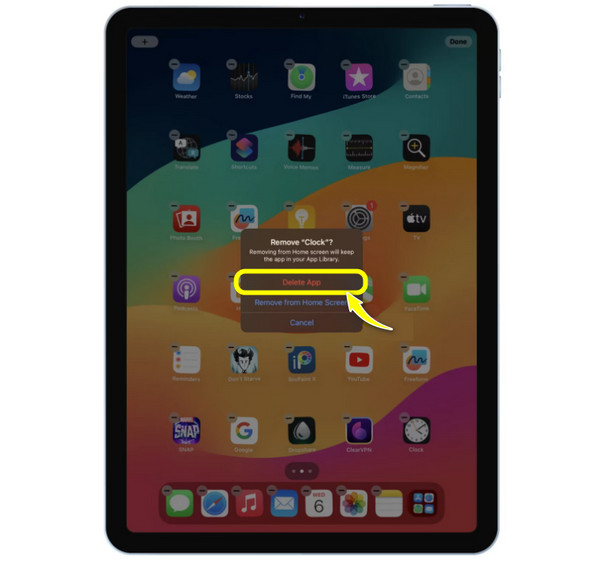


Best 5 Methods On How To Uninstall Apps On IPad 2026 Guide Delete An App From Home Screen . How Do You Delete Game Data On IPad YouTube . How To Delete An App From Ipad Air Detroit Chinatown . How To Get Deleted Games Back On IPad Tutorial YouTube . How To Hide Game Apps On IPad 3 Methods To Restrict Game 2. Tap On Remove From Home Screen At The Pop Up Menu On IPad Scaled.webp



How To Delete Apps On IPad 2025 Guide Beebom Delete Apps From Ipad . How To Delete Wallpaper Picture On Ipad At Daniel Gilmore Blog . How To Hide Game Apps On IPad 3 Methods To Restrict Game 1. Touch And Hold The Game App Icon Select Edit Home Screen On IPad Scaled.webp. How To Hide Game Apps On IPad 3 Methods To Restrict Game 1. Touch And Hold Game App Icon Select Hide App On IPad 1 Scaled.webp. How Do You Remove Apps From Your Ipad My Projects 3 4 1280x960



How To Delete Games On IPad Pro Mini Air Delete Game Settings . How To Delete Apps On IPad 2025 Guide Beebom Delete An App On Ipad From Home Screen . How To Delete Games On IPhone 2026 Step By Step Tutorial YouTube . 10 Best IPad Games To Play In 2026 Driffle 10 Best IPad Games To Play In 2026 . How To Delete An App From Ipad Air Detroit Chinatown




IPad Air 5 2022 How To Delete Uninstall Apps YouTube . The Complete Guide On How To Delete Games On IPad In 2022 Ipad App Library . 3 Ultimate Ways To Wipe An IPad Clean With Without Passcode How To Delete Games On Ipad S . How To Delete All Games On IPhone 2026 Step By Step Tutorial YouTube . IPadOS 26 IPad Apple KR Apple WWDC25 IPadOS 26 Games App 250609 Big .large 2x



How To Delete Apps From Your IPhone Or IPad Easily How To Delete Apps From Your IPhone Or IPad Easily . How To Delete Games On Mac Free Up Space In 2026 . How To Remove Apps From IPad Home Screen App Library Or Settings ChatGPT Image Jan 7 2026 06 05 58 PM . How To Delete Games On Mac Free Up Space In 2026 . How To Delete Creations On Roblox Your Easy Guide Image 8226d426bb




How To Delete Games On Mac Free Up Space In 2026 . How To Delete Games On Mac Free Up Space In 2026 Allthings How How To Uninstall Microsoft Store Games Image 1 1 759x609 . How To Delete A Game From Nintendo Switch What You Need To Know Delete Software . Uninstall Battlenet App On Windows 10 Youtube . How To Delete Uninstall Or Remove A Game From Your Computer YouTube



How To Remove Games From Continue Playing On Roblox 2026 YouTube . How To Delete Games On Ipad YouTube . How To Delete Apps On IPad Delete Ipad App 4 . How To Delete Games On Mac Free Up Space In 2026 . How To Delete Games On Mac Free Up Space In 2026 Howto Delete Steam Games