Are you a busy gamer, juggling work, family, and a passion for creating virtual worlds in Roblox? You're not alone. Many adult gamers, around age 36, dedicate precious evening hours to their hobbies, often craving relaxation, fun, and a touch of skill-building. Diving into Roblox Studio to build your own experiences can feel overwhelming, especially when it comes to understanding and effectively using Roblox Studio models. These pre-built assets are game-changers, saving you countless hours and letting you focus on the creative vision rather than painstaking object creation. This comprehensive guide is crafted for you, the dedicated creator looking to optimize your limited time. We'll cut through the noise, providing practical tips on finding, importing, customizing, and even troubleshooting Roblox Studio models, ensuring your virtual projects come to life without the usual headaches. Get ready to streamline your workflow and elevate your game development, balancing your digital ambitions with your real-world responsibilities. This resource will guide you through the essentials, making model integration a breeze and helping you stay current with the latest Roblox Studio trends without the hype.
What is a Roblox Studio Model and why are they important for game developers?
A Roblox Studio Model is a grouped collection of parts, scripts, and other objects that function as a single asset within your game. They are incredibly important because they drastically accelerate game development. Instead of building every single item from scratch, developers can use pre-made models for anything from trees and furniture to complex vehicles and interactive elements. This saves immense amounts of time, allowing creators to focus on unique game mechanics, level design, and overall player experience. For busy gamers balancing life and creation, models are essential for making efficient progress on their projects.
How do I properly import and insert a Roblox Studio Model into my game?
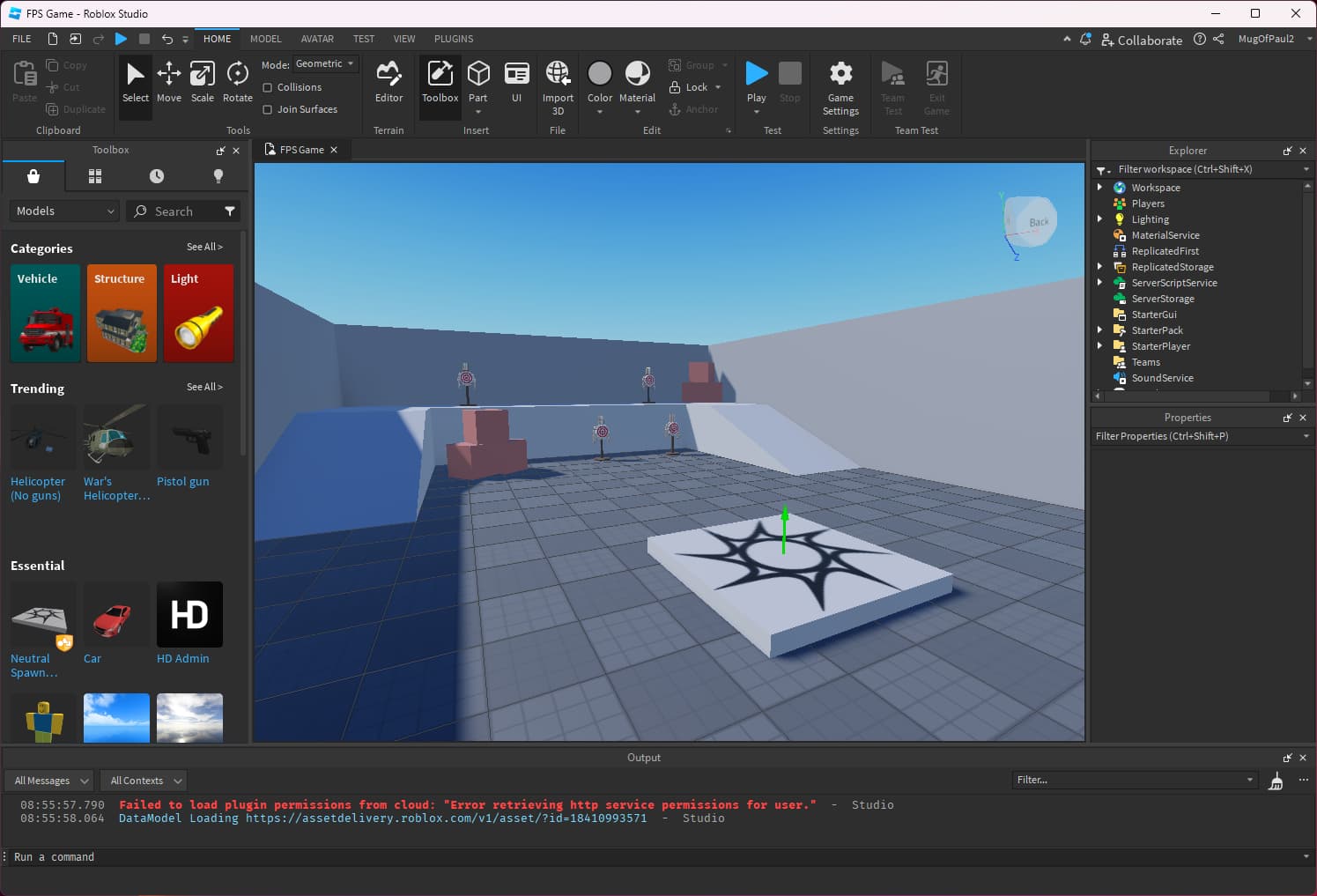
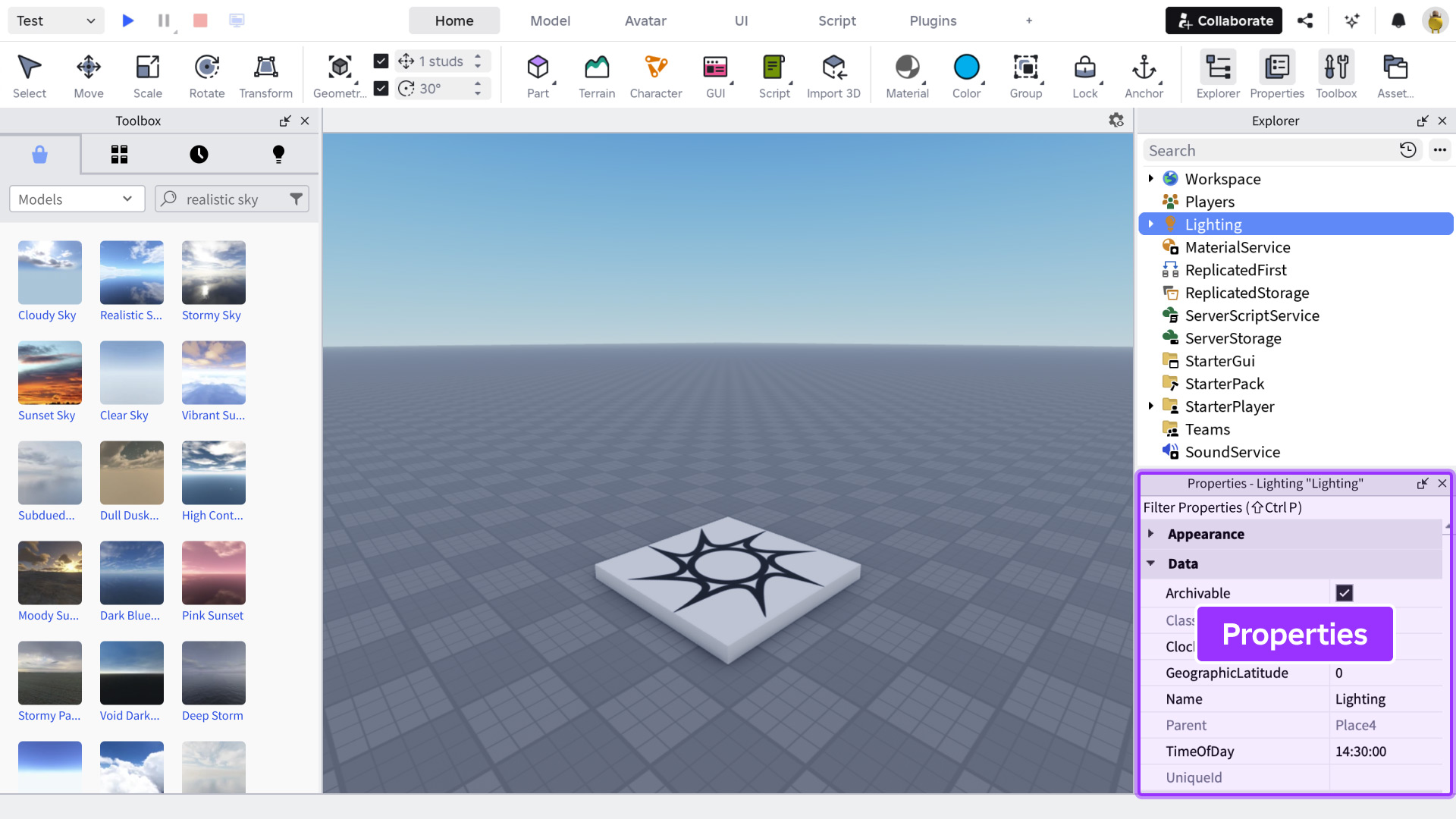
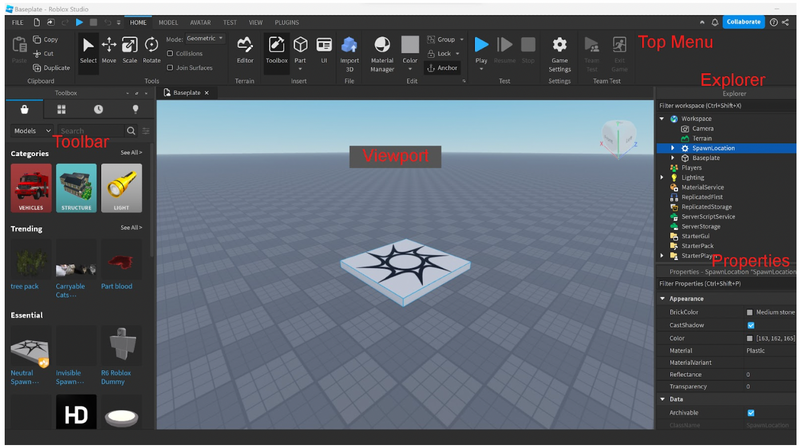
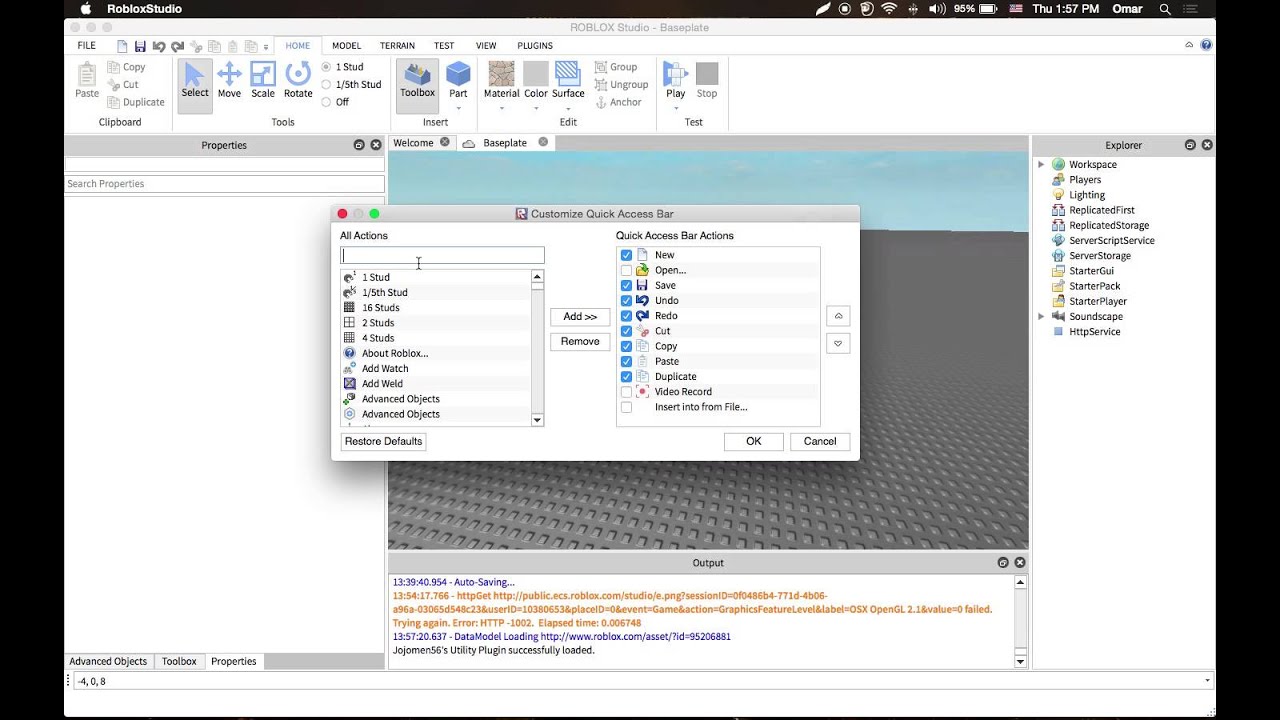
To import and insert a Roblox Studio model, you typically use the Creator Marketplace (formerly Toolbox) within the Studio interface. Open your place, then navigate to the 'Home' tab and click 'Toolbox'. Search for the desired model using relevant keywords. Once found, click on the model's thumbnail, and it will automatically appear in your game workspace. Always check its position and properties upon insertion. You can move, scale, and rotate it using the tools in the 'Home' tab, and adjust its properties like 'Anchored' or 'CanCollide' in the 'Properties' window to ensure it functions correctly within your environment.
What are the common pitfalls to avoid when using free Roblox Studio Models?
While free models are a great resource, common pitfalls include malicious scripts, poor optimization, and inappropriate content. Malicious scripts can inject viruses, backdoors, or unwanted content into your game. Poorly optimized models, with excessive parts or high polygon counts, can cause significant lag, especially on mobile devices. Always inspect scripts by opening them in the Explorer and looking for suspicious code like require() calls to unknown asset IDs. Test free models in a separate, empty game before adding them to your main project, and prefer models from reputable creators or those with high ratings and positive comments. If you don't understand a script, it's safer to remove it.
How can I customize an existing Roblox Studio Model to fit my game's unique style?
Customizing an existing Roblox Studio model involves modifying its properties and components. First, select the model in the Explorer and 'Ungroup' it to access its individual parts. You can then change colors, materials, and textures through the 'Properties' window. For structural changes, you can add, remove, or reshape parts using Studio's built-in building tools. If a model uses mesh parts, you might import custom textures or modify the mesh in an external 3D software like Blender before re-importing. Even simple changes like adjusting the color palette or material sheen can transform a generic model into something that perfectly matches your game's unique aesthetic, making it truly your own creation.
What's the best way to optimize Roblox Studio Models for better game performance and load times?
Optimizing models is crucial for a smooth player experience, especially for gamers who spend their limited free time on Roblox. Key strategies include reducing part count by using unions or simplifying meshes in external 3D software. Minimize the number of unique textures and use texture atlases where possible. Ensure all static objects are 'Anchored' to prevent unnecessary physics calculations. Utilize 'StreamingEnabled' in Workspace properties to only load parts visible to the player. Avoid excessive use of complex visual effects or scripts that run continuously. Regularly test your game on various devices, particularly mobile, to identify and address performance bottlenecks caused by unoptimized models. Small improvements across many models add up to a significant performance boost.
Why should I consider creating my own Roblox Studio Models instead of always using free ones?
Creating your own Roblox Studio models offers several significant advantages. Firstly, it ensures complete originality and creative control, allowing your game to stand out with a unique visual identity and mechanics. Secondly, you guarantee the model is free of malicious scripts or performance issues, as you control every aspect of its creation and optimization. Thirdly, it's a fantastic way to develop your own building and scripting skills within Roblox Studio, fostering a deeper understanding of game development. Lastly, if your models are high quality, you can share or sell them on the Creator Marketplace, contributing to the community and potentially earning Robux, turning your hobby into a potential revenue stream.
How do Roblox Studio Models contribute to social gaming and player engagement in 2026?
In 2026, social gaming remains a cornerstone of the Roblox experience, and models play a vital role in fostering engagement. Developers use interactive models to create social hubs, minigames, and shared experiences that encourage player interaction. For instance, well-designed models for cozy environments, custom avatar accessories, or unique social tools (like chat bubbles, dance props) enhance player expression and connection. Models can also facilitate social gameplay through elements like modular obstacle courses, co-op puzzle pieces, or competitive game assets. By offering diverse and engaging models, creators empower players to personalize their social interactions and create memorable shared moments, aligning with current trends in community-driven game design.
Hey there, fellow gamer and aspiring Roblox creator! Ever feel like your passion for building awesome virtual worlds clashes with the demands of adulting? You know the drill: long workdays, family commitments, and just a few precious hours left to unwind and build something cool. It's a common story for the average US gamer, often around 36 years old, who cherishes their gaming time for relaxation, social connection, and a bit of creative skill-building. You're not looking for hype; you're looking for solutions that genuinely help you make the most of your limited time.
One of the biggest time-savers and creative accelerators in Roblox Studio is understanding how to effectively use models. These are pre-built objects, characters, scripts, and environments that can dramatically speed up your development process. But let's be honest, diving into the Roblox Creator Marketplace can feel like sifting through a colossal digital junk drawer. How do you find quality assets? How do you know they're safe? How do you even put them into your game without breaking everything? These are the real pain points that can turn a fun creative session into a frustrating chore.
In 2026, with over 87% of US gamers regularly dedicating 10+ hours a week to their passion, and mobile gaming continuing its dominance alongside PC and console, efficiency in creation is key. Social gaming remains a major trend, meaning players expect polished, engaging experiences. This guide is your no-nonsense resource for mastering Roblox Studio models. We'll cover everything from finding the best assets to customizing them for your unique vision, all while keeping performance and security in mind. Our goal is to equip you with the knowledge to build amazing games efficiently, so you can enjoy both your creative journey and your well-deserved relaxation time. Let's make your Roblox development smoother, smarter, and more fun!
What Exactly is a Roblox Studio Model and Why Should I Use Them?
A Roblox Studio model is essentially a pre-fabricated asset or collection of parts, objects, scripts, and even entire structures, grouped together for easy reusability in your game. Think of them as digital building blocks that range from a simple chair or tree to complex vehicles, character rigs, or interactive systems like door mechanisms. They are fundamental to efficient game development within the Roblox ecosystem. The primary reason adult gamers and busy developers, like many of us around the age of 36, should embrace models is pure efficiency. Instead of building every single component from scratch, which can consume precious hours after a long day of work and family duties, you can leverage the vast library of existing models. This frees up your invaluable creative time to focus on unique game mechanics, intricate level design, compelling storytelling, and refining the player experience. It allows you to achieve more with your limited creative window, turning your game ideas into reality without getting bogged down in repetitive, time-consuming tasks. It’s about working smarter, not harder, enabling you to bring your game concepts to life efficiently and enjoy the process without the usual grind. This approach aligns perfectly with the need for relaxation and skill-building that many adult gamers seek.
How Do I Find High-Quality Roblox Studio Models for My Projects?
Finding quality models is absolutely crucial, not just for aesthetics but to avoid performance issues and critical security risks. Your primary and most reliable source is the Roblox Creator Marketplace (formerly known as the Toolbox) directly within Roblox Studio. To navigate this expansive library effectively, utilize the search bar with specific, descriptive keywords such as “low poly tree pack,” “sci-fi weapon set,” “animated car rig,” or “interactive door script.” Refine your searches by using the filter options. Crucially, look for models from “Verified Creators” or those with a high number of likes and positive reviews, which often indicate reliability and quality. Always scrutinize the model's likes versus dislikes ratio, read recent comments, and even check the creator's profile for their history and other creations. This due diligence can save you countless headaches down the line. Additionally, always check the “Free” filter to ensure the assets are readily available for public use. While community forums or Discord servers might offer models, always exercise extra caution and preview them thoroughly in an isolated test environment before integration into your main game. This careful selection process is a small investment of time that pays huge dividends in game stability and player satisfaction.
What Are the Best Practices for Importing and Placing Models into My Game?
Once you've found a suitable Roblox Studio model, the process of importing and placing it into your workspace is generally straightforward, but attention to detail is key for a seamless experience. Simply click on the model's thumbnail in the Creator Marketplace, and it will typically appear in your game's current view. Before committing to its final placement, it’s a good practice to group it (Ctrl+G or Cmd+G) if it's not already a single model, and then immediately rename it clearly in the Explorer window (e.g., “ForestTree_01” or “SciFiDoor_Interactive”). Accurate positioning is paramount for both visual integrity and game functionality. Utilize the Move, Scale, and Rotate tools, conveniently located in the Home tab of Roblox Studio, to precisely adjust the model. Pay close attention to the model's pivot point, which dictates how it rotates and scales. Ensure static models are 'Anchored' (found in the Properties window) so they don't fall or get affected by physics, and conversely, unanchor models that need physics interactions, like a movable ball. Always place models logically on the baseplate or other solid surfaces, avoiding floating objects, which can disrupt immersion and lead to unexpected physics glitches. Thoughtful placement contributes significantly to a polished player experience.
How Can I Customize a Roblox Studio Model to Fit My Game's Aesthetic?
Customization is where a generic Roblox Studio model truly begins to integrate into your unique game world and reflect your creative vision. After inserting a model, the first step is often to right-click it in the Explorer and select “Ungroup” to gain access to its individual parts, meshes, and any embedded scripts. From there, you have a wealth of options. You can easily change colors, materials, and transparency for individual parts using the Properties window – even subtle alterations to the color palette or material can dramatically shift a model's mood. For models that include mesh parts, you might import custom textures to apply unique visual effects, or use Roblox's extensive library of built-in materials to achieve a specific look. To modify shapes or add structural elements, utilize Roblox Studio's foundational building tools (Part, Cylinder, Sphere, Wedge) to either enhance or subtract from the existing model. For highly specific or complex modifications, particularly for unique visual styles, consider exporting the model's meshes to external 3D modeling software like Blender, making your alterations there, and then re-importing them into Studio as a single, optimized mesh part. Remember, even minor aesthetic tweaks can transform a public asset into something distinctly yours, reinforcing your game's unique identity.
What Are the Potential Risks of Using Free Models and How Can I Mitigate Them?
While free Roblox Studio models are an invaluable resource for speeding up development, they are not without potential pitfalls, primarily concerning malicious scripts, performance degradation, and copyright infringement. Malicious scripts are a significant concern; they can range from simple spamming code to sophisticated viruses or backdoors that grant unauthorized access to your game, potentially disrupting gameplay or even stealing player data. To mitigate this, always inspect a model's scripts by double-clicking them in the Explorer window and carefully reading the code. Be highly suspicious of functions like 'require()', 'getfenv()', or 'loadstring()' when used in unfamiliar or obfuscated ways, as these are often indicators of harmful code. Our first rule of thumb: always preview models in an empty, isolated test place before integrating them into your main game. Secondly, if you don't understand a script's purpose or plan to implement your own functionality, simply remove all scripts from the model. Third, prioritize models from well-known, reputable creators with consistently positive ratings. Fourth, exercise extreme caution with models promising free Robux, admin commands, or other unrealistic benefits. Lastly, for performance, overly complex models with an excessive number of parts or high-polygon meshes can cause significant lag and slow load times, especially for players on mobile devices, which constitute a large segment of Roblox's user base in 2026. Always consider the potential impact on your game’s overall performance before using any free asset extensively. Vigilance is your best defense.
How Do I Optimize Roblox Studio Models for Better Game Performance?
Performance optimization is absolutely vital for player retention, particularly for the ~60% of US gamers balancing their hobby with real-life commitments who value a smooth, frustration-free experience. Large, highly detailed Roblox Studio models can significantly increase your game's load times and drastically decrease frame rates, especially on lower-end hardware or mobile devices. Here's how to keep your game running smoothly: First, reduce part count by combining adjacent parts using the 'Union' operation in the Model tab, or by leveraging external 3D software to create lower-polygon versions of complex assets. Simpler meshes require fewer computational resources. Second, be efficient with textures: use fewer, optimized textures rather than many high-resolution ones, and consider texture atlases where multiple small textures are combined into one larger file. Third, ensure that all static parts and structural elements in your game are 'Anchored' (in the Properties window) to prevent unnecessary physics calculations. Fourth, strategically use 'StreamingEnabled' in your Workspace properties, which allows the game to load and unload parts dynamically based on player proximity, improving initial load times and overall performance in large worlds. Fifth, implement Level of Detail (LOD) for very distant objects; consider using simpler placeholder models that swap out for detailed versions as players get closer. This month's trends continue to emphasize mobile-friendly design and seamless cross-play, making optimization even more critical for reaching a broad and engaged audience. Regular testing across various devices is key to identifying and rectifying performance bottlenecks.
Can I Create and Share My Own Roblox Studio Models?
Absolutely, creating and sharing your own Roblox Studio models is a fantastic and highly encouraged way to contribute to the thriving developer community and even establish your reputation as a skilled creator. It offers a unique opportunity to give back to the platform that provides hours of relaxation and a creative outlet for millions. To create a model, simply build your desired object, structure, character, or interactive system using Roblox Studio's comprehensive set of tools. Once all its components are assembled and configured, group them into a single model. Then, right-click the grouped model in the Explorer window and select 'Save to Roblox.' You'll be prompted to provide an engaging title, a clear description, and to decide whether it should be public or private. You can also choose to make it available for sale, potentially earning some Robux for your efforts. Sharing your creations not only allows other developers to leverage your hard work, saving them time and effort, but also fosters a collaborative environment, sparks new ideas, and enhances your standing within the Roblox development community. It's a rewarding cycle of creation and contribution that helps grow the platform for everyone.
What are Some Trending Roblox Studio Model Types in 2026?
Keeping up with the latest trends in Roblox Studio model types is essential for ensuring your game remains relevant, visually appealing, and highly engaging for players. In 2026, several types of models are particularly popular and in high demand. Given the continued rise of social gaming,
Mastering Roblox Studio models is crucial for efficient game development, especially for busy adult gamers. This guide covers how to find high-quality, safe assets, customize them to your game's unique style, and optimize them for peak performance across devices. Learn to mitigate risks associated with free models and contribute to the community by creating your own. Understand current trends in model types, ensuring your creations remain relevant and engaging for the thriving Roblox community, balancing your creative passion with real-life demands without compromising quality or security.
35


How To Create A Model On Roblox Studio In Depth Guide Roblox . How To Make A Model In Roblox Studio Step By Step YouTube . How To ANIMATE MODELS In Roblox Studio In 5 Minutes YouTube . Get Roblox Studio Your Easy Guide Step By Step Roblox Studio Download . Properties Window Shown On The Right Side Of Studio S Window Properties



Roblox Avatar To Blender Your Easy Guide . Roblox Studio Make A Model In Roblox Studio Step 10 . How To Add Character Models To Roblox Studio Without Plugins YouTube . How To Model In Roblox Studio WITHOUT BLENDER Roblox Modeling . 2026 Roblox Studio Models Guide What To Use Avoid And Why It Matters O



Roblox Studio Every Roblox And Studio Update That Happened In 2024 . The Absolute Basics Of Roblox Studio Roblox Studio For Beginners . Roblox Studio Detailed Beginner S Guide For Roblox Game Creator Screen Shot 2022 12 20 At 1.49.27 PM . 2026 Roblox Studio Models Guide What To Use Avoid And Why It Matters O . Roblox Studio Mesh 2026 3D Models Page 1 STLFinder Roblox Base Mesh Fo9ki7tj 200
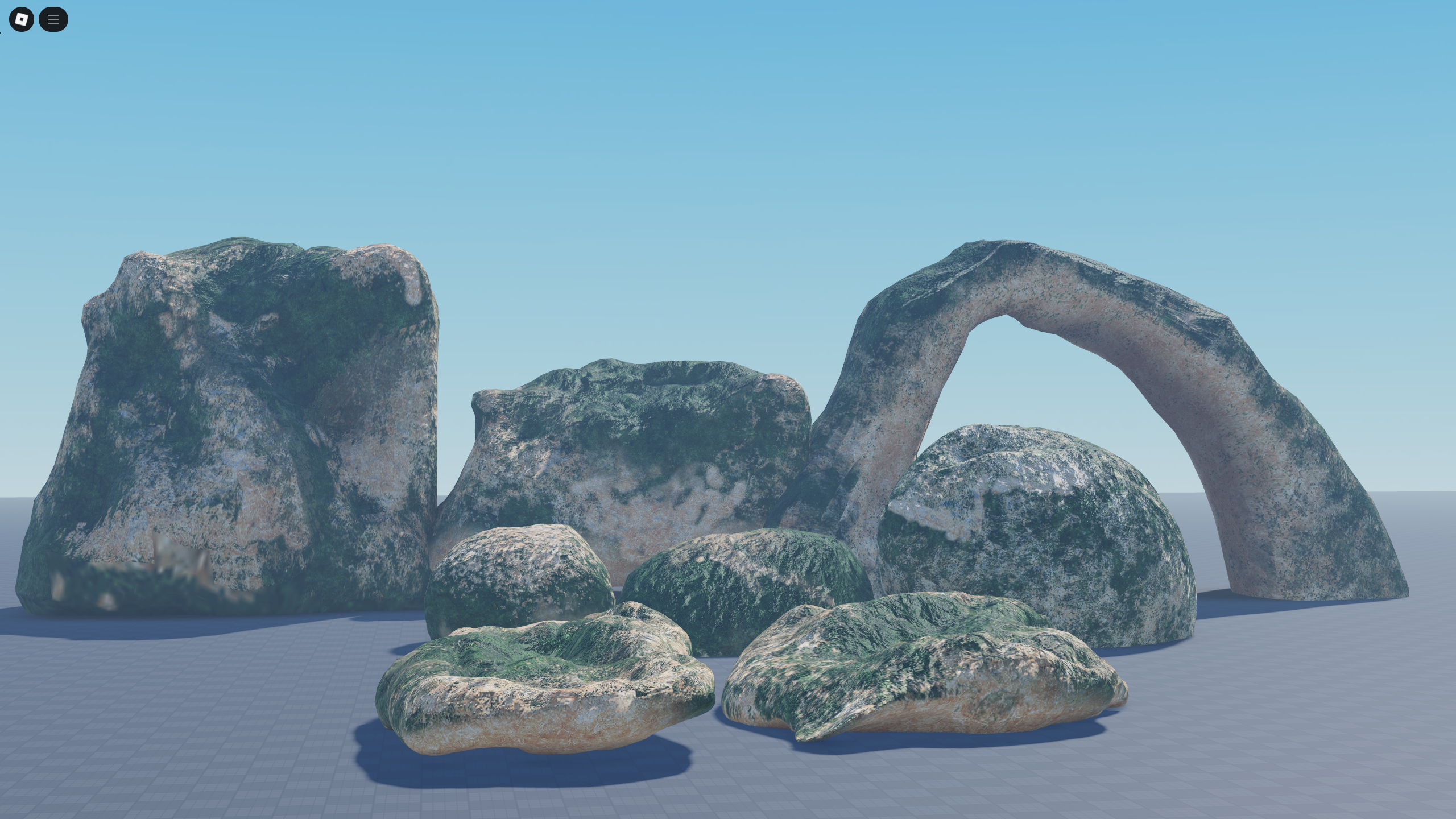
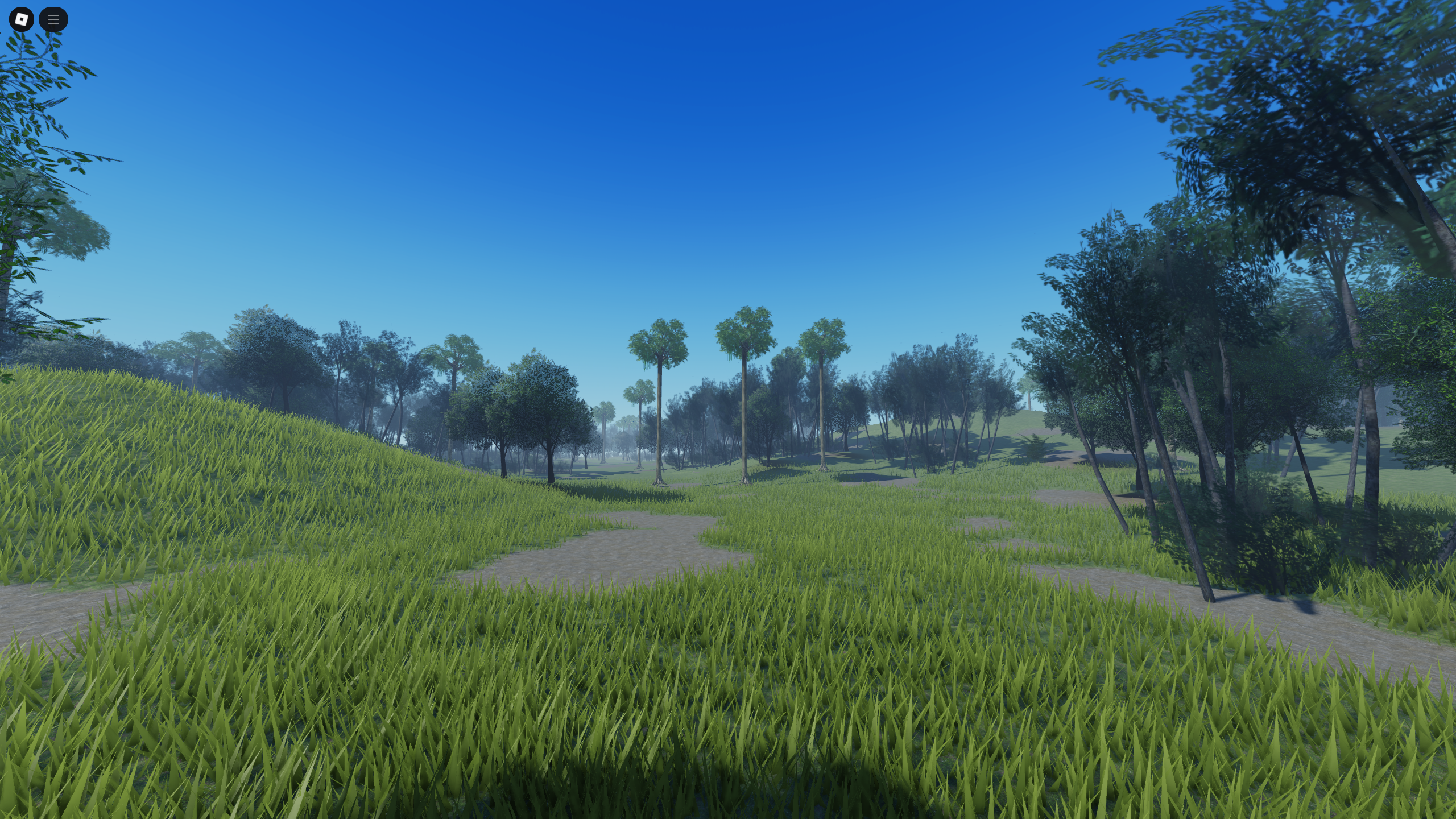
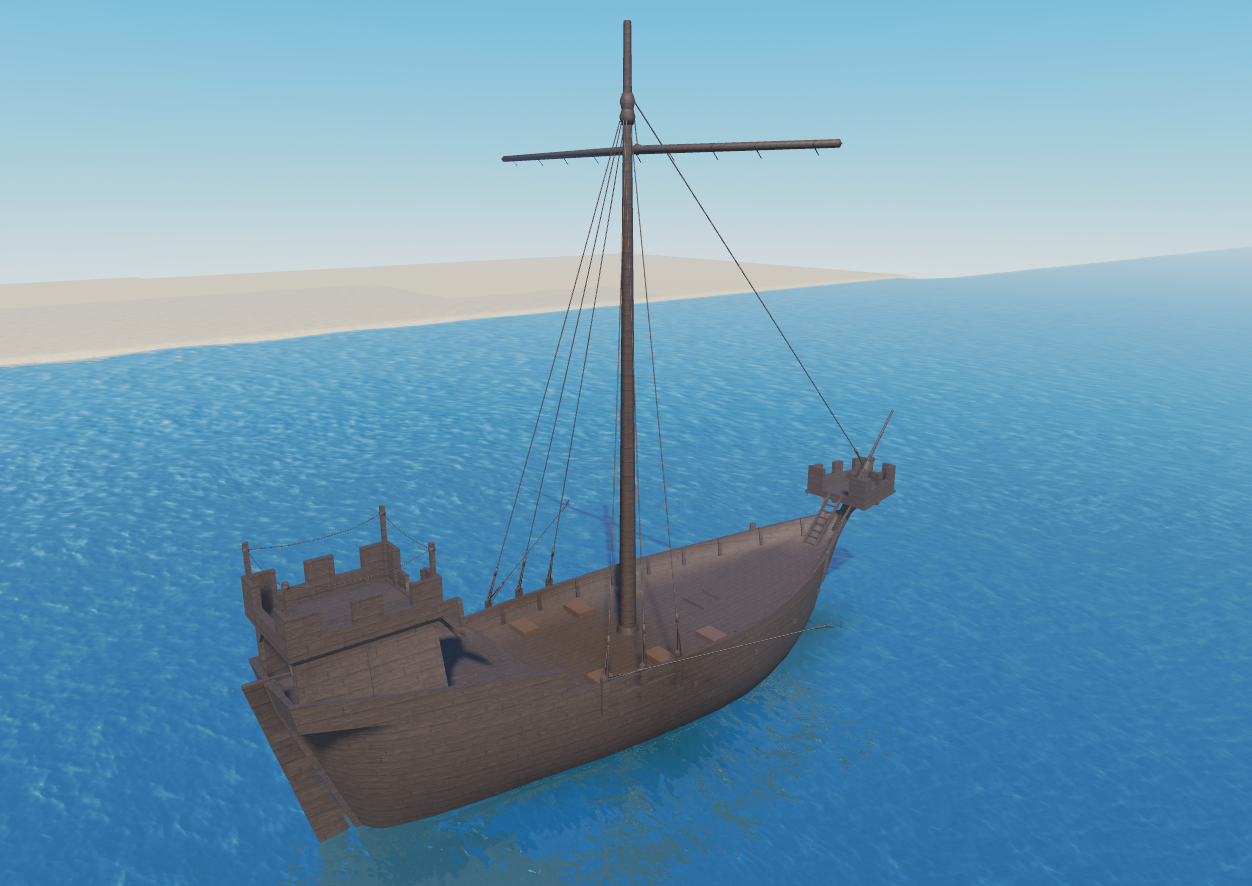
2026 Roblox Studio Models Guide What To Use Avoid And Why It Matters O . 2026 Roblox Studio Models Guide What To Use Avoid And Why It Matters O . 2026 Roblox Studio Models Guide What To Use Avoid And Why It Matters O . 2026 Roblox Studio Models Guide What To Use Avoid And Why It Matters O . 2026 Roblox Studio Models Guide What To Use Avoid And Why It Matters O
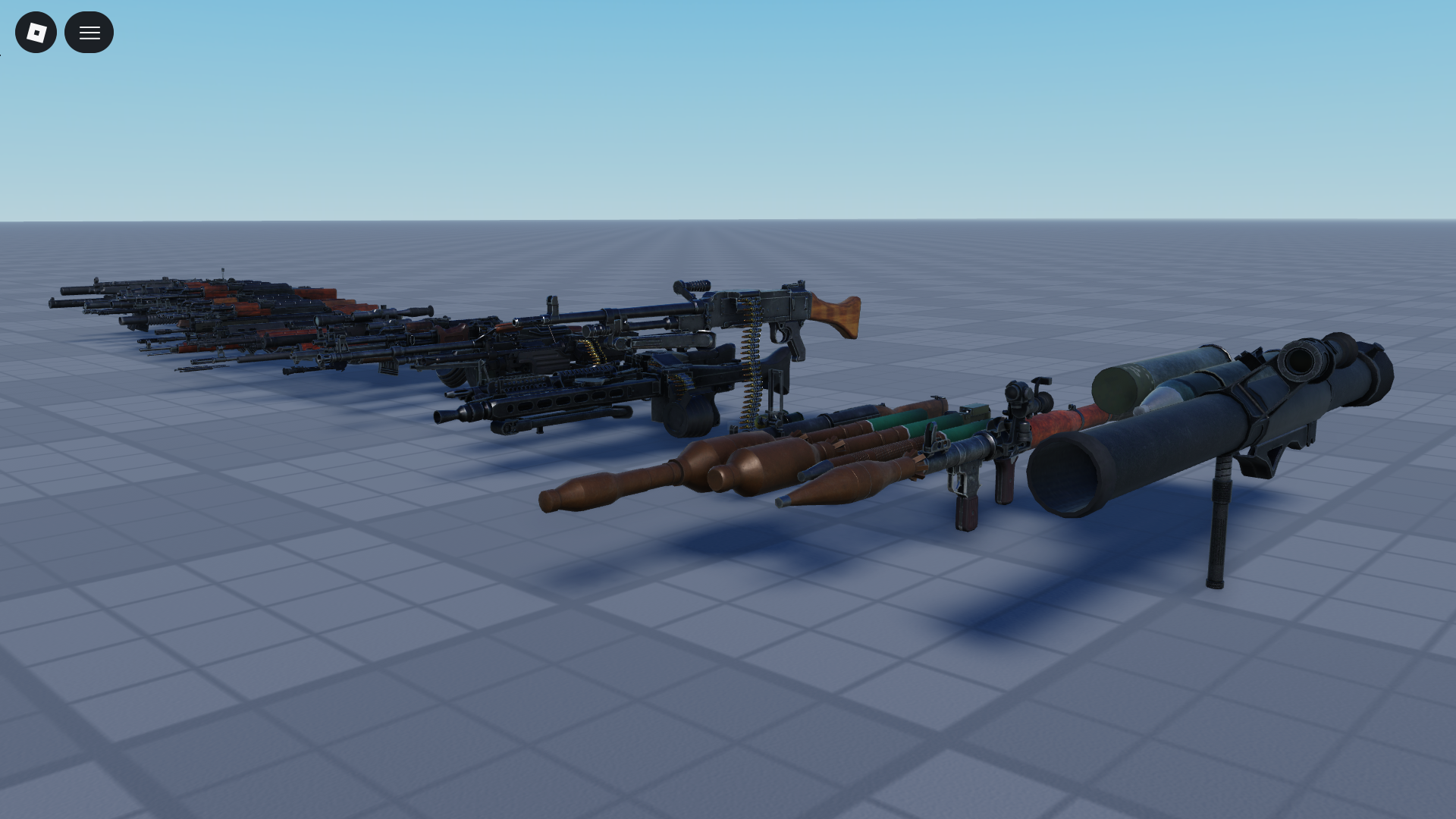
2026 Roblox Studio Models Guide What To Use Avoid And Why It Matters O . 2026 Roblox Studio Models Guide What To Use Avoid And Why It Matters O . 2026 Roblox Studio Models Guide What To Use Avoid And Why It Matters O . 2026 Roblox Studio Models Guide What To Use Avoid And Why It Matters O . 2026 Roblox Studio Models Guide What To Use Avoid And Why It Matters O
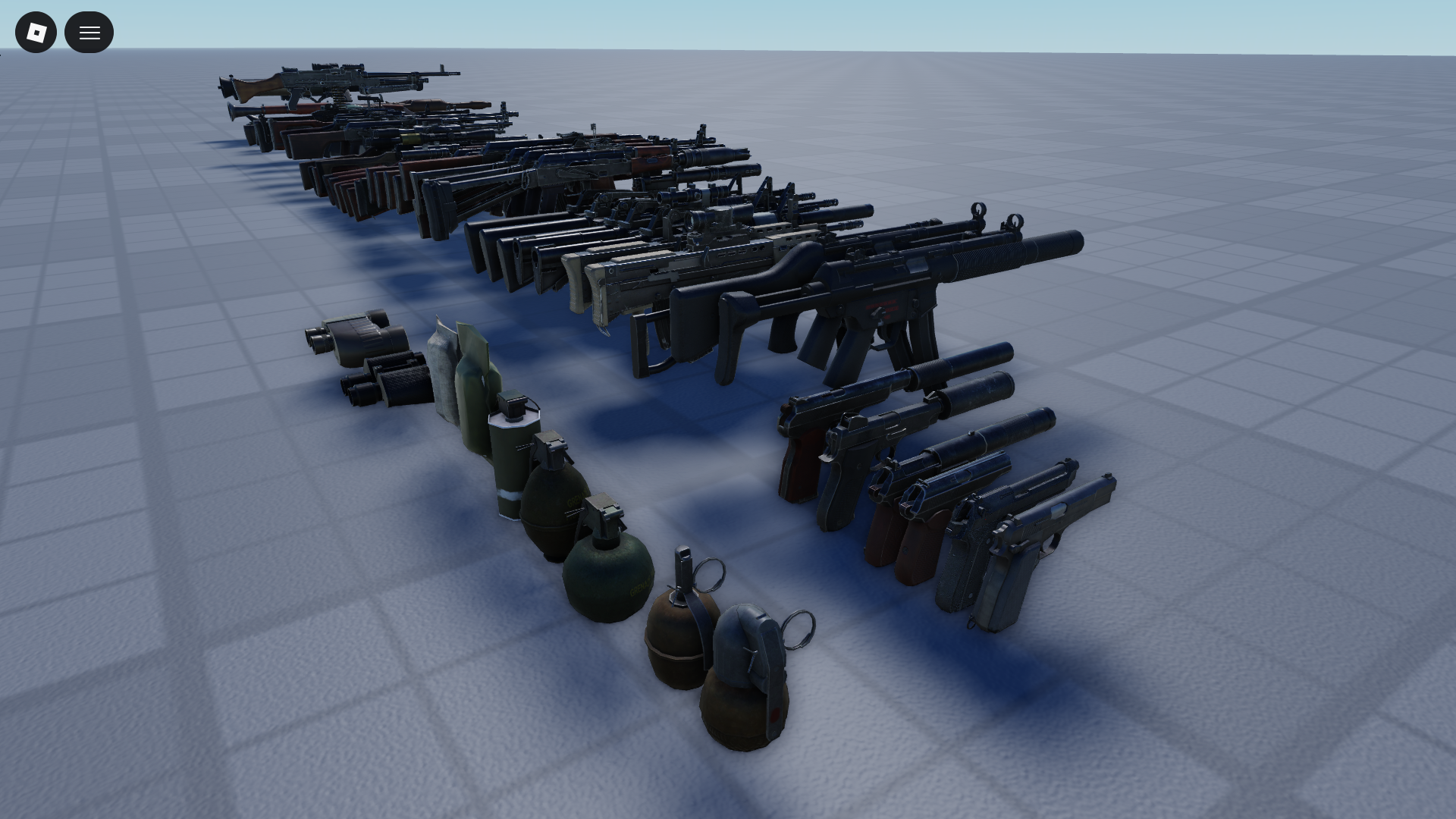
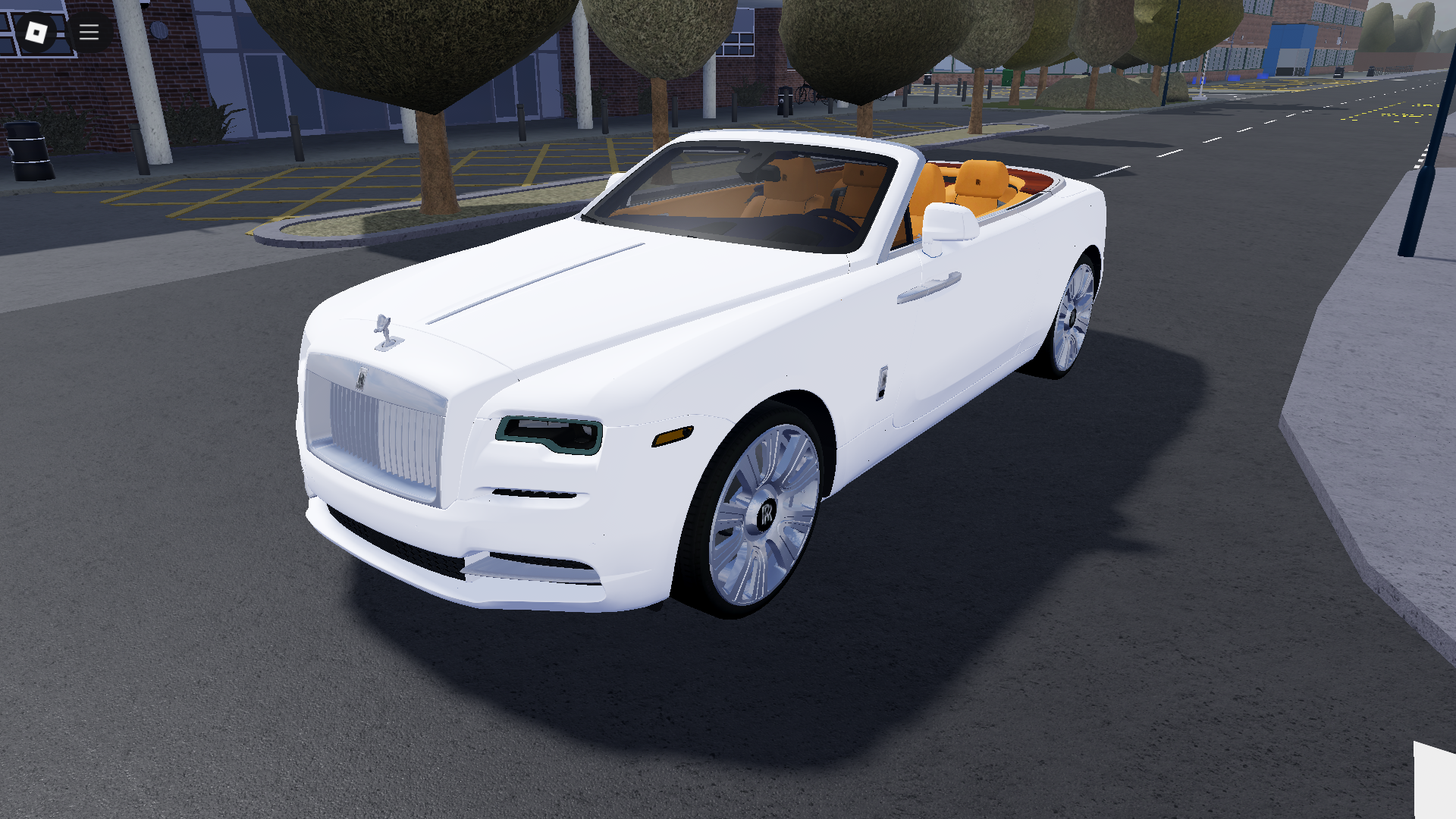
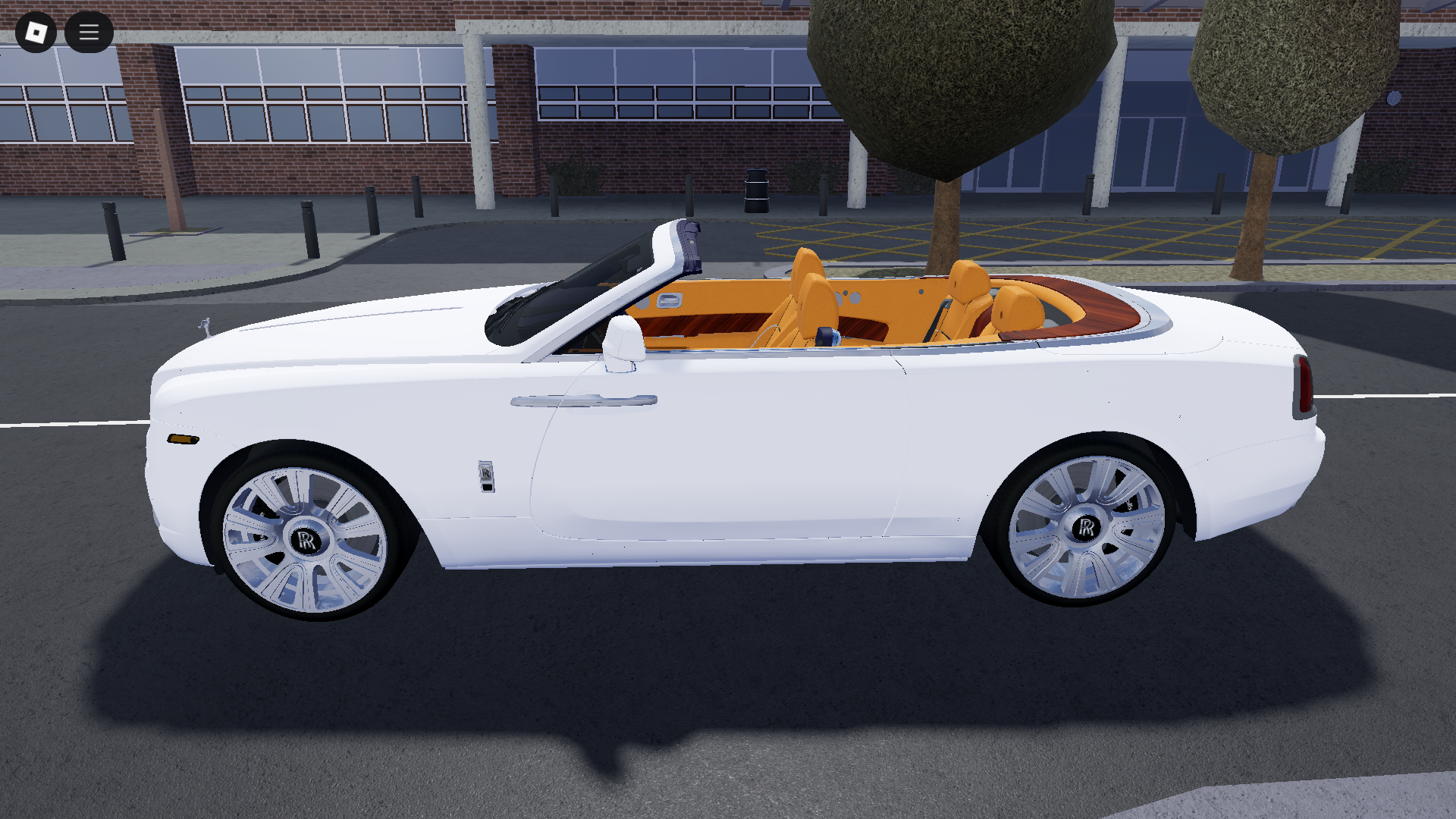
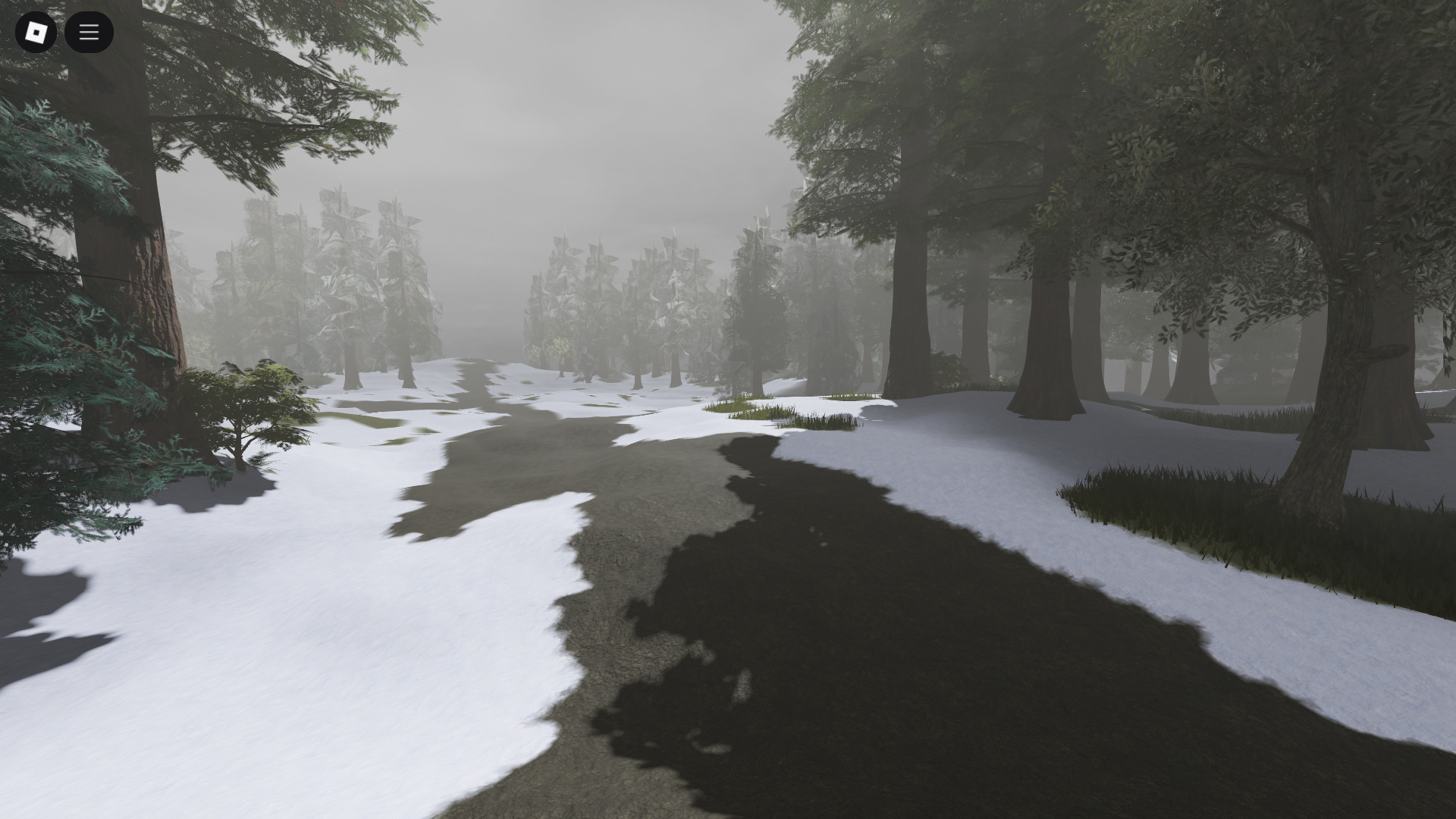
2026 Roblox Studio Models Guide What To Use Avoid And Why It Matters O . 2026 Roblox Studio Models Guide What To Use Avoid And Why It Matters O . 2026 Roblox Studio Models Guide What To Use Avoid And Why It Matters O . 2026 Roblox Studio Models Guide What To Use Avoid And Why It Matters O . 2026 Roblox Studio Models Guide What To Use Avoid And Why It Matters O




2026 Roblox Studio Models Guide What To Use Avoid And Why It Matters O . Apa Itu Roblox Dokumentasi Pusat Kreator Roblox Studio . How To Add Models In Roblox Studio YouTube . 2026 Roblox Studio Models Guide What To Use Avoid And Why It Matters O . 2026 Roblox Studio Models Guide What To Use Avoid And Why It Matters O