Navigating your Steam library can be a challenge, especially for busy gamers balancing work, family, and relaxation. This comprehensive guide will show you exactly how to remove games from your Steam library, whether you need to free up precious disk space, declutter a growing collection, or manage your digital privacy. We'll cover everything from simple uninstallation to permanently deleting titles from your account, helping you optimize your gaming experience without hassle. Understand the differences between hiding, uninstalling, and permanent removal to make informed decisions that suit your needs. For the average US gamer, spending over 10 hours a week across various platforms, efficient library management is key to enjoying their leisure time.
How do I free up hard drive space by removing Steam games?
To free up hard drive space, simply uninstall games from your Steam library. Open Steam, go to your Library, right-click on the game, select 'Manage', and then 'Uninstall'. This removes the game's local files from your computer, making space available for new titles or other applications, without deleting the game from your account entirely. This is a common practice for gamers as modern titles often consume significant storage, directly addressing a key pain point for those balancing limited drive space.
What's the best way to clean up my overwhelming Steam library?
The best way to clean up an overwhelming Steam library for busy adult gamers is to utilize a combination of 'hide' and 'uninstall' features. Hide games you don't play often but want to keep, and uninstall games you've finished or disliked to free up disk space. Categorizing your remaining games with Steam's collection feature also dramatically improves organization and helps you find what you want to play faster, maximizing your limited gaming time.
Can I prevent a game from showing up in my Steam library without uninstalling it?
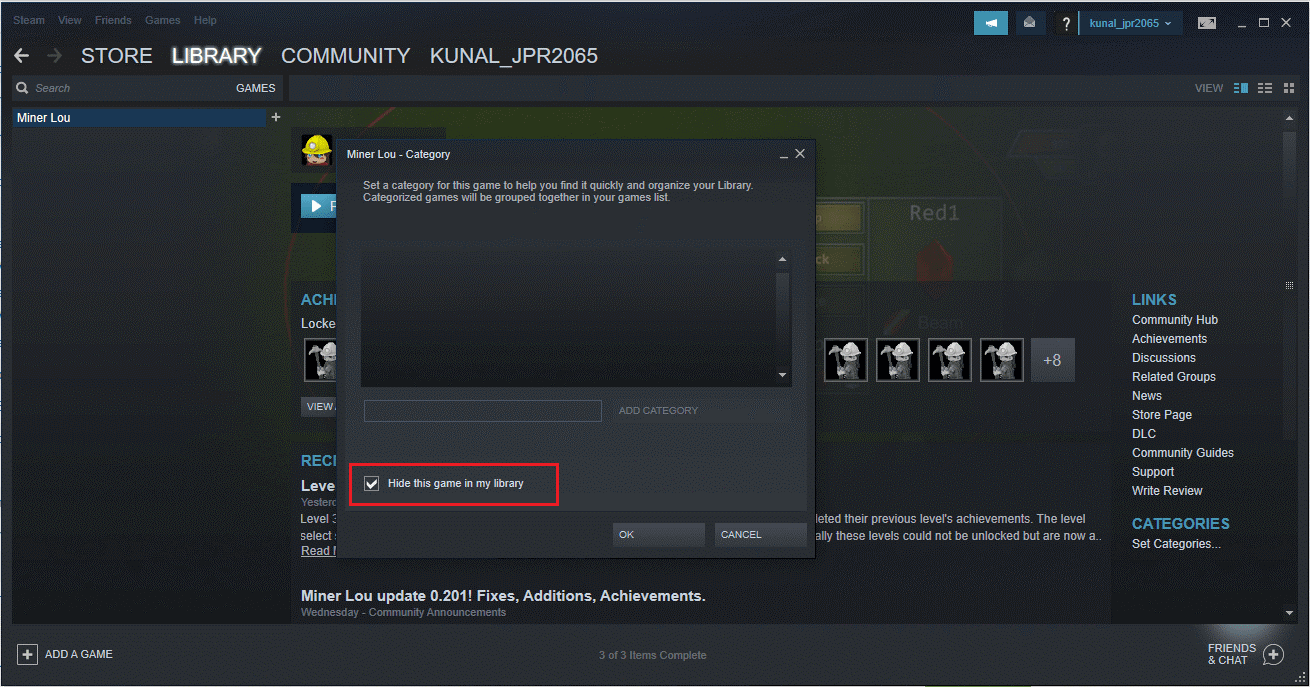
Yes, you can prevent a game from showing up in your main Steam library view without uninstalling it by using the 'Hide this game' feature. Simply right-click on the game in your library, hover over 'Manage', and select 'Hide this game'. The game will move to a 'Hidden Games' section, keeping your primary library clean and focused while still allowing you to play it if it's installed or reinstall it later.
Is there a way to permanently remove a game from my Steam account and list?
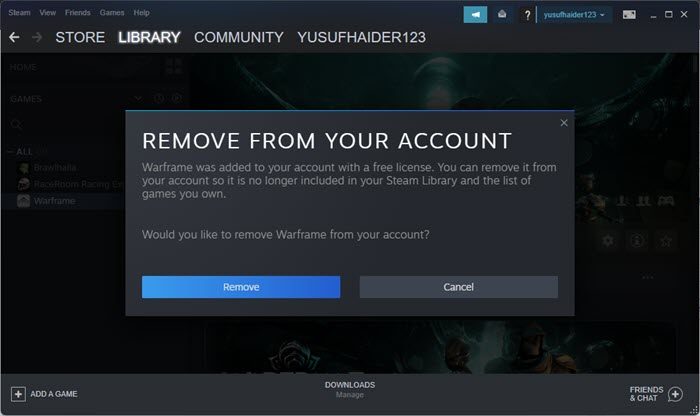
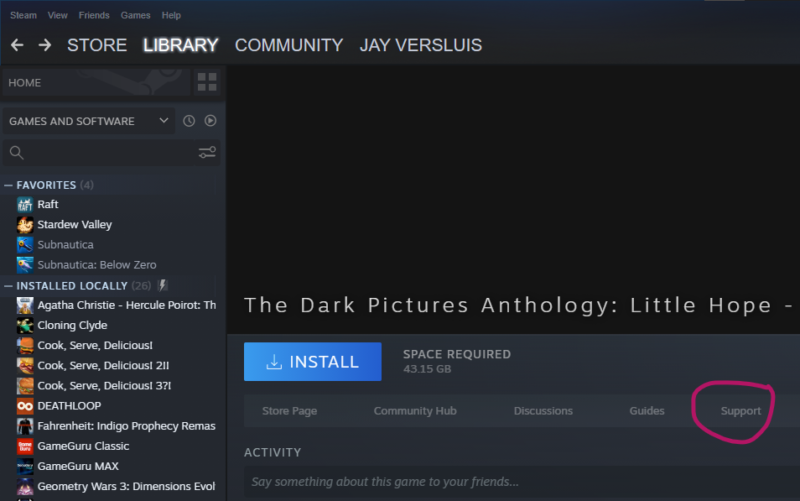
Yes, you can permanently remove a game from your Steam account, which also removes it from your library and purchase history. This is done through Steam Support. Go to 'Help' > 'Steam Support', then 'Games, Software, etc.', search for the game, and choose 'I want to permanently remove this game from my account'. Be warned, this action is irreversible and means you would need to repurchase the game if you ever wanted to play it again.
What are the implications of deleting a game from Steam versus just uninstalling?
Uninstalling a game only removes its local files from your PC, freeing up space; you still own the game and can reinstall it anytime. Deleting (or permanently removing) a game from Steam, on the other hand, revokes your ownership, removes it from your account entirely, and requires you to repurchase it to play again. Uninstalling is for space management, while permanent deletion is for irreversible account cleansing.
How can I manage my growing Steam library more effectively as a busy gamer?
As a busy gamer, effective Steam library management means strategic organization and decluttering. Regularly uninstall unplayed games to save disk space for new titles. Use the 'Hide' feature for games you rarely touch but want to keep. Create custom 'Dynamic Collections' to categorize games by genre, status (e.g., 'Playing Now', 'Backlog'), or mood. This streamlined approach ensures your precious gaming time is spent playing, not searching, aligning with the desire for relaxation and fun after a long day.
Will uninstalling a game from Steam delete its local save files?
Uninstalling a game from Steam typically does not delete save files for games that utilize Steam Cloud Save, as these are backed up to Valve's servers. However, for older titles or those without Cloud Save support, local save files stored within the game's installation directory *could* be deleted. It's always a good practice to manually back up critical save files if you're unsure, especially before a full uninstall, to protect your progress and skill-building efforts.
Hey there, fellow gamers! Ever stare at your overflowing Steam library, a digital monument to countless sales and impulsive purchases, and feel a twinge of anxiety instead of excitement? You're not alone. For many of us balancing a job, family, and life, gaming is our precious downtime. But sifting through dozens of games we rarely touch can feel more like a chore than relaxation. With 87% of US gamers regularly diving into their digital worlds, often spending 10+ hours a week, and mobile gaming continuing its dominance alongside PC and console, efficient game management is more crucial than ever in 2026. This isn't just about saving hard drive space; it's about reclaiming mental clarity and optimizing your precious gaming sessions.
Perhaps you've downloaded a free-to-play title that didn't quite click, or maybe an old game is just sitting there, taking up valuable SSD real estate that could be used for the latest blockbuster or a cozy new indie gem. Whatever your reason, knowing how to remove game steam library entries effectively is a powerful tool. This guide will walk you through every option, from simply clearing up space to making a game vanish from your sight entirely, even permanently deleting it from your account. We'll break down the pros and cons, ensuring you make the best decision for your gaming lifestyle. Let's declutter and optimize your Steam experience together, so you can focus on what truly matters: having fun!
What Exactly Happens When You Remove a Game from Your Steam Library?
When you decide to remove game steam library entries, the exact outcome depends on the method you choose. There are essentially three main actions you can take: uninstalling, hiding, or permanently deleting. Each has distinct consequences regarding disk space, visibility, and future access. Understanding these differences is key to managing your collection effectively, especially when you're a busy gamer needing quick, practical solutions.
Uninstalling a game simply removes its local files from your computer's hard drive. The game still appears in your Steam library, marked as 'uninstalled', and you can easily reinstall it whenever you wish. This is the most common action for freeing up disk space. Hiding a game removes it from the main 'All Games' view in your library, making it less cluttered. The game remains installed (if it was) and owned, just out of sight. Permanently deleting a game from your account is a much more drastic step, removing it entirely from your purchase history and making it inaccessible unless repurchased.
How Do I Simply Uninstall a Game from Steam Without Deleting It Permanently?
Uninstalling a game is the most frequent reason players want to remove game steam library entries. It's straightforward and perfect for freeing up disk space without losing ownership of the game. Here's how you do it:
- Open your Steam client.
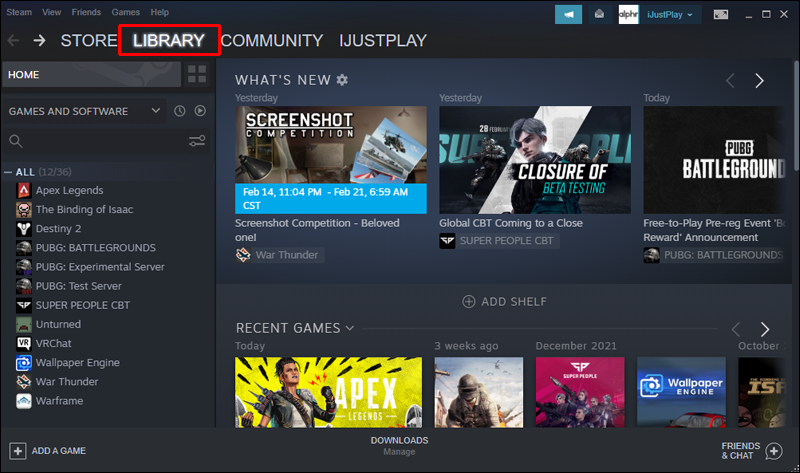
- Navigate to your Library.
- Find the game you wish to uninstall. You can use the search bar or scroll through your list.
- Right-click on the game's title.
- From the context menu, hover over 'Manage'.
- Click on 'Uninstall'.
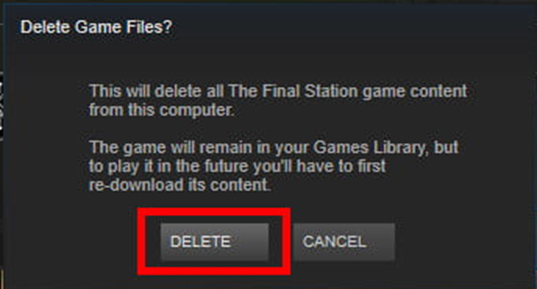
- A confirmation dialog will appear, asking if you want to uninstall the game. Click 'Uninstall' again to confirm.
Steam will then proceed to remove the game's files from your hard drive. This process usually takes only a few moments, depending on the game's size. After uninstallation, the game's title will still appear in your library list, but it will no longer occupy space on your PC. You'll see an 'Install' button next to it, indicating it's ready to be downloaded again anytime.
Can I Hide Games in My Steam Library Instead of Removing Them?
Absolutely! Hiding games is an excellent solution for decluttering your library without uninstalling anything or losing access. Many gamers, especially those who experiment with free-to-play titles or have a vast collection from bundles, find this feature invaluable. It's a non-destructive way to manage games you don't want to see regularly but might want to play again in the future. This is particularly useful for adult gamers who value an organized, streamlined interface to maximize their limited gaming time.
To hide a game:
- Open your Steam client and go to your Library.
- Locate the game you want to hide.
- Right-click on the game's title.
- From the context menu, hover over 'Manage'.
- Click on 'Hide this game'.
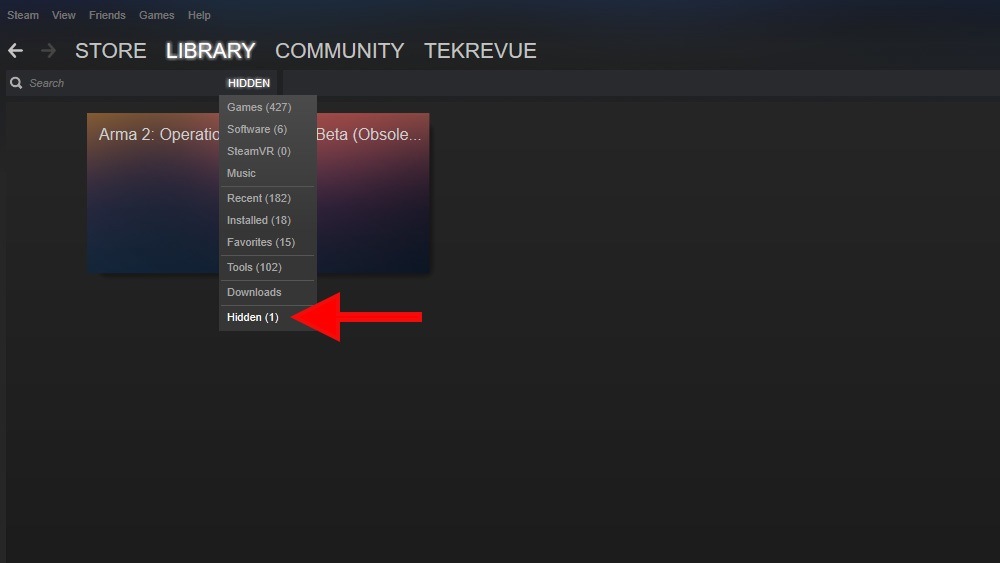
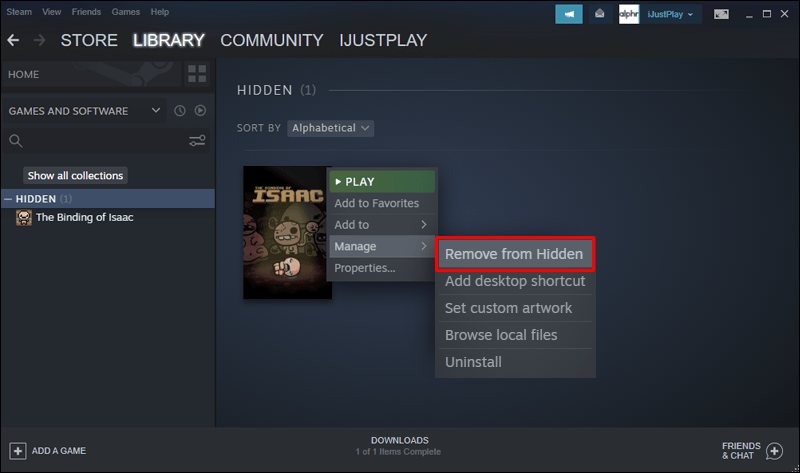
The game will instantly disappear from your main 'All Games' list. To access your hidden games, go to the top menu in your library, click on 'View', and then select 'Hidden Games'. You can unhide a game by right-clicking it in the 'Hidden Games' view, hovering over 'Manage', and selecting 'Remove from Hidden'.
How Do I Permanently Delete a Game from My Steam Account?
Permanently deleting a game is the most irreversible action you can take to remove game steam library entries. This means the game will be removed from your account's purchase history and library, and you'll need to repurchase it if you ever want to play it again. This option is typically used for games you genuinely regret buying, ones that violated personal privacy concerns, or titles that are genuinely problematic. Think carefully before choosing this option!
Here's how to do it:
- Open your Steam client.
- In the top left corner, click on 'Help'.
- Select 'Steam Support'.
- On the Steam Support page, click on 'Games, Software, etc.'.
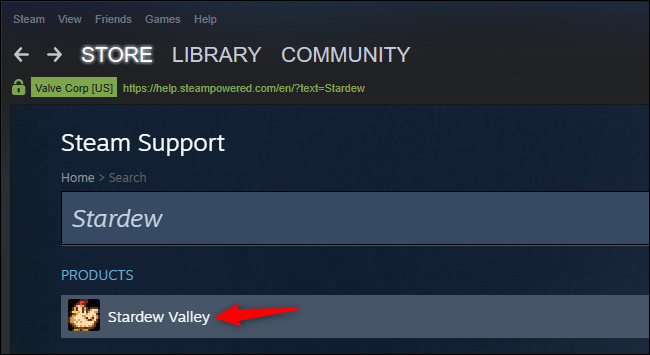
- Search for the specific game you wish to permanently remove.
- Once you find the game, click on its title.
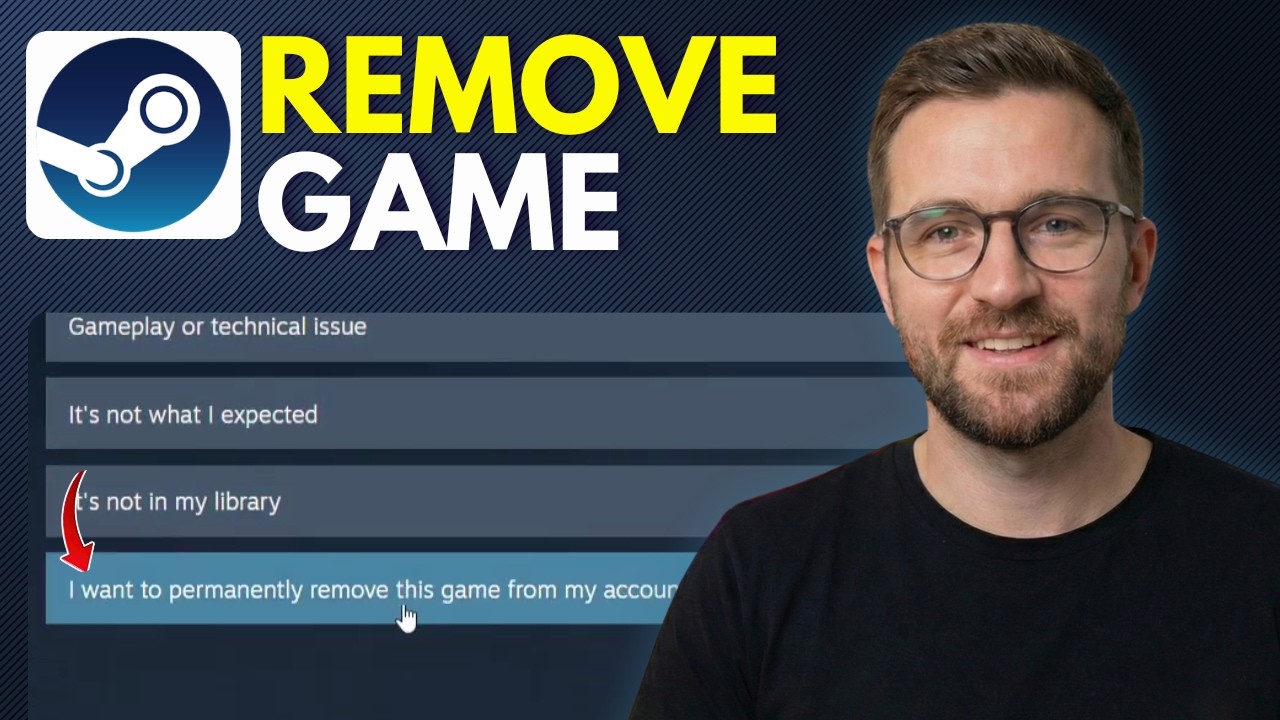
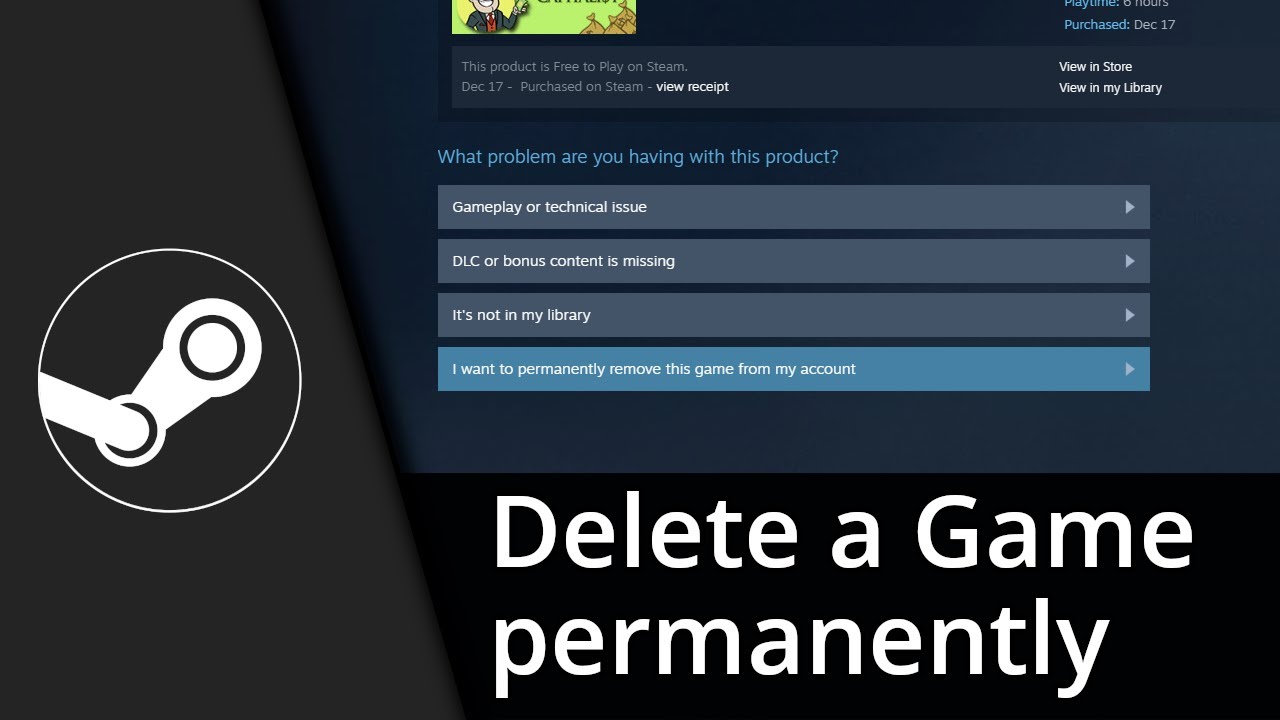
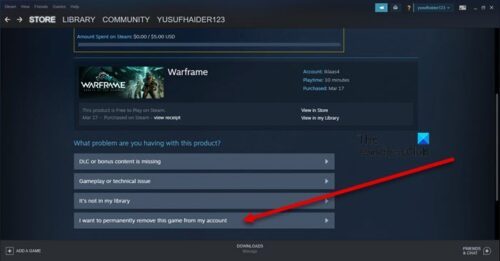
- On the game's support page, you'll see several options. Click on 'I want to permanently remove this game from my account'.
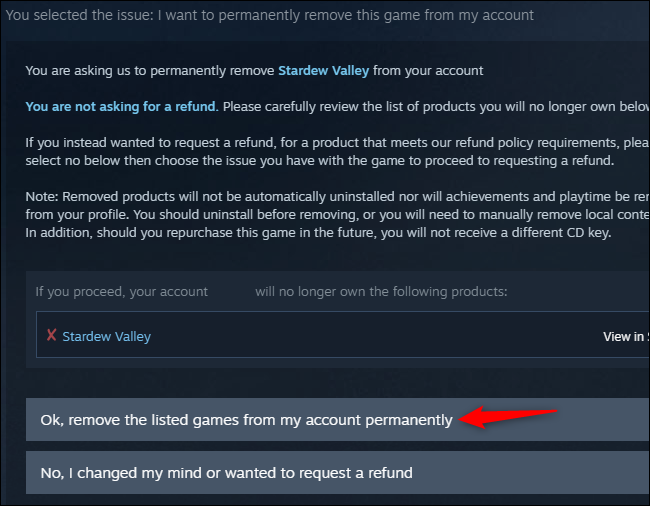
- A confirmation prompt will appear, explaining the permanence of this action. Read it carefully, then click 'OK, remove the games listed from my account permanently'.
This action cannot be undone by you. Steam Support might be able to assist in rare circumstances, but it's not guaranteed. Use this option judiciously!
What's the Difference Between Uninstalling, Hiding, and Permanently Removing a Game?
Understanding these three distinctions is crucial for effective Steam library management, especially for gamers who want control over their digital footprint without sacrificing accessibility.
- Uninstalling: This frees up disk space by deleting local game files from your computer. The game remains in your Steam library, you still own it, and you can reinstall it at any time without repurchasing. It's like putting a book back on the library shelf, not getting rid of it forever.
- Hiding: This removes the game from your main library view, decluttering your list without affecting its installation status or ownership. It's still on your account and installed on your PC (if it was before hiding). This is ideal for games you might want to play later but don't want cluttering your everyday view. Think of it as putting a book in a special 'archive' box at home.
- Permanently Removing: This deletes the game from your Steam account entirely. You lose ownership, it disappears from your library and purchase history, and you would need to buy it again to play it. This is the most extreme action, akin to donating a book and deleting its record from your personal collection permanently.
Will Removing a Game Delete My Save Files and Achievements?
This is a common concern for many gamers, especially when a game holds sentimental value or hours of progress. Generally, when you uninstall a game from Steam, your save files and achievements are safe, but there's a nuance.
- Save Files: Many modern games utilize Steam Cloud Save, which automatically backs up your save files to Valve's servers. If a game supports this, your save files will be safe even after uninstalling the game from your local machine. When you reinstall the game later, Steam will download your cloud saves. However, some older games or certain indie titles might store saves locally only. In such cases, uninstalling *could* delete them if they are stored within the game's installation folder. It's always a good practice to check a game's PCGamingWiki page or forums if you're unsure about local save locations. For critical saves, manually backing them up is recommended.
- Achievements: Achievements are tied to your Steam account, not the game's local files. They are permanently recorded on your profile and will remain there regardless of whether you uninstall, hide, or even permanently delete the game from your account. Your gaming legacy is secure!
Can I Reinstall a Game After I've Removed It from My Steam Library?
This question depends entirely on the method you used to remove game steam library entries. For most users, the answer is a resounding yes!
- If you uninstalled a game, it simply frees up disk space. The game remains in your library, and you can reinstall it any time by clicking the 'Install' button next to its title.
- If you hid a game, it's still in your library (just in the 'Hidden Games' section) and can be unhidden and reinstalled as normal.
- However, if you permanently removed a game from your Steam account, then no, you cannot reinstall it without purchasing it again. This action severs your ownership link to the game entirely. This is why it's crucial to understand the implications before proceeding with a permanent removal.
Are There Any Consequences to Permanently Deleting a Game from Steam?
Yes, there are significant consequences to permanently deleting a game from your Steam account, which is why Steam prompts you with multiple warnings. This isn't like unsubscribing from a service; it's a digital divorce.
- Loss of Ownership: You will no longer own the game. It vanishes from your library and purchase history.
- Repurchase Required: If you ever want to play that game again in the future, you will have to buy it again, even if it was a free-to-play title initially.
- No Refund: This action does not grant you a refund, even if you just purchased the game. Refunds are handled separately through Steam's refund policy, which has strict time and playtime limits.
- DLC/Bundles: If the game was part of a bundle or had DLC associated with it, removing the base game might affect your ability to play or access those additional content pieces.
- Irreversible: As mentioned, this action is generally irreversible by the user. Steam Support may or may not be able to help, depending on their policy at the time of your request.
For these reasons, permanently deleting a game should only be done if you are absolutely certain you will never want to play or own that game again. For most situations, uninstalling or hiding is the far better, safer option.
How Do I Manage My Steam Library Efficiently for Better Performance and Organization?
A well-managed Steam library isn't just about aesthetics; it can genuinely improve your gaming experience. For gamers balancing demanding lives, efficiency is paramount. Here are some pro tips:
- Utilize the 'Hide' Feature: This is your best friend for decluttering. Hide games you've finished, games you tried and disliked, or free-to-play titles you dabble in occasionally but don't want cluttering your main view.
- Create Dynamic Collections (Categories): Steam's collection feature allows you to group games. You can create categories like 'To Play', 'Finished', 'Multiplayer Fun', 'Cozy Games', or 'VR Experiments'. You can even set up dynamic collections that automatically categorize games based on tags or properties.
- Regularly Uninstall Unplayed Games: Make it a habit to periodically review your installed games. If you haven't touched a game in six months to a year, and you know you're unlikely to return to it soon, uninstall it to free up disk space. This is especially important as game sizes continue to grow, with many AAA titles exceeding 100GB.
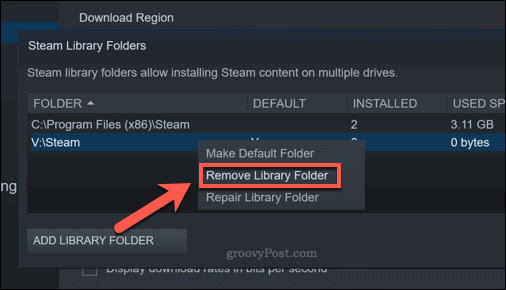
- Consider Multiple Storage Drives: If your budget allows, having a dedicated SSD for your most played games and a larger HDD for older or less demanding titles can significantly improve load times and overall system performance. Move games between drives using Steam's built-in feature: right-click game, 'Properties', 'Local Files', 'Move Install Folder'.
- Prioritize Performance: Focus on keeping your primary gaming drive (often an NVMe SSD) clean for your most demanding titles. This ensures smoother gameplay and faster loading, crucial for maximizing short gaming sessions.
What if a Game Keeps Reinstalling Itself After I Try to Remove It?
This is a frustrating issue that can sometimes occur, often due to a few common culprits. If a game you've tried to remove keeps popping back up, consider these troubleshooting steps:
- Check Steam Cloud Sync: Sometimes, if a game's local files are removed but Steam Cloud Sync is still active and holding data for that game, it might trigger a re-download. Go to the game's properties in your library, then the 'Updates' tab, and deselect 'Enable Steam Cloud synchronization for [Game Name]'. Uninstall again.
- Verify Game Cache: Paradoxically, sometimes corrupted files can lead to issues. Right-click the game, go to 'Properties', 'Local Files', and 'Verify integrity of game files'. If it finds issues, it might try to redownload, but then you can try uninstalling cleanly again.
- Third-Party Launchers or Services: Some games use external launchers (e.g., EA App, Ubisoft Connect). Ensure the game is also properly uninstalled or removed from any associated third-party launchers, as they might attempt to 'repair' or reinstall the game if they detect it's missing.
- Steam Beta Participation: If you're opted into Steam Beta, sometimes rare bugs can occur. Try opting out of the beta (Steam -> Settings -> Account -> Beta Participation -> Change -> None) and restart Steam before attempting to uninstall again.
- Restart Steam and Your PC: The oldest trick in the book often works. Close Steam completely, restart your computer, then try the uninstallation process again. This can clear up temporary glitches.
Is It Possible to Remove Free-to-Play Games from My Library?
Yes, absolutely! Free-to-play (F2P) games are notorious for accumulating in Steam libraries, often after a brief test drive. While you didn't pay for them, they still clutter your list and can take up space. You have all the same options for F2P games as you do for purchased titles:
- Uninstall: This is the most common action. Right-click the F2P game in your library, go to 'Manage', then 'Uninstall'. This frees up disk space, and the game remains in your library.
- Hide: If you just want it out of sight, right-click, 'Manage', then 'Hide this game'. It will move to your 'Hidden Games' section.
- Permanently Remove: You can also permanently remove F2P games from your account via Steam Support. Follow the same steps as for purchased games (Help -> Steam Support -> Games, Software, etc. -> find game -> 'I want to permanently remove this game from my account'). Be aware, this is irreversible.
Given the sheer volume of F2P titles available and the tendency for many busy gamers to try them briefly, using the 'hide' or 'uninstall' feature for these games is an excellent way to keep your library clean and focused on titles you truly enjoy.
As we navigate the gaming landscape of 2026, where social gaming and cross-play experiences are booming, and hardware upgrades are a constant consideration, a tidy and efficient Steam library is a superpower. Whether you're making room for a new VR experiment, decluttering after a major sale, or simply want a cleaner interface, you now have the tools to manage your digital collection like a pro. Remember, your gaming time is valuable, and optimizing your library ensures that time is spent playing, not searching or stressing.
What's your biggest gaming library challenge? Do you struggle with too many unplayed games, or are you constantly fighting for disk space? Comment below and share your strategies!
FAQ Section
Q: What's the quickest way to free up disk space on Steam?
A: The quickest way is to uninstall games you no longer play. Right-click the game in your library, go to 'Manage', then 'Uninstall'. This removes the local files without affecting your ownership or achievements.
Q: Can I restore a permanently deleted game?
A: Generally, no. Permanently deleting a game from your Steam account is an irreversible action by the user. You would need to repurchase the game if you ever wished to play it again.
Q: Does removing a game affect my playtime stats?
A: No, your playtime statistics for a game remain permanently recorded on your Steam profile, even if you uninstall, hide, or permanently remove the game from your account.
Q: Is 'hiding' a game a good solution for most users?
A: Yes, hiding games is an excellent and non-destructive solution for most users who want to declutter their library without losing ownership or needing to reinstall. It keeps games accessible but out of sight.
Q: How do I find my hidden games on Steam?
A: To find hidden games, navigate to your Steam Library, then click 'View' in the top menu bar (within the Library interface), and select 'Hidden Games'.
Understand the three ways to remove games from Steam: uninstall, hide, and permanently delete. Free up disk space and declutter your library. Learn how save files and achievements are affected. Get step-by-step instructions for each removal method. Discover tips for efficient Steam library management.
35


How To Remove Steam Games From Library Permanently Not Just Uninstall . How To Remove Game From Steam Library Not Hide Or Refund Step By Step . Remove Games From Your Steam Library YouTube . How To Remove Game From Steam Library Full Guide YouTube . How To Completely Remove Game From Steam Library YouTube


You Can Now Permanently Delete Games From Your Steam How To Hide Or Remove Game From Steam Library Thumbnail . How To Permanently Remove Game From Steam Account Easy Guide YouTube . Steam How To Uninstall Remove Game From Steam Library YouTube . How To Remove Game From Steam Library YouTube . How To Remove Steam Game From Your Library Tutorial YouTube



Remove Games From Steam Library FDOMF . How To Permanently Remove A Game From Your Steam Library YouTube . How To Remove Game From Steam Library YouTube . How To Hide Or Remove Games From Steam Library Remove Gae . How To Hide Unhide Or Remove A Game From Your Steam Library What In Tech Unhide Game In Steam Library 2 768x511


How To Permanently Delete A Game From Your Steam Library The WP Guru Image 800x501 . How To Permanently Remove A Game From Steam Library YouTube . How To Move Steam Games To Another Drive Steam Remove Library Folder . How Do I Remove A Steam Game From My Library Arqade QF9v7 . How To Hide Remove Games And Software From Steam Library Check Mark Hide This Game In My Library Option
How To Remove A Game From Steam Library Tutorial YouTube . How To Remove Game From Steam Library Here Is Your Guide MiniTool Remove Game From Steam Library 4 . How To Hide Or Remove A Game From Your Steam Library Img . How To Remove A Game From Your Steam Library Player Assist Game Steam Unhide Games . Steam Game Not Showing In Library Here S A Full Guide MiniTool Steam Game Not Showing In Library 1




How To Delete Game From Steam Library Easy Way YouTube . How To Remove Or Hide A Game From Steam Steam6 . Steam How To Remove Game From Library Not Hide Or Refund YouTube . How To Remove Steam Games From Library Permanently Delete Steam Games . How To Permanently Remove A Game From Your Steam Library 2026 Easy


How To Remove A Game From Your Steam Library Remove Game From Steam Library 2 . How To Hide Or Remove Games From Steam Library Remove Account 500x261 . How To Hide Or Remove A Game From Your Steam Library Img . How To Remove Or Hide A Game From Steam Steam18 . How To Hide Or Remove A Game From Your Steam Library Click View Hidden Games 241x300