Diving into a new game after a long day is a cherished ritual for many US gamers, but nothing breaks the immersion faster than performance issues or the nagging worry of overheating hardware. For those balancing demanding careers, family life, and their passion for gaming, understanding CPU temperatures is key to maintaining both system longevity and peak enjoyment. This comprehensive guide addresses the common question: Is 80C hot for CPU while gaming? We cut through the technical jargon to provide clear, actionable advice on what those numbers mean, why they matter, and how to optimize your setup for cooler, more stable performance. Learn practical tips and tricks to keep your rig running smoothly without breaking the bank or requiring a deep dive into PC building. We'll cover everything from simple software tweaks to budget-friendly hardware considerations, ensuring your gaming sessions remain stress-free and your valuable components stay healthy for years to come. This article is your trusted friend in the gaming world, helping you conquer CPU temperature concerns.
Is 80 C okay for my CPU temporarily while gaming?
Yes, 80 C is generally acceptable for a CPU during short bursts of intense gaming. Modern CPUs are designed to handle these temperatures without immediate damage. However, consistent operation at 80 C or higher indicates your cooling system is under stress, and optimizing it for lower temperatures is recommended for long-term component health and stable performance.
Why does my CPU temperature spike when I launch a game?
CPU temperature often spikes when launching a game because the game instantly demands high processing power. Your CPU rapidly increases its clock speed and voltage to meet this demand, generating a sudden burst of heat. A good cooling solution should quickly bring the temperature back down to a stable gaming range after the initial spike.
What are the best free tools to monitor CPU temps in 2026?
For 2026, the best free tools for monitoring CPU temperatures remain HWMonitor and HWInfo64. Both offer comprehensive sensor data, including individual core temperatures, voltages, and fan speeds, providing a detailed overview of your system's thermal performance during gaming sessions. Core Temp is also excellent for a focused, lightweight view.
How can I improve my PC's airflow without buying new fans?
You can improve PC airflow without new fans by ensuring existing fans are correctly oriented (intake vs. exhaust), removing dust from all vents and fan blades, tidying up internal cables to prevent obstruction, and ensuring no objects block your case's intake or exhaust points. Even elevating your PC from the floor can help it draw cooler air.
Does underclocking my CPU help with 80 C gaming temperatures?
Yes, underclocking your CPU (reducing its clock speed) or undervolting it (reducing the voltage supplied) can significantly help lower 80 C gaming temperatures. By reducing the CPU's workload or power consumption, it generates less heat. While underclocking might slightly reduce performance, undervolting can often achieve lower temperatures with minimal to no performance impact if done correctly, offering a great solution for heat-conscious gamers.
Can old CPU thermal paste cause my CPU to hit 80 C?
Absolutely. Old, dried-out, or poorly applied thermal paste is a very common reason for a CPU to hit 80 C or even higher while gaming. Thermal paste acts as a critical interface for heat transfer between the CPU and its cooler. If it's no longer effective, heat gets trapped, leading to poor cooling performance. Reapplying fresh thermal paste is a highly effective and budget-friendly solution.
Is a loud CPU fan always a sign of overheating at 80 C?
Not always, but it's a strong indicator that your cooling system is working very hard to keep temperatures in check, potentially at 80 C or above. While loud fans suggest high RPMs due to heat, some aggressive fan curves might spin fans fast even at lower temperatures. However, if loud fan noise coincides with 80 C, it signals your system is at its thermal limits, prompting a review of your cooling setup.
You finally carved out some time. The kids are asleep, work emails are on pause, and that new AAA title or cozy indie game is calling your name. You fire up your rig, excited to dive in, but then you notice it: your CPU temperature is hovering around 80 C. A familiar pang of worry hits. Is 80 C hot for CPU while gaming? Is your precious gaming machine slowly cooking itself? For the millions of US gamers, many of whom are busy adults balancing life's demands, this is a common and legitimate concern. After all, your gaming PC is an investment, a source of relaxation, and a portal to social connections. You want it to perform, you want it to last, and you certainly don't want performance stutters or unexpected shutdowns ruining your precious gaming moments.
You are not alone in this thermal dilemma. US gaming trends show that 87 percent of gamers play regularly, often averaging over 10 hours a week across various platforms, with PC gaming remaining a significant segment. Performance optimization, even on a budget, is always a hot topic. This guide is designed to be your trusted resource, cutting through the hype to give you practical, no-nonsense answers and solutions. We'll explore what 80 C really means for your CPU during gaming, identify the common culprits behind rising temperatures, and, most importantly, provide actionable steps to keep your system cool and your gaming experience smooth. Let's ensure your CPU stays happy so you can focus on building skills, having fun, and connecting with your online squad.
Is 80 C truly hot for my CPU while gaming?
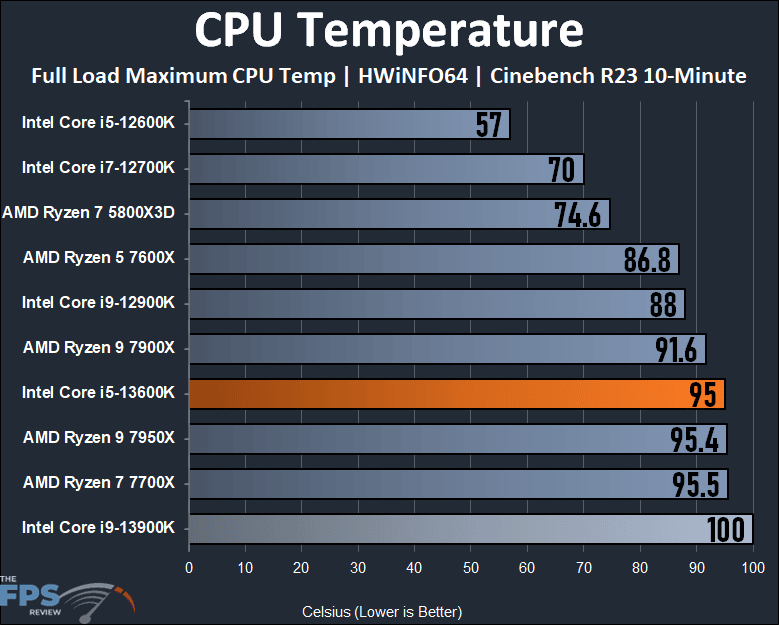
Generally speaking, a CPU temperature of 80 C (Celsius) while gaming is considered on the higher side but often still within a safe, albeit warm, operating range for modern processors. Most CPUs are designed to handle temperatures up to 95-105 C before they begin to throttle performance or automatically shut down to prevent damage. While 80 C is not immediately dangerous, it's certainly a temperature worth monitoring and ideally, working to reduce for long-term component health and sustained optimal performance. Consistent high temperatures can shorten the lifespan of your CPU and other components, leading to potential issues down the road.
Modern CPUs, especially high-performance models used for gaming, are built with thermal safeguards. They can boost performance aggressively, generating more heat in the process. Reaching 80 C during demanding games, particularly in warm environments or with less-than-optimal cooling, isn't uncommon. However, sustained operation at this level can indicate that your cooling solution is working hard, perhaps at its limit, and there might be room for improvement.
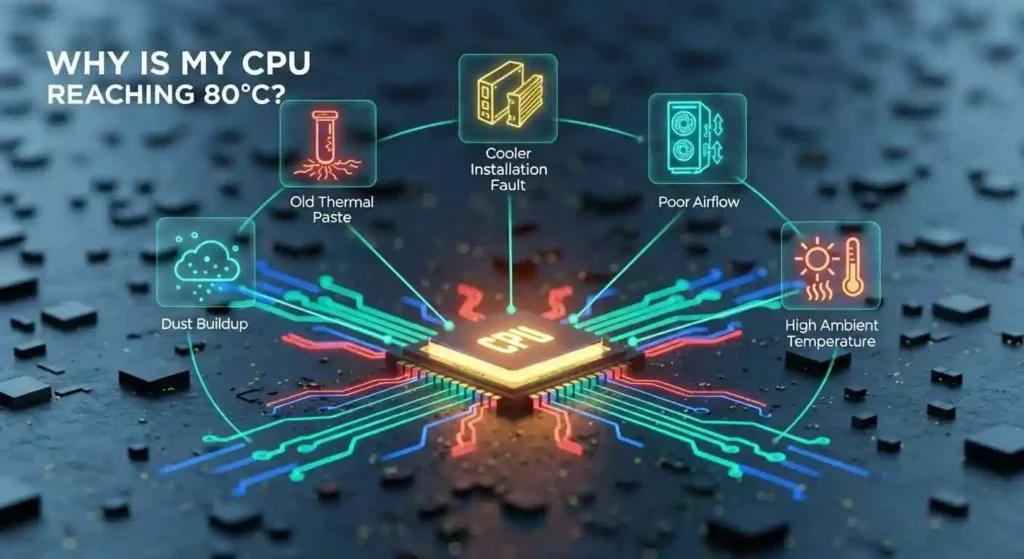
What causes CPU temperatures to reach 80 C while gaming?
Several factors can contribute to your CPU hitting 80 C or higher during intense gaming sessions. Understanding these causes is the first step toward effective troubleshooting and cooling optimization.
Inadequate Cooling Solution: The stock cooler that came with your CPU might be sufficient for everyday tasks but struggles under heavy gaming loads. Aftermarket air coolers or liquid AIO (All-in-One) coolers offer significantly better performance.
Poor Case Airflow: Your PC case needs proper air intake and exhaust. Insufficient or poorly arranged case fans can trap hot air inside, preventing efficient heat dissipation from your CPU cooler.
Dust Accumulation: Over time, dust acts as an insulator, coating heatsinks, fans, and vents. This reduces the efficiency of your cooling components dramatically. Regular cleaning is essential.
Old or Poorly Applied Thermal Paste: Thermal paste facilitates heat transfer between your CPU and its cooler. If it's old, dried out, or not applied correctly, it can hinder heat dissipation.
High Ambient Room Temperature: If your gaming space itself is warm, your cooling system has to work harder to maintain acceptable CPU temperatures. This is a common factor during summer months.
CPU Overclocking: Pushing your CPU beyond its factory settings generates more heat. While it can boost performance, it requires a robust cooling setup to prevent overheating.
Demanding Games and Settings: Newer, graphically intensive games, especially at higher resolutions and settings, put more strain on your CPU, causing it to work harder and thus generate more heat.
What are the long-term effects of sustained 80 C CPU temps?
While 80 C isn't an immediate red alert for CPU damage, consistently operating at this temperature can have several long-term implications for your gaming PC's health and performance.
Reduced Component Lifespan: Electronic components, including CPUs, degrade faster when subjected to continuous high heat. While a CPU might last 10+ years under ideal conditions, frequent 80 C operation could subtly shorten that, meaning you might need to consider an upgrade sooner than expected. For budget-conscious gamers, extending component life is crucial.
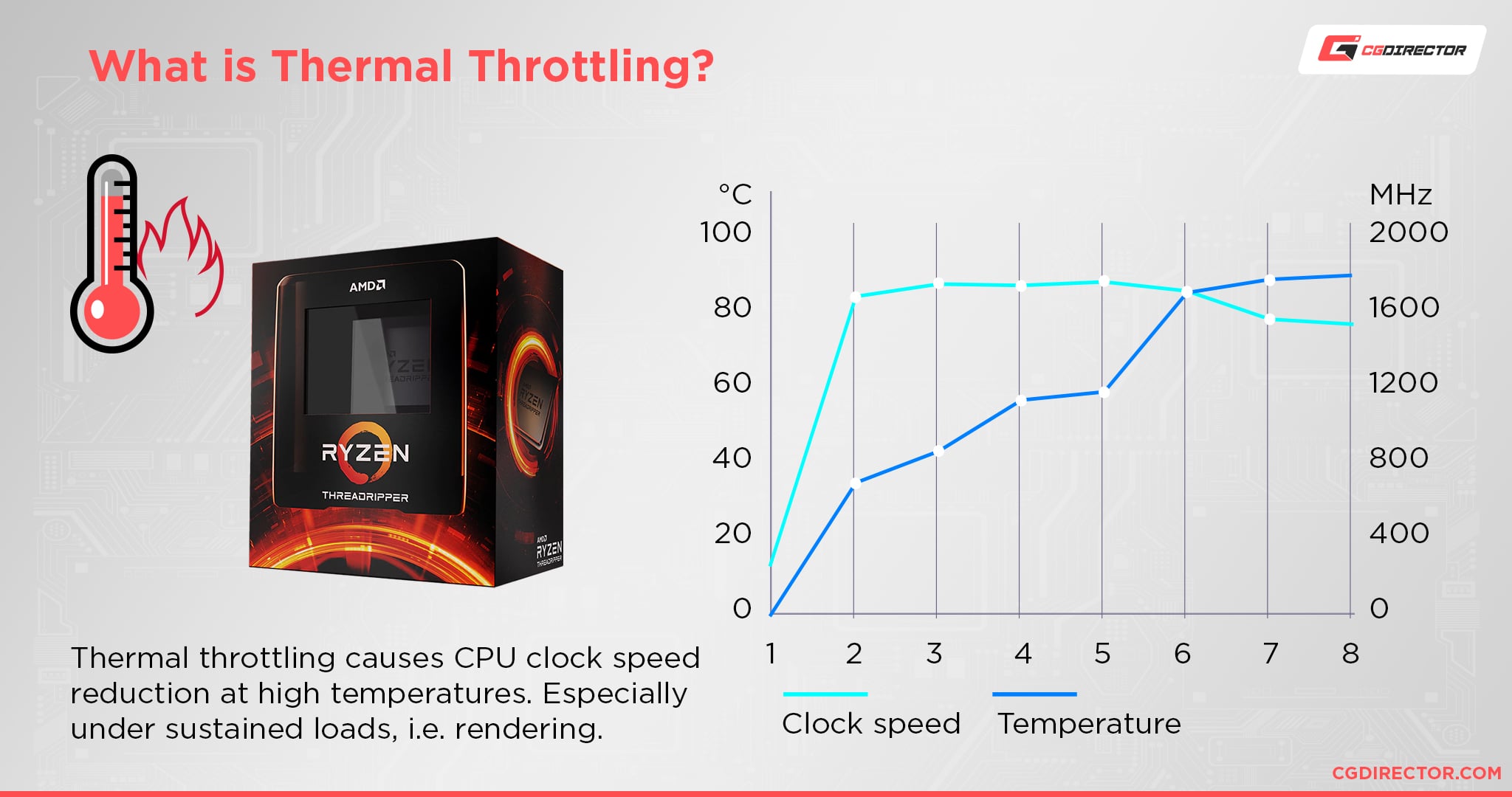
Performance Throttling: To protect itself, your CPU will automatically reduce its clock speed (thermal throttling) when it gets too hot. This results in noticeable frame rate drops, stuttering, and an overall sluggish gaming experience, exactly what we want to avoid during those precious relaxation moments.
Instability and Crashes: Elevated temperatures can lead to system instability, manifesting as random freezes, blue screens of death (BSODs), or game crashes. Nothing is more frustrating than losing progress because your system couldn't handle the heat.
Increased Wear on Other Components: The heat generated by the CPU doesn't stay isolated. It radiates throughout your case, affecting other components like your motherboard's VRMs, RAM, and even your GPU. This can accelerate their degradation as well.
Louder Fan Noise: To combat higher temperatures, your CPU cooler and case fans will spin faster, creating more noise. For many, a quiet gaming experience is part of the relaxation, and loud fans can detract from that.
How can I lower my CPU temperature while gaming?
Taking proactive steps to manage your CPU temperature can significantly improve your gaming experience and system longevity. Here are practical solutions, from simple tweaks to potential upgrades:
Clean Your PC Regularly: Dust is the enemy of cooling. Use compressed air to blow out dust from CPU heatsinks, case fans, and radiator fins. Aim for a thorough cleaning every 3-6 months, or more often if you live in a dusty environment.
Improve Case Airflow: Ensure your PC case has a balanced airflow setup. Generally, front and bottom fans should be intake (pulling cool air in), and top and rear fans should be exhaust (pushing hot air out). Adding more fans or optimizing their placement can make a big difference. Many modern cases prioritize airflow, so if yours is an older, closed-off design, consider an upgrade.
Reapply Thermal Paste: If your CPU cooler is old, or you haven't reapplied thermal paste in a few years, it might be dried out. Removing the cooler, cleaning off the old paste, and applying a fresh layer of high-quality thermal paste can drastically improve heat transfer. This is a budget-friendly DIY fix.
Upgrade Your CPU Cooler: If you're still using a stock cooler, investing in an aftermarket air cooler (e.g., be quiet! Dark Rock Pro, Noctua NH-D15) or an AIO liquid cooler can provide superior cooling performance. This is often the most impactful upgrade for high CPU temperatures.
Optimize Fan Curves: Most motherboards allow you to customize fan speeds in the BIOS/UEFI or with software utilities. You can create a more aggressive fan curve that spins fans faster at higher temperatures, providing better cooling when gaming, at the cost of slightly more noise.
Undervolt Your CPU: This advanced technique involves reducing the voltage supplied to your CPU without sacrificing performance, thereby lowering power consumption and heat generation. It requires careful testing but can be very effective without buying new hardware.
Manage Room Temperature: While not always possible, lowering your room's ambient temperature (e.g., using AC or a fan) can directly reduce the starting temperature for your PC's cooling system.
Adjust In-Game Settings: Lowering demanding settings like shadow quality, anti-aliasing, or draw distance can reduce the load on both your CPU and GPU, which in turn lowers heat production. Many gamers prioritize consistent frame rates over ultra-high fidelity, especially those with limited time for gaming.
When should I truly worry about CPU temperatures while gaming?
While 80 C warrants attention, certain temperatures and behaviors indicate a more urgent problem that needs immediate addressing to prevent damage or severe performance loss. You should genuinely start worrying and taking immediate action if your CPU consistently hits:
90 C or higher: This is entering the critical zone for most consumer CPUs. While they might not instantly fail, prolonged operation at 90 C+ will significantly accelerate degradation and likely lead to severe thermal throttling.
Temperatures close to TjMax: Each CPU has a TjMax (Thermal Junction Maximum) temperature, typically between 95 C and 105 C. This is the absolute maximum safe operating temperature. If you're consistently hitting within 5-10 C of your CPU's TjMax, it's a major red flag.
Sudden Temperature Spikes: If your CPU normally runs at 60-70 C but suddenly jumps to 90 C+ during light tasks or non-demanding games, it could indicate a cooler malfunction, a loose heatsink, or a complete fan failure.
System Instability: Frequent game crashes, blue screens, or unexpected shutdowns directly correlated with high CPU temperatures are clear signs that your system is struggling to cope and needs immediate cooling intervention.
Smell of Burning Electronics: This is an obvious but critical warning. If you smell anything acrid or burning, shut down your PC immediately and investigate the cause.
Are specific CPU brands or models more prone to 80 C temps?
It's less about specific brands (Intel vs. AMD) and more about the power consumption (TDP) and architectural design of individual CPU models. Generally, higher-performance CPUs, especially those with many cores or high clock speeds, tend to run hotter due to their increased power draw. For example, Intel's 'K' series (unlocked for overclocking) or AMD's higher-end Ryzen 7 and Ryzen 9 chips naturally generate more heat when pushed to their limits during gaming. They demand robust cooling solutions. Conversely, lower-TDP CPUs, often found in pre-built systems or budget builds, tend to run cooler. However, even these can hit 80 C if paired with an inadequate stock cooler or placed in a case with poor airflow. The key takeaway is that the more powerful your CPU, the more attention you need to pay to its cooling. Gamers looking for value often find a sweet spot where CPU performance is excellent without needing extreme cooling solutions.
What tools can I use to monitor CPU temperatures effectively?
Monitoring your CPU's temperature is crucial for understanding its thermal behavior and assessing the effectiveness of your cooling solutions. Fortunately, there are several excellent and user-friendly tools available:
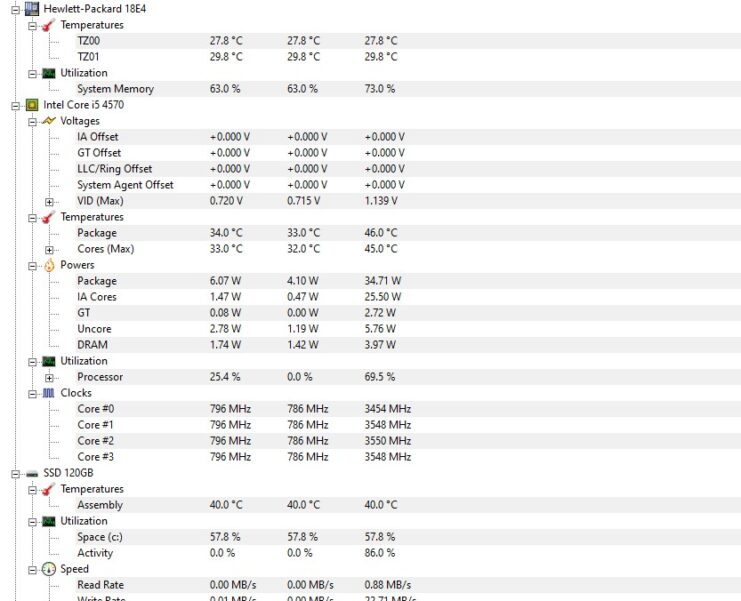
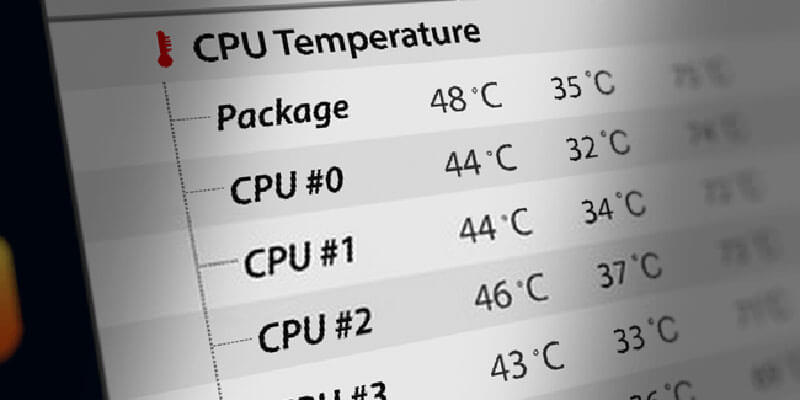
HWMonitor / HWInfo64: These are comprehensive hardware monitoring tools that display a vast array of sensor data, including CPU core temperatures, fan speeds, voltages, and more. HWInfo64 is particularly detailed and great for in-depth analysis.
MSI Afterburner (with RivaTuner Statistics Server): While primarily known for GPU monitoring and overclocking, MSI Afterburner can also display CPU temperature, usage, and other vital stats as an in-game overlay. This allows you to monitor temps without tabbing out of your game.
Core Temp: A lightweight and focused utility specifically for monitoring CPU core temperatures. It often displays TjMax and provides a quick overview without overwhelming you with data.
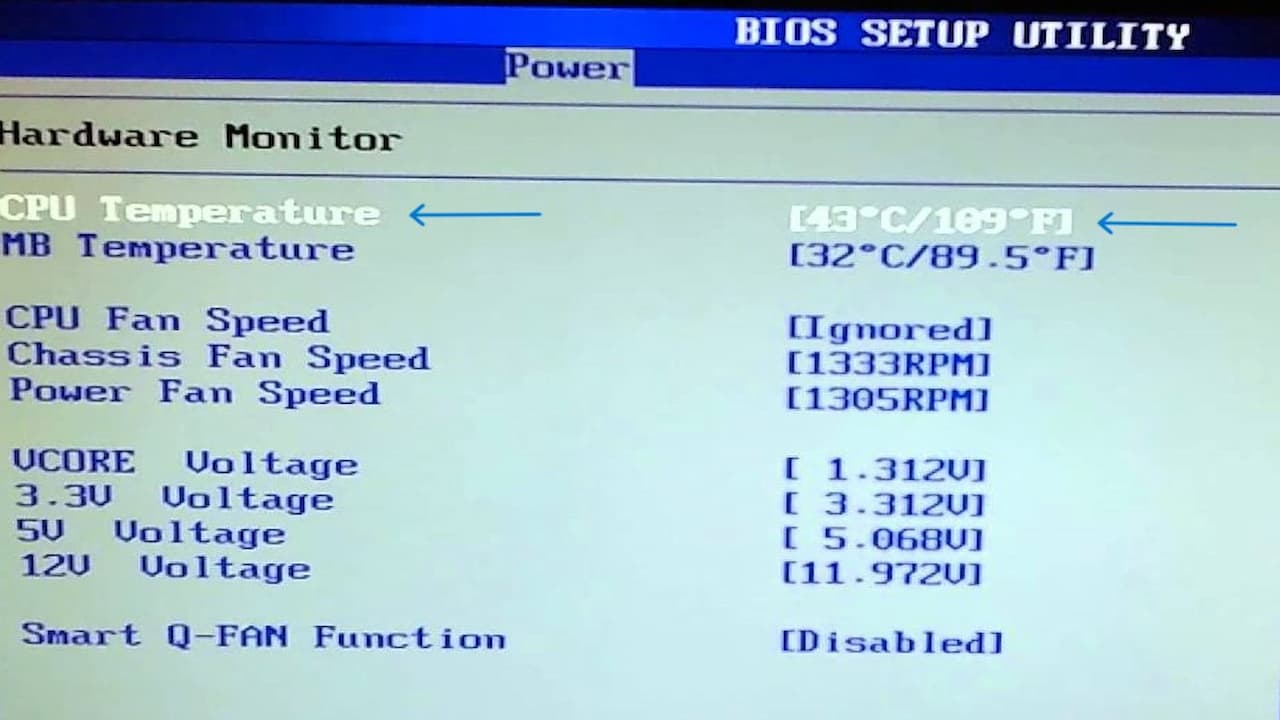
Your Motherboard's BIOS/UEFI: Most motherboard firmware includes a hardware monitor section where you can check CPU temperature, fan speeds, and set fan curves before Windows even loads. This is useful for troubleshooting issues unrelated to software.
AMD Ryzen Master / Intel Extreme Tuning Utility (XTU): These are official utilities from AMD and Intel, respectively, offering not only temperature monitoring but also overclocking and undervolting capabilities for compatible CPUs. Use these with caution if you are not experienced with CPU tuning.
Always run monitoring software while gaming to get a realistic picture of your CPU's thermal behavior under load. Seeing temperatures while idle won't give you the full story.
Should I upgrade my cooling solution if my CPU hits 80 C?
If your CPU consistently hits 80 C or higher while gaming, and especially if you notice performance drops or increased fan noise, upgrading your cooling solution is often the most effective step. While 80 C is not immediately catastrophic, reducing it to the 60-75 C range offers significant benefits:
Improved Longevity: Cooler components simply last longer. An upgrade is an investment in your PC's future.
Better Sustained Performance: By keeping temps lower, your CPU can maintain its boost clocks for longer periods, resulting in smoother frame rates and a more consistent gaming experience without thermal throttling.
Quieter Operation: A more powerful cooler can achieve better thermal performance at lower fan speeds, leading to a quieter gaming environment, which is highly valued by busy adults seeking relaxation.
Headroom for Future Upgrades/Overclocking: A robust cooler provides thermal headroom if you decide to upgrade to a more powerful CPU or experiment with overclocking down the line.
Consider a reputable air cooler or an AIO liquid cooler from brands like Noctua, be quiet!, Arctic, Cooler Master, or Corsair. Look for models compatible with your CPU socket and ensure they fit within your PC case. For many gamers, a mid-range air cooler offers excellent value for money and a significant upgrade over stock solutions.
How often should I clean my PC for better temperatures?
The frequency of cleaning your PC depends heavily on your environment, but a good rule of thumb for most gamers is to perform a thorough cleaning every 3 to 6 months. If you live in a particularly dusty area, have pets (pet hair is a thermal villain!), or your PC sits on the floor, you might need to clean it every 1-2 months. Conversely, if your PC is in a very clean, elevated spot, you might stretch it to once every 9-12 months. The key is to visually inspect your fans and heatsinks regularly. If you see visible dust buildup on the fins of your CPU cooler, GPU heatsink, or case fan blades, it's time for a cleaning. Consistent, light cleaning is much better than waiting until dust completely chokes your system. This simple maintenance task is free and remarkably effective at keeping temperatures down.
Conclusion
So, is 80 C hot for CPU while gaming? The answer is nuanced: it's not ideal, but often within safe limits for modern CPUs, though it certainly indicates room for improvement. For US gamers who juggle careers, families, and gaming, optimizing performance and longevity is about smart choices, not just brute force upgrades. By understanding what causes high temperatures and implementing the practical tips we've covered, you can enjoy cooler, more stable, and quieter gaming sessions. From a simple dust-off to a thermal paste refresh or a new cooler, taking control of your CPU's thermals ensures your gaming rig remains a reliable source of fun and connection for years to come. What's your biggest gaming challenge when it comes to PC maintenance? Comment below and let's help each other out!
Frequently Asked Questions About CPU Temperatures
What is a normal CPU temp while idle?
A normal CPU temperature while idle typically ranges between 30 C and 50 C. This can vary based on your CPU model, cooler, and ambient room temperature. If your idle temps are consistently above 55 C, it might indicate poor thermal paste application, insufficient airflow even at idle, or background processes consuming CPU resources.
Does a higher CPU temperature affect FPS?
Yes, higher CPU temperatures can absolutely affect FPS (Frames Per Second). When a CPU gets too hot, it initiates a process called thermal throttling, which reduces its clock speed to lower heat. This reduction in speed directly impacts its ability to process game logic and render frames, leading to noticeable drops in FPS, stuttering, and overall degraded gaming performance.
How important is thermal paste for CPU cooling?
Thermal paste is critically important for CPU cooling. It fills the microscopic air gaps between the CPU's integrated heat spreader (IHS) and the base of the CPU cooler. Air is a poor conductor of heat, so without thermal paste, heat transfer would be highly inefficient, causing the CPU to overheat rapidly. A fresh, high-quality thermal paste application ensures optimal heat dissipation.
Can I check CPU temperature without any software?
Yes, you can check your CPU temperature without installing any operating system software by accessing your motherboard's BIOS or UEFI settings. When you first boot your PC, repeatedly press the designated key (often Delete, F2, F10, or F12) to enter the BIOS/UEFI. Look for a section labeled 'Hardware Monitor,' 'PC Health Status,' or similar, where you'll find real-time CPU temperature readings.
Does having many tabs open affect CPU temperature during gaming?
Yes, having many browser tabs or other applications open in the background can affect CPU temperature, especially during gaming. Each active tab or application consumes CPU resources, even if minimally. While gaming already pushes your CPU, these background tasks add to the overall load, causing the CPU to work harder, generate more heat, and potentially reach higher temperatures than it would otherwise. Closing unnecessary programs before gaming is a good habit.
What's the difference between CPU package temperature and core temperature?
CPU package temperature refers to the overall temperature of the CPU chip, encompassing all its components. Core temperatures (often listed as Core 0, Core 1, etc.) measure the temperature of individual processing cores within the CPU. Core temperatures are usually slightly higher than the package temperature under load. For monitoring, paying attention to both is good, but individual core temperatures often give a more accurate picture of potential hotspots and throttling.
Is an AIO liquid cooler always better than a high-end air cooler?
Not always. While AIO liquid coolers can be very effective, especially for high-TDP CPUs or in cases with limited air cooler clearance, a top-tier air cooler can often match or even surpass the performance of many mid-range AIOs, sometimes at a lower cost and with greater reliability (no pump failures or leaks). Factors like noise, aesthetics, and case compatibility often play a bigger role in choosing between a high-end air cooler and an AIO for many gamers.
Understanding 80C CPU temps while gaming, identifying common causes of high temperatures, practical steps to lower CPU heat, knowing when to worry about CPU temperatures, optimizing cooling for better performance, budget-friendly upgrade options for thermal management.
35


Normal CPU Temperature While Gaming And Idle Don T Get Burned Ideal CPU Temperature For Gaming 741x412 . Is 80 C Hot For A CPU Safe Temperature Guide 2026 Is 80 Degrees Celsius Hot For A Cpu.webp. Temps Too Hot CPU 96C GPU 80C While Gaming R ZephyrusG14 Temps Too Hot Cpu 96c Gpu 80c While Gaming V0 . Is CPU Temp Spiking To 70 80C Normal While Under Light Load Gaming R Is Cpu Temp Spiking To 70 80c Normal While Under Light Load V0 . Which CPU Temperature Is Too High How Can You Improve It Gaming PC


What Is Normal CPU Temperature While Gaming How To Lower CPU Temp While Gaming.webp. Is 80 Degrees Celsius Hot For A CPU Will It Burn My PC Is 80 Degrees Celsius Hot For A CPU .webp. Temps Too Hot CPU 96C GPU 80C While Gaming R ZephyrusG14 Temps Too Hot Cpu 96c Gpu 80c While Gaming V0 . Let S Settle This How Hot Should Your CPU Run While Gaming Cpu Cooler . Normal CPU Temperature While Gaming And Idle Measured And Reviewed Norma CPU For Gaming 780x478
What Is A Normal CPU Temp While Gaming 2026 Normal Cpu Temp While Gaming . Normal CPU Temperature While Gaming And Idle Don T Get Burned What Is A Good CPU Temp . Let S Settle This How Hot Should Your CPU Run While Gaming Cpu Cooler . Temperature Tactics What S The Normal Temperature For A Gaming PC What Is A Normal Temperature For A Gaming PC . Is 80 C Hot For A CPU Safe Temperature Guide 2026 Why Is My Cpu Reaching 80c

Good Cpu And Gpu Temps While Gaming At Stephen Gallagher Blog CPU TEMP WHILE GAMING . Is 80 C Too Hot For A CPU WePC Is 80 Too Hot For A CPU . Gaming Gpu Temperature Range Gpu Temperature Guide FJEHC Gpu 1024x405 . How Hot Is Too Hot For A CPU Processor Temperature Guide What Is Thermal Throttling . Is 80 C Too Hot For A CPU It Depends Ideal CPU 2025685298
Cpu Temperature For Gaming Laptop At Angel Singleton Blog Temperature 13600k . CPU Temperature While Gaming Complete Guide Tech4Gamers CPU Temperature While Gaming . Explaining The Ideal Safe GPU Temps While Gaming Normal CPU Temperature Range . CPU Temperature While Gaming Extensive Guide Tech4Gamers Gaming Temperature . What Is GPU Hotspot Temperature The Ultimate Guide Is 80 Degrees Celsius Hot For A Gpu 1024x590
What Is A Good CPU Temp Safe Ranges How To Check Good Cpu Temperature While Gaming . CPU Temperature While Gaming Extensive Guide Tech4Gamers Hw Info 300x212 . CPU Temperature While Gaming Extensive Guide Tech4Gamers Gaming Temperature 300x106 . Optimal CPU Temp While Gaming What Is Good Hone Blog Optimal CPU Temp While Gaming What Is Good 1024x528 . Is 80 Degrees Celsius Hot For A GPU Learn About GPUs How Hot Is Too Hot For A GPU GPU Temperature Guide Twitter 1200x675 1 2



What Is Normal CPU Temp While Gaming TechCult What Is The Normal Cpu Temp While Gaming 728x437 . Is 85 C Hot For CPU While Gaming YouTube . What Is A Normal CPU Temp While Gaming Explained Attack Of The Fanboy Bios CPU Temp . How Hot Is Too Hot For GPU And CPU When Gaming High CPU Temp 700x151 . My Temp Cpu Is Above 80 C While Game Running I Have Ryzen 5600x With My Temp Cpu Is Above 80 C While Game Running I Have Ryzen V0