Are you a dedicated gamer balancing life and leisure, wondering why is multi Roblox not working when you need it most? You're not alone. Many adult gamers in 2026, often juggling jobs and families, find the ability to run multiple Roblox instances crucial for managing different game accounts, playing with various friend groups simultaneously, or even testing their own creations. When this essential feature breaks, it disrupts your valuable gaming time and social connections. This comprehensive guide will navigate the common pitfalls and advanced solutions for multi-Roblox issues, providing actionable steps to get you back into the game smoothly. We'll cover everything from simple troubleshooting to understanding system conflicts and network configurations, ensuring your Roblox experience remains fluid and enjoyable. Get ready to optimize your setup and reclaim your multi-account freedom with our expert, no-nonsense advice tailored for the modern gamer.
Why is Multi Roblox Not Working for Many Users in 2026?
Many users find multi Roblox not working primarily due to Roblox's native design, which generally limits one client per device. This can be exacerbated by frequent Roblox updates that patch existing multi-instance workarounds, conflicts with antivirus software, or simply insufficient system resources like RAM. As of 2026, the game is constantly evolving, making unofficial methods prone to breaking.
How Can I Safely Launch Multiple Roblox Instances Without Getting Banned?
The safest method to launch multiple Roblox instances without risking a ban is to create separate user accounts on your Windows PC. Each user account can run its own independent Roblox client, ensuring full isolation. Alternatively, using virtual machines offers similar security by completely separating each instance, though this requires more technical know-how and system resources.
What Common Software Conflicts Prevent Multi Roblox From Running Smoothly?
Common software conflicts preventing smooth multi Roblox operation include aggressive antivirus or firewall settings mistakenly flagging launchers, other game overlays (like Discord's), or background applications consuming excessive resources. Certain system optimization tools can also interfere. Temporarily disabling such software can help diagnose the issue.
Are There Any Recommended Third-Party Tools for Multi Roblox in 2026?
While Roblox doesn't endorse them, community-developed tools like the Roblox Account Manager (RAM) or specific open-source multi-launchers are often recommended in 2026. Always research thoroughly, read community reviews, and download only from reputable sources like official GitHub repositories to minimize security risks and ensure compatibility with current Roblox versions.
How Do I Troubleshoot Network Issues Affecting My Multi Roblox Setup?
To troubleshoot network issues for multi Roblox, first ensure your internet connection is stable. If using a VPN, temporarily disable it as it might cause IP conflicts or increased latency. Check your firewall settings to ensure Roblox and any multi-instance launchers have appropriate network permissions. Restarting your router can also resolve temporary connectivity glitches affecting multiple connections.
Can Specific Roblox Updates Break Existing Multi-Client Setups?
Yes, specific Roblox updates frequently break existing multi-client setups. Roblox continuously updates its client for security and feature enhancements. These updates can change underlying code, patch vulnerabilities, or introduce new anti-tampering measures that render unofficial multi-instance launchers or manual workarounds incompatible or non-functional. Staying informed through community channels is key after updates.
What Are the Best Practices for Optimizing My PC for Multi Roblox Performance?
Optimizing your PC for multi Roblox performance involves ensuring ample RAM (16GB+ is ideal), a fast SSD for game installations, and a capable CPU. Close all unnecessary background applications, monitor system resources via Task Manager, and keep your graphics drivers updated. Consider adjusting in-game graphics settings to lower levels for secondary instances to reduce strain on your system.
Hey fellow gamers! If you're anything like the average US gamer in 2026, you're probably balancing a busy life with your passion for gaming. That means every moment you spend in a virtual world like Roblox is precious. Whether you're trying to manage multiple accounts for different friend groups, test out your own game creations, or simply enjoy a parallel experience, the ability to run multiple Roblox instances is a game-changer. But what happens when you hit that frustrating wall and find yourself asking, 'Why is multi Roblox not working?' It's a common pain point, especially for the 87% of US gamers who play regularly, often dedicating 10+ hours a week, and value seamless, social experiences. Don't worry, you're not alone, and we're here to help you troubleshoot and conquer this challenge. This guide will cut through the noise, providing practical, up-to-date solutions to get your multi-Roblox setup running smoothly again, so you can get back to what matters: having fun and connecting with your community.
Understanding why multi Roblox might not be working involves looking at several factors, from system configurations to the ever-evolving nature of game updates. For adult gamers who use platforms like Discord to socialize while playing across PC and mobile, a broken multi-client setup can feel like a real roadblock to their social gaming life. We'll dive deep into the real reasons behind these issues and arm you with the knowledge to fix them, ensuring your valuable gaming time is spent playing, not troubleshooting.
Why Is Multi Roblox Not Working Right Now?
Many gamers, especially those relying on multiple instances for various accounts or testing, encounter issues when trying to launch more than one Roblox client. The primary reason why multi Roblox is not working often stems from Roblox's native design; the platform isn't officially built to support concurrent instances from the same application. This leads to conflicts, crashes, or simply the second instance failing to launch. Other common culprits in 2026 include recent Roblox updates that might have patched existing workarounds, conflicts with third-party software, or even system-level issues like insufficient RAM or network restrictions.
Roblox frequently rolls out updates to improve security, add features, and fix bugs. While beneficial, these updates can inadvertently break unofficial methods used for multi-client operation. For the busy gamer, understanding these underlying causes is the first step toward a reliable fix.
What Exactly Does "Multi Roblox" Mean for Gamers?
For many, "Multi Roblox" refers to the ability to run several independent Roblox game clients simultaneously on a single computer. This is invaluable for numerous reasons. Imagine you want to play a game with one group of friends on one account while trading or checking on another game with a different account. Or perhaps you're a developer testing different aspects of your game from multiple perspectives. It’s also popular for managing multiple alt accounts for specific in-game tasks or communities. This functionality, while not officially supported by Roblox, has become a staple for many dedicated players who want to maximize their gaming experience and efficiency.
The convenience of not having to log in and out constantly, or switch between devices, makes multi-Roblox a highly sought-after capability. It aligns with the modern gamer's desire for seamless transitions and optimized playtime, especially for those balancing gaming with real-world responsibilities.
Are There Official Ways to Run Multiple Roblox Instances?
Unfortunately, as of 2026, Roblox itself does not officially support or provide tools for running multiple instances of its game client on a single machine. The platform's design typically limits users to one active game session per device. Any methods that allow for multi-instance functionality are usually workarounds developed by the community or third-party applications. This means that while these methods exist and can be highly effective, they often operate outside of Roblox's intended functionality and can occasionally be disrupted by game updates or security measures. Users engaging in such practices do so at their own risk, as official support is not available for any issues that arise.
Roblox prioritizes security and fair play, which sometimes means that multi-client workarounds can be seen as potentially exploitable. This is why the community often relies on unofficial tools and shared knowledge to achieve this setup.
What Are the Common Reasons Multi Roblox Fails?
Several factors can cause multi Roblox to stop working effectively. Identifying the root cause is crucial for a successful fix. Here are the most common reasons:
Roblox Client Updates: Roblox frequently updates its client, which can sometimes break compatibility with third-party multi-instance launchers or previously working manual methods. What worked last week might not work today.
Software Conflicts: Antivirus software, firewalls, or other security applications might incorrectly identify a multi-instance launcher or the secondary Roblox client as malicious, blocking its execution. Other background applications running simultaneously can also cause conflicts.
Insufficient System Resources: Running multiple instances of any game, especially one as resource-intensive as some Roblox experiences, demands significant CPU, RAM, and GPU power. If your PC lacks sufficient resources, additional instances will crash or fail to launch.
Corrupted Roblox Files: Corrupted game files from a failed update or incomplete installation can prevent any Roblox client from running correctly, let alone multiple ones.
Network Issues: While less common, certain network configurations or VPNs can interfere with how Roblox connects to its servers, potentially affecting multiple instances trying to establish separate connections.
Operating System Quirks: Specific Windows updates or settings might inadvertently impact how applications handle multiple instances, causing unexpected behavior with Roblox.
Understanding these potential causes will streamline your troubleshooting process, saving you valuable time.
How Can I Troubleshoot Multi Roblox Issues on My PC?
When your multi Roblox setup hits a snag, here's a structured approach to troubleshoot the problem:
Restart Your PC: It's the classic tech advice for a reason. A simple reboot can often resolve temporary software glitches and free up system resources.
Check for Roblox Updates: Ensure your primary Roblox client is fully updated. An outdated client can cause conflicts. If you're using a third-party launcher, check if it also has a new version compatible with the latest Roblox update.
Verify System Resources: Open Task Manager (Ctrl+Shift+Esc) and monitor your CPU, RAM, and Disk usage. If these are maxed out before launching a second instance, your PC might not handle it. Close unnecessary background applications.
Disable Antivirus/Firewall Temporarily: If you suspect a security software conflict, temporarily disable your antivirus or Windows Firewall. If multi Roblox then works, you'll need to add an exception for Roblox and your multi-instance launcher in your security settings. Remember to re-enable them afterwards!
Reinstall Roblox: If files are corrupted, a clean reinstall can often fix the problem. Uninstall Roblox completely, restart your PC, then download and install a fresh copy from the official website.
Use a Reliable Multi-Instance Launcher (If Applicable): If you're relying on a third-party tool, ensure it's from a reputable source and frequently updated. Popular options like Roblox Account Manager or certain open-source launchers often get updated quickly after Roblox patches.
Check for Conflicting Background Processes: Some overlay applications (like Discord overlay), recording software, or other game launchers can interfere. Try closing all non-essential programs.
By systematically going through these steps, you can pinpoint and resolve most common multi Roblox issues without resorting to extreme measures. Remember, patience is key.
Are Third-Party Multi Roblox Launchers Safe to Use?
The safety of third-party multi Roblox launchers is a critical concern for many gamers, especially when dealing with personal accounts and potential bans. The truth is, it's a mixed bag. Some third-party launchers are developed by trusted community members, are open-source, and have been widely used without incident for years. These often provide essential features for managing multiple accounts, bypassing the single-instance limit, or even enhancing game performance. However, there are also malicious programs disguised as multi-client tools that can steal your account credentials, install malware, or trigger Roblox's anti-cheat systems, leading to account suspensions. The best practice is to:
Research Thoroughly: Look for launchers with strong community reviews, active development, and clear explanations of how they work.
Download from Reputable Sources: Stick to official GitHub pages, well-known gaming forums, or reputable community sites. Avoid random downloads.
Scan with Antivirus: Always scan any downloaded executable files with your antivirus software before running them.
Understand the Risks: Be aware that using unofficial software always carries a degree of risk, including potential account bans if Roblox's systems detect behavior they deem against their Terms of Service. It's often safer to use methods that leverage Windows features rather than injecting into the Roblox client.
For the average gamer who values both convenience and account security, sticking to well-vetted, minimally invasive tools is always the wisest choice.
What Are the Best Practices for Running Multiple Roblox Accounts?
Running multiple Roblox accounts efficiently and safely involves more than just launching several clients. Here are some best practices:
Utilize Different User Accounts in Windows: The most robust and safest method. Create separate Windows user accounts on your PC. Each user account can run its own instance of Roblox independently, providing isolation and minimizing conflicts. This method is resource-intensive as each Windows user session consumes its own resources.
Consider a Virtual Machine (VM): For advanced users, running a lightweight virtual machine with a separate operating system instance allows for complete isolation of Roblox clients. This is highly secure but requires significant system resources and technical know-how.
Use a Reputable Multi-Instance Launcher: If opting for a third-party launcher, ensure it's well-regarded and frequently updated. These often manage separate cookie/session data to prevent conflicts.
Allocate Sufficient Resources: Ensure your PC has ample RAM (16GB+ recommended for 2+ instances), a strong CPU, and preferably an SSD to handle the load. Monitor performance to avoid slowdowns.
Keep Accounts Separate: Never mix account credentials or use the same email/password for different accounts if you're concerned about security, especially when using unofficial methods.
Manage Network Usage: Multiple Roblox instances will consume more bandwidth. If you're on a limited connection, this could lead to lag or disconnections. Consider optimizing your network settings.
Stay Updated: Keep both your Windows operating system and Roblox clients updated. Outdated software can lead to vulnerabilities and compatibility issues.
By following these practices, you can enjoy a smoother, more secure multi-account experience, making your gaming sessions more productive and enjoyable.
How Do Roblox Updates Affect Multi-Client Functionality?
Roblox updates are a double-edged sword for multi-client users. On one hand, they bring new features, security enhancements, and performance improvements to the platform. On the other hand, these updates can often be the direct cause of multi Roblox not working. Here's why:
Patching Exploits: Roblox developers are constantly working to patch security vulnerabilities and unintended behaviors. Sometimes, the mechanisms used by third-party multi-client launchers might inadvertently rely on these "exploits" or specific client behaviors that get changed in an update. When the underlying code changes, the launcher breaks.
New Security Measures: Updates often introduce enhanced anti-cheat or anti-tampering systems. These systems might detect the presence of multiple Roblox instances launched in an unconventional way and block them, or even flag the accounts for review.
Client Version Incompatibility: Many multi-client tools are built to interact with a specific version of the Roblox client. When Roblox updates, the tool needs to be updated to maintain compatibility. If the tool's developer is slow to update, you'll be stuck.
The best way to handle this is to always check community forums or the launcher's official channels for update compatibility notes after a major Roblox patch. Sometimes, it's safer to wait a day or two before updating Roblox if you rely heavily on a multi-client setup, giving third-party developers time to push out a compatible update.
Can VPNs or Network Settings Impact Multi Roblox?
Yes, VPNs and specific network settings can absolutely impact why multi Roblox is not working. While VPNs are great for security and region-specific content, they can sometimes cause unexpected issues with multi-client setups:
IP Address Conflicts: If all your Roblox instances appear to be originating from the exact same IP address (which a VPN might enforce) and Roblox's systems detect unusual activity from that single IP (e.g., too many simultaneous connections attempting to log in), it could trigger security flags or block subsequent logins.
Latency and Bandwidth: VPNs add an extra layer to your network connection, potentially increasing latency and consuming additional bandwidth. Running multiple Roblox instances through a VPN can exacerbate these issues, leading to disconnections, lag, or failed launches, especially if your internet speed is modest.
Firewall Interference: Both your local software firewall (Windows Defender, third-party antivirus) and your router's hardware firewall can interfere. Ensure that Roblox and any multi-instance launchers have appropriate exceptions to communicate freely over the network.
Router Settings: Some routers have strict NAT types or aggressive firewall settings that might limit the number of outbound connections from a single device. You might need to check your router's manual or settings for UPnP (Universal Plug and Play) or port forwarding, although this is rarely required for Roblox itself.
If you suspect network issues, try disabling your VPN temporarily to see if multi Roblox starts working. If it does, you might need to adjust your VPN's settings or try a different server location. For general network troubleshooting, ensure your internet connection is stable and consider resetting your router.
What If I'm Still Having Problems After Troubleshooting?
Even after going through all the common troubleshooting steps, some persistent issues can arise. Here's what to do if you're still asking "why is multi Roblox not working?":
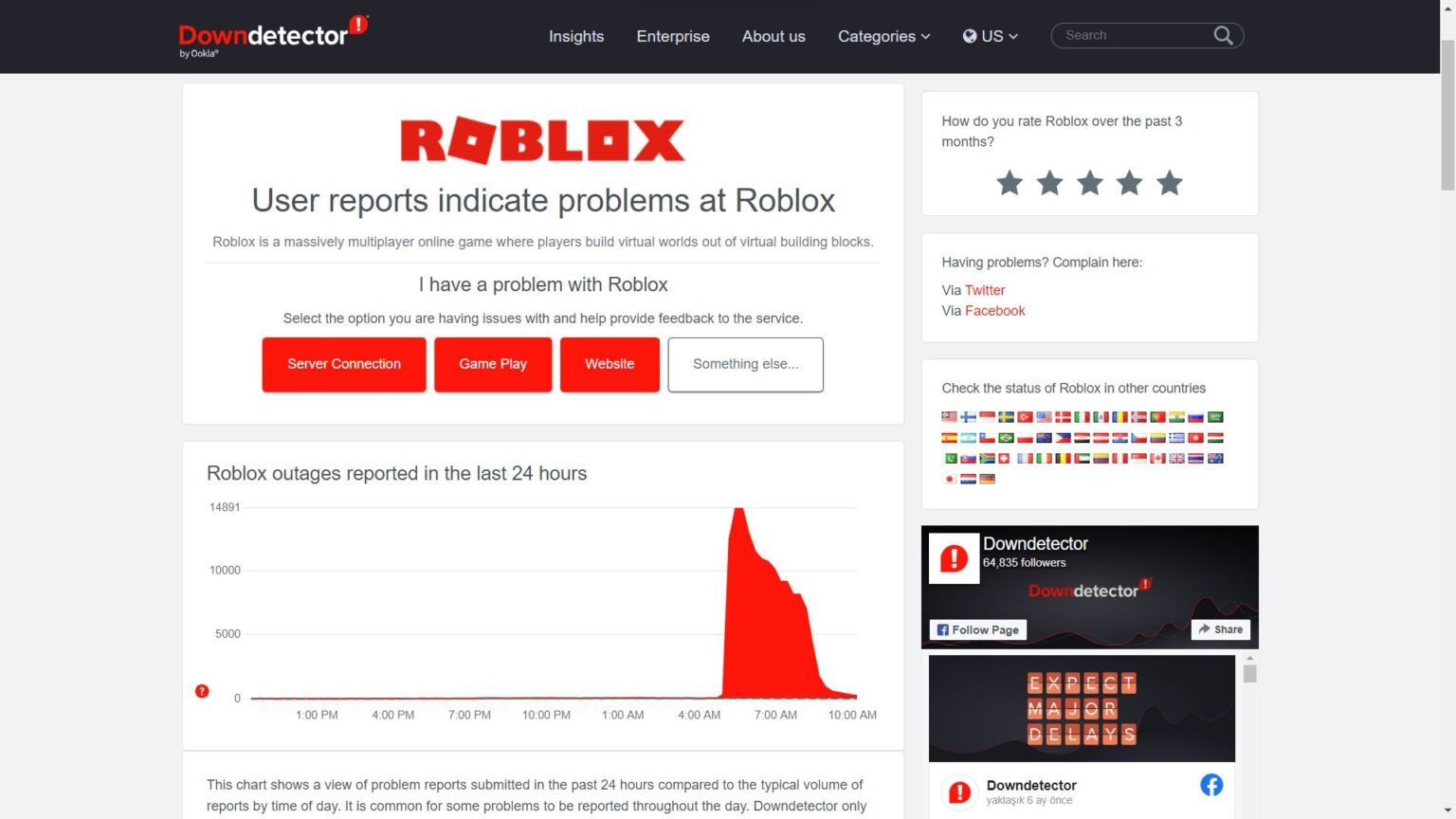
Check Roblox Status Pages: Sometimes, the problem isn't on your end. Check the official Roblox Status page or third-party outage trackers like DownDetector. Roblox servers occasionally experience issues that can affect specific functionalities, including how multiple clients connect.
Consult Community Forums: The Roblox developer forum and general gaming communities (Reddit, Discord servers) are invaluable resources. Other players might be experiencing the exact same issue and have found a niche solution. Search for recent discussions related to "multi Roblox not working" or specific error codes.
Submit a Support Ticket: If you've exhausted all options, consider submitting a support ticket to Roblox. While they won't officially support multi-client setups, providing detailed information about the issue (without explicitly stating you're trying to run multiple instances, if possible, focusing on general client launch failures) might help if it's a broader compatibility bug.
Consider a System Restore: As a last resort, if the issue started after a recent Windows update or software installation, a system restore to a point before the problem began might resolve it. Ensure you back up important data first.
Hardware Upgrade: In some cases, especially if your PC is older, your hardware might simply not be capable of handling the demands of multiple modern Roblox instances. Upgrading RAM, moving Roblox to an SSD, or improving your CPU can significantly boost performance and stability. Remember, 60% of US gamers are adults, and they often invest in sensible upgrades for better experiences, not just hype.
Persistence pays off. Most multi Roblox issues have a solution, and tapping into the collective knowledge of the gaming community often provides the quickest path to a fix.
So, there you have it. Dealing with multi Roblox not working can be a real headache, especially when you're trying to fit gaming into a busy schedule. But by understanding the common causes and applying these practical troubleshooting steps, you're now equipped to get your multi-instance setup running smoothly again. Remember, the goal is to optimize your gaming time, whether that's for relaxation, skill-building, or connecting with friends. Don't let technical glitches keep you from enjoying the vast world of Roblox.
What's your biggest gaming challenge when balancing life and play? Comment below!
FAQ Section
Why does Roblox only allow one instance? Roblox is primarily designed to run a single game client per device to ensure stability, prevent resource conflicts, and enforce fair play rules, discouraging potential exploits or botting that might arise from multiple instances.
Is it against Roblox ToS to run multiple accounts? No, owning and using multiple Roblox accounts is generally not against their Terms of Service. However, using third-party software to bypass technical limitations like the single-instance rule can be a gray area and potentially lead to issues.
How can I open multiple Roblox without a launcher? You can sometimes open multiple instances by creating separate Windows user profiles and launching Roblox from each profile, or by using specific command-line parameters to force new instances, though these methods are not always reliable or supported.
What are the safest ways to run multiple Roblox clients? The safest methods involve using separate Windows user accounts or virtual machines, as these provide proper isolation. If using third-party launchers, choose well-vetted, open-source options from trusted communities and always exercise caution.
Can my antivirus block multi Roblox? Yes, antivirus software or firewalls can mistakenly identify multi-instance launchers or the second Roblox client as a threat, blocking its execution. Adding an exception for Roblox and your launcher in your security software often resolves this.
Does insufficient RAM affect multi Roblox performance? Absolutely. Running multiple Roblox instances is resource-intensive, especially on RAM. If your system has insufficient RAM, additional instances will struggle to launch, crash frequently, or run with severe lag, making the experience unplayable.
Common reasons why multi Roblox is not working include software conflicts, outdated launchers, network restrictions, Roblox client updates, and security software interference. Key solutions involve updating drivers, checking firewall settings, using official workarounds or reputable third-party tools, ensuring sufficient system resources, and disabling conflicting background applications to enable multiple Roblox instances.
35


Why Is Roblox Not Working June 2026 24 Fixes That Actually Work Why Is Roblox Not Working 2025 24 Fixes That Actually Work . How To Run Multiple Roblox Accounts 2026 Guide Run Multiple Roblox Accounts . Why Is Roblox Not Working Real Fixes Insights For 2026 Roblox Not. VERY EASY How To Run MULTIPLE Roblox Instances AT ONCE On One . How To Fix Why Roblox Is Not Working Why Is Roblox Not Working




Latest Methods Roblox Multi Instance Launching 2025 RUNNING MULTIPLE . How To Fix Roblox Not Working Crashing Not Responding On Android . Why Is Microsoft Roblox Not Working Solutions For 2026 Roblox . How To Fix Bloxstrap Multi Roblox Not Working Complete . Is Roblox Down Right Now Issues Why Is Roblox Not Working 1024x576



Why Is Microsoft Roblox Not Working Solutions For 2026 Roblox Mic Not Working . WHY ROBLOX IS NOT WORKING FIX YouTube . Roblox Why Isn T It Working. Why Is Roblox Not Working YouTube . Why Is Roblox Not Working 10 Effective Solutions Why Is Roblox Not Working Thumbnail


Why Is Roblox Not Working YouTube Hq720 . Why Is Roblox Not Connecting To The Internet Dibujos Cute Para Imprimir . Roblox 2026 Logo REVEALED New Color New Look YouTube Maxres2 . How To Message On Roblox 2026 A Quick Guide SL1500 . Roblox Problem 2024 Roblox Servers Down 2024 Why Is Roblox Not


Roblox Not Working Here S Why And How To Fix It Why Is Roblox Not Working . Why Is Roblox Not Working Why Is Roblox Not Working 1400x787 . Fix Common Roblox Issues On Windows 10 How To Fix Roblox Not Launching . Why Is Roblox Not Working Common Problems Why Is Roblox Not Working Common. Is Roblox Down Right Now Issues Roblox Error Code 112

Why Is My Outerwear Not Working In Roblox Causes And Fixes Why Is My Outerwear Not Working In Roblox 1 . Why Is Roblox Not Working Why Is Roblox Not Working . Why Is Roblox Not Working Common Issues And Solutions How To Join A Group On Roblox Guide Beginners. Roblox Not Working How To Fix It TechBriefly Roblox Not Working 1536x864 . Why Is Roblox Not Working Common Issues And Solutions Vpn For Roblox In Russia 1 1400x700


Roblox Down Not Working Problem Today 2025 Roblox Not Working . Why Is Roblox Not Working Common Problems Roblox Server. How To Run Multiple Roblox Accounts At The Same Time 2026 Play . Why Is Roblox Not Working On My Phone Fixes Roblox Crash And Disconnect Errors.webp. Why Is Roblox Not Working Try These Fixes Why Is Roblox Not Working