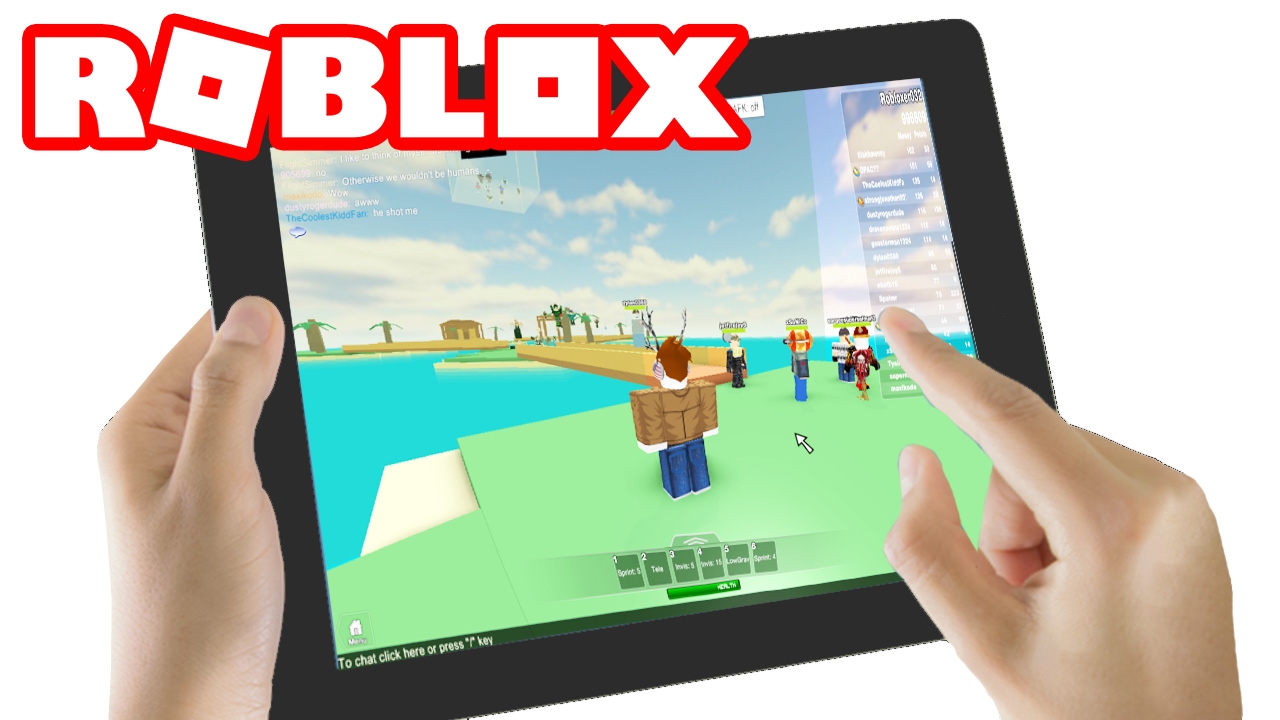
Unlock the full potential of playing Roblox on your iPad with this comprehensive guide tailored for busy gamers. Discover how to optimize settings for peak performance, find the best Roblox games for quick sessions, and troubleshoot common issues like lag or connectivity problems. This resource provides actionable tips to ensure your mobile gaming experience is seamless and enjoyable, allowing you to connect with friends, explore new worlds, and unwind after a long day without technical headaches. Learn about budget-friendly accessories, effective playtime management, and staying updated with Roblox trends to maximize your fun and social interaction on the go. Whether you are a casual player or looking to dive deeper into the Roblox metaverse, this guide offers practical solutions to enhance your iPad gaming. We understand you value relaxation, fun, skill-building, social play, and performance optimization, all without breaking the bank or getting lost in technical jargon. This article is your ultimate companion to mastering Roblox on iPad.
Q: What iPad models are best for Roblox in 2026?
A: For optimal Roblox performance in 2026, the latest iPad Pro models with M-series chips or the newest iPad Air (M1/M2) are ideal, offering superior graphics and speed. The standard 10th-gen iPad also provides a solid experience for most games, balancing performance with affordability.
Q: How do I stop Roblox from lagging on my iPad?
A: To reduce lag, ensure your iPad's iOS is updated, close background apps, lower Roblox's in-game graphics settings, and play on a strong 5GHz Wi-Fi connection. Freeing up iPad storage and restarting your device can also improve performance significantly.
Q: Can I use a game controller with Roblox on my iPad?
A: Yes, you can! iPads support Bluetooth controllers like Xbox Wireless or PlayStation DualShock/DualSense. Pairing one can provide more precise controls, reduce finger fatigue, and enhance the gameplay experience, especially in action-oriented or competitive Roblox games.
Q: What are the best Roblox games for quick iPad sessions?
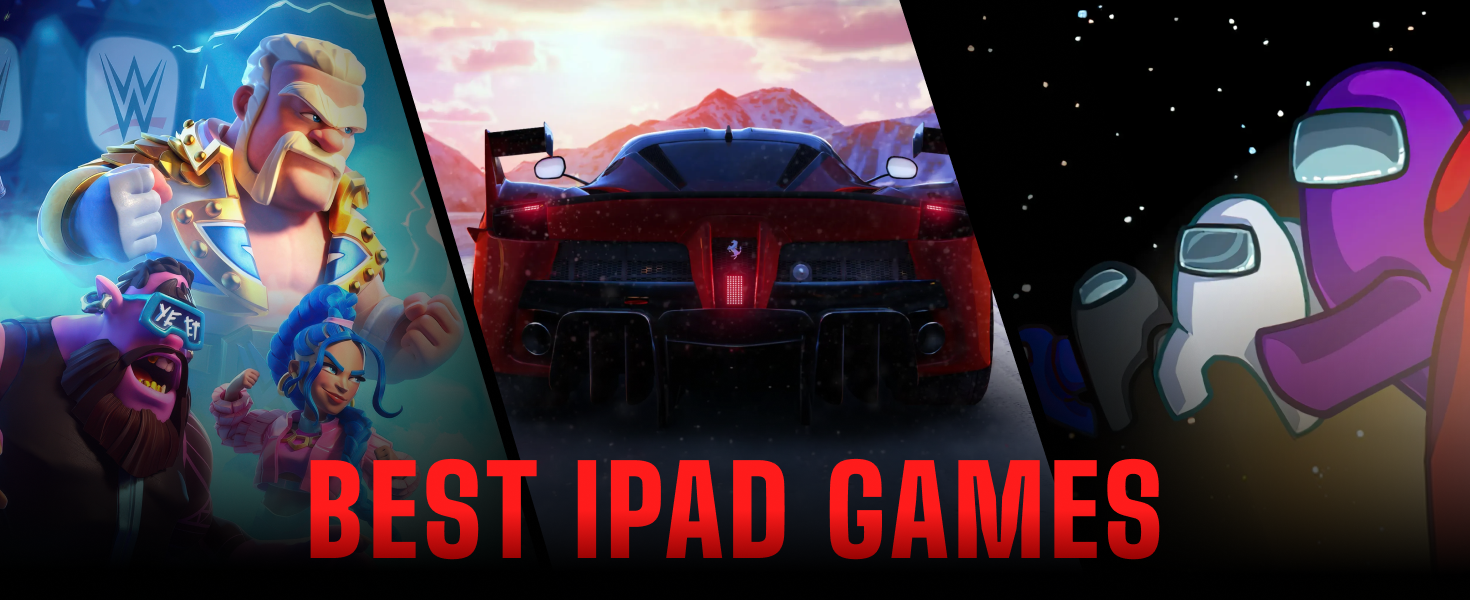
A: For quick iPad sessions, look for games like Adopt Me, MeepCity, Tower of Hell, Brookhaven RP, or Royale High. These games offer intuitive touch controls and engaging gameplay loops that are perfect for short bursts of fun and social interaction.
Q: How can I manage my child's Roblox screen time on an iPad?
A: Use the iPad's built-in 'Screen Time' feature in iOS settings to set daily limits for the Roblox app, schedule downtime, and restrict in-app purchases. You can also manage settings within Roblox itself for friend requests and account activity, promoting balanced play.
Q: Do I need a strong internet connection to play Roblox on iPad?
A: Yes, a stable and fast internet connection is crucial. Roblox is an online platform, so a good Wi-Fi signal (preferably 5GHz) helps prevent disconnects and ensures smooth, real-time interaction in multiplayer games. Avoid playing on congested networks for the best experience.
Q: Is it safe to make in-app purchases (Robux) on an iPad?
A: Yes, making in-app purchases through the Roblox app on an iPad is generally safe, as transactions are processed securely via Apple's App Store. Always ensure your Apple ID has a password requirement for purchases to prevent unauthorized spending, especially for younger players.
Hey fellow gamers! Ever find yourself with a spare moment, maybe on a commute, during a lunch break, or winding down after work, and wish you could dive into a quick, fun gaming session? For many of us, balancing a job, family, and life means our gaming time is often squeezed into smaller windows. That is why mobile gaming, especially on devices like the iPad, has become a go-to for an estimated 87 percent of US gamers who play regularly, often dedicating 10 plus hours a week across platforms. Roblox, with its vast universe of user-created games and strong social features, is a perfect fit for this lifestyle. But playing Roblox on your iPad is not always just download and go. Sometimes you face lag, battery drain, or struggle to find games that truly shine on a touchscreen. This guide is built for you, the adult gamer who wants to enjoy Roblox on the go without the fuss, focusing on performance, fun, and smart choices. We will tackle common pain points and give you actionable advice to make your iPad a Roblox powerhouse, ensuring your gaming moments are relaxing, rewarding, and truly enjoyable.
You are not alone in wanting a smooth experience. The mobile gaming market continues to dominate, and platforms like Roblox lead the charge in social interaction and creative freedom. We will explore everything from optimizing your iPad settings to discovering the best games that respect your limited time, all while keeping budget and performance in mind. Let us make your iPad Roblox experience something you look forward to.
How Can I Ensure My iPad Runs Roblox Smoothly?
Achieving a smooth Roblox experience on your iPad often starts with some simple optimizations. Firstly, ensure your iPad's operating system is up-to-date. Apple regularly releases performance enhancements and bug fixes that can directly impact game fluidity. Next, close all other background applications before launching Roblox. These apps consume RAM and CPU cycles, which Roblox needs to run optimally. A quick double-tap on the home button (for older iPads) or swiping up from the bottom (for newer models) reveals open apps, which you can then swipe away.
Another crucial step is to manage Roblox's in-game graphics settings. While the game attempts to auto-detect your iPad's capabilities, manually adjusting the graphics quality to a lower setting, especially if you have an older iPad model, can significantly reduce lag and improve frame rates. You will find this option within Roblox's settings menu once you are in a game. Consider turning off motion blur or shadow effects if available, as these are often resource-intensive. Keeping your iPad charged, or even playing while connected to power, can also prevent performance throttling that sometimes occurs when the battery is low, as devices tend to conserve power by reducing processing speed.
What Are the Best iPad Models for Playing Roblox in 2026?
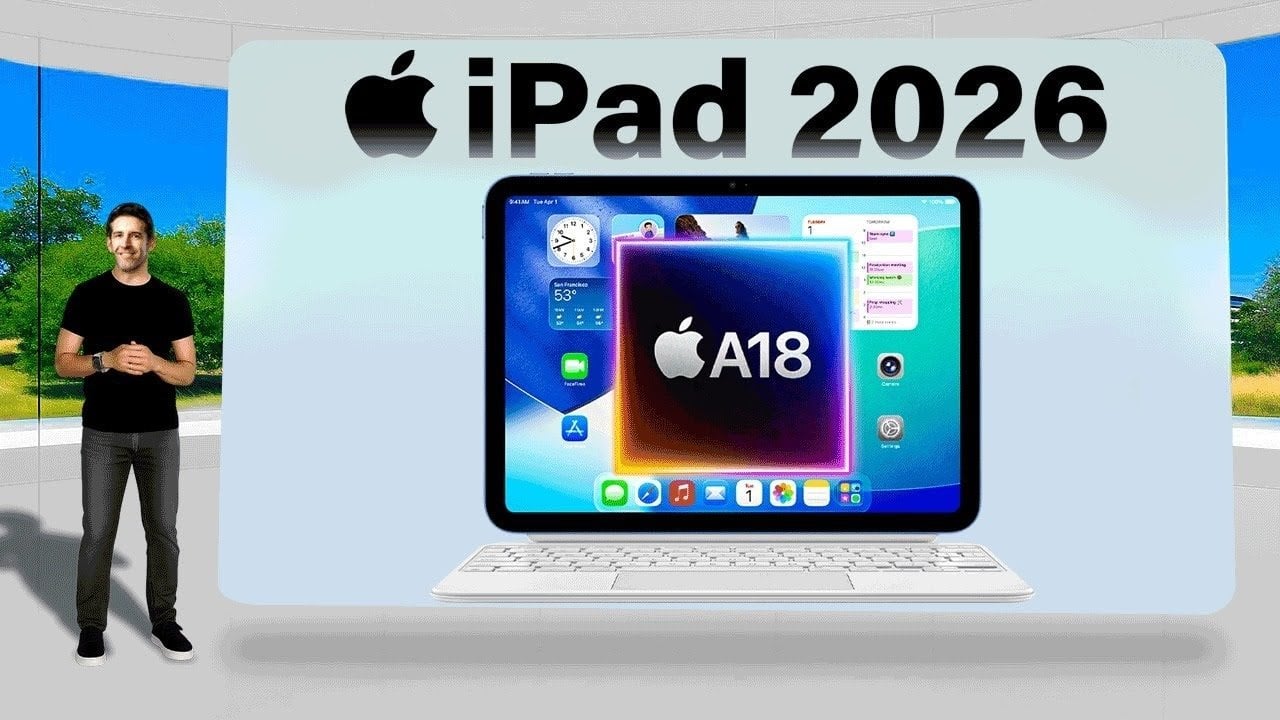
As of 2026, the best iPad models for playing Roblox generally feature Apple's latest A-series or M-series chips, ensuring top-tier performance and longevity. The iPad Pro models (with M2 or newer chips) offer unparalleled power, delivering ultra-smooth gameplay, high frame rates, and the ability to run Roblox at maximum graphical settings without breaking a sweat. Their ProMotion displays (120Hz refresh rate) make movement feel incredibly fluid, which is a significant advantage in fast-paced Roblox experiences.
For a more budget-conscious but still highly capable option, the latest generation iPad Air (M1 or M2 chip) provides an excellent balance of performance and price. It handles most Roblox games with ease and offers a large, vibrant display. The standard iPad (10th generation or newer) is also a strong contender for casual to moderate Roblox players, offering solid performance for the platform's vast library of games at a more accessible price point. When choosing, consider the chip generation: the newer the A-series or M-series chip, the better your Roblox experience will be in terms of speed, graphics, and future-proofing. Many gamers prioritize value for money and the iPad Air often hits that sweet spot perfectly.
How Can I Improve My Wi-Fi Connection for Better Roblox Gameplay on iPad?
A stable and fast internet connection is paramount for a seamless Roblox experience, especially since many popular games are online multiplayer. Start by ensuring you are connected to a strong Wi-Fi signal. Playing closer to your Wi-Fi router can make a significant difference, as walls and obstacles can degrade signal strength. If your home network supports it, connect to the 5GHz band rather than the 2.4GHz band. The 5GHz band offers faster speeds and less interference, though its range is shorter.
Another effective strategy is to reduce network congestion. If multiple devices are streaming video, downloading large files, or performing other bandwidth-intensive tasks on the same network, it can cause lag in your Roblox game. Temporarily pausing these activities or scheduling them for non-gaming hours can free up bandwidth. Restarting your router and modem can often resolve minor network glitches and improve overall performance. For serious gamers, investing in a mesh Wi-Fi system can extend coverage and provide more consistent speeds throughout your home, ensuring that even if you are gaming from a different room, your connection remains strong. This is especially helpful for families with multiple online users, a common scenario for many adult gamers balancing various demands.
Are There Any Roblox Games Optimized Specifically for iPad Touch Controls?
Absolutely! While many Roblox games are designed with universal playability in mind, several stand out for offering excellent touch controls and a great mobile-first experience. Look for games that prioritize simple interfaces, larger on-screen buttons, and intuitive navigation. Role-playing games (RPGs) and simulator games often translate well to touchscreens because they typically involve less precise aiming and more exploration or resource management.
Popular choices that shine on iPad include:
Adopt Me: Its gentle pace, item management, and social interaction are perfect for touch controls.
MeepCity: Another social hub that is easy to navigate with taps and swipes.
Tower of Hell: While challenging, its platforming mechanics are surprisingly responsive on touch, making for engaging quick sessions.
Brookhaven RP: A highly popular role-playing experience that is very intuitive for mobile players.
Royale High: A fantastical RPG with ample exploration and social features that work well on iPad.
How Can I Manage My Child's Roblox Playtime and Purchases on an iPad?
Managing screen time and in-game purchases is a common concern for parents who are also gamers, balancing their own play with family responsibilities. Fortunately, iPads offer robust parental control features through 'Screen Time' in iOS settings. You can set daily time limits for specific apps like Roblox, schedule downtime, and restrict content based on age ratings. To enable this, go to Settings, then Screen Time, and set up content and privacy restrictions.
For in-game purchases (Robux), it is crucial to manage your Apple ID payment methods. You can require a password for all purchases or even disable in-app purchases entirely. In Roblox itself, you can link your child's account to your email to receive activity reports and manage friend requests. Discussing responsible gaming habits and spending with your child is also vital. Many adult gamers find that leading by example, demonstrating mindful playtime and budget management, helps teach younger family members. Roblox has also been improving its parental dashboard features, allowing you more insight and control directly within the platform. Stay informed about these updates to leverage the latest tools for a balanced gaming environment.
Can I Use a Controller with Roblox on My iPad for a Better Experience?
Yes, absolutely! For many gamers, particularly those used to console or PC gaming, a physical controller can significantly enhance the Roblox experience on an iPad, offering more precise controls and a more comfortable grip during longer sessions. iPads support a wide range of Bluetooth controllers, including popular options like the Xbox Wireless Controller and PlayStation DualShock 4 or DualSense controller. Pairing one is straightforward: go to your iPad's Bluetooth settings, put your controller into pairing mode, and select it from the list of available devices.
Once connected, many Roblox games will automatically detect and integrate controller support. This is particularly beneficial for action-oriented games, shooters, or intricate platformers where touch controls might feel less precise. Using a controller can also reduce finger fatigue and free up screen space that would otherwise be occupied by on-screen virtual controls. For the busy gamer who values skill-building and performance optimization, a controller can bridge the gap between casual mobile play and a more dedicated gaming experience, letting you truly unwind and get lost in the game without frustration over controls.
How Do I Update Roblox on My iPad to Get the Latest Features?
Keeping Roblox updated on your iPad is crucial for accessing new features, bug fixes, performance improvements, and maintaining compatibility with the latest games. Updates are typically handled automatically through the App Store, but you can also manually check for and initiate updates.
To manually update Roblox:
Open the App Store on your iPad.
Tap your profile icon in the top right corner.
Scroll down to see pending updates or tap 'Update All'. If Roblox has an available update, it will appear here. Tap Update next to Roblox.
What are the Common Issues When Playing Roblox on iPad and How to Fix Them?
Even with optimal settings, you might encounter a few common hiccups when playing Roblox on an iPad. The most frequent issues include lag, app crashes, and connectivity problems.
For lag, besides the Wi-Fi and graphics settings discussed earlier, try clearing your iPad's cache. While iOS does a good job of managing this, sometimes a full restart of the device can clear lingering temporary files. If lag persists, consider freeing up storage space on your iPad; a nearly full device can slow down performance. Deleting old apps or media you no longer need can help.
App crashes can be frustrating. Ensure your Roblox app is updated to the latest version, as crashes are often resolved in patches. If the app repeatedly crashes, try deleting and reinstalling Roblox. This can resolve corrupted files that might be causing instability. Make sure to remember your login credentials before deleting.
Connectivity issues, beyond Wi-Fi strength, might sometimes stem from Roblox's servers. Check official Roblox status pages or social media accounts for any widespread outages. If it is only affecting you, try resetting your network settings on the iPad (Settings > General > Transfer or Reset iPad > Reset > Reset Network Settings). Remember this will clear all saved Wi-Fi passwords, so have them handy.
For many adult gamers, time is precious, so quick troubleshooting is key to getting back to the fun. These simple steps often resolve the majority of performance issues, letting you get back to building skills and socializing.
Playing Roblox on your iPad offers an incredibly flexible and engaging gaming experience, perfectly suited for the modern gamer balancing life's demands. By optimizing your device, understanding game settings, and leveraging smart accessories, you can transform your iPad into a powerful portable portal to the vast Roblox metaverse. From ensuring smooth performance to managing screen time or enhancing controls, you now have the tools to make the most of your mobile gaming sessions. Embrace the social aspects, explore unique games, and enjoy the relaxation and fun that Roblox brings, wherever life takes you.
FAQ Section
Q: Do all Roblox games support mobile play on iPad?
A: Most Roblox games are designed for cross-platform play, meaning they should work on an iPad. However, some complex or very old experiences might not be fully optimized for touch controls or mobile hardware, potentially leading to a less ideal experience.
Q: Is Roblox free to play on iPad?
A: Yes, the Roblox app itself is free to download and play on iPad. Many games within Roblox are also free, though there are optional in-app purchases (Robux) for virtual items, passes, and cosmetics.
Q: Can I use my existing Roblox account on my iPad?
A: Absolutely! You can log into your existing Roblox account on your iPad. All your Robux, friends, and game progress will carry over seamlessly across devices.
Q: How much data does Roblox use on an iPad?
A: Data usage varies significantly depending on the game you are playing. Simple games might use less, while complex, graphics-intensive, or highly social games will consume more data. Playing on Wi-Fi is generally recommended to avoid exceeding mobile data limits.
Q: What are the benefits of playing Roblox on an iPad over a phone?
A: An iPad typically offers a larger screen for better immersion and easier controls, often better performance due to more powerful chips, and longer battery life than most phones, making it ideal for extended gaming sessions or more visually rich experiences.
Optimizing iPad performance for Roblox, finding top Roblox games for mobile, troubleshooting common Roblox issues, balancing gaming with daily life, essential accessories for iPad Roblox, social gaming on iPad, budget-friendly Roblox tips, staying current with Roblox trends.
35


Roblox On IPad 10th Generation YouTube . Roblox On IPad Your Guide To Downloading And Playing Roblox On IPad 1676963007 . Roblox On M2 IPad Pro YouTube . How To Play Roblox On IPad With Keyboard 2026 Step By Step YouTube Hqdefault . The 6 Best Tablets For Roblox In 2025 Digital Trends Roblox On Ipad


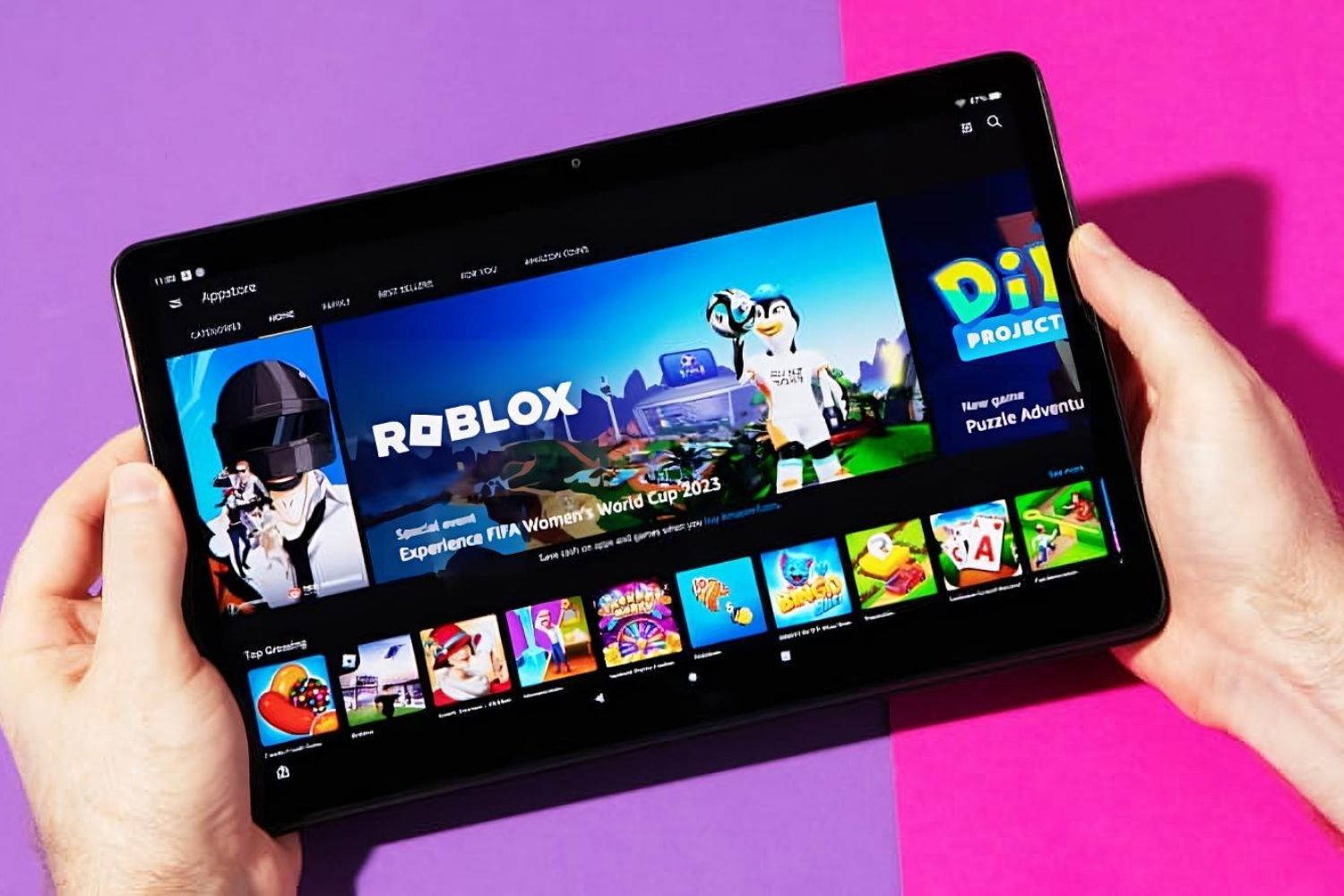
How To Play Roblox On IPad With Keyboard 2025 Step By Step YouTube . 11 Roblox Games IPad Pro M4 YouTube . Roblox Gaming Test On IPad 11th Gen IPad A16 YouTube . Can You Play Roblox On Your IPad DeviceMAG Can You Play Roblox On A Ipad 2 . What Tablet Can You Play Roblox On Robots Net How To Upgrade Roblox On Fire Tablet 1698001389



Roblox IPad Gameplay 1 YouTube . How To Play Roblox On A School IPad Full Guide 2025 Tutorial YouTube . Best 12 How To Play Roblox On IPhone IPad IOS Guide Artofit . Roblox On IPad Your Guide To Downloading And Playing . IPad Pro 2021 Roblox Gameplay M1 IPad Pro Gaming Test YouTube
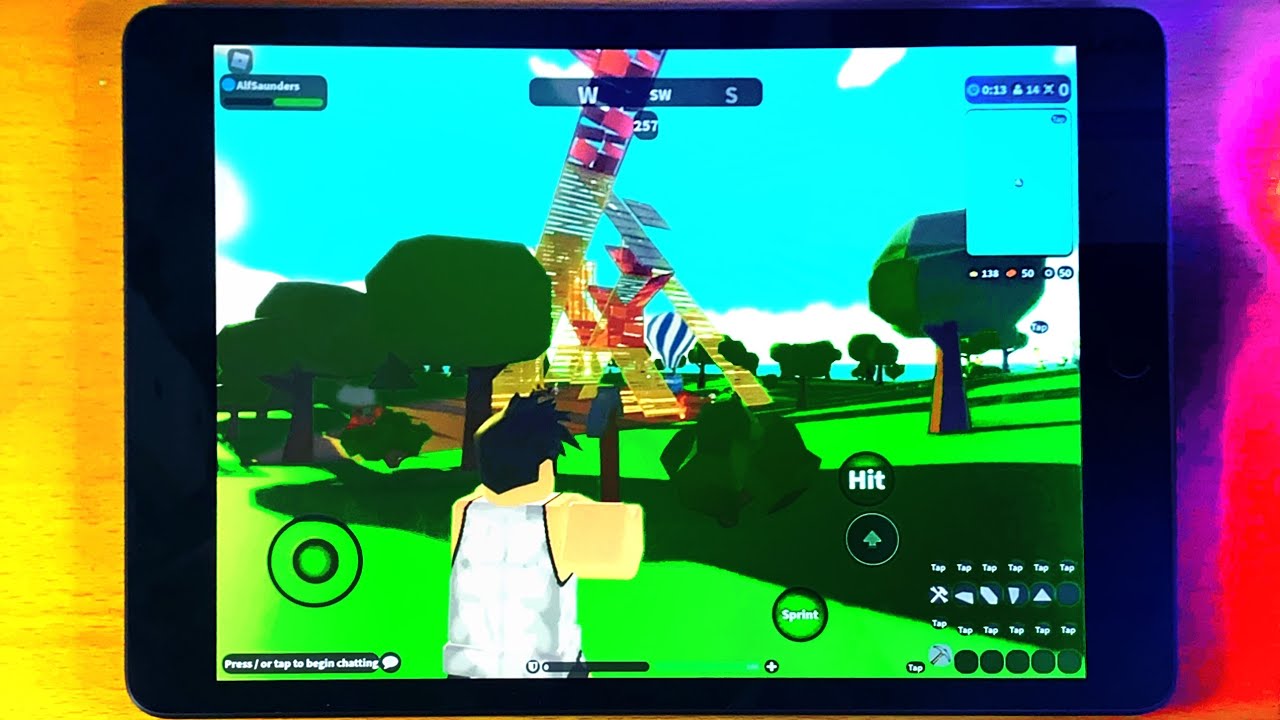

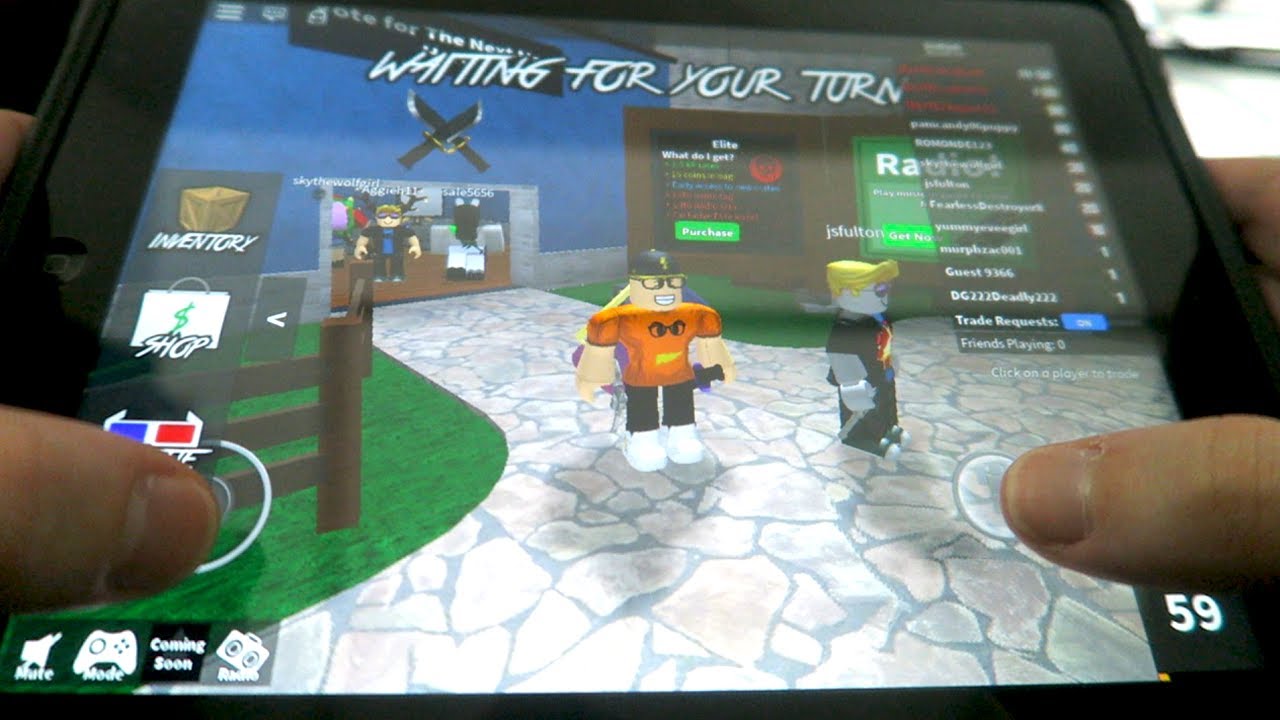


IPad 9 Roblox Gameplay 2021 IPad 9th Generation Gaming Test YouTube . How To Download ROBLOX On IPad IPad Mini IPad Air IPad Pro FREE . PLAYING ROBLOX ON MY IPAD YouTube . Roblox On IPad Your Guide To Downloading And Playing . How To Install Roblox Studio On IPad How To Make Roblox Games On IPad Hqdefault


IPad 2026 Features And Specs Everything You Need To Know Geeky Gadgets Ipad 2026 Performance Upgrades Optimized . Roblox On IPad Your Guide To Downloading And Playing . How To Play Roblox On Ipad Without App Loseeker . A Mother Or Father S Information To Utilizing Roblox In 2026 Ivugangingo 2026 Parental Guide For Roblox Usage UnicMinds . 10 Best IPad Games To Play In 2026 Driffle 10 Best IPad Games To Play In 2026


How To Play Roblox On IPad With Keyboard 2023 YouTube . How To Publish A Game On Roblox In 2026 Roblox YouTube . Roblox On IPad Your Guide To Downloading And Playing Roblox Studio Ipad . 6 Best IPad Games To Play In 2026 Eneba Hub Roblox Face Down On The Ground . How Can You Play Roblox In 2026 And Beyond How To Play Roblox


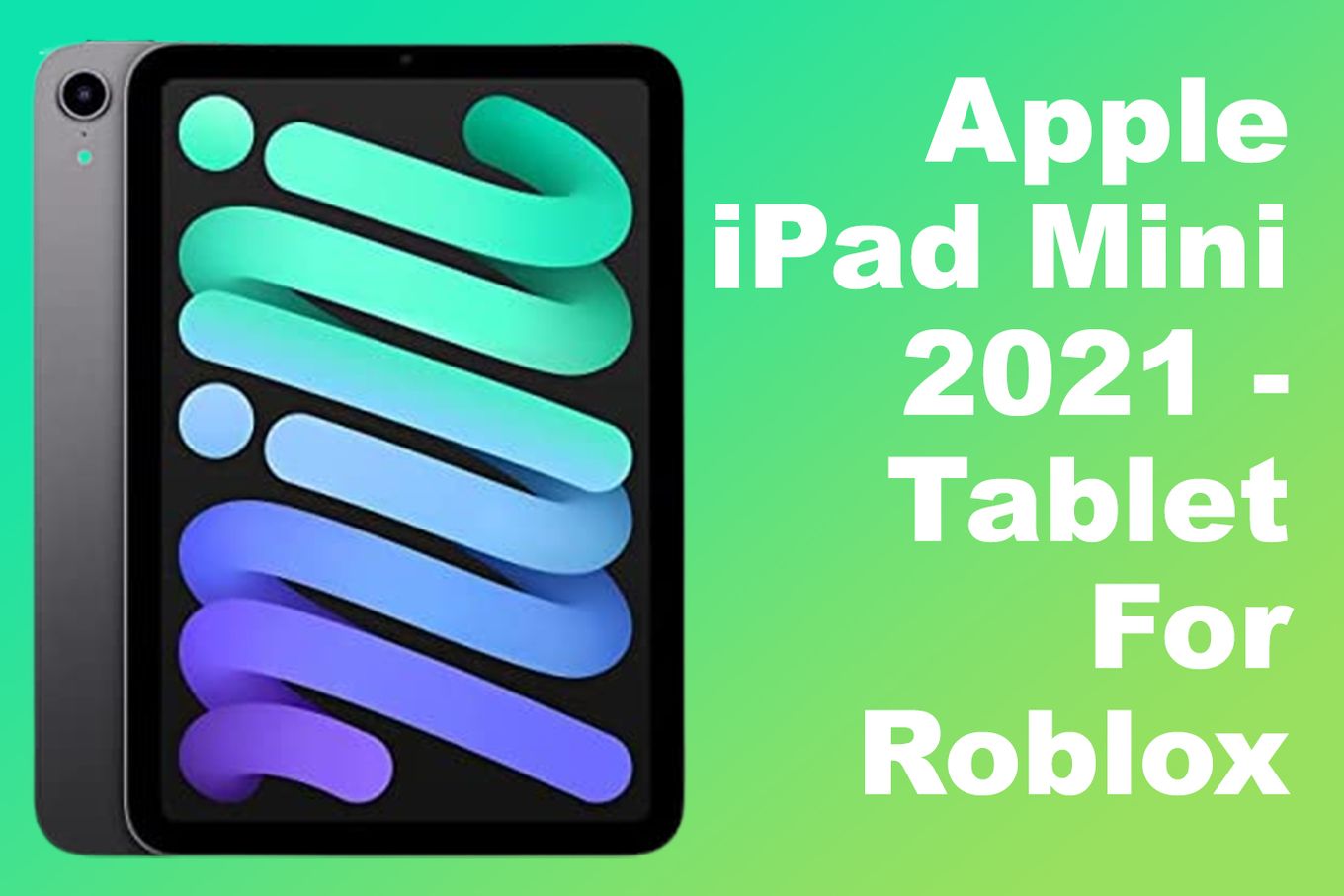
Playing Roblox On IPad Pro M4 Is NEXT LEVEL Fun YouTube Oardefault . How To Play Roblox On Ipad With Apple Keyboard A Step By Step Guide How To Play Roblox On Ipad With Apple Keyboard 1690209598 1024x576 . IPad Mini 6 Roblox Gameplay 2021 IPad Mini Gaming Test YouTube . 12 Best Roblox Games To Play In 2026 Insider Ranked List 12 Roblox Top Games Of 2026.webp. 11 Best Tablets For Roblox 2024 Ranked Reviewed Alvaro Trigo S Blog Ipad Mini-2021 Tablet Playing Roblox