Are your digital game libraries overflowing on Steam, bogging down your PC, and making it tough to find what you actually want to play after a long day? Many US gamers, juggling careers and families, find themselves in this exact situation. With an average gamer spending over 10 hours a week on their favorite titles, storage space becomes a precious commodity, especially when considering the massive install sizes of modern games. This guide dives deep into how delete game from Steam, offering practical, step-by-step solutions to free up valuable disk space and declutter your gaming experience. Whether you are looking to uninstall an old classic, clear out a free-to-play title you rarely touch, or simply optimize your system for better performance, understanding the nuances of managing your Steam library is crucial. We will cover everything from basic uninstallation to hidden files and troubleshooting common issues, ensuring your PC runs smoothly and your gaming sessions remain stress-free. Get ready to reclaim your hard drive space and keep your digital life organized.
How do I uninstall a game on Steam?
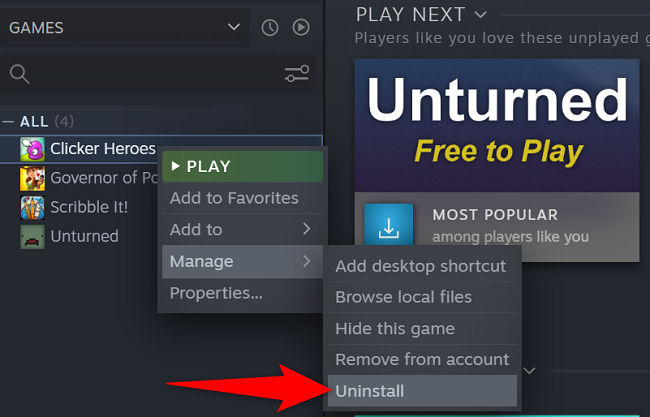
The simplest method to uninstall a Steam game is directly through the Steam client. Go to your Library, right-click the desired game, select 'Manage,' then click 'Uninstall.' Confirm the action, and Steam will remove the game files from your computer.
What is the easiest way to delete Steam games?
The easiest way to delete Steam games is by utilizing the Steam client itself. Navigate to your game library, locate the game you wish to remove, right-click it, choose 'Manage,' and then select 'Uninstall.' This straightforward process ensures proper removal and library management.
Will deleting a Steam game delete my save file?
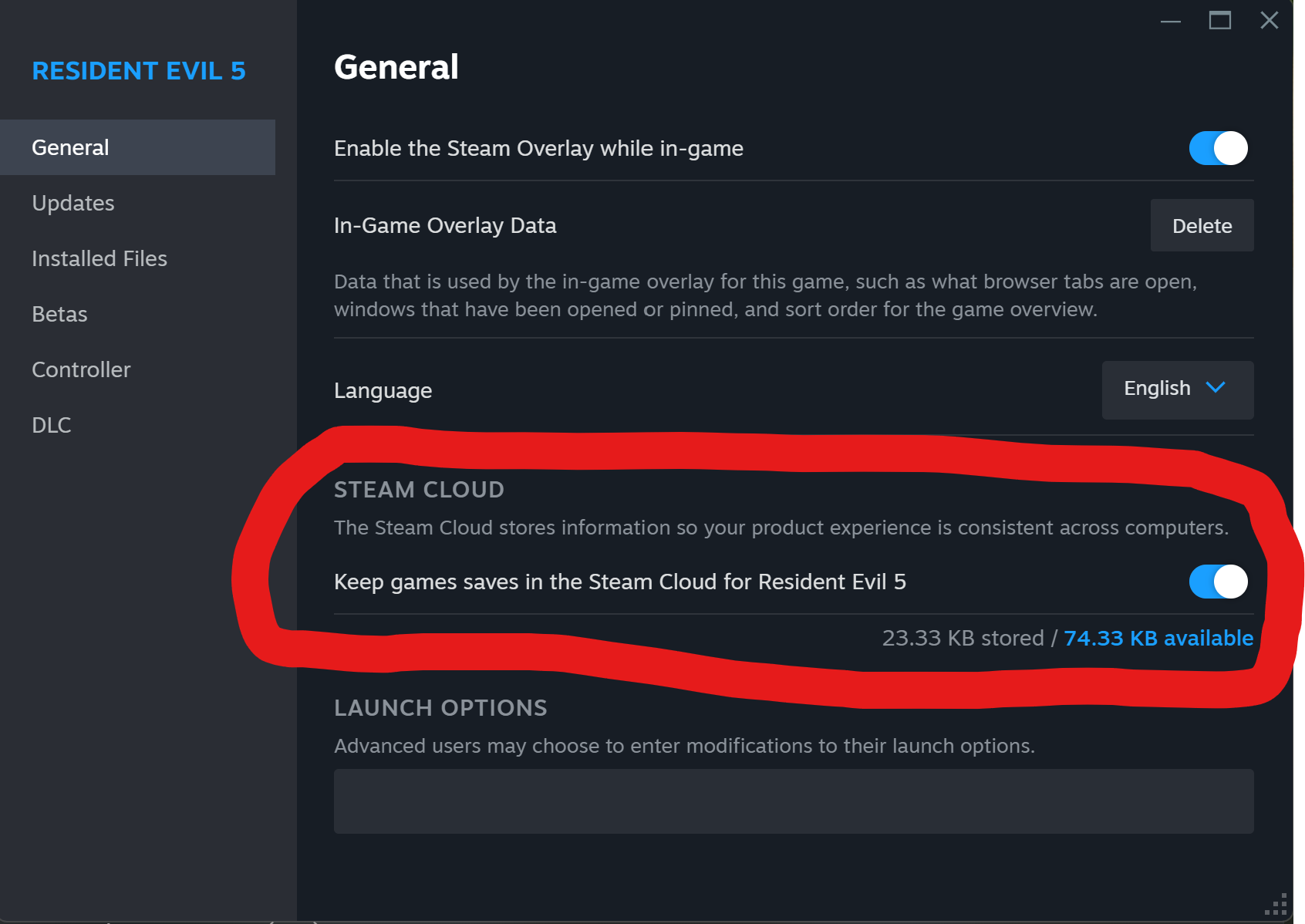
Typically, no. Most modern Steam games support Steam Cloud, which automatically backs up your save files online. If a game uses Steam Cloud, your progress is safe. For games without cloud saves, local save files are often stored separately in your Documents or AppData folders and usually remain after uninstallation, but manual backup is always recommended for critical progress.
How do I remove a game from my Steam library permanently?
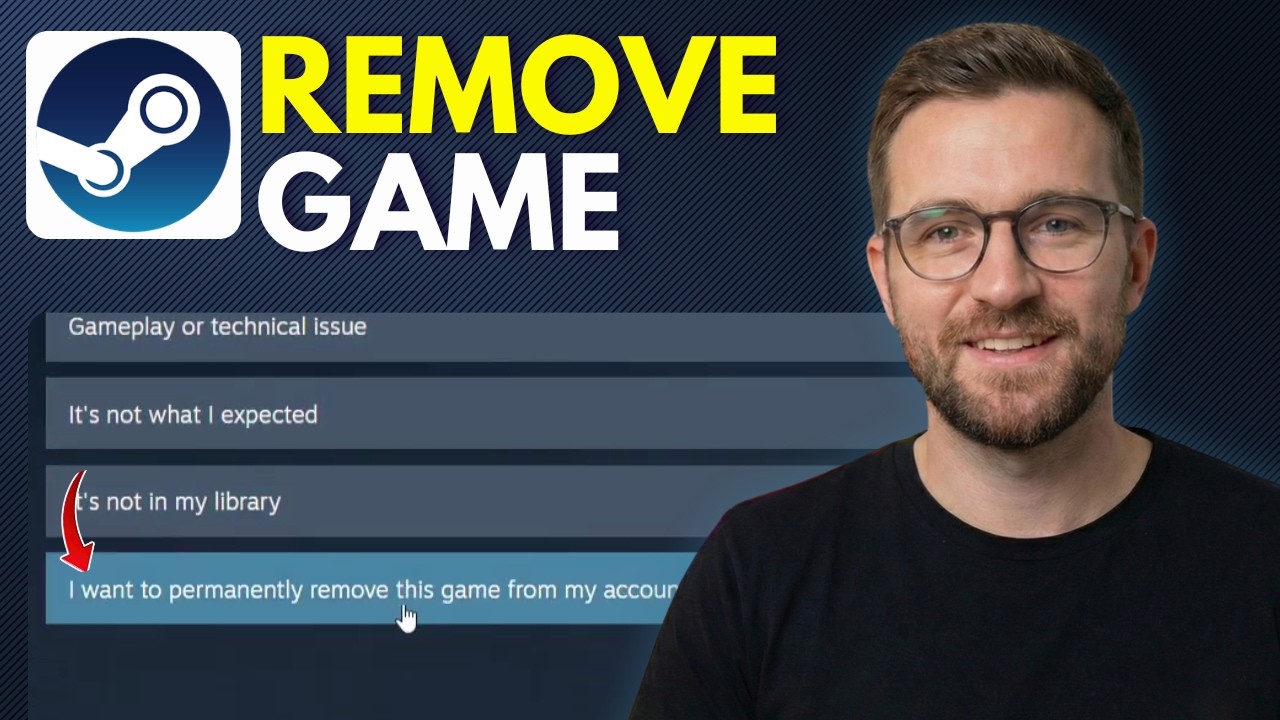
Permanently removing a game from your Steam library is a drastic, largely irreversible step. It revokes your license, erasing the game from your account and requiring repurchase for future access. This is done through Steam Support; navigate to 'Help' > 'Steam Support' > 'Games, Software, etc.' > 'I want to permanently remove this game from my account' for the specific title.
Why should I delete games from Steam?
Deleting games from Steam frees up valuable disk space, especially crucial with today's massive game sizes. It also declutters your library, making it easier to find desired games, and can contribute to overall PC performance by reducing the load on your storage drives, ensuring a smoother gaming experience for busy adults.
How do I uninstall a game from Steam directly through the client?
The simplest way to uninstall a Steam game is through the Steam client itself. Navigate to your Library, right-click on the game you wish to remove, select "Manage," and then click "Uninstall." Confirm your choice, and Steam will begin the uninstallation process, removing most of the game's files from your system. This method ensures Steam accurately tracks your installed games and helps prevent leftover files, making it the recommended approach for most users.
What's the difference between uninstalling a game and permanently removing it from my Steam account?
Uninstalling a game simply removes its files from your hard drive, freeing up space. The game remains in your Steam library and can be reinstalled anytime. Permanently removing a game, however, is a much more drastic step. This action, often done via Steam Support, permanently revokes your license for the game, deleting it from your account's purchase history and making it unavailable for future downloads unless repurchased. This is generally reserved for unwanted accidental purchases or games you never intend to play again and wish to erase all traces of.
Will uninstalling a Steam game delete my save data or cloud saves?
Generally, no. Steam Cloud saves are automatically backed up online and remain unaffected by local uninstallation. For games that do not utilize Steam Cloud, local save files are often stored separately from the main game directory, usually in your Documents folder or AppData directory. While most uninstalls leave these save files untouched, it's always wise to manually back up critical save data before uninstalling, especially for older titles, to ensure your progress is safe.
How can I find and delete leftover game files after uninstalling from Steam?
Even after a Steam uninstall, some residual files like configuration settings, screenshots, or shader caches can remain. To manually check, right-click the uninstalled game in your Steam Library (it will appear greyed out), go to "Manage," then "Browse local files." This often opens the game's former installation directory. You can then navigate up a few folders to the common Steamapps directory and manually delete any remaining folders associated with the game. Always exercise caution when deleting files manually.
What should I do if a Steam game fails to uninstall properly or gets stuck?
If a Steam game refuses to uninstall, first try restarting your Steam client and your PC, then attempt the uninstall again. If the issue persists, you can try "Verifying Integrity of Game Files" before uninstalling, as this can sometimes fix corrupted files preventing removal. As a last resort, you may need to manually delete the game's folder from your Steamappscommon directory and then use Steam's "Delete Local Content" option, which should clean up any remaining registry entries.
Is it possible to reinstall a game after I've uninstalled it from Steam?
Absolutely! Uninstalling a game from Steam only removes the local files from your computer. The game still belongs to your Steam account. To reinstall it, simply go to your Steam Library, select the game (it will appear greyed out with an "Install" button), and click "Install." Steam will then redownload and set up the game for you, just as it did the first time. Your licenses are tied to your account, not the local installation.
How can I manage my Steam game storage across multiple hard drives?
Steam makes managing games across multiple drives quite straightforward. You can create multiple Steam Library Folders in your Steam settings (Steam > Settings > Storage). Once set up, when you install a new game, Steam will ask you which library folder to use. You can also move existing installed games between library folders by right-clicking the game in your library, selecting "Properties," then "Installed Files," and choosing "Move Install Folder." This is great for balancing storage on different SSDs or HDDs.
Hey there, fellow gamer! Ever feel like your digital game library on Steam has spiraled into an unmanageable beast, slowing down your PC and making it a chore to pick a game after a long day? You are definitely not alone. For many US gamers, particularly those balancing demanding careers and family life, gaming is a cherished escape, a way to relax, socialize, and hone skills. But when your hard drive is bursting at the seams with games you have not touched in months, that relaxation can quickly turn into frustration. With an impressive 87% of US gamers engaging regularly, and many averaging over 10 hours a week, storage space for those massive modern titles becomes a critical concern. This month, with new releases vying for attention and the average install size creeping ever higher, knowing how delete game from Steam effectively is more vital than ever.
You might be looking to free up some precious SSD space for that new AAA release, declutter your library to find your go-to multiplayer title faster, or simply optimize your system's performance. Whatever your reason, managing your Steam library is a key skill for any PC gamer in 2026. This comprehensive guide will walk you through everything you need to know about how delete game from Steam, from the basic uninstallation process to handling stubborn files and understanding the impact on your precious save data. We are here to help you reclaim your hard drive, streamline your gaming experience, and keep your rig running smoothly. Let us dive in and get your digital world organized!
Why should I delete games from my Steam library?
Deleting games from your Steam library offers several tangible benefits, especially for the busy modern gamer. First and foremost, it frees up valuable disk space. Modern games can consume hundreds of gigabytes, and an overcrowded drive can lead to slower system performance, longer load times, and even instability. By removing games you no longer play, you make room for new experiences or ensure your frequently played titles have ample space for updates and patches. Secondly, it helps declutter your digital library, making it easier to find and launch the games you actually want to play, saving you precious time. Finally, it can improve your PC's overall performance. While uninstalling a game does not directly impact your CPU or RAM, having less data for your operating system to index and manage can contribute to a snappier, more responsive system.
How do I uninstall a game from Steam through the client?
The most straightforward and recommended method to how delete game from Steam is directly through the Steam client. It is a simple process that ensures Steam correctly registers the removal and manages any associated files. Follow these steps:
Launch Steam: Open your Steam client and log in if you are not already.
Navigate to your Library: Click on 'Library' at the top of the Steam window. This will display all your owned games.
Locate the game: Find the game you wish to uninstall. You can use the search bar or filters if your library is extensive.
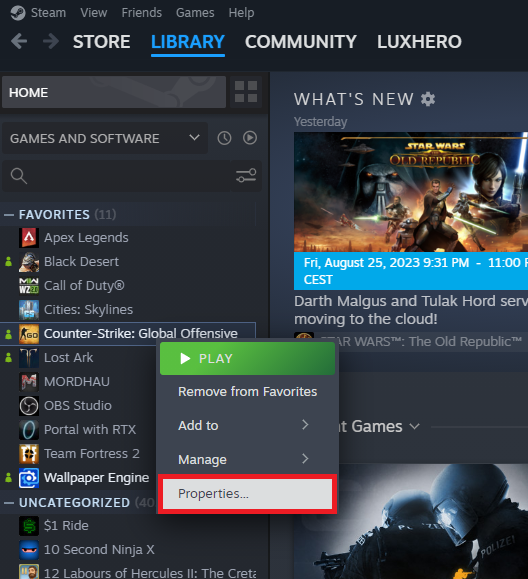
Right-click the game: Right-click on the game's title in your library list.
Select 'Manage' then 'Uninstall': From the context menu, hover over 'Manage' and then click 'Uninstall'.
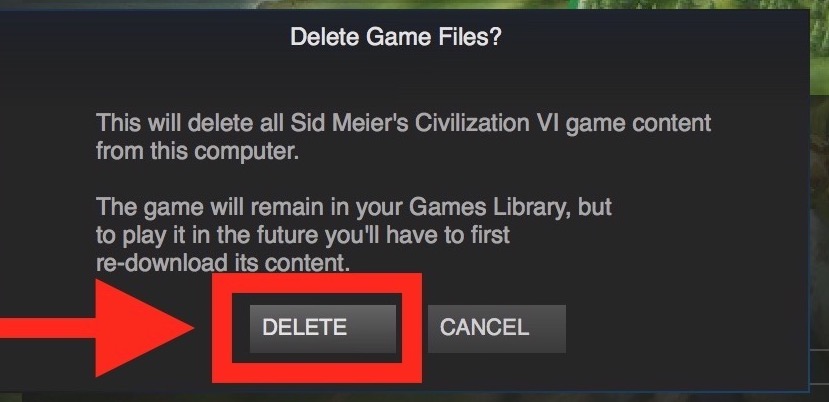
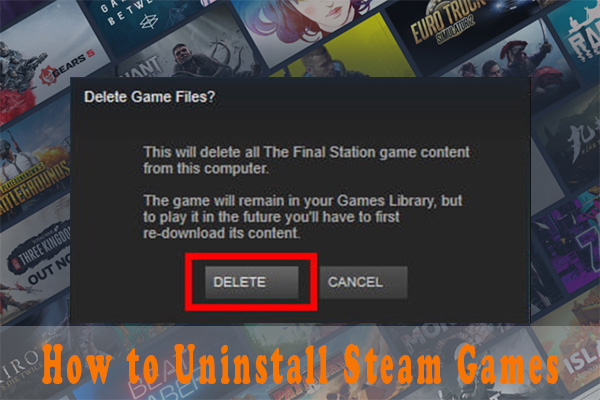
Confirm uninstallation: A dialog box will appear asking for confirmation. Click 'Uninstall' again to proceed.
Steam will then begin removing the game files from your hard drive. The time it takes depends on the game's size and your system's speed. Once complete, the game will still appear in your library but will be greyed out, indicating it is no longer installed on your PC.
What is the difference between uninstalling and permanently removing a game from my Steam account?
This is a crucial distinction that many gamers sometimes misunderstand. When you uninstall a game, you are simply deleting the game's local files from your computer's hard drive. The game still belongs to your Steam account, appears in your library, and can be reinstalled at any time without repurchasing. It is like taking a book off your shelf; you still own it, but it is not physically present. On the other hand, permanently removing a game from your Steam account is a far more drastic action. This process, usually handled through Steam Support, revokes your license for the game. It will disappear from your library, your purchase history, and you will need to buy it again if you ever wish to play it. This option is typically used for accidental purchases or games you absolutely never want to own or see again, and it is largely irreversible.
Can I reinstall a game after uninstalling it from Steam?
Yes, absolutely! As mentioned, uninstalling a game only removes the local installation files. Your ownership of the game, tied to your Steam account, remains completely intact. To reinstall a game you have uninstalled:
Go to your Steam Library: The game will still be listed but will appear greyed out.
Select the game: Click on the game title.
Click the 'Install' button: On the game's library page, you will see a large 'Install' button. Click it.
Follow the prompts: Steam will ask you to choose an installation location (if you have multiple Steam Library Folders) and confirm the download size. Click 'Next' or 'Install' to begin the download and installation process.
Your game will be downloaded and installed as if it were the first time, ready for you to jump back in.
How do I locate and manually delete leftover game files after uninstalling?
While Steam's uninstallation process is usually thorough, sometimes small residual files like configuration settings, save data (if not cloud-synced), screenshots, or shader caches can remain. These usually do not take up significant space but can be annoying. To check for and manually delete them:
Attempt a standard uninstall first: Always try the Steam client uninstall process first.
Browse local files (if still listed): Even after uninstalling, some games might still appear in your library as greyed out. Right-click the game, select 'Manage,' then 'Browse local files.' This might open the directory where the game was previously installed.
Manually navigate to Steam's common folder: If the above does not work, go to your Steam installation directory (e.g., C:Program Files (x86)Steam) and then navigate to Steamappscommon. Look for a folder named after the game you uninstalled. If it exists, you can delete it. Be absolutely sure it is the correct game folder.
Check common save game locations: Save files are often stored outside the game installation directory. Check your 'Documents' folder (e.g., DocumentsMy Games or Documents[Game Name]), and sometimes the AppData folder (C:Users[Your Username]AppDataLocal or AppDataRoaming). The AppData folder is hidden by default, so you might need to enable 'Show hidden items' in File Explorer's View tab.
Use a cleaner tool (optional): For a deeper clean, consider using a reputable third-party system cleaner like CCleaner or similar tools that can scan for leftover registry entries and temporary files. Exercise caution and always back up your system before using such tools extensively.
Always be careful when manually deleting files to avoid accidentally removing important system files or files related to other games.
What if a game won't uninstall from Steam normally? Troubleshooting tips.
Occasionally, a game might be stubborn and refuse to uninstall through the usual Steam client method. This can be frustrating, but there are several troubleshooting steps you can take:
Restart Steam and your PC: Often, a simple restart of the Steam client, or even your entire computer, can resolve temporary glitches preventing uninstallation. Try uninstalling again after a fresh boot.
Verify Integrity of Game Files: Sometimes, corrupted game files can prevent a clean uninstall. While counterintuitive for uninstallation, verifying the game files can sometimes fix the underlying issue. Right-click the game in your library, select 'Properties,' then 'Installed Files,' and click 'Verify integrity of game files.'
Manually Delete Game Folder, then 'Delete Local Content': If the game is truly stuck, you can try manually deleting its folder. Navigate to your Steamappscommon directory (e.g., C:Program Files (x86)Steamsteamappscommon) and delete the folder for the problematic game. After that, go back to Steam, right-click the game in your library, and select 'Manage' then 'Delete Local Content'. Steam should then update its records and remove the game from your installed list.
Check Task Manager: Ensure no game processes are running in the background. Open Task Manager (Ctrl+Shift+Esc), and look for any processes related to the game. End them, then try uninstalling again.
Run Steam as Administrator: Sometimes, permission issues can hinder uninstallation. Close Steam, right-click the Steam shortcut, and select 'Run as administrator', then try uninstalling the game.
How can I manage my Steam storage across multiple drives?
Many modern US gamers, especially those with larger libraries, utilize multiple hard drives or SSDs. Steam provides excellent tools to manage your game installations across these drives:
Create Steam Library Folders:
Open Steam, then go to 'Steam' > 'Settings' > 'Storage'.
Here, you will see your current Steam Library Folders. Click the '+' icon next to 'Add Drive' to create a new library folder on a different drive.
Select the desired drive and then 'Add Folder'. Steam will create a new 'SteamLibrary' folder there.
Install new games to a specific drive: When installing a new game, Steam will now ask you which library folder (i.e., which drive) you want to install it to. Choose the drive with enough space or your preferred drive.
Move existing games between drives:
In the Steam 'Storage' settings, select the drive where the game is currently installed.
Check the box next to the game(s) you want to move.
Click the 'Move' button and choose the destination drive.
This feature is a godsend for balancing space, for example, keeping performance-critical games on a fast NVMe SSD and larger, less demanding titles on a slower, higher-capacity HDD.
Are there any tools to help me manage my Steam library and installed games more efficiently?
Beyond Steam's native features, a few tools can help PC gamers manage their sprawling libraries. While Steam has improved its own storage management, sometimes a bit more insight is helpful:
WinDirStat / TreeSize Free: These are not Steam-specific but are invaluable disk usage visualizers. They scan your drives and show you exactly what files and folders are taking up the most space, including your Steam game folders. This helps identify massive games you might have forgotten about.
SteamDB: While primarily a database for Steam games, sales, and statistics, savvy users can leverage it to track their library value or identify games they own that might be worth revisiting or uninstalling.
Third-Party Launchers/Organizers: Programs like Playnite or GOG Galaxy 2.0 can centralize your entire gaming library (across Steam, Epic Games, GOG, etc.). While they do not directly uninstall games, they offer a unified view, making it easier to see what you own and decide what to keep or uninstall on a given platform.
Always download and install third-party software from trusted sources to avoid malware and ensure compatibility.
Does uninstalling a game affect my save data or cloud saves?
For the vast majority of modern Steam games, uninstalling the game will not affect your save data, especially if the game supports Steam Cloud. Steam Cloud automatically uploads your game saves to Valve's servers, meaning your progress is safe online even if you delete the local game files. When you reinstall the game, your cloud saves will automatically download, and you can pick up right where you left off.
For older games, or those that do not utilize Steam Cloud, save files are typically stored in separate locations, often within your 'Documents' folder (e.g., My Games, or a folder named after the game) or in your hidden 'AppData' folder. While a standard Steam uninstall usually leaves these files untouched, it is a good practice to manually back up critical save data to a separate folder or external drive before uninstalling, just to be absolutely safe.
How often should I consider cleaning up my Steam library for optimal performance?
There is no strict schedule for cleaning up your Steam library; it really depends on your gaming habits, the size of your hard drives, and how many new games you acquire. However, a good rule of thumb for the average gamer balancing life and work might be:
Quarterly Review: Every three to six months, take an hour to scroll through your Steam library. Identify games you have completed, lost interest in, or that simply did not click with you. If you know you will not play it again soon, consider uninstalling it.
Before a Major Purchase: If you are planning to buy a large new game, especially a AAA title, it is an excellent time to free up space. Check the new game's requirements and clear out enough space for it plus a little extra.
When Performance Dips: If your PC starts feeling sluggish, or games are loading slowly, an overcrowded drive can be a contributing factor. A quick cleanup can often yield noticeable improvements.
Regular maintenance ensures your system remains optimized, providing a smoother and more enjoyable gaming experience without constant headaches.
Can I hide games instead of deleting them entirely?
Yes, Steam offers a 'Hide Game' feature that allows you to remove games from your primary library view without actually uninstalling them or removing them from your account. This is particularly useful for games you might want to revisit but do not want cluttering your everyday view, or perhaps games you played for a review and no longer need front and center. To hide a game:
Right-click the game in your Steam Library.
Select 'Manage'.
Click 'Hide this game'.
The game will disappear from your main library list. To view hidden games, click 'View' at the top of the Steam client, then 'Hidden Games'. You can unhide a game by right-clicking it in the Hidden Games list and selecting 'Manage' then 'Remove from Hidden'. This is a great way to manage visual clutter without impacting disk space.
What are the best practices for maintaining a healthy Steam library?
Maintaining a healthy and efficient Steam library is about more than just occasionally deleting games. It is about smart management that supports your gaming habits and system performance:
Regular Audits: Periodically review your installed games. Be honest with yourself about what you are truly going to play. With an average of 10+ hours a week, make sure that time is spent on games you love, not on navigating clutter.
Utilize Multiple Library Folders: If you have multiple drives, configure Steam to use them. Install large, demanding games on your fastest SSD, and less-played or older titles on a larger HDD.
Embrace the 'Hide' Feature: For games you have finished or are taking a break from but do not want to uninstall, hide them. It keeps your primary library clean and focused.
Back Up Crucial Saves: For games without Steam Cloud, manually back up your save files, especially before major system changes or game uninstalls.
Keep Drivers Updated: While not directly related to library management, ensuring your graphics drivers and system software are up-to-date is crucial for optimal game performance, making the most of the games you *do* keep installed.
Be Mindful of Free-to-Play Titles: These can accumulate quickly. If you try a free-to-play game and do not enjoy it, uninstall it promptly rather than letting it linger.
By adopting these practices, you will ensure your Steam library is a source of joy, not digital stress.
Conclusion
So there you have it, a complete rundown on how delete game from Steam and keep your digital playground optimized and clutter-free. Whether you are a busy parent squeezing in a few hours after the kids are asleep or a dedicated enthusiast diving deep into the latest trends, efficient library management is key to making the most of your gaming time. Remember, it is not just about deleting; it is about creating a streamlined, enjoyable experience that lets you focus on the fun, the challenge, and the social connections that make gaming so rewarding. With the average gamer spending valuable hours each week, every bit of optimization counts!
Now that you are equipped to tackle your overflowing Steam library, what is your biggest gaming challenge? Are you wrestling with performance issues, struggling to find time for your favorite titles, or looking for the next great social game? Comment below and let us know! Happy gaming!
FAQ Section
Is it safe to delete game files manually?
Generally, no. It is best to use Steam's built-in uninstall feature. Manually deleting game folders can leave behind registry entries and other files, potentially causing issues. Only manually delete residual files if you are confident you know what you are doing and after a proper Steam uninstall attempt.
Will deleting a game affect my achievements or playtime?
No, deleting a game from your local drive will not affect your achievements, playtime records, or any other statistics tracked by Steam. These are tied to your Steam account and are stored on Valve's servers, not on your local machine.
Can I delete games from Steam on my phone?
The Steam mobile app allows you to browse your library and initiate downloads to your PC, but it does not directly support uninstalling games. Uninstallation must be done through the Steam client on your computer.
How do I know which games take up the most space?
In the Steam client, go to 'Steam' > 'Settings' > 'Storage'. This section lists all your installed games and shows how much disk space each one occupies. You can sort by size to quickly identify the biggest space hogs.
Free up disk space on your PC, improve system performance, declutter your Steam game library, quickly uninstall unwanted games, manage game files effectively, troubleshoot common uninstallation issues, understand the difference between uninstalling and removing from account.
35



How To Delete Games On Mac Free Up Space In 2026 . How To Uninstall Delete Games All At Once On STEAM Easy Tutorial . How To Delete Non Steam Games From Steam YouTube . How To Delete Games On Mac Free Up Space In 2026 Howto Delete Steam Games . How To Remove Steam Games From Library Permanently Not Just Uninstall


How To Completely Delete Game From Steam In Windows YouTube . How To Reset Steam Games Delete Game Data YouTube . How To Delete Steam Game Saves YouTube . How To Permanently Remove Game From Steam Account Easy Guide YouTube . How To Delete Steam Game Save Data 2025 YouTube


How To Delete All Game Data On Steam BEST Way YouTube . Remove Games From Steam Library FDOMF . How To Remove Game From Steam Library Full Guide YouTube . How To Remove Game From Steam Library Not Hide Or Refund Step By Step . How To Delete Steam Game Saves YouTube


How To Delete Steam Games Quick Easy Guide V4 460px Delete Steam Games Step 7 . Steam Cloud Save History At Lisa Post Blog . How To Permanently Remove A Game From Your Steam Library YouTube . How To Uninstall A Game On Steam Mac Detroit Chinatown . Game Bar Stuck Heres How To Restart It 3 Game Properties



How To Delete Steam Games Quick Easy Guide V4 460px Delete Steam Games Step 17 . How To Remove Game From Steam Library YouTube . How To Delete Uninstall Game On Steam Account PC 2023 YouTube . Steam Community Guide How To Delete Save Data Works As Of Jan 2024. How To Delete Game From Steam Library Easy Way YouTube




Erase Steam Games A Super Simple Guide 2 Uninstall Steam Game . How To Delete Steam Reviews YouTube . How To Delete Steam Account 2026 Step By Step YouTube . Steam March 2026 Client Update Adds Hardware Specs To User Reviews Steam Client Mar 2026 . The Best Selling Paid Games On Steam Right Now Cheat Code Central Most Played Games Steam 2026 2048x1167


How To Delete Games On Mac Free Up Space In 2026 . How To Delete Steam Games YouTube . How To Remove All Steam Game Files In Windows Uninstall Remove Files . How To Delete Steam Account Permanently Easy Guide YouTube . How To Uninstall Steam Games Completely 3 Methods MiniTool How To Uninstall Steam Games Thumbnail