Unlock the full potential of your living room TV by transforming it into a powerful computer monitor. This comprehensive guide helps US gamers navigate the exciting world of using TV as computer monitor, offering practical insights and troubleshooting tips. Discover how to enhance your gaming setup, manage resolutions, minimize input lag, and optimize visual fidelity without breaking the bank. Whether you are a casual player looking for a bigger screen or a dedicated enthusiast seeking a budget-friendly large display solution, we cover everything from essential cable types to advanced display settings. Learn about the latest trends in TV technology that make using TV as computer monitor more viable than ever, ensuring you get the most out of your gaming sessions. We address common concerns about refresh rates, HDR compatibility, and ergonomic considerations, providing clear, actionable advice to help you achieve an immersive and responsive gaming experience.
What is the best way to connect my PC for using TV as computer monitor?
The best connection for using TV as computer monitor is HDMI, specifically HDMI 2.0 or 2.1 for 4K resolutions and higher refresh rates. Ensure both your PC graphics card and TV support the desired HDMI standard for optimal performance, especially for gaming at 120Hz or with HDR. DisplayPort to HDMI adapters are an option if your PC lacks a direct HDMI port.
How can I reduce input lag when using TV as computer monitor for gaming?
To reduce input lag, activate 'Game Mode' on your TV. This setting bypasses many of the TV's post-processing features, which introduce delay. Also, ensure your graphics drivers are up-to-date and consider a direct HDMI connection rather than adapters. Some advanced TVs offer Variable Refresh Rate (VRR) technologies like FreeSync or G-Sync compatibility, which further reduce lag and screen tearing for smoother gameplay.
Is a 4K TV good for using TV as computer monitor for competitive gaming?
While a 4K TV offers stunning visuals and immersion for many games, it might not be ideal for highly competitive esports due to potential input lag and slower response times compared to dedicated gaming monitors. However, many modern 4K TVs with 'Game Mode' and high refresh rates (120Hz) can offer a very good experience for casual and even semi-competitive players. For ultimate competitive play, a high refresh rate (144Hz+) gaming monitor with low response time is still king.
What settings should I adjust on my PC graphics card when using TV as computer monitor?
After connecting, go to your GPU control panel (NVIDIA Control Panel or AMD Radeon Software). Set the native resolution to match your TV's (e.g., 3840x2160 for 4K). Adjust the refresh rate to the highest supported by your TV and cable (e.g., 60Hz or 120Hz). Check for full RGB dynamic range output (often labeled as 'Full' or '0-255') to prevent washed-out colors. Enable HDR if your TV supports it and you have HDR content.
Can I use my TV for both gaming and general PC work effectively?
Yes, many gamers successfully use their TV as a computer monitor for both gaming and productivity. For work, ensure proper scaling settings in Windows to make text readable at a distance. Be mindful of potential eye strain from sitting too close to a very large screen. Consider a wireless keyboard and mouse for comfortable use from a couch or ergonomic desk setup if space allows. High-quality TVs with good text clarity are essential for dual-purpose use.
What is HDR and how does it benefit using TV as computer monitor for gaming?
HDR, or High Dynamic Range, enhances visual fidelity by providing a wider range of colors, brighter whites, and deeper blacks compared to standard dynamic range (SDR). For gaming, HDR makes compatible titles look incredibly vibrant and realistic, bringing out details in shadows and highlights that would otherwise be lost. To experience HDR, both your TV and PC graphics card must support it, and the game itself needs to be HDR-enabled.
How important is HDMI 2.1 for using TV as computer monitor in 2026?
HDMI 2.1 is very important for using TV as computer monitor, especially for modern gaming rigs. It supports higher bandwidth, enabling 4K resolution at 120Hz, 8K at 60Hz, and includes features like Variable Refresh Rate (VRR), Auto Low Latency Mode (ALLM), and Enhanced Audio Return Channel (eARC). These features are crucial for a smooth, responsive, and immersive gaming experience on compatible TVs and graphics cards, making it a must-have for future-proofing your setup.
Ever found yourself staring at your desk monitor, wishing your favorite games could leap onto a bigger screen, perhaps the glorious TV right there in your living room? You're not alone. Many US gamers, especially those balancing busy lives with a passion for pixels, dream of an expansive, cinematic gaming experience without breaking the bank on a massive gaming monitor. For the average gamer at age 36, who dedicates 10+ hours a week to their favorite digital worlds, the appeal of "using TV as computer monitor" is undeniable. It's about more than just size; it's about maximizing value, creating a comfortable setup, and immersing yourself in a way a smaller screen just can't match.
In 2026, with an estimated 87% of US gamers regularly diving into virtual realms, the desire for flexible, high-performance setups has never been stronger. Whether you're unwinding with a cozy indie title, exploring vast open worlds, or engaging in some social gaming with friends, leveraging your existing TV can transform your gaming space. This comprehensive guide will walk you through everything you need to know about using TV as computer monitor, from initial setup and hardware considerations to optimizing settings for peak performance, ensuring you get the most out of every gaming session without the usual setup headaches or performance pitfalls.
Why Consider Using TV as Computer Monitor for Gaming?
For many gamers, the sheer immersion a large TV screen offers is the primary draw. Imagine your favorite open-world adventure sprawling across 55 or 65 inches; it's a completely different experience. Furthermore, using TV as computer monitor can be incredibly budget-friendly. Instead of investing hundreds, or even thousands, in a new ultrawide or OLED gaming monitor, you can utilize a display you already own or purchase a large TV for significantly less per inch than a comparable monitor. This is especially appealing for the value-conscious gamer who wants to stay current with big titles without overspending. Plus, it frees up desk space, allowing for more flexible gaming environments like a comfy couch setup in the living room, perfect for social gaming sessions or just unwinding after a long day.
Many modern TVs now boast features like low input lag, high refresh rates (120Hz or even 144Hz on some models), and excellent HDR support, making the gap between TVs and monitors for gaming much smaller than it once was. This means you no longer have to sacrifice performance for size. It's a win-win for gamers looking for big screen thrills.
What are the Essential Connections for Using TV as Computer Monitor?
The cornerstone of connecting your PC to your TV for an optimal gaming experience is the right cable. For most modern setups, an HDMI cable is your go-to. Specifically, aim for HDMI 2.0 or 2.1. HDMI 2.0 supports 4K resolution at 60Hz, which is great for many games, while HDMI 2.1 is crucial if you're targeting 4K at 120Hz or even 8K resolutions, offering the bandwidth needed for such high refresh rates and resolutions along with features like Variable Refresh Rate (VRR).
Most graphics cards today will have at least one HDMI port, or DisplayPort. If your PC only has DisplayPort outputs and your TV only has HDMI inputs, a reliable DisplayPort to HDMI adapter or cable is necessary. Ensure the adapter supports the resolution and refresh rate you intend to use. For audio, HDMI will carry the sound directly to your TV. If you prefer external speakers, you can connect them to your PC directly or use your TV's audio output options.
How Do I Minimize Input Lag When Using TV as Computer Monitor?
Input lag is the bane of any gamer, especially when using a TV as computer monitor. It's the delay between your action (like pressing a button) and that action appearing on screen. The single most important step to minimize this is to enable your TV's 'Game Mode'. This setting bypasses many of the TV's internal image processing features (like motion smoothing or noise reduction) that look great for movies but add significant delay for gaming.
Beyond Game Mode, ensure your graphics drivers are always up-to-date. Keep your PC connected directly to the TV via a high-quality, relatively short HDMI cable to reduce potential signal degradation. Some advanced TVs now include specific gaming features like Auto Low Latency Mode (ALLM) and Variable Refresh Rate (VRR - such as FreeSync or G-Sync compatibility), which automatically optimize settings and synchronize frame rates for a smoother, more responsive experience. Checking your TV's specifications for these features can make a huge difference.
What Resolution and Refresh Rate Should I Aim for When Using TV as Computer Monitor?
When using TV as computer monitor, matching your PC's output to your TV's native capabilities is key for sharp images and smooth gameplay. For resolution, if you have a 4K TV, set your PC's display resolution to 3840x2160. Running games at their native resolution will look the best. For refresh rate, most modern TVs support at least 60Hz, which is adequate for many games and general use. However, for a truly fluid gaming experience, especially in fast-paced titles, aim for a TV that supports 120Hz. To achieve 4K 120Hz, both your TV and PC graphics card must support HDMI 2.1, and you'll need an HDMI 2.1 certified cable.
Always verify your PC's display settings through your graphics card control panel (NVIDIA Control Panel or AMD Radeon Software) to ensure you're outputting at the correct resolution and highest available refresh rate. Experimenting with in-game resolution scaling can also help you find the sweet spot between visual fidelity and frame rate performance, especially if your GPU struggles to hit 4K 120Hz in demanding titles.
Are There Specific TV Features Ideal for Using TV as Computer Monitor for Gaming?
Absolutely! Not all TVs are created equal when it comes to gaming. When considering using TV as computer monitor, look for specific features that enhance your experience:
- Low Input Lag: Measured in milliseconds (ms), lower is better. Aim for TVs with an input lag under 20ms, ideally closer to 10ms in Game Mode.
- High Refresh Rate: 120Hz native refresh rate (not just motion interpolation) is crucial for smooth gameplay, especially when paired with an HDMI 2.1 connection.
- VRR (Variable Refresh Rate): Technologies like AMD FreeSync, NVIDIA G-Sync compatibility, or HDMI Forum VRR eliminate screen tearing and stuttering by synchronizing the TV's refresh rate with your GPU's frame rate.
- ALLM (Auto Low Latency Mode): Automatically switches your TV to Game Mode when a game is detected, saving you a step.
- HDR Support: High Dynamic Range (HDR10, Dolby Vision, HLG) provides a wider range of colors and contrast, making games look incredibly vibrant and realistic.
- OLED or Mini-LED Panels: While more expensive, these panel technologies offer superior contrast, true blacks, and stunning color accuracy, making for a truly premium visual experience.
How Can I Optimize Display Settings for PC Gaming on a TV?
Beyond enabling Game Mode, fine-tuning your PC and TV settings is essential for an optimal experience when using TV as computer monitor. On your PC, access your graphics card control panel (NVIDIA or AMD). Ensure you select the correct native resolution for your TV (e.g., 3840x2160 for 4K). Critically, check the dynamic range setting; set it to 'Full RGB' or '0-255' to prevent washed-out colors. If your TV supports HDR, enable it both in Windows Display Settings and within your graphics card panel.
On the TV itself, in addition to Game Mode, delve into the picture settings. Turn off any additional post-processing like
Enhanced immersion with large screen displays, cost-effective upgrade for gamers, flexible setup options for living room gaming, detailed guidance on input lag reduction, optimization for resolution and refresh rates, balancing gaming with family life, maximizing value from existing hardware, staying updated on display technology trends, addressing common gamer pain points.
35
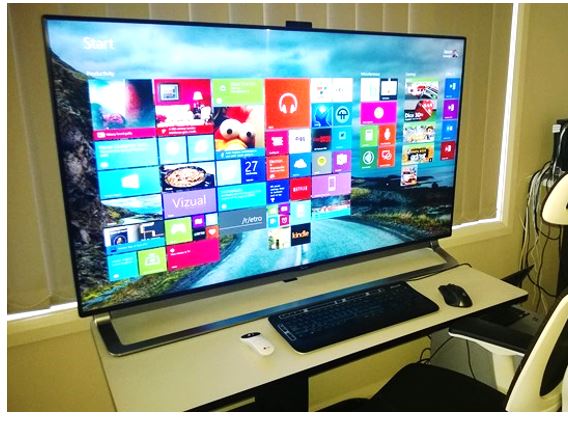
Best TV As Computer Monitor 2026 Expert Reviews Guide Best TV As Computer Monitor . Using A TV As A PC Monitor Pros Cons Setup Guide Using Tv As Pc Monitor Main . Can I Use A TV As A Computer Monitor Can I Use A Tv As Computer Mon Benefits Of Using A Tv As A Mo 1 . Using A TV As A PC Monitor Pros Cons Setup Guide Using Tv As Pc Monitor 2 . How To Use A TV As A PC Monitor Screen H2S Media Use TV As PC Monitor
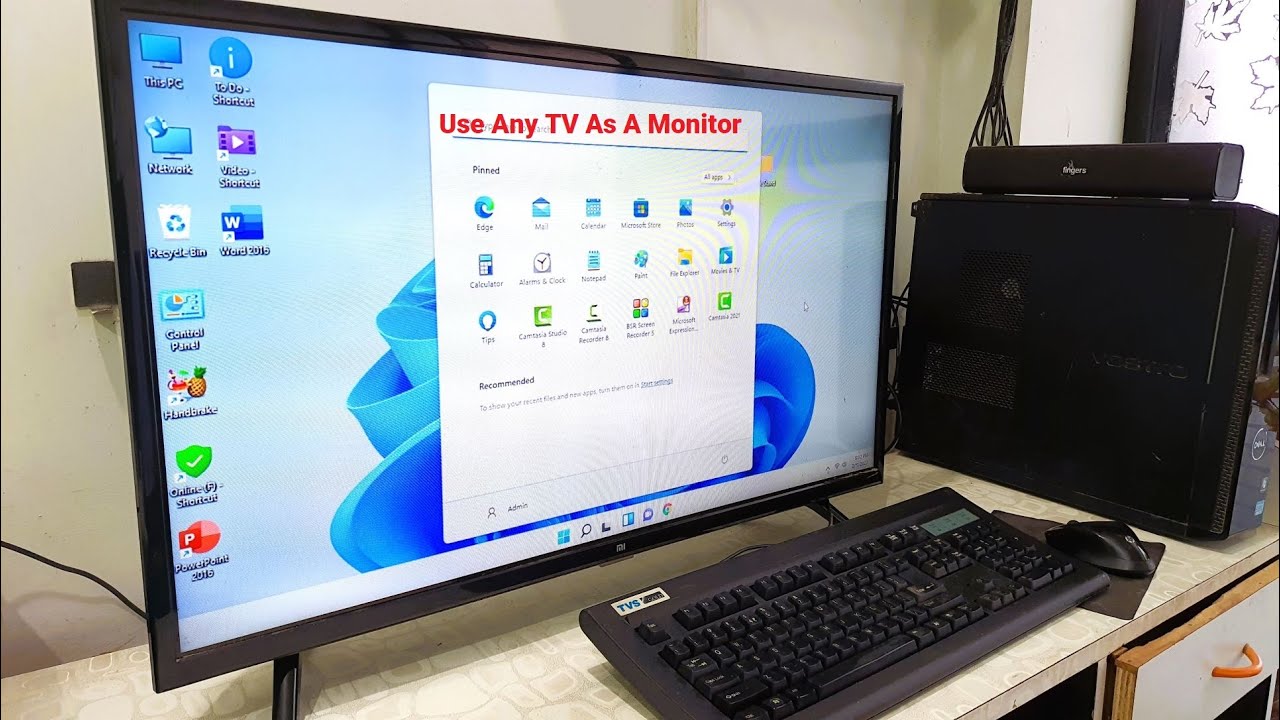
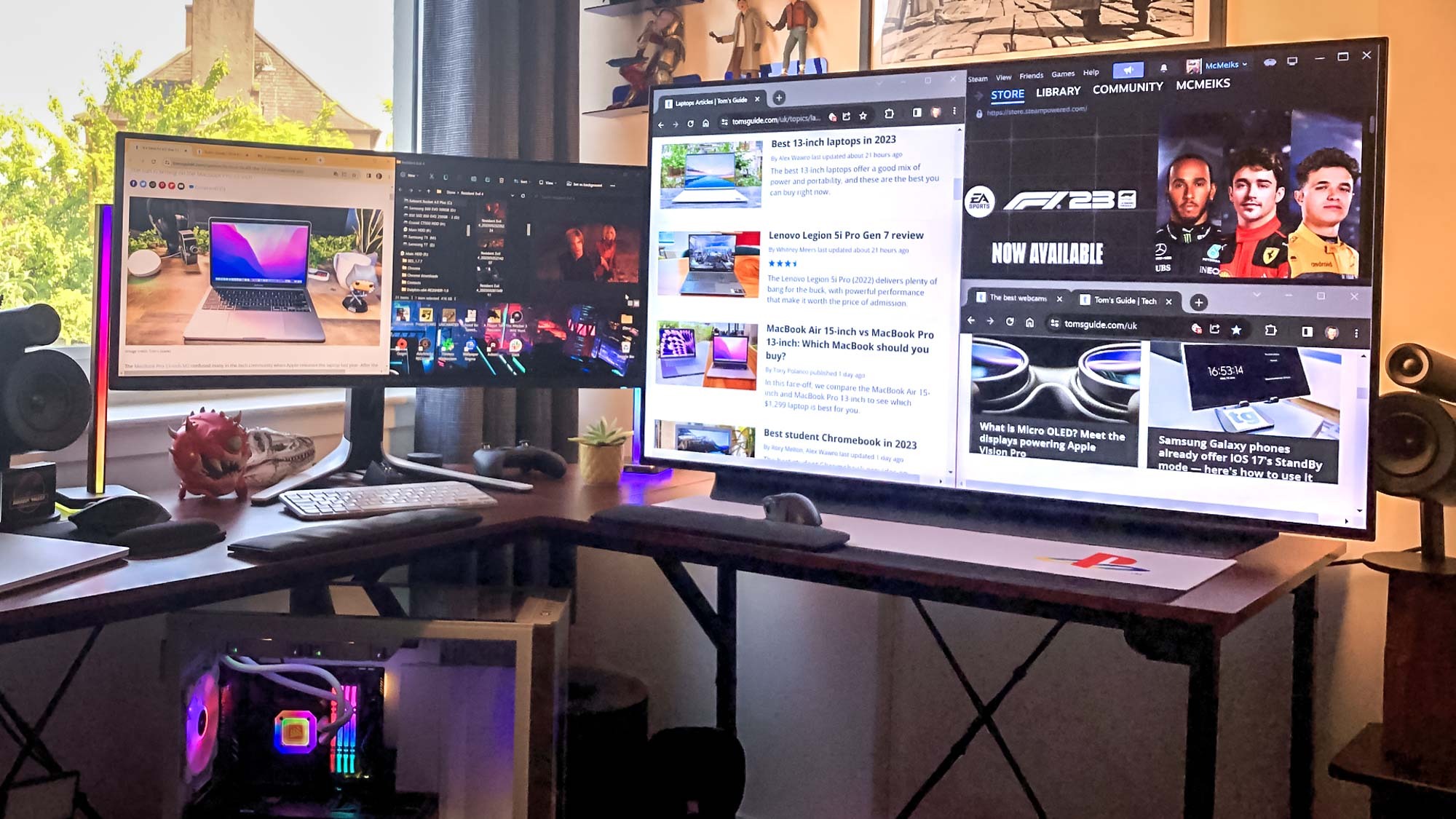


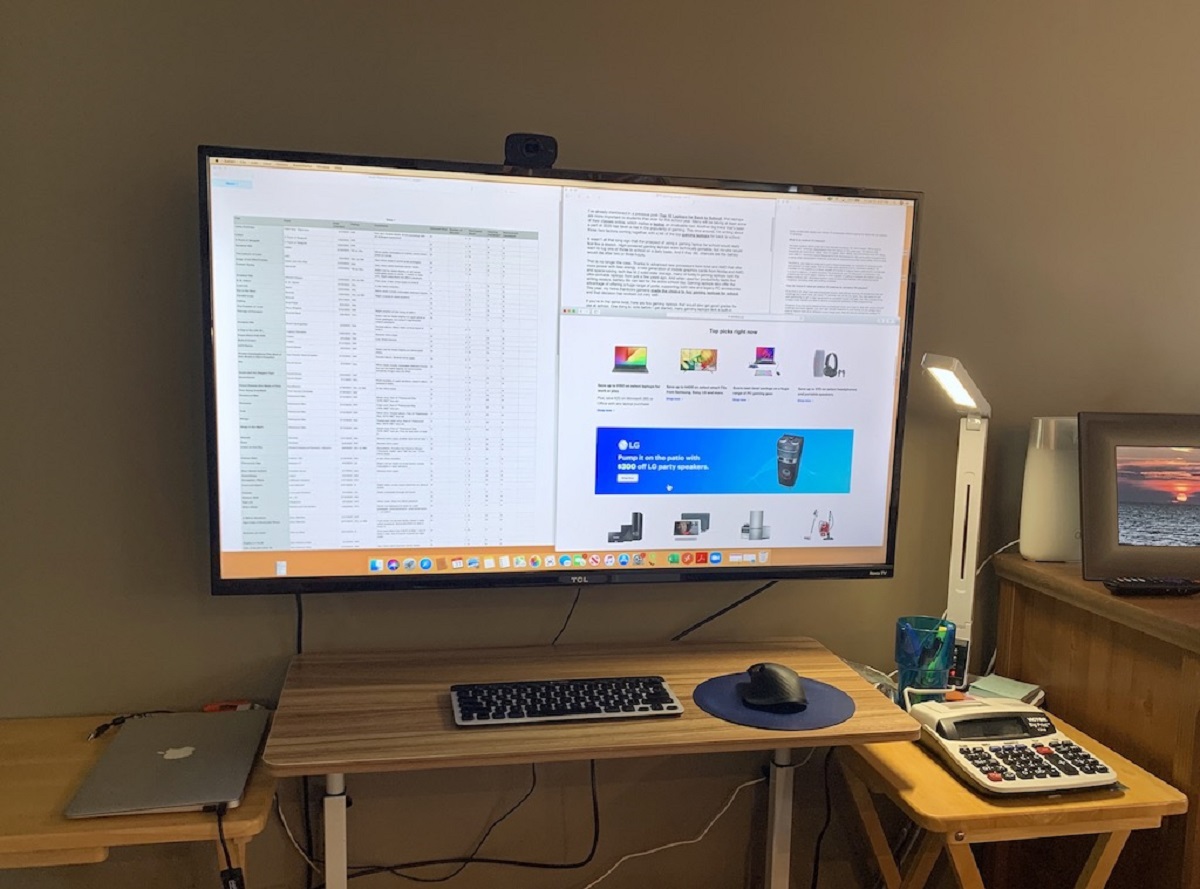
How To Use A Tv As A Computer Monitor Robots Net How To Use Led Tv As Monitor 1701471497 . I Ve Been Using My OLED TV As A PC Monitor For Six . Use Your TV As A Computer Monitor Everything You Need To Know PCWorld Pcw Windows10 Tv 100829154 Orig 1 . 10 Best TV As Computer Monitor 2026 Models Tested Reviewed B0F5VLWQY6 Customer 1 . How To Use A Tv As A Computer Monitor Robots Net How To Use A Tv As A Computer Monitor 1691838325


How To Use A TV As A Computer Monitor A Guide YouTube . How To Use Your TV As A Computer Monitor YouTube . What Is The Best Tv To Use As A Monitor . Using A TV As A PC Monitor Pros Cons Setup Guide Using Tv As Pc Monitor 1 . How To Use TV As Desktop Monitor Simple Setup Guide My Tech Grid

Computer Monitor And Tv Screen How To Use A TV As A PC Monitor Screen 2017 07 03 Image 2 . How To Use Your TV As A Computer Monitor Tech Tips From Best Buy . The Best TVs To Use As A Computer Monitors In 2023 DeviceMAG QN90B QLED 1683265870 Jpg.webp. Good Tv To Use As Computer Monitor Using A TV As A Monitor . 8 Best TV To Use For A Computer Monitor June 2026 Tested B0F5VLWQY6 Customer 2 3 1152x1536



Good Tv To Use As Computer Monitor 7916 Can You Use A Tv As A Computer Monitor . How To Use Your TV As A Computer Monitor With Pictures WikiHow Aid576007 V4 728px Use Your TV As A Computer Monitor Step 16 Version 2 . How To Use A PC Monitor As A TV Digital Trends . 8 Best TV To Use For A Computer Monitor February 2026 Tested Featured Image Iy25ospw . 10 Best TV As Computer Monitor 2026 Models Tested Reviewed B0BW1VM62Y Customer 2 1536x1152

Using A TV As A PC Monitor Pros Cons Setup Guide Refurbished Monitors Nav Banner.webp. 10 Best TV As Computer Monitor 2026 Models Tested Reviewed B07CS3JGPC Customer 3 771x1024 . How To Use TV As Monitor On Your Computer MiniTool How To Use Tv As Computer Monitor 1 . 8 Best TV To Use For A Computer Monitor June 2026 Tested B0CV26XVMD Customer 3 768x1024 . 8 Best TV To Use For A Computer Monitor June 2026 Tested B0FB46P6F6 Customer 1 1536x1152

How To Use A Pc Monitor As A Tv IXXLIQ TV As PC Monitor . Good Tv To Use As Computer Monitor 1200 80 . 8 Best TV To Use For A Computer Monitor June 2026 Tested B0FHLGWJNS Customer 1 16 1024x768 . How To Use A TV As A Computer Monitor CitizenSide How To Use A Tv As A Computer Monitor 1700373356 . Best Tv That Can Be Used As A Monitor Best Monitor Tvs 20220817 Medium