Ever wondered how to expand your gaming library without breaking the bank? Or how to easily share your favorite titles with family and friends? This comprehensive guide dives deep into shared games Steam, specifically Valve's robust Family Sharing feature. We explore how this often-underestimated tool can transform your gaming experience, offering unparalleled value and convenience. For US gamers balancing work, family, and a passion for gaming, understanding Steam Family Sharing is crucial. It addresses common pain points like limited gaming budgets, discovering new titles, and fostering social play. In an era where 87% of US gamers play regularly, often dedicating 10+ hours a week, and social gaming continues its ascent, optimizing your Steam library access is more relevant than ever. This article provides step-by-step instructions, troubleshooting tips, and answers all your burning questions about sharing your Steam library efficiently and securely. Get ready to unlock new ways to play and connect with fellow gamers, maximizing your entertainment without compromising your wallet.
What exactly is Steam Family Sharing?
Steam Family Sharing is a feature that allows you to share your entire Steam game library with up to five other trusted Steam accounts across ten different computers. This means your family members or close friends can download and play games you own without buying them separately. Each borrower gets their own save files and achievements, ensuring a personalized experience even while sharing.
How do I enable Steam Family Sharing on my computer?
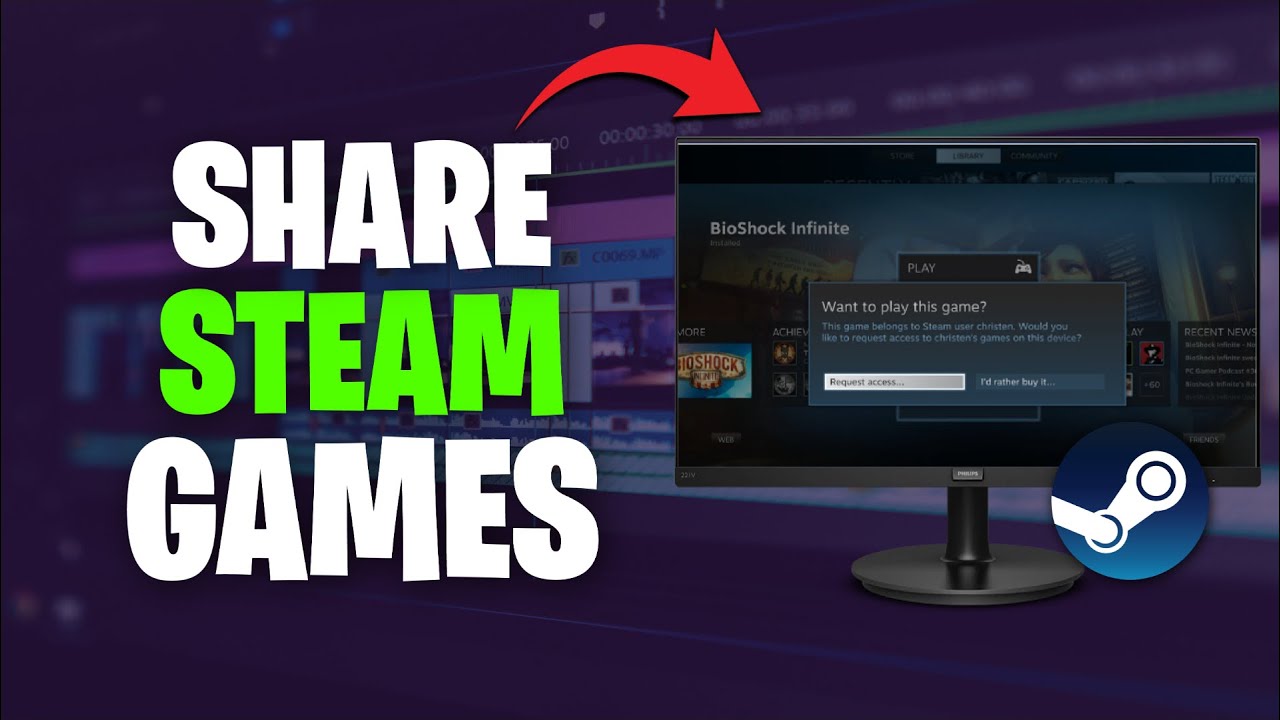
Enabling Steam Family Sharing is simple. First, make sure Steam Guard is active on your account. Then, log into the Steam client, go to 'Steam' in the top-left corner, select 'Settings', navigate to the 'Family' tab, and check 'Authorize Library Sharing on this computer'. Finally, select the specific user accounts you wish to grant access to from the list of eligible accounts.
What are the main limitations of sharing games on Steam?
The primary limitation is that only one person can access a shared library at a time. If the library owner starts playing any game, the borrower will be prompted to stop playing. Additionally, certain games with third-party DRM, subscriptions, or free-to-play mechanics are typically not shareable. Borrowers also cannot purchase DLC for shared games.
Can I play my own games while someone else is using my shared library?
No, you cannot. If a friend or family member is actively playing a game from your shared library, and you decide to start playing any game from your own library, they will receive a notification and a short grace period to either purchase the game themselves or quit playing. This ensures exclusive access to the library at any given moment.
What happens if a borrower cheats while playing my shared game?
This is a crucial security aspect: if an authorized user receives a Valve Anti-Cheat (VAC) ban while playing a game from your shared library, your primary Steam account will also receive a VAC ban for that specific game. This policy underscores the importance of only sharing your library with highly trusted individuals to protect your account's standing.
Is it possible to share specific games instead of the entire library?
No, Steam Family Sharing currently only allows you to share your entire eligible game library, not individual titles. Once you authorize a computer and specific accounts, they gain access to all shareable games you own. There isn't a granular control option to pick and choose which games are shared or withheld within the feature.
How do I deauthorize a computer or a user from my shared Steam library?
To revoke access, open your Steam client, go to 'Steam' > 'Settings' > 'Family' tab. Here, you'll see a list of authorized computers and users. You can click 'Deauthorize' next to a computer's name to remove its access, or simply uncheck the box next to a user's name in the 'Eligible Accounts' list to revoke their borrowing privileges. This gives you full control over your shared library's access.
In the bustling world of 2026, where US gamers, averaging around 36 years old, skillfully balance careers, families, and their cherished gaming time, finding smart ways to enjoy more games for less is a constant quest. With 87% of gamers regularly diving into virtual worlds and many spending over 10 hours a week, the desire for new experiences is strong, but budgets for hardware upgrades and the latest titles can be tight. This is where shared games Steam becomes a game-changer. Imagine expanding your playable library without buying every single title, or letting your kids or spouse try out your favorites without an extra purchase. Steam Family Sharing isn't just a convenience; it's a strategic move for the savvy gamer.
You're not alone if you've ever thought, "I wish my friend could try this game without buying it," or "My partner wants to play that cozy game I finished." Steam Family Sharing is designed precisely for these scenarios, turning your digital library into a shared resource for up to five trusted accounts. It's about value for money, fostering social connections (even if you're not playing together simultaneously), and ensuring everyone gets more bang for their gaming buck. In a landscape dominated by social trends and the ongoing search for stress relief and engaging fun, leveraging shared games Steam effectively is a smart play. Let's dive into how you can set it up, what to expect, and how to troubleshoot common issues so you can get back to what matters: playing fantastic games.
What is Steam Family Sharing and How Does It Work?
Steam Family Sharing is a feature that allows you to authorize family members and trusted friends to play games from your Steam library. Once enabled, authorized users can download and play nearly any game you own from their own Steam accounts. The core idea is to let multiple users access a single game library, making it perfect for households with several gamers or close-knit friend groups.
When you enable Family Sharing, your entire eligible game library becomes available to the chosen accounts. They can install and play these games as if they owned them, earning their own achievements and saving their own progress to their individual Steam Cloud. The beauty lies in its simplicity and the ability to maximize the utility of your purchased titles, enhancing the value for money aspect that busy gamers appreciate.
Who Can Access My Shared Steam Games?
You can authorize up to five other Steam accounts and ten different computers to access your shared games Steam library. These can be family members, roommates, or close friends. Each account will have its own saved game progress and achievements, ensuring personalized experiences. Remember, sharing is typically done on a per-computer basis, so you'll need to authorize each PC or Mac where the shared library will be accessed.
This means your child can play your single-player adventure on their computer, or your spouse can try out that indie puzzle game on their laptop, all without needing to purchase separate copies. It's a fantastic way to introduce people to new games or share experiences you've loved, reinforcing the social aspect of gaming that continues to trend upward.
What Are the Key Benefits of Shared Games on Steam?
The advantages of utilizing shared games Steam are numerous, especially for the budget-conscious or time-constrained gamer. Firstly, it offers significant cost savings. Instead of buying duplicate copies of games, family members can access existing titles. Secondly, it's a fantastic way for players to sample games before committing to a purchase, reducing buyer's remorse.
Thirdly, it promotes social engagement within households or friend circles. Sharing a library can lead to shared gaming experiences, discussions, and recommendations, strengthening bonds. Finally, it helps maximize the value of your gaming purchases, ensuring your digital library gets more playtime across multiple users. It's about smart spending and smart playing, two things modern gamers highly prioritize.
Are There Any Limitations to Steam Family Sharing?
Yes, while incredibly useful, Steam Family Sharing comes with a few important limitations. The most notable is the simultaneous play restriction: only one person can play a shared game library at any given time. If the owner of the shared library starts playing any game from their library (even a different one than the borrower is playing), the borrower will receive a notice and a few minutes to either purchase the game or quit playing.
Furthermore, some games, particularly those requiring a third-party key, account, or subscription, or certain free-to-play titles, cannot be shared. Region restrictions might also apply to some titles. Also, while borrowers can play, they cannot purchase DLC for a shared game; only the library owner can do that. These limitations are in place to balance convenience with fair use.
How Do I Set Up Steam Family Sharing Step-by-Step?
Setting up shared games Steam is straightforward. Here's a quick guide:
- Log into your Steam account on the computer you wish to authorize.
- Ensure Steam Guard is enabled. This is a crucial security measure.
- From the Steam client, click 'Steam' in the top-left corner, then 'Settings' (or 'Preferences' on Mac).
- Navigate to the 'Family' tab.
- Check the box next to 'Authorize Library Sharing on this computer'.
- Under 'Eligible Accounts', check the boxes next to the names of the family members or friends you wish to authorize. If their account isn't listed, they need to log into Steam on that specific computer at least once.
- Click 'OK' to save your changes.
Once authorized, the selected users can log into Steam on that computer and see your shared games under a separate category in their library, ready to install and play.
What Happens If My Friend or Family Member Cheats on My Shared Game?
This is a critical point for any gamer concerned about their account's integrity. If an account authorized to play your shared games Steam library receives a Valve Anti-Cheat (VAC) ban while playing a game from your library, your Steam account will also be VAC banned from that specific game. This policy is in place to deter abuse and ensure fairness across the platform. It's a strong reminder to only share your library with individuals you trust implicitly, reinforcing the social contract of gaming.
A VAC ban on your account can be a significant blow, potentially affecting your ability to play specific titles. Therefore, selecting trustworthy individuals for sharing is paramount. This emphasizes the importance of responsible sharing, especially as 60% of US gamers value fair play and a healthy gaming environment.
Can I Share Games with Different Operating Systems?
Yes, Steam Family Sharing generally supports cross-platform sharing where a game supports multiple operating systems. For example, if you own a game that has both Windows and macOS versions, a family member using a Mac can play your shared game if they are authorized on a Mac computer, provided the game itself supports macOS. However, if a game is only available on Windows, a Linux user won't be able to play it through Family Sharing.
This flexibility ensures that your diverse family members, who might be using Windows, Mac, or even Linux, can still benefit from your shared games Steam library, expanding accessibility across different hardware setups without additional purchases. It's another way Steam accommodates the varied tech setups of modern gamers.
How Do I Manage or Revoke Access to Shared Steam Games?
Managing and revoking access to your shared games Steam library is as simple as setting it up. If you need to remove an authorized user or device, perhaps due to a change in circumstances or security concerns, follow these steps:
- Open your Steam client and go to 'Steam' > 'Settings' (or 'Preferences' on Mac).
- Select the 'Family' tab.
- Under 'Authorize Library Sharing on this computer', you'll see a list of authorized computers and users.
- To deauthorize a computer, click the 'Deauthorize' button next to its name.
- To revoke access for a specific user, uncheck their name in the 'Eligible Accounts' list.
This gives you full control over who has access to your valuable game library, ensuring your digital assets remain secure and accessible only to your chosen circle.
Which Games Cannot Be Shared on Steam?
While most games on Steam are eligible for Family Sharing, there are notable exceptions. Games that require a third-party key, account, or subscription to play (like many MMOs or titles using external launchers) often cannot be shared. Free-to-play games, while free, typically have their own unique accounts or systems that prevent them from being part of the Family Sharing mechanism. Additionally, games that are region-locked to your account might not be playable by someone in a different region even if shared.
It's always a good idea to check a specific game's Steam page or community forums if you're unsure about its Family Sharing eligibility. Generally, single-player and many multiplayer games without complex third-party integrations are shareable, offering a vast pool of titles to enjoy.
Is Steam Family Sharing Worth It for Busy Gamers?
Absolutely, Steam Family Sharing is a fantastic resource for busy gamers. For individuals who balance demanding jobs, family responsibilities, and other life commitments, every dollar and every minute count. Shared games Steam offers a zero-cost way to explore new titles, catch up on older gems, or enable loved ones to enjoy gaming without additional expenditure.
It's about maximizing entertainment value and minimizing financial outlay. Whether you're looking for a relaxing narrative game after a long day, a fun skill-building challenge, or a way to introduce younger family members to your favorite digital worlds, Family Sharing delivers. It aligns perfectly with the modern gamer's desire for value, convenience, and opportunities for social connection, making it an indispensable tool in your gaming arsenal.
Troubleshooting Common Shared Games Steam Issues
While generally reliable, you might encounter a few hiccups with shared games Steam. Here are quick fixes for common problems:
- Game not appearing in library: Ensure the lending account is logged into Steam on the specific computer and authorized sharing. The borrower also needs to log in on that same computer at least once.
- "Shared library unavailable" error: The owner might be currently playing a game from their library. Wait for them to finish, or if it's an emergency, they may need to revoke and re-authorize the device.
- Frequent disconnects: Check both owner and borrower's internet connection. Sometimes a brief network drop can trigger the simultaneous play kick-off.
- Games requiring third-party logins: These are typically not shareable. Confirm the game's compatibility.
- Deauthorize and reauthorize: For persistent issues, deauthorizing the computer and then re-enabling Family Sharing can often resolve underlying glitches.
These simple steps can quickly get you back to enjoying your shared library and keep your gaming sessions smooth and stress-free.
Shared games Steam offers a brilliant solution for expanding your gaming horizons without expanding your budget. It's a testament to Steam's commitment to creating a flexible and community-focused platform. By leveraging Family Sharing, you're not just saving money; you're creating opportunities for shared experiences, helping family members discover new favorites, and making the most of your digital investments. It’s a smart, social, and budget-friendly approach that perfectly aligns with the modern gamer’s lifestyle in 2026. What's your biggest gaming challenge? Comment below! We love hearing from fellow gamers.
FAQ Section
Can I share my Steam games with someone in another country?
Yes, theoretically, Steam Family Sharing isn't geographically restricted. However, specific game titles might have regional restrictions or availability differences that could prevent a shared game from being playable in a different country, even if the feature itself works across borders. Always check individual game requirements for international play.
Will my saved game progress transfer when I share a game?
No, when someone borrows a game from your shared library, they create their own unique saved game progress and earn their own achievements. These are stored on their individual Steam account and often in their Steam Cloud, separate from your own progress. This ensures personalized gaming experiences for everyone.
Can two people play the same shared game at the same time?
No, only one person can access a shared Steam library at any given moment. If the owner of the library starts playing any game from their collection, any borrower currently using a shared game will be given a few minutes to either purchase the game or exit their session.
What happens to my DLC if I share a game?
When you share a game, the borrower automatically gains access to any DLC you own for that specific game. However, the borrower cannot purchase new DLC for the shared game; only the library owner can make DLC purchases, which then become available to authorized sharers.
Is Steam Family Sharing safe and secure?
Yes, Steam Family Sharing is generally safe and secure, provided you only authorize trusted individuals. Steam Guard provides an additional layer of security. The main risk is the potential for a VAC ban on your account if a borrower cheats in one of your shared games, which highlights the importance of choosing reliable users.
Steam Family Sharing allows library access for trusted friends and family; Saves money by sharing owned games; Easy setup process through Steam client; Only one user can play a shared game at a time; Some games with third-party DRM or subscriptions cannot be shared; VAC banned accounts revoke sharing privileges; Great for households with multiple gamers.
35


How Can You Share Steam Games With Your Friends Easily Hero . Steam Sales 2026 Calendar Full Dates Best CD Key Deals AllKeyShop Com All Steam Events 2026. Steam Next Fest February 2026 The 22 Best Game Demos The Best Steam Next Fest Demos 2026 The Punished Backlog Order 2 300x162 . The Most Played Games On Steam For 2026 So Far Cheat Code Central Most Played Games Steam 2026 2048x1167 . January 2026 S Top Selling New Steam Games Revealed 08418405 04a2 47eb B48b 1500x843

:max_bytes(150000):strip_icc()/A2-ShareGamesonSteam-annotated-a1ba8f230df443db94a7be5654e92cb9.jpg)

How To Share Games On Steam With Steam Family 2026 Guide YouTube . How To Share Games On Steam 2026 Steam Family YouTube . How Can You Share Steam Games With Your Friends Easily A2 Annotated . Steam Next Fest February 2026 The 22 Best Game Demos The Best Steam Next Fest Demos 2026 The Punished Backlog 1024x553 . How Can You Share Steam Games With Your Friends Easily



2026 Steam GAMES GG Medium Valve Just Announced Every Steam Sale. Steam Next Fest 2026 And Beyond All The Dates Details And Everything. 15 Best PC Games Of 2026 So Far Ranked Vibe List The 15 Best PC Games Of 2026 So Far And The Studios Surprises And Steam Records Behind Them 768x429 . Kalender Lengkap Event Steam 2026 Diskon Besar Dan Festival Game Favorit Steam Events Q82 W2560 H 27565.webp. The Top 2026 Games By Steam Wishlists By Rhys Elliott Fc2aa87f 2277 4294 9e7b 1920x1080



Kalender Lengkap Event Steam 2026 Diskon Besar Dan Festival Game Favorit Steam Events 2 Q82 W2560 H 74ce0.webp. How Can You Share Steam Games With Your Friends Easily Steam Force Other To Quit Game In Shared Account How Steam Handles Game Conflicts In Family Sharing 1536x864 . Best Free Games To Claim Right Now 2026 Steam PlayStation Xbox More May 2026 Free Games Feature Image . How Can You Share Steam Games With Your Friends Easily . How Can You Share Steam Games With Your Friends Easily



Best Co Op Horror Games On Steam 2026 Update LRDev Games 1.Best RPG Games On Steam Complete Guide.webp. Steam Shares The 50 Most Played Demos From February 2026 Next Fest 1200cr630 Q100 . All The Free Games You Can Claim In April 2026. Top 10 Most Anticipated Games Of 2026 What To Watch Out For TVN GAMES IN 2026 . Rekomendasi Game Steam Spring Sale 2026 Wajib Beli Steam Awards 2025 Winners 1024x576


How Can You Share Games On Steam With Friends . 2026 Game Releases Full Upcoming Games Calendar Release Dates PS5 Game Releases Full Calendar Release Dates Main . Steam Sales 2026 Calendar Full Dates Best CD Key Deals AllKeyShop Com All Steam Events 2026 1.webp. Steam Sales 2026 Here S The Schedule For The First Half Of The Year 1824cr953 . How Can You Share Steam Games With Your Friends Easily Social Media Share Ifaz .webp



New Steam Features For 2026 Steam Features 2026 What S New Banner.webp. How Can You Share Steam Games With Your Friends Easily How To Share Games On Steam . 5 Game Steam Yang Patut Kamu Mainkan Di Bulan Januari 2026 . Valve Confirms Every Steam Sale Coming Our Way In 2026 2025 Steam Winter Sale Best Deals . My Current Steam Wishlist 2025 2026 New Games YouTube