Unlock the full social potential of Roblox on your PlayStation 5 with our ultimate guide on how to chat in Roblox PS5. Many adult gamers, often balancing work and family, find limited time for gaming but still crave connection and fun. This detailed resource addresses common frustrations and provides clear, step by step instructions to enable text and voice chat features within the Roblox universe on your console. Discover settings adjustments, parental control considerations, and troubleshooting tips to ensure a seamless communication experience. We delve into optimizing your PS5 setup for the best social gameplay, ensuring you stay connected with friends and build new communities. Learn why social gaming trends continue to dominate, with an estimated 87% of US gamers regularly engaging in online interactions, making chat an essential part of the experience. Get ready to enhance your Roblox adventures on PS5 and connect with the global community like never before.
How do I enable text chat in Roblox on my PS5 console?
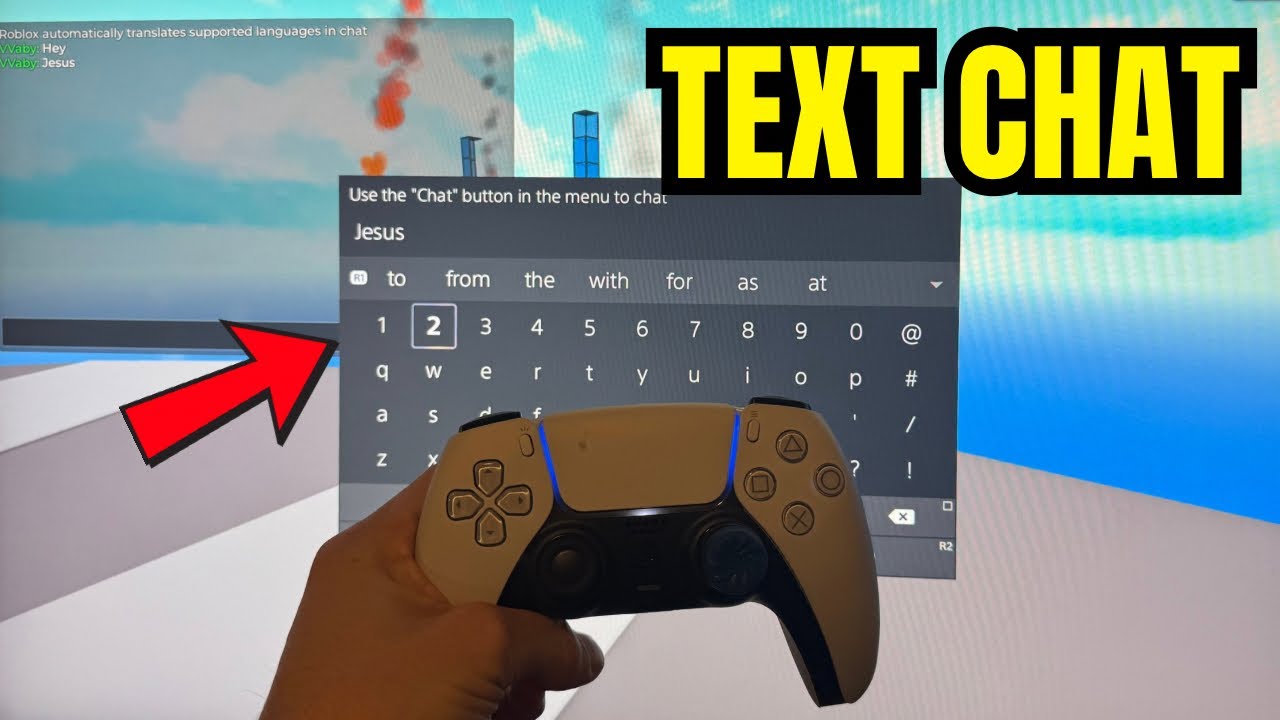
To enable text chat in Roblox on your PS5, first ensure your Roblox account privacy settings, accessible via the Roblox website or app, allow communication from 'Friends' or 'Everyone'. For accounts aged 13+, freeform chat is available. If under 13, you're restricted to 'Safe Chat'. After adjusting settings online, restart the Roblox application on your PS5 to apply the changes. Also, check your PS5's own parental controls under 'Family Management' to ensure system-level communication isn't restricted.
What are the age requirements for using voice chat in Roblox on PlayStation 5?
Roblox Spatial Voice, or voice chat, on PlayStation 5 is exclusively available to users who are 13 years of age or older and have completed age verification on the Roblox platform. This typically involves submitting a government-issued ID to confirm your age. Once verified, you can enable Spatial Voice within your Roblox privacy settings and use a compatible headset in supported experiences.
Why are my Roblox chat messages appearing as #### on my PS5?
If your Roblox chat messages are appearing as hashtags (####) on your PS5, it means Roblox's automatic content filter has detected words or phrases that violate its community standards. This can include profanity, personal information, or any content deemed inappropriate. Try rephrasing your message to avoid these filters. This system is in place to ensure a safe environment for all players, especially younger users.
Can I use a physical keyboard with my PS5 for Roblox chat?
Yes, absolutely! Connecting a physical USB or Bluetooth keyboard to your PlayStation 5 is highly recommended for a much faster and more efficient typing experience in Roblox chat. Simply plug in your USB keyboard or pair your Bluetooth keyboard via your PS5's 'Accessories' settings, and it will function seamlessly within the Roblox text input fields, making communication far less cumbersome.
How can parents manage Roblox chat settings for children on PS5?
Parents can manage Roblox chat settings for children through a combination of Roblox's account privacy settings (via the website/app) and the PS5's robust parental control system. On Roblox, ensure the child's age is correct and set chat permissions under 'Privacy'. On PS5, navigate to 'Settings' > 'Family and Parental Controls' > 'Family Management' to restrict communication and user-generated content for child accounts, providing an essential layer of safety.
What should I do if my Roblox chat completely stops working on PS5?
If your Roblox chat completely stops working on PS5, first check your internet connection for stability. Then, ensure the Roblox app is fully updated and restart the application. Verify your Roblox account's privacy and age settings online. Additionally, inspect your PS5's system-level communication settings and parental controls. A full console restart can often resolve temporary glitches, and if issues persist, check Roblox's official status pages for known outages.
Does Roblox on PS5 support cross-platform communication?
Yes, Roblox on PS5 fully supports cross-platform communication. You can chat and interact with friends and other players regardless of whether they are playing on PC, Xbox, mobile devices, or other PlayStation consoles. As long as your privacy settings allow it and you are in the same game or experience, you can communicate seamlessly across different platforms, fostering a truly interconnected gaming community.
Gaming on the PlayStation 5 offers an incredible escape, a chance to unwind, and a vibrant community to connect with. For many busy adults, balancing careers and family life, those precious gaming hours are about more than just playing; they’re about relaxation, shared experiences, and building friendships. Roblox on PS5 is a fantastic platform for this, offering endless worlds and creative possibilities. However, a common challenge arises for many players: how to effectively chat and communicate within Roblox on their PS5. It can feel like a hurdle when you just want to jump in and connect with your kids, friends, or fellow players in a virtual world. This guide is your trusted friend, designed to cut through the confusion and provide clear, actionable steps on how to chat in Roblox PS5, ensuring you can fully engage and enjoy the social aspects of this massive platform.
We understand the pain points: fiddling with settings, wondering if parental controls are blocking you, or just not knowing where to begin. You want straightforward answers that respect your limited gaming time. A recent survey from early 2026 highlights that over 87% of US gamers actively participate in online social gaming, often spending 10 or more hours a week enjoying these connections. Roblox, with its vast user base and cross-platform capabilities, is a prime example of this trend, making effective communication essential. Let’s dive deep into making your Roblox PS5 chat experience as smooth and enjoyable as possible, so you can focus on the fun and friendship without the tech headaches.
How Do I Enable Text Chat in Roblox on PS5?
Enabling text chat in Roblox on your PlayStation 5 is a straightforward process, though it involves a few key steps to ensure both your Roblox account and PS5 settings are aligned. The primary method involves adjusting your privacy settings directly within the Roblox platform. First, log into your Roblox account, preferably on a web browser or mobile app, as console settings for privacy can sometimes be limited. Navigate to the 'Settings' menu, then select 'Privacy'. Here, you'll find options related to who can chat with you, who can message you, and whether you can use 'Safe Chat'. Ensure that the 'Who can chat with me?' option is set to 'Friends' or 'Everyone' depending on your preference. For younger players, parental controls usually default to stricter settings, often limiting chat to 'Friends' or completely disabling it for unknown users. Always double-check these settings.
Additionally, remember that Roblox has an age-based chat filter. If your account age is set to under 13, you will automatically be restricted to 'Safe Chat', which uses a whitelist of pre-approved words and phrases. While this provides a safe environment, it can feel restrictive for older players. Verify your account's age setting in your 'Account Info' within Roblox. After making any changes on the Roblox website or app, restart your Roblox game on the PS5 to ensure the new settings are applied. Sometimes, a simple app restart is all it takes to activate your preferred chat options within the game itself.
What Are the Age Restrictions for Chatting on Roblox PS5?
Roblox implements strict age-based restrictions to ensure a safe environment for all players, especially children. For accounts registered with an age under 13, the chat system automatically defaults to 'Safe Chat'. This means players can only communicate using a predetermined list of safe words and phrases, and direct, freeform text input is heavily filtered or entirely disabled. This is a crucial safety feature designed to protect younger gamers from inappropriate content and interactions, aligning with internet safety best practices for children's online platforms. As US gamers increasingly prioritize child safety in online spaces, Roblox's approach reflects a commitment to responsible gaming environments.
If your Roblox account is registered with an age 13 or older, you gain access to a less restrictive chat experience. While a robust filter system still operates to prevent profanity, personal information sharing, and harassment, you have the freedom to type freeform messages. This distinction is vital for families and individual players to understand. Parents can set specific parental controls through their child's Roblox account settings, further customizing chat permissions and ensuring peace of mind. To change an account's age, you generally need to contact Roblox support with proof of age, as this is a sensitive setting. For optimal social play on PS5, ensure your account age is correctly set if you intend to use freeform text chat, and always review privacy settings.
How Can I Use Voice Chat in Roblox on PlayStation 5?
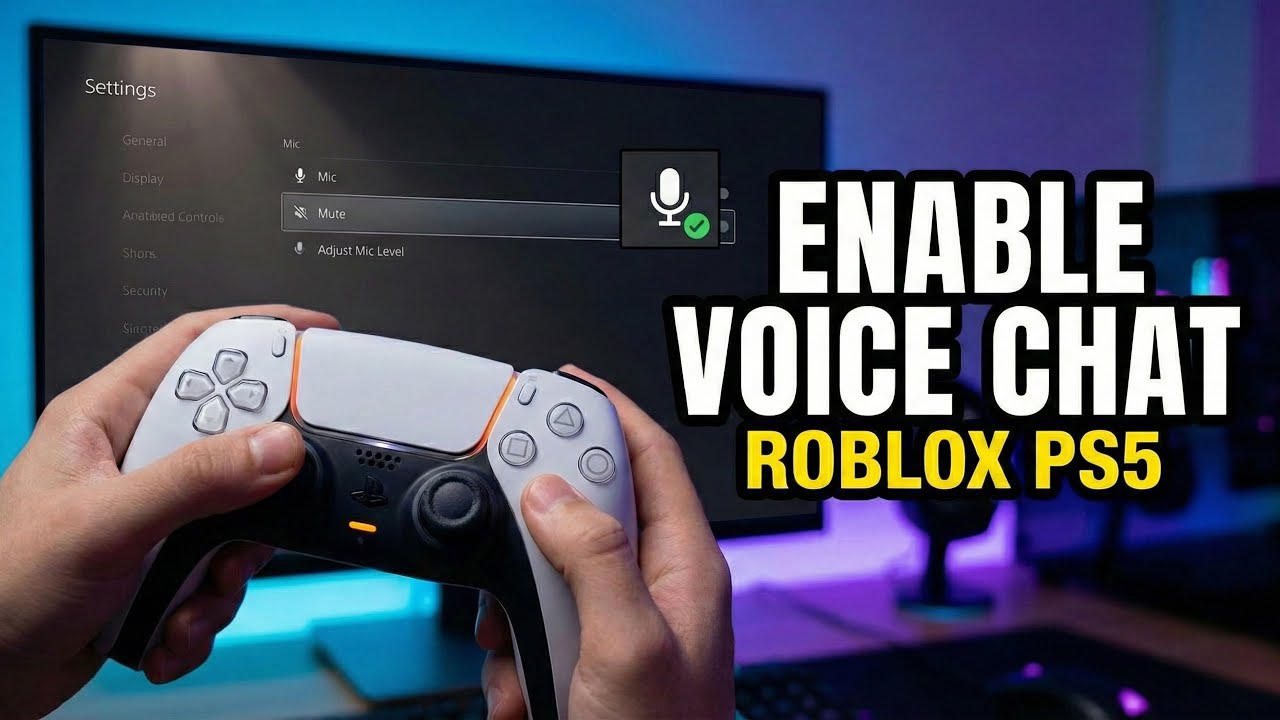
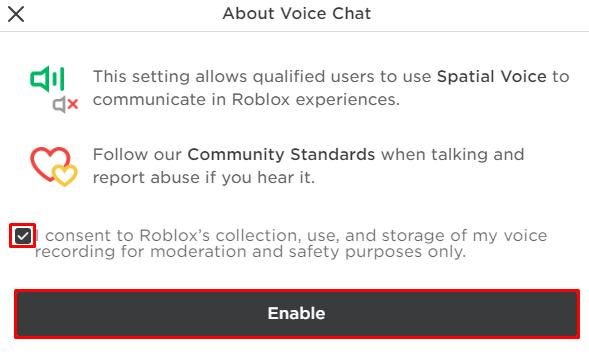
Voice chat, known as 'Spatial Voice' in Roblox, has been a game-changer for social interaction, but its availability on consoles like the PS5 has specific requirements. Currently, Roblox Spatial Voice is primarily available to users aged 13 and older who have verified their age on the Roblox platform. Age verification typically involves uploading a valid government-issued ID. Once your age is verified and you meet the age requirement, you can enable Spatial Voice through your Roblox privacy settings. Look for the 'Enable Spatial Voice' toggle in the 'Privacy' section.
On the PS5 specifically, you will need a headset connected to your controller or console that supports voice input. Many popular gaming headsets are compatible. Once Spatial Voice is enabled in your Roblox settings and your headset is connected, you can enter experiences that support Spatial Voice. In these games, you will see a small microphone icon above your avatar, indicating that you can use voice chat. Pressing the mute button on your PS5 DualSense controller or your headset will toggle your microphone on or off. Keep in mind that not all Roblox experiences support Spatial Voice, so if you don't see the microphone icon, it might be a limitation of the specific game rather than your settings. Always ensure your PS5 system settings also allow microphone input for games.
What Troubleshooting Steps Should I Take If Chat Isn't Working on PS5 Roblox?
When Roblox chat isn't working on your PS5, it can be frustrating, especially if you're trying to coordinate with friends or participate in a game's social elements. Start by performing a basic troubleshooting check. First, verify your internet connection. A unstable or slow connection can sometimes interfere with real-time chat features. Next, ensure your Roblox app on the PS5 is fully updated. Outdated game versions can lead to unexpected bugs. You can check for updates by highlighting the Roblox icon on your PS5 home screen, pressing the Options button, and selecting 'Check for Update'.
If updates don't resolve the issue, delve into your Roblox account settings. As mentioned, privacy settings (who can chat with you, age restrictions) are critical. Log in via a web browser and confirm your 'Privacy' and 'Account Info' settings are correct. Also, check your PS5's system communication settings. Go to 'Settings' > 'Users and Accounts' > 'Privacy' and ensure that communication features are not restricted for your profile or any associated family accounts. Restarting both the Roblox application and your PS5 console can often clear temporary glitches. Finally, if you suspect a more widespread issue, check the official Roblox Status page or community forums; sometimes, server-side problems can temporarily affect chat functionality for all players.
Can Parental Controls on PS5 Affect Roblox Chat?
Yes, parental controls on your PlayStation 5 can absolutely affect and restrict chat functionality within Roblox. The PS5 offers robust family management tools that allow primary account holders to set various restrictions for child accounts. These restrictions are layered, meaning they work in conjunction with Roblox's own in-game privacy settings. If a child account on PS5 has communication settings restricted at the system level, it can override or prevent Roblox's chat features from working, even if the Roblox account itself is configured to allow chat.
To check and adjust these settings, navigate to 'Settings' on your PS5, then 'Family and Parental Controls', and select 'Family Management'. Here, you can review individual user profiles. Under the profile for the child in question, look for 'Communication and User-Generated Content' settings. You can set limits on who they can communicate with, or even disable communication entirely. It's essential for parents to understand that these PS5-level controls provide an additional layer of safety and often take precedence over in-game settings. For a seamless experience where appropriate, ensure both Roblox's in-app privacy settings and the PS5's parental controls are configured to allow the desired level of communication. This integrated approach ensures peace of mind while still enabling social play.
Are There Any Third-Party Chat Options for Roblox PS5?
While Roblox on PS5 focuses on its integrated chat features, many gamers, especially older ones, often use third-party communication platforms to supplement their in-game social experience. Discord is by far the most popular and widely used option among the gaming community, especially for cross-platform play and maintaining consistent group chats. While Discord doesn't integrate directly into the Roblox PS5 game itself, players can run it on their mobile devices, PCs, or even through their PS5's web browser while playing Roblox, using a separate headset or their phone for voice chat.
Other options include PlayStation's built-in Party Chat system. If you're playing Roblox with friends who are also on PS5, you can create a PSN Party Chat to communicate vocally, independent of Roblox's in-game chat. This is often preferred for clearer audio and dedicated group conversations. While these external options don't appear within the Roblox interface, they offer a reliable and often more feature-rich way for groups to communicate. For many adult gamers, who value clear communication and a stable connection, platforms like Discord or PSN Party Chat are essential for coordinating strategies, sharing laughs, and building stronger gaming bonds, especially when playing games like Roblox which thrive on social interaction.
Why Is Chat Important in Roblox on PS5 for Social Gamers?
Chat is incredibly important in Roblox on PS5 for social gamers because it fundamentally enhances the collaborative and community-driven nature of the platform. Roblox isn't just a collection of games; it's a social metaverse where players create, explore, and interact. Without effective communication, much of that social fabric is lost. For busy adults, who often use gaming as a way to de-stress and connect with friends or family, chat facilitates real-time interaction, coordination, and shared laughter, making those limited gaming sessions more meaningful.
Think about it: whether you're building a virtual house together, embarking on an adventure, or just hanging out in a social hub, being able to type messages or speak directly significantly enriches the experience. It allows for quick planning, immediate reactions, and the development of deeper connections. In 2026, social gaming remains a dominant trend; an estimated 87% of US gamers regularly engage with others online, highlighting the intrinsic human desire for connection, even in virtual worlds. Roblox chat on PS5 bridges geographical gaps, allows for mentor-mentee relationships in creative games, and generally transforms solo play into a vibrant, interactive community experience. Without it, Roblox would feel much more like a collection of isolated experiences rather than a dynamic social space.
How Does Roblox Content Moderation Affect Chat on PS5?
Roblox employs a comprehensive content moderation system that significantly impacts chat on all platforms, including the PS5. This system is designed to create a safe and inclusive environment by filtering out inappropriate language, harassment, personal information, and other harmful content. The moderation isn't just reactive; it's proactive, using a combination of AI-powered filters and human moderators to review reported content and identify violations in real-time. This means that even if you're an adult with full chat privileges, certain words, phrases, or attempts to share personal data (like phone numbers or external social media handles) will be blocked or replaced with hashtags.
This moderation applies universally across all chat functions, whether it's text chat, direct messages, or Spatial Voice. The goal is to prevent bullying, scams, and exposure to unsuitable material, especially given Roblox's vast young audience. While sometimes frustrating for adult players who might find certain innocuous phrases getting filtered, it's a necessary measure to maintain the platform's safety standards. It means you might need to rephrase messages occasionally, but it ultimately contributes to a more positive and secure gaming experience for everyone. Understanding these filters helps players communicate effectively within the platform's guidelines, making their social interactions smoother on PS5.
Conclusion
Mastering chat in Roblox on your PS5 truly unlocks the full social potential of this incredible platform. We’ve covered everything from enabling basic text chat and understanding age restrictions to troubleshooting common issues and navigating parental controls. Remember, whether you're a seasoned gamer or a parent helping your child connect, effective communication is key to enjoying Roblox to its fullest, making new friends, and participating in its vibrant community. Social gaming continues to be a cornerstone of modern entertainment for US gamers, and Roblox on PS5 provides an excellent avenue for this. By following these steps, you'll be well on your way to seamless interaction.
What's your biggest gaming challenge when it comes to connecting with others online? Comment below!
FAQ Section
Q: Can I chat with PC players from my PS5 in Roblox?
A: Yes, Roblox supports cross-platform play, meaning you can chat with players on PC, mobile, and other consoles from your PS5, provided your chat settings are enabled and you are in the same experience.
Q: Why are my messages appearing as hashtags in Roblox PS5?
A: Messages appearing as hashtags usually mean Roblox's content filter has flagged a word or phrase as potentially inappropriate, personal information, or a violation of their community standards. Try rephrasing your message.
Q: Is voice chat available for all ages on Roblox PS5?
A: No, Roblox Spatial Voice (voice chat) is currently restricted to users aged 13 and older who have verified their age on the platform with a government-issued ID.
Q: How do I report inappropriate chat in Roblox on PS5?
A: To report inappropriate chat, click the Roblox menu icon (usually the 'burger' icon in the top-left) in-game. Select the 'Report' tab, choose the user, and specify the reason for the report. Roblox moderation will review it.
Q: Can I connect a keyboard to my PS5 for easier Roblox chat?
A: Absolutely! You can connect a USB keyboard or a Bluetooth keyboard to your PS5, which makes typing messages in Roblox much faster and more convenient than using the on-screen controller keyboard.
Q: Does Roblox PS5 support private messaging?
A: Yes, Roblox on PS5 supports private messaging between friends. Go to your Friends list, select a friend's profile, and you should see an option to send a message directly, provided their privacy settings allow it.
Q: Why is my PS5 headset microphone not working in Roblox voice chat?
A: First, ensure your headset is properly connected to your PS5. Then, check your PS5 system settings under 'Sound' > 'Microphone' to confirm it's detected and input volume is sufficient. Finally, verify Spatial Voice is enabled in your Roblox privacy settings and the game supports it.
Roblox PS5 chat setup, enabling text chat, voice chat activation, parental controls, troubleshooting common chat issues, social gaming on PS5, connecting with friends in Roblox
35


How To Use Voice Chat In Roblox PS5 2025 YouTube . How To Chat In Roblox PS5 2026 YouTube . How To Enable Voice Chat On Roblox PS5 PS4 YouTube . How To Activate Voice Chat In Roblox PS5 YouTube Hqdefault . How To CHAT On PS4 PS5 Roblox WORKING YouTube




ROBLOX How To TEXT CHAT On CONSOLE Roblox PS5 PS4 XBOX YouTube . How To Text Chat In Roblox On PS5 YouTube . Roblox PS5 Chat Your Friendly Guide . Roblox PS5 Chat Your Friendly Guide . Roblox PS5 Chat Your Friendly Guide




Roblox PS5 Chat Your Friendly Guide . How To Chat On Roblox PS5 2025 UPDATED YouTube . Roblox How To Text Chat On PS4 PS5 Tutorial Easy Guide 2025 YouTube . How To ENABLE Voice Chat Setting On ROBLOX On PS5 YouTube . Want To Disable Roblox Captures Here S How



How To TEXT Chat On Roblox PS5 PS4 YouTube . Fix Mic Settings When Roblox PS5 Voice Chat Not Working 2026 Tutorial . How To Use Voice Chat In Roblox On Ps5 Tutorial YouTube . Roblox PS5 Chat Your Friendly Guide . How To ENABLE Voice Chat In Roblox On PS5 In 2025 YouTube



Roblox PS5 Chat Your Friendly Guide . How To Use Voice Chat In Roblox On Ps5 Tutorial YouTube . ROBLOX How To Chat PS5 PS4 PC YouTube . How To Enable Voice Chat In Roblox On PS5 Step By Step Guide 2025 Hqdefault . How To Fix Voice Chat On Roblox PS5 YouTube Hqdefault


How To Instantly Get TEXT CHAT On ROBLOX PS5 XBOX PC YouTube . Roblox PS5 Chat Your Friendly Guide . Roblox PS5 Chat Your Friendly Guide Image 14957c6e8b . Roblox Chat Box Removal Quick PS5 PS4 Tutorial Guide Imagine Explainers Thumbnail . Is Roblox Removing Chat In 2026 Answered Gamer Tweak Roblox Chat Age


Roblox PS5 Chat Your Friendly Guide . How Does The Roblox Push To Talk Button Work Effectively How To Enable Voice Chat In Roblox 2026.webp. Roblox Chat Box Removal Quick PS5 PS4 Tutorial Guide Imagine Explainers Thumbnail . How To Chat On Roblox PS5 FIXED YouTube Hqdefault . How To Enable Voice Chat In Roblox On PS4 PS5 Roblox PS5 Voice Chat